
Clear your doubts about Guru trackings, from the operation and setup of P.P.C.T.s to monitoring costs, conversions, and results of your campaigns.
On this page, you will also find guidance on installation, setup, cost import, results analysis, and troubleshooting related to tracking and monitoring conversions.
On this page:
-
Tracking concepts and setup
-
Tracking costs and ROI
-
Tracking validations and adjustments
-
Tracking metrics and analysis
Tracking concepts and setup
Understand how Guru trackings work in practice, including P.P.C.T. link setup, application on pages and checkouts, and important validations to ensure correct conversion functionality.
- What is P.P.C.T. and how does tracking work in Guru?
P.P.C.T. (Point-to-Point Conversion Tracking) is the exclusive link used by trackings in Guru to identify traffic source and track the user journey to conversion, whether it's a sale, lead, or initiated checkout.
How does P.P.C.T. work in Guru?
Unlike solutions that rely on scripts installed on pages, Guru tracking works through these links: when creating an P.P.C.T., you enter the traffic source (e.g. Meta Ads, Google Ads, email marketing) and the linked page or product. From then on, every click is recorded and associated with that source, allowing you to track metrics such as clicks, conversions, and ROI without having to install anything on your pages or ads.
To track metrics associated with trackings, access the Tracking Dashboards.
- What types of P.P.C.T. are available and when should I use each one?
Guru offers four types of P.P.C.T., each designed for a different point in the conversion journey:
-
The Sales P.P.C.T.: tracks the source of direct sales; it is recommended to create one link per traffic source (e.g. Meta Ads, Google Ads), using UTM parameters to differentiate campaigns within the same source;
-
the Leads P.P.C.T. is suitable for strategies where the visitor is captured as a lead before making a purchase - just like with Sales P.P.C.T., it is recommended to create one link per traffic source and use UTM parameters to differentiate campaigns;
-
the Checkout P.P.C.T. is recommended when traffic goes directly to a product offer - one link per offer is recommended, which can be reused across different pages pointing to the same offer;
-
and the Forms P.P.C.T. is aimed at lead opt-in forms - one link per form is recommended, reusable across different pages linked to the same form.
You can also combine different types of P.P.C.T. in the same strategy - for example, an Forms P.P.C.T. can track lead generation, while a Sales P.P.C.T. tracks subsequent conversion.
In addition, with tracking groups you can organize different P.P.C.T.s in the same structure, making it easier to manage trackings for a campaign or strategy.
- Do I need to install any script on my page to use Guru trackings?
No. To use trackings in Guru, you do not need to install scripts or insert code into your pages.
The platform's tracking works through exclusive trackable links called P.P.C.T. (Point-to-Point Conversion Tracking), responsible for identifying the traffic source and tracking the user journey to conversion.
This model allows you to follow the user journey, monitor campaigns, and analyze metrics such as sales, leads, and ROI without relying on script installation in the page structure.
- Can I add UTMs to the P.P.C.T. link?
Yes. To differentiate campaigns or other segmentations within the same traffic source, you can use UTM parameters in Sales P.P.C.T. and Leads P.P.C.T. links.
Accepted UTM parameters are: utm_content, utm_medium, utm_term and utm_campaign.
For the parameter reading and association to be successful, check the best practices for configuring UTM values and see how to use different UTM combinations to analyze results by campaign, ad set, creative, or other segmentations.
To understand how UTMs work in Guru trackings, check UTM: what it is and how to use it in Guru trackings.
The utm_source parameter can be added to the P.P.C.T. URL, but it will be ignored by Guru, because when creating a Sales or Leads P.P.C.T., you must specify the traffic source where the link will be used (this value is treated as utm_source).
- Can I generate the P.P.C.T. link on a custom domain?
Yes, you can generate your P.P.C.T. links using your own domain or subdomain.
To use your custom domain in Guru trackings, you can:
-
Set a default domain for tracking: when setting up a domain or subdomain in Guru, you can set it as default for all new P.P.C.T. links generated in the account - to do this, you must activate the “default for trackings” option in the custom domain setup.
-
Use different domains per tracking group: if you use multiple domains in your campaigns, you can link a specific domain to each tracking group - this way, all P.P.C.T.s created or organized within that group automatically start using the configured domain.
This setup allows you to standardize tracking links according to your campaign strategy and the structure used on your pages and ads.
Learn more about setup and custom domain management in Guru.
By default, tracking links use the domain clkdmg.site, but you can customize this structure by configuring a custom domain inside the platform.
- Can I use Guru trackings even if I use an external checkout?
Yes. Guru trackings can be used with external checkouts, provided that the integration with Guru is configured correctly.
For conversions to be recorded, it is necessary to:
-
integrate the checkout to your Guru account as an external checkout or via a generic integration; and
-
configure the P.P.C.T. with the tracking field compatible with the platform used.
Each external checkout has a specific parameter to store and return tracking information to Guru. Therefore, when creating the P.P.C.T., select the field corresponding to the platform used.
With this setup, tracking information is sent by the checkout to Guru after the sale is completed, allowing the conversion to be attributed to tracking and your metrics to be recorded correctly.
Access and check out the external checkout options available for integration with Guru.
- Do I need to record sales on the platform to use Guru trackings?
Yes. To have a complete tracking funnel in Guru, the sale is an essential step.
If sales are not recorded or sent to Guru, tracking links (P.P.C.T.) will continue counting visits and sign-ups, but your tracking funnel in the dashboards will remain incomplete, displaying only the initial stages (such as clicks and checkouts or clicks and opt-ins), without being able to calculate actual revenue, final conversion rate, and campaign ROI.
If you process payments through your own tool or a third-party checkout, you can still use Guru trackings normally, provided that this external checkout is integrated with the platform to relay data and updates for processed sales.
Each P.P.C.T. in Guru records different metrics and indicators. To track metrics associated with trackings, access the Tracking Dashboards.
- I plan to create a campaign across different traffic sources pointing to the same destination page, how many P.P.C.T. links should I create?
The number of P.P.C.T.s depends on your tracking strategy. Guru's minimum recommendation is to separate links according to traffic source and conversion goal.
See the recommendation for each type of P.P.C.T.:
-
Sales P.P.C.T. or Leads P.P.C.T.: create one link for each traffic source used, such as Meta Ads or Google Ads – it is not necessary to create a new P.P.C.T. for each campaign, set, or ad within the same source; to differentiate these segmentations, use UTM parameters in the P.P.C.T. link.;
-
Checkout P.P.C.T.: create one link for each product offer - the same P.P.C.T. can be reused across different pages linked to the same offer;
-
Capture P.P.C.T.: create one link for each lead opt-in form - the same P.P.C.T. can be reused across different pages that use the same form in the strategy.
- I will have multiple campaigns and ads in the same advertiser account pointing to a single sales page, do I have to create an P.P.C.T. for each campaign?
No. When multiple campaigns use the same traffic source and direct to the same page, it is not necessary to create a different P.P.C.T. for each campaign.
In this setup, the recommendation is to use a single Sales P.P.C.T. or Leads P.P.C.T. per traffic source, such as Meta Ads or Google Ads.
How to differentiate campaigns and ad sets within the same platform?
To differentiate campaigns, ad sets, ads, or creatives within the same platform, simply add UTM parameters to the end of the promotional URL, such as utm_campaign, utm_medium, utm_content and utm_term.
Whenever Guru identifies a new combination of UTMs in the same tracking, the platform automatically generates child trackings associated with the main P.P.C.T., allowing you to segment and analyze results individually in reports and dashboards.
This way, you can centralize tracking in a single base link while maintaining detailed performance analysis for each campaign and ad.
Access to create tracking for Capture, Checkout, Leads, or Sales, and learn how to add UTM parameters to trackings.
- Can I use the same P.P.C.T. on more than one page or product?
Yes, the same P.P.C.T. can be reused across different pages, but the way it is used varies according to the tracking type:
-
in Checkout P.P.C.T. and Capture P.P.C.T., the same link can be used on different pages, as long as they are linked to the same product offer or capture form;
-
in Sales P.P.C.T. and Leads P.P.C.T., it is recommended to keep a single P.P.C.T. for each traffic source - to differentiate campaigns, ad sets, or ads within the same source, use UTM parameters.
For different products, use specific P.P.C.T.s. This way, tracking remains associated with the corresponding product and metrics can be analyzed separately per offer.
Check the documentation to create and set up an P.P.C.T..
In Sales P.P.C.T. and Leads P.P.C.T., you can add UTM parameters to the link to differentiate segmentations within the same traffic source. In this case, each UTM combination used in the link generates a child tracking, allowing you to analyze these results separately without needing to create a new P.P.C.T. for each segmentation. Learn how to configure and use UTMs.
- How do I pause or disable a tracking without losing previously recorded data?
To stop a tracking without losing recorded history, you can use the deactivate option for the desired P.P.C.T.
To deactivate, access the admin side menu, click on P.P.C.T., select the desired tracking type (Sales, Leads, Checkout, or Capture), and deactivate the P.P.C.T. on its setup screen.
By deactivating tracking, the promotional URL stops working and the redirect is interrupted, but all clicks, conversions, and metrics already recorded remain available in reports and dashboards.
If you wish, you can reactivate tracking - in this case, the URL works again and the system resumes recording clicks and conversions normally. To do this, access the admin side menu, click on P.P.C.T., select the desired tracking type (Sales, Leads, Checkout, or Captures), and switch the button to the on position.
Tracking costs and ROI
Clear up your questions about importing traffic costs and calculating financial metrics in Guru tracking, understanding how the connection between campaigns, ads, and monitored results occurs.
- How do I import ad costs and track the ROI of my campaigns?
You can import ad costs into Guru in two ways:
-
to import costs automatically, connect the ad accounts from supported platforms in your advertiser integrations - in these cases, costs will be imported periodically;
-
to import costs manually, when the traffic source does not have an automatic integration with Guru, in the admin, go to P.P.C.T. and then Traffic Cost. Next, use the filters to locate the desired leads or sales P.P.C.T. and enter, in the Investment column, the total amount spent on the day. After recording, Guru includes the investment in the calculation of metrics and performance analysis dashboards.
After costs are recorded, you can track the investment and ROI in the P.P.C.T. dashboards., according to the tracking type. The P.P.C.T. Dashboard - Summary presents a consolidated view of costs and ROI, while the Sales and Leads dashboards allow you to analyze results more specifically.
To learn more about importing and tracking costs, see Traffic Cost.
In order for automatically imported costs to be associated with tracking, the URL used in the ad must contain a valid P.P.C.T.. If it is not possible to identify the corresponding tracking, the cost is recorded as untracked.
- Guru imported the ad costs correctly, but did not link them to any tracking. What happened?
Even when costs are correctly imported from the ad platform, certain reasons may prevent them from being associated with a specific P.P.C.T.
This can happen due to the following reasons:
-
The ad URL does not have the R.P.P.C link: the ad is pointing directly to the page URL without using the P.P.C.T. promotional link; in this case, Guru cannot identify the corresponding tracking - for the cost to be linked, set up the ad using the P.P.C.T. promotional URL.;
-
The ad platform does not provide the destination URL: in certain ad formats, such as video ads on Facebook/Meta Ads, the platform may send the destination URL blank in the cost report provided via API; without this information, it is not possible to associate the cost with the P.P.C.T. - in this case, the linking cannot be performed by Guru, as the necessary URL is not provided by the ad platform;
-
Use of link shorteners or Pretty Links: external URL shortening or redirect tools can break the tracking chain and prevent automatic association between the ad and the P.P.C.T. - to solve this, use the P.P.C.T. promotional URL. directly in the ad, without intermediaries that modify or redirect the link;
-
Inconsistencies in UTM parameters: special characters, blank spaces, or incorrectly configured dynamic variables can compromise the reading of UTM parameters and prevent proper matching of campaign information - to solve this, review your UTM settings and avoid variables that might alter the values used in tracking.
To get the P.P.C.T. promotional URL, access the details of the desired Checkout, Leads, or Sales P.P.C.T..
Costs are not imported in real time. Current day costs update every 2 hours, and during the overnight period, costs for the last 7 days are updated. Therefore, you should wait at least 2 hours for costs to be imported for the first time.
When Guru cannot associate a cost with an P.P.C.T., it is recorded as untracked, meaning these amounts are not lost. These costs continue to be included in the total investment and in the Overall ROI calculation, available in the P.P.C.T. Dashboards - Summary, under the Traffic section.
- The ad cost was linked to the P.P.C.T., but not to its respective UTM. What happened?
This occurs when the UTM used in the ad could not be correctly correlated with the campaign cost. In Guru, certain characters can break the parameter value and prevent this association.
To prevent this issue, a few actions can be taken:
- do not use spaces, special characters, or parentheses in UTM values;
- avoid dynamic variables from the ad platform. The recommendation is to set UTM values manually, as campaign, ad set, or ad names might contain spaces, accents, or other characters that compromise identification; and
- maintain a standardized structure for UTM values, making it easier to identify campaigns and associate costs - for example:
utm_campaign=campanha1&utm_medium=video001.
With UTMs configured this way, Guru can identify the different UTM combinations and correlate them with the corresponding costs.
For more information on best practices when using UTMs, see UTM: what it is and how to use it in Guru tracking.
Validations and tracking adjustments
In this section you will find guidance on checking how Guru tracking works, validating conversions, and identifying possible inconsistencies in the tracking links setup.
- I changed the destination URL of my Sales/Leads P.P.C.T., but the tracked link still opens the old URL. What should I do?
If your promotional link continues to redirect to the old destination URL after the change, this happens because the previous address was likely cached.
To resolve the issue and confirm if the update worked correctly, follow these steps:
-
Clear the device cache: clear your browser data and browsing history before attempting to access the P.P.C.T. link again;
-
Wait for the network cache to update: if the old shortcut continues to open even after clearing the browser, the page may be saved in your network/ISP cache, which can take 1 to 2 days to clear automatically;
-
Perform a test on another device: to validate if the new destination is active, ask someone who hasn't opened this link recently to test it, or access the promotional URL from another device/network with no access history.
- My P.P.C.T. link shows the error "this site can't be reached". What should I do?
P.P.C.T. links depend on the tracking status to function. When an P.P.C.T. is inactive*, the promotional link associated with it is no longer available for access and may display the message “this site can't be reached”.
To check if this is the cause of the problem, access the Guru admin and locate the desired P.P.C.T.; next, check the tracking status and confirm that it is active. If the P.P.C.T. is inactive*, the link cannot be accessed.
If the P.P.C.T. is active, check if the link being used is the current promotional link for that tracking - an old or incorrect link may not work even when the P.P.C.T. is active.
After confirming this information, test the promotional link again.
* Access the documentation for Captures, Checkout, Leads, or Sales P.P.C.T. to view whether the desired P.P.C.T. is deactivated or active.
If the P.P.C.T. is active and the correct promotional link continues to present the error, check if there was any change in the tracking or in the domain setup used in the link.
To learn more about creating and managing P.P.C.T., see Point-to-Point Conversion Tracking (P.P.C.T.).
- I configured all necessary P.P.C.T.s, but conversions are not being tracked. What could it be?
When a conversion is not recorded in Guru tracking, it is usually related to P.P.C.T. settings, inconsistencies in the tracking field used, or account limitations.
To identify the cause of the problem, perform the checks below:
- check if your Guru subscription is active: if the trial period has expired or the subscription is canceled, conversions stop being recorded until the plan is reactivated - see how to view your plan details and update information, if necessary;
- check the account credit balance: accounts without available credits do not record new sales and, consequently, stop tracking conversions;
- confirm if traffic sources are pointing to the P.P.C.T. URL and if buy buttons direct to the Checkout P.P.C.T.;
- validate if all P.P.C.T.s used belong to the same product and use the same tracking field;
- confirm if the configured tracking field corresponds to the type of checkout used - for guru checkouts, the recommended field is always
src; for external checkouts, the parameter configured for that specific checkout must be used.
If after all checks the problem persists, contact Guru support for tracking analysis.
Metrics and tracking analysis
Understand how to track the results of campaigns monitored in Guru, analyzing performance metrics, conversions, tracked sales, and consolidated data from your P.P.C.T.s.
- How do I track the results of monitored campaigns?
In Guru, you can track campaign results individually, analyzing each tracking separately, or in a consolidated manner using the platform's dashboards.
To view individual results, access the admin side menu, click on P.P.C.T., and select the desired tracking. Available metrics vary according to the tracking type used:
|
Tracking type |
Where to view results? |
What to analyze? |
|---|---|---|
|
Sales P.P.C.T. |
Funnel tab |
Visits, sales, conversions, and sales funnel results |
|
Leads P.P.C.T. |
Lead capture, conversions, and performance throughout the conversion window |
|
|
Checkout P.P.C.T. |
Checkout conversion and performance metrics |
Visits, checkouts, and conversions related to the offer |
|
Captures P.P.C.T. |
Metrics and statistics for Captures P.P.C.T. |
Form conversions, number of clicks, and leads captured |
To compare results from different trackings, access the admin side menu, click on Dashboards, and then P.P.C.T.. Each dashboard presents a different perspective of the data, allowing you to analyze campaign performance according to the desired type of analysis:
|
Dashboard |
Objective |
|---|---|
|
Track an overview of tracking during the selected period, including costs, traffic, conversions, and ROI |
|
|
Analyze in a consolidated way the results of sales tracking, including performance and conversions |
|
|
Lead generation performance, tracking campaign results from visits and captures to conversions related to leads |
|
|
Results of lead campaigns that advanced to sales, allowing you to relate lead generation to financial results achieved |
|
|
Performance of campaigns directed to checkout, allowing you to track the behavior of visits and conversion results related to offer |
You can monitor the performance of tracked campaigns through the tracking dashboards and analyze metrics such as visits, leads, sales, revenue, and conversions.
- How can I know if the sale was tracked or not?
To check if a sale was tracked by Guru, access the sale details and consult the tracking information.
When the sale is tracked, the data related to the tracking that originated the sale is displayed, allowing you to identify the source attributed to the conversion.
If there is no tracking information associated with the sale, it means no tracking was identified for that conversion - in this case, it is important to check if the tracking link was used correctly and if the tracking configuration is appropriate.
Guru displays a signal that helps you differentiate a tracked sale from an untracked sale. When the sale is linked to a tracking:
-
On the sales list, a “location pin” icon is displayed next to the sale.

-
In the sale details, the Tracking tab displays the tracking details.
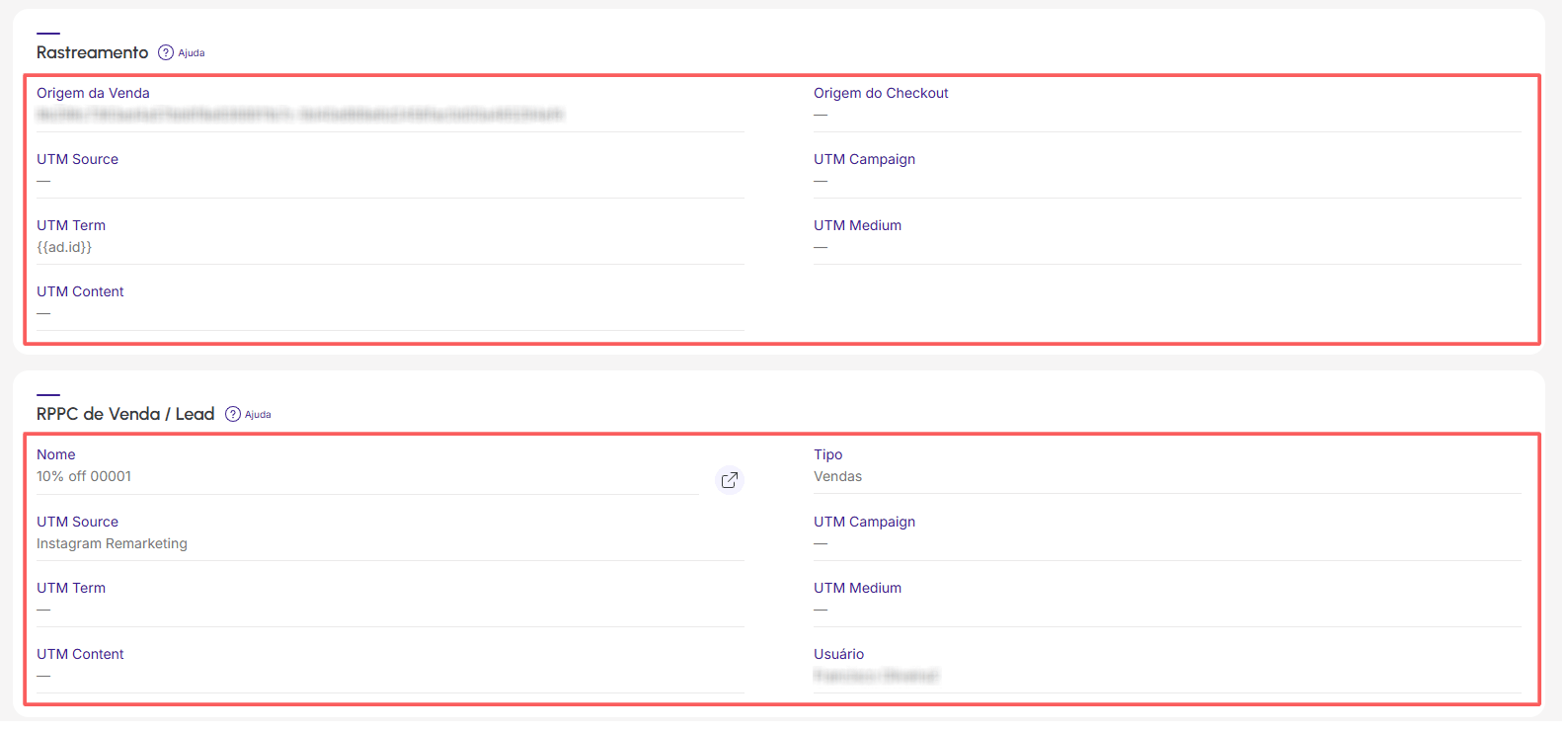
You can check if there is tracking linked to a sale in the sales list or in the sale details.