
You can find a Traffic Cost Tracking, which are automatically registered in Guru in the section P.P.C.T.
To find a Traffic Cost Tracking in a list with many records, you can search and filter the list.
On this page:
-
Consult P.P.C.T. Traffic Cost list
-
Filter P.P.C.T. Traffic Cost list
-
Manage P.P.C.T. Traffic Cost filters
-
Consult P.P.C.T. Traffic Cost list
By default, the list is displayed in alphabetical order (A to Z), by product name. For faster page loading, only the first 30 records are displayed. If you want to view the other items in the list, you can scroll to the end of the page and click on View more at the bottom center of the screen.
Steps:
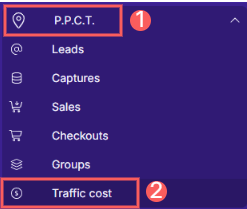
1 - In the side menu, go to P.P.C.T. and then click on Traffic Cost.
2 - The list displays the following information:
-
Clicked In: displays the start or end date the tracking was clicked;
-
Source: displays the ADS platform of the traffic source;
-
Name: displays the tracking name;
-
Type: displays the tracking type (Leads or Sales);
-
Clicks: displays the number of clicks the tracking received;
-
Investment: record the total amount spent per day for each corresponding P.P.C.T. - enter the investment amount and click Save.

When entering the cost in the investment column, simply monitor the ROI and other campaign indicators by clicking on the conversion funnel.
Filter P.P.C.T. Traffic Cost list
You can use the filters to view a smaller subset of existing sales or lead P.P.C.T.s. This feature is useful for finding specific P.P.C.T.s you want to view.
By default, only records from the last 28 days will be shown, but the period can be changed in the filters, in the Period field.
Steps:
1 - In the side menu, go to P.P.C.T., and then click on Traffic Cost. After the page loads, a list with all P.P.C.T.s will be displayed.
2 - In P.P.C.T. Traffic Cost, click on Filters.
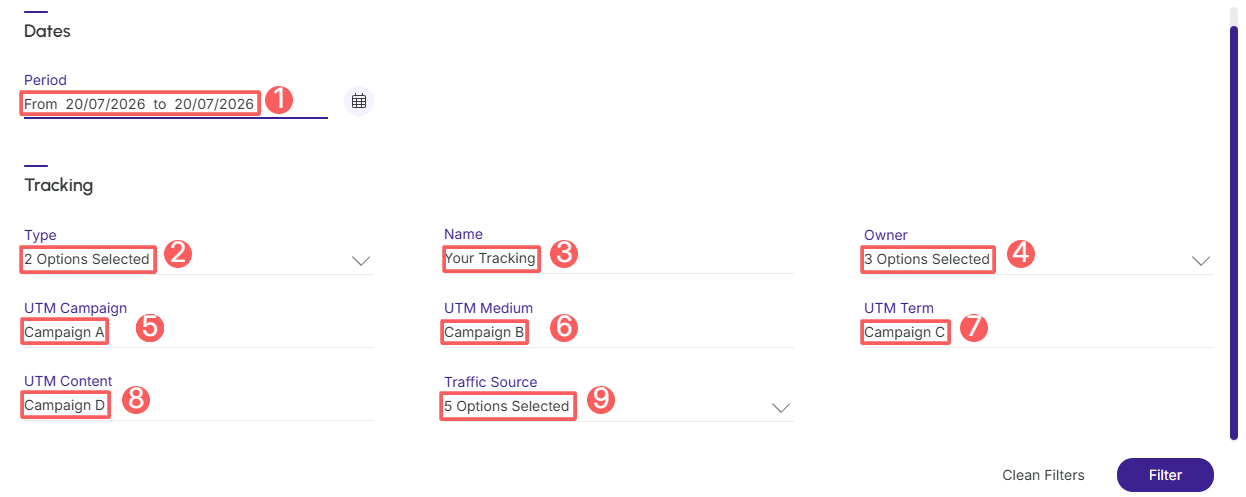
3 - Fill in one or more filter options:
-
Period: searches for trackings from the selected period - you can use the pre-defined time range buttons or select the date you want to view;
-
Type: searches for Leads or Sales tracking;
-
Name: searches by tracking name;
-
Owner: searches by tracking owner;
-
UTM Campaign: searches by the value of the UTM Campaign parameter;
-
UTM Medium: searches by the value of the UTM Medium parameter;
-
UTM Term: searches by the value of the UTM Term parameter;
-
UTM Content: searches by the value of the UTM Content parameter;
-
Traffic Source: searches for the ADS platform of the traffic source.
4 - Click on Filter.
To remove the applied filters, simply click on Clean Filters.
Manage P.P.C.T. Traffic Cost filters
You can check the number of applied filters when using filters to view desired information. This feature is useful if you want to check how many filters have been applied.
In addition, it is possible to clear the filters without accessing the Filters icon again, facilitating the removal of applied filters.
Consult applied filters
You can check the number of applied filters.
Steps:
1 - In the side menu, go to P.P.C.T. and then click on Traffic Cost. After the page loads, a list with all P.P.C.T.s will be displayed.
2 - In P.P.C.T. Traffic Cost, click on Filters.
3 - Fill in one or more filter options - apply the filters you want to consult.
4 – Then, the number of applied filters will appear on the screen.

If you want to apply other filters, click How to filter the P.P.C.T. Traffic Cost list.
Clean applied filters
You can remove the applied filters without needing to click on the filters icon.
Steps:
1 - In the side menu, go to P.P.C.T. and then click on Traffic Cost. After the page loads, a list with all P.P.C.T.s will be displayed.
2 - In P.P.C.T. Traffic Cost, click on Filters.
3 - Fill in one or more filter options - apply the filters you want to consult.
4 – Then, click on Clear Filters.

If you want to apply other filters, click How to filter the P.P.C.T. Traffic Cost list.