You can create a Forms P.P.C.T. that allows you to configure the lead data being captured and sent to Guru.
On this page:
-
Add Forms P.P.C.T.
-
Duplicate Forms P.P.C.T.
-
Update Forms P.P.C.T.
-
Hide Forms P.P.C.T.
-
Deactivate Forms P.P.C.T.
-
Remove Forms P.P.C.T.
Add Forms P.P.C.T.
In this section, you will add a Forms P.P.C.T.
Steps:
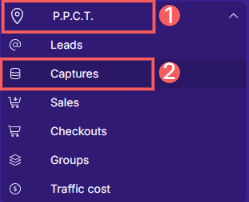
1 - In the side menu, go to P.P.C.T. and then click on Captures.
2 - In the upper right corner, click on Add Tracking.
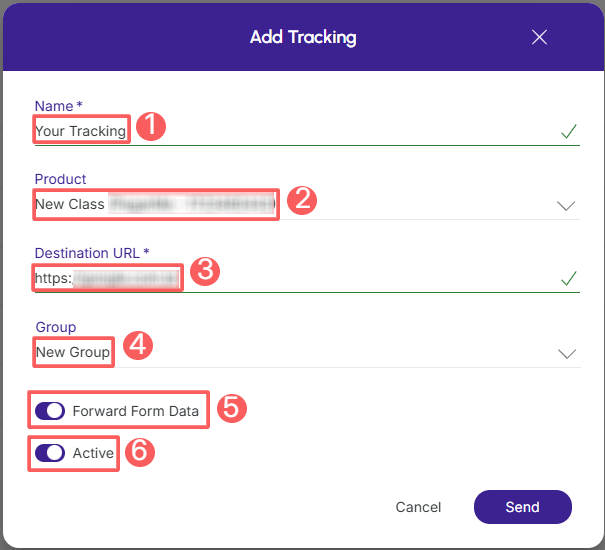
3 - In Add Tracking, enter the following data:
-
Name: name or title of the tracking;
-
Product: select the product - we recommend choosing the Global Tracking product1;
-
Destination URL2: enter the URL of the destination page that will be displayed after clicking the link;
-
Group: select the tracking group you want to associate the tracking with (optional);
-
Forward Form Data3: change the button to the Active position if you want to send the captured data to the next page;
-
Active: change the button to the Active position to activate tracking.
(1) By default, always select the Global (Tracking) product for all elements (P.P.C.T.s) involved in tracking. If this product does not exist, create it in Products.
(2) Full URL of the destination page (advertorial, own sales page/producer, or payment link).
(3) Leave in the "on" position to send the captured data to the next page. Example: display a message "Registration confirmed."
4 - Click on Send.
Duplicate Forms P.P.C.T.
To save time, you can duplicate a similar Forms P.P.C.T. instead of adding a new one. This option is useful if you want to include options from an existing Forms P.P.C.T. such as field, origin, and group.
When using the Duplicate feature, Guru will create a copy of the selected Capture tracking with a new name and disclosure URL.
To duplicate an existing Forms P.P.C.T., follow the steps below.
Steps:
1 - In the side menu, go to P.P.C.T. and then click on Captures.
2 - Hover over the desired P.P.C.T. and click on Duplicate.

3 - A confirmation window is displayed. To proceed with the action, click Duplicate.
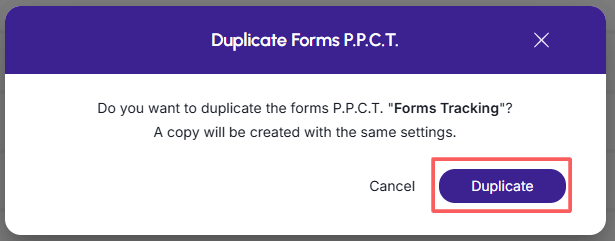
A message will be displayed for a few seconds in the upper right corner of the page, informing that the tracking has been successfully duplicated.
Update Forms P.P.C.T.
After creating a Forms P.P.C.T., you can edit it to change the name, product, URL, and other information.
Some fields become unavailable for modification after the P.P.C.T. has received its first click.
To edit a Forms P.P.C.T., follow the steps below.
Steps:
1 - In the side menu, go to P.P.C.T. and then click on Captures.
2 - In the list of your Forms P.P.C.T.s, select the P.P.C.T. you want to update.

3 - Consult the Forms P.P.C.T. information.
Hide Forms P.P.C.T.
You can hide a Forms P.P.C.T. from the P.P.C.T. display list. This option is useful when you do not want to use the tracking or it cannot be deleted because it has clicks. After hiding the P.P.C.T., it will only be visible when show hidden P.P.C.T., reversing the action.
To hide an P.P.C.T., follow the steps below.
Steps:
1 - In the side menu, go to P.P.C.T. and then click on Captures.
2 - Click on the P.P.C.T. desired.
3 - In Detail, activate the option Hidden.
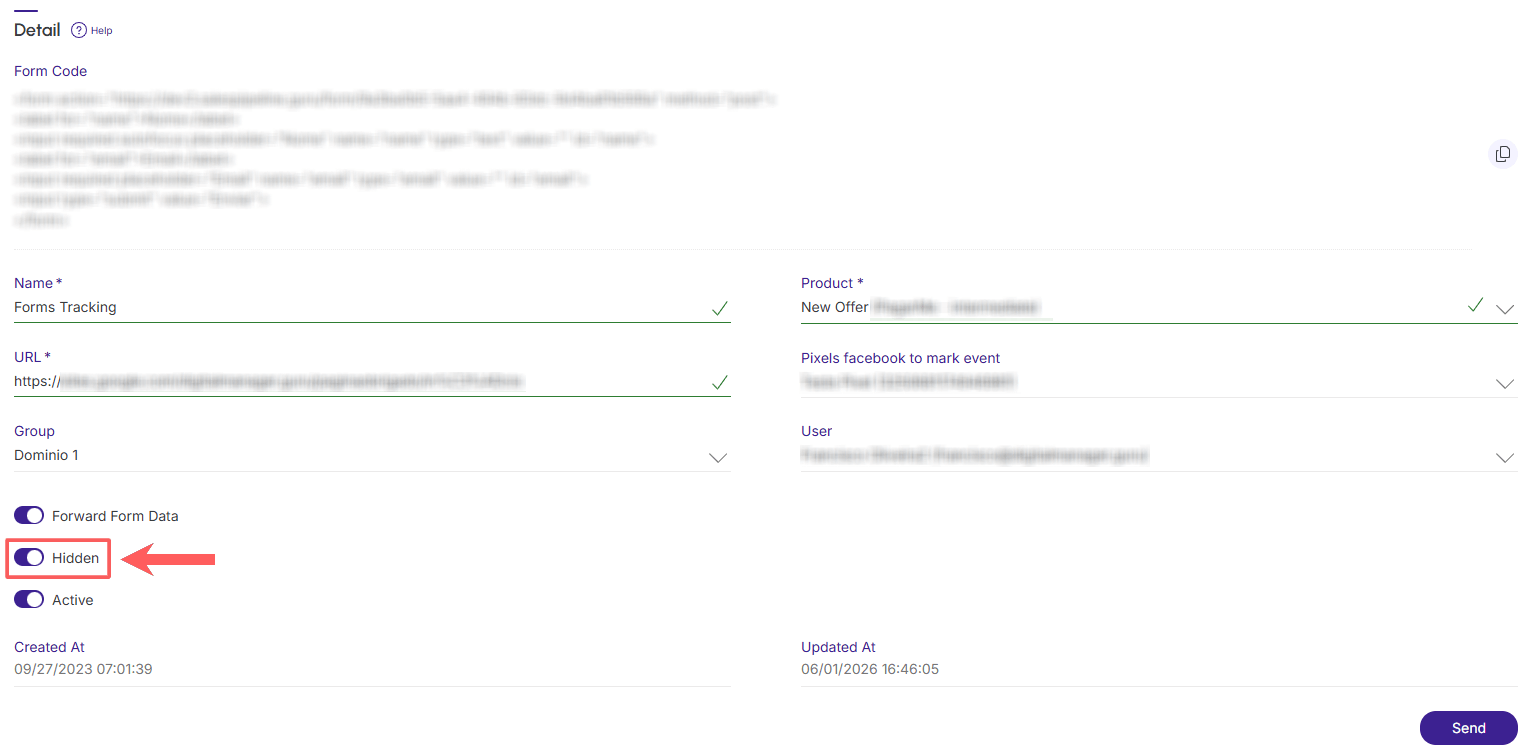
4 - Click on Send.
Deactivate Forms P.P.C.T.
You can deactivate a Forms P.P.C.T. at any time. When deactivating an P.P.C.T., the disclosure URL will no longer be available, meaning there will be no more redirection to the payment URL informed in the button.
This feature is useful when it is not possible to delete1 the Forms P.P.C.T. and you want to prevent the customer from making a purchase through the tracking link in question.
(1) it is possible to remove a Forms P.P.C.T., provided it has not received its first click.
To deactivate a Forms P.P.C.T.:
Steps:
1 - Access the P.P.C.T. list in the desired P.P.C.T. registration.
2 - Locate the desired Forms P.P.C.T. and change the selector to the desired position (deactivate).

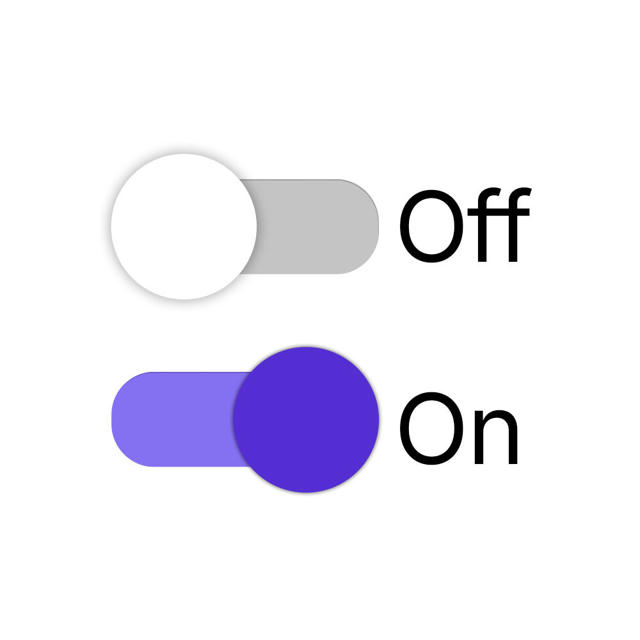
If you want to activate a deactivated P.P.C.T., use the filter to search for inactive P.P.C.T.s.
Remove Forms P.P.C.T.
It is possible to remove a Forms P.P.C.T., provided it has not received its first click. When removing an P.P.C.T., the record is permanently removed and cannot be restored.
Alternatively, you can hide the Forms P.P.C.T. instead of removing it.
To remove a Forms P.P.C.T.:
Steps:
1 - In the side menu, go to P.P.C.T., and then click on Captures.
2 - Click on the P.P.C.T. you want to remove.
3 - In Detail, click on Remove1.
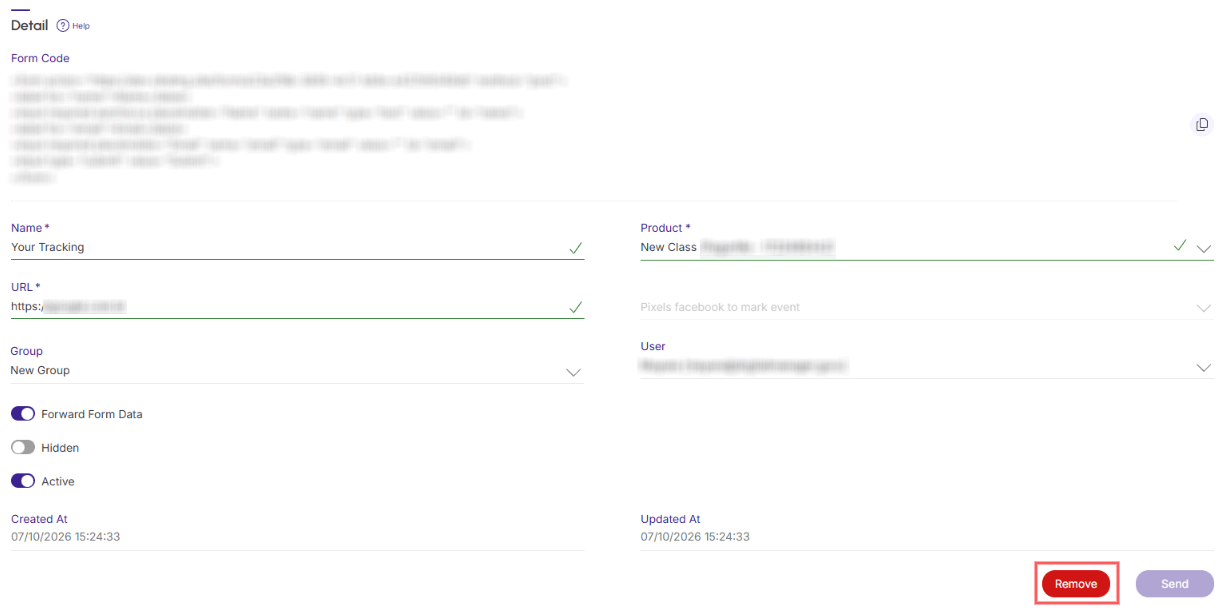
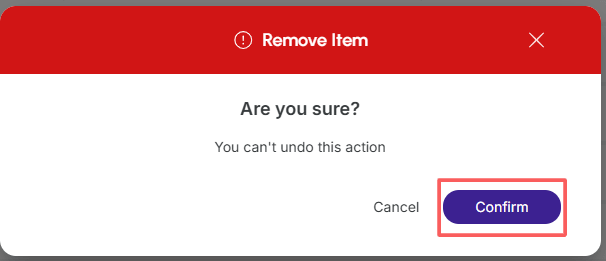
4 - A confirmation window is displayed. If you wish to proceed with the removal, click on Confirm.