
Subaccount users registered in Guru are automatically listed. To find information in a list with many records, you can search and filter the list.
To create and update subaccount users through Guru, see subaccount settings.
On this page:
-
View subaccount users
-
How to filter subaccount users
-
Manage subaccount user filters
-
Before you begin, you need to…
-
Be an administrator user or have permission to perform the following actions.
-
Have one or more subaccount users registered in Guru.
Consult subaccount users
By default, subaccounts are organized by update date (newest to oldest). For faster page loading, only the first 30 records are displayed. If you want to view the remaining items in the list, you can scroll to the bottom of the page and click on View more at the bottom center of the screen.
-
Name: subaccount user name;
-
Email: subaccount user email;
-
Roles: subaccount user roles;
-
2FA: icon for the location of two-factor authentication - via app or email.
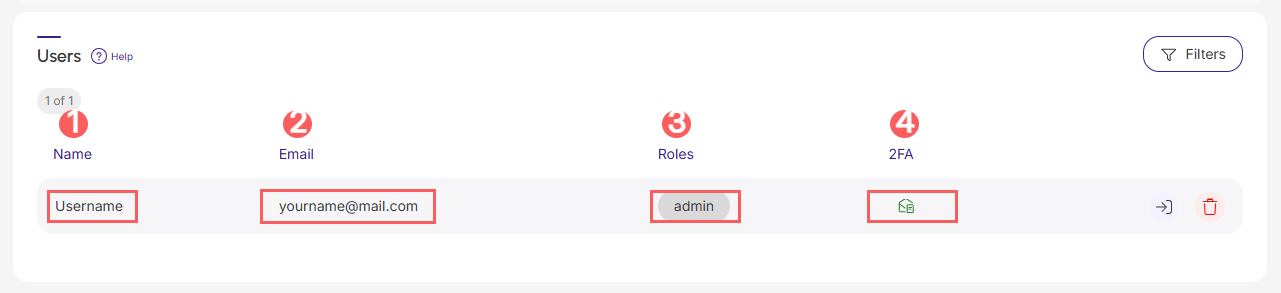
If you want to increase your account's security, access and learn how to enable 2FA.
How to filter subaccount users
You can use filters to view a subset of existing subaccount users. This feature is useful for finding specific subaccount users you want to view.
Steps:
1 - Access the subaccount user list - a screen with the data will be displayed.
2 - In Users, click on Filters.
3 - Fill in one or more filter options:
-
Name: search by user name;
-
Email: search by user email;
-
Administrator: searches for users who have the Administrator role corresponding to the selected user (yes or no) - if you want to ignore this filter, select the "All" option.
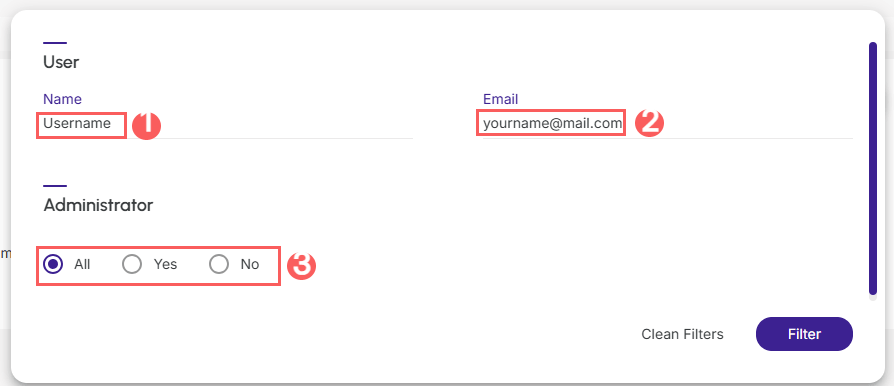
4 - Click on Filter.
To remove the applied filters, simply click on Clear Filters.
Manage subaccount user filters
You can check the number of applied filters when using filters to view desired information. This feature is useful if you want to check how many filters have been applied.
Additionally, it is possible to clear filters without accessing the Filters icon again, facilitating the removal of applied filters.
View applied filters
You can check the number of applied filters.
Steps:
1 - Access the subaccount user list - a screen with the data will be displayed.
2 - In Users, click on Filters.
3 - Fill in one or more filter options - apply the filters you want to view.
4 - Then, the number of applied filters will appear on the screen.

If you want to apply other filters, click How to filter subaccount users.
Clear applied filters
You can remove applied filters without needing to click the filters icon.
Steps:
1 - Access the subaccount user list - a screen with the data will be displayed.
2 - In Users, click on Filters.
3 - Fill in one or more filter options - apply the filters you want to view.

If you want to apply other filters, click How to filter subaccount users.