
You can configure the authentication methods for your Guru account to ensure greater security. When choosing how users will access the platform, it will be necessary to enable 2-Factor Authentication (2FA) the first time they access the account.
Although it is possible to authenticate via email, we recommend using an authenticator app (2FA). When 2FA is active, each new login will require a random code generated by your authenticator app, adding an extra layer of protection.
Two-factor authentication (2FA) is a mandatory security feature for your login and for any other users you may create in the future.
See this step-by-step guide to learn how to enable two-factor authentication and how to enable quick user login.
On this Page:
-
Configure authentication methods
Configure authentication methods
In this section, you can define the methods by which account users can authenticate. E.g.: only through a Google account.
Steps:
1 - Access the guru admin with your username and password.
2 - In the top right menu, click on My Account.
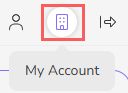
3 - In My Account, click on Security.

4 - In Authentication Options, select which type(s) of authentication you want to allow.
-
Apple: allows login with an Apple Account - on the Guru login page, the user must select the "Sign in with Apple" option;
-
Email/password: allows login with Email/Password - on the Guru login page, the user must select the "Email/Password" option;
-
Facebook: allows login with a Facebook account - on the Guru login page, the user must select the "Sign in with Facebook" option;
-
Google: allows login with a Google Account - on the Guru login page, the user must select the "Sign in with Google" option;
-
Microsoft: allows login with a Microsoft account - on the Guru login page, the user must select the "Sign in with Microsoft" option.
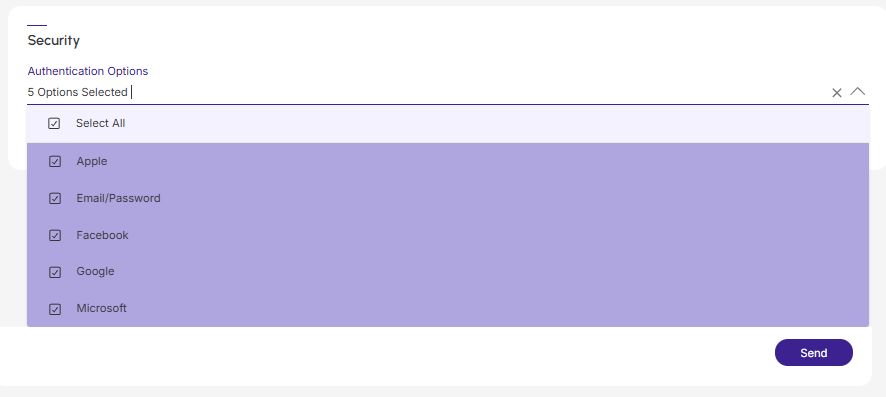
5 - Click on Send.