By adding subaccounts, you will be able to configure the users of each subaccount, as well as the roles of each user, in addition to updating the information of each user whenever you wish.
This feature is useful for adding users and determining usage roles for each of them.
On this page:
-
Add user to a subaccount
-
Update subaccount user
-
Remove subaccount user
Add user to a subaccount
You can add users to a subaccount.
Steps:
1 - Access the guru admin with your username and password.
2 - In the side menu, click on Settings and then, Subaccounts.
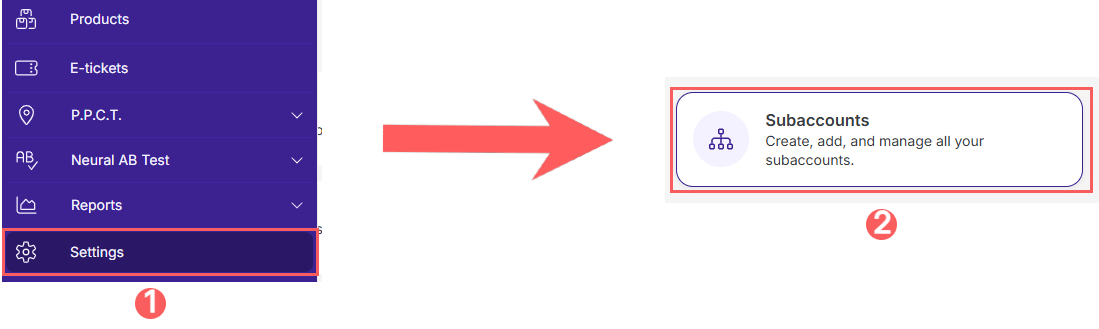
3 - Locate the Subaccount you want to add the user to in the list.

4 - Then, click on the Users tab.
5 - In Users, click on Add User.
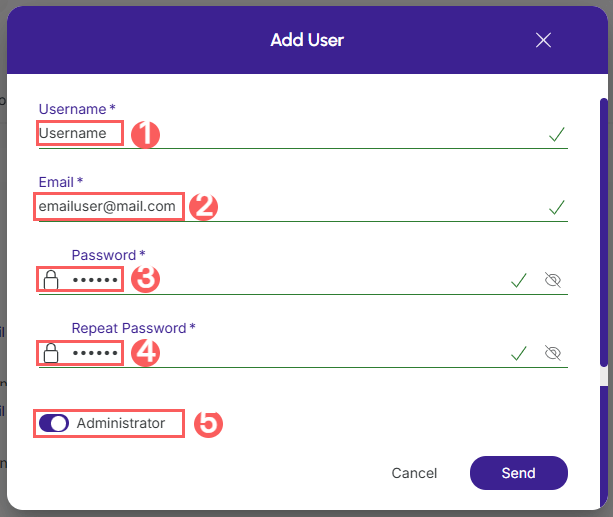
6 - In Add User, enter:
Add User as Administrator
-
Username: the username;
-
Email of the user: the email of the user you want to add;
-
Password: the password for your user;
-
Repeat password: confirm the password for your user;
-
Change the button to the on position, if the user is an Administrator of the account.
.jpg?cb=8837a4ea6a4e7db37d2e094edac9e7bf)
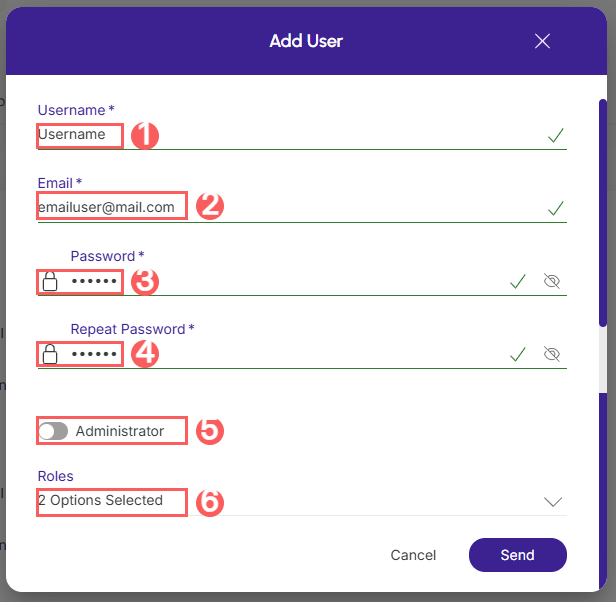
Add User
-
Username: the username;
-
Email of the user: the email of the user you want to add;
-
Password: the password for your user;
-
Repeat password: confirm the password for your user;
-
Administrator: change the button to the off position, if the user is not an Administrator of the account;
-
Roles: select the user's role - if desired, you can select more than one user.
Access and learn how to manage roles for your account.
7 - Click on Send.
Update subaccount user
You can edit a user of an account after its creation.
Steps:
1 - Access the guru admin with your username and password.
2 - In the side menu, click on Settings and then, Subaccounts.
3 - Locate the Subaccount you want to add the user to in the list.
4 - Then, click on the Users tab.
5 - In Users, select the User whose information you want to edit.
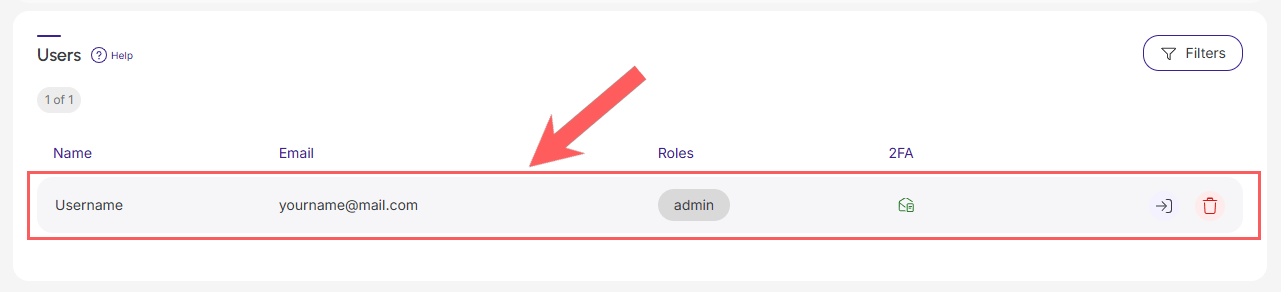
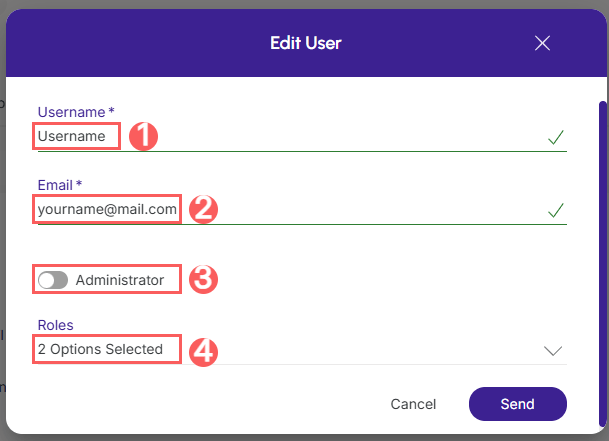
6 - Then, Edit the desired user fields.
-
User name: the user's name;
-
Email: the email of the user you want to edit;
-
Administrator: change the button to the off position, if the user is not an Administrator of the account;
-
Roles: select the user's role - if desired, you can select more than one user.
7 - Click on Send.
Remove subaccount user
Once created, if you are a subaccount administrator, you will be able to remove the user in Guru. This feature is useful when you no longer wish to grant access to the user in your subaccount.
Steps:
1 - Access the guru admin with your username and password.
2 - In the side menu, click on Settings and then, Subaccounts.
3 - Locate the Subaccount you want to add the user to in the list.
4 - Then, click on the Users tab.
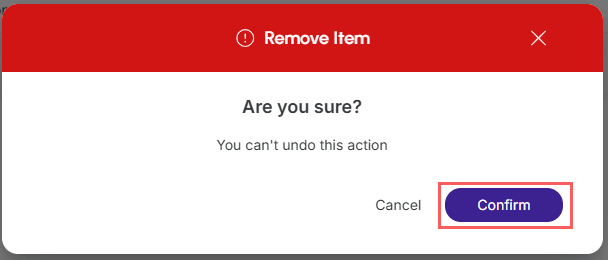
5 - In the list, locate the desired user and click the Remove button corresponding to them.
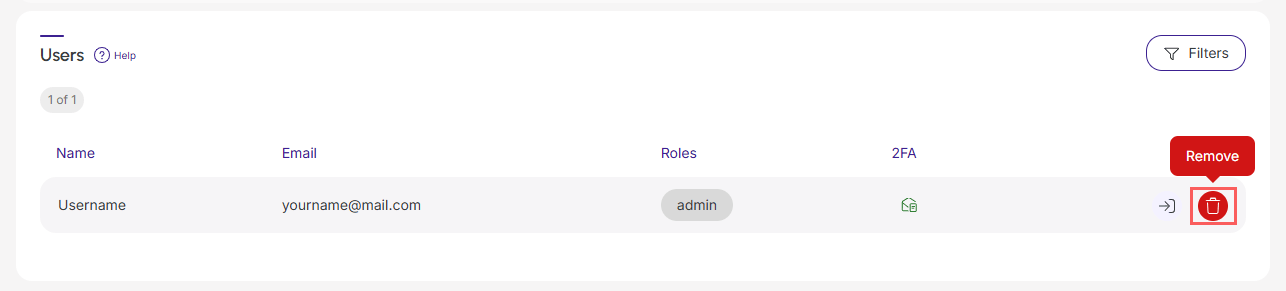
6 - Confirm if you want to perform the deletion. To confirm that the user has been deleted, a message will be displayed for a few seconds at the top right of the page.