
The Two-factor authentication or 2FA is a two-step verification that adds a layer of protection to your account and strengthens your data against potential invaders.
To further increase the security of your Guru account, you must enable 2-factor authentication (2FA) only once. When 2FA is active, a random code generated in the authenticator will be required for each login.
In Guru, two-step authentication is mandatory, and you can perform it by email (by default this option will be selected) or by application (recommended).
The setting up this feature is very simple and quick, and prevents someone, even if they manage to obtain the account's username and password, from being able to start the session without entering the authenticator code.
Here are suggestions for authenticators that can be used:
On this page:
-
How to enable Two-Factor Authentication for the first time
-
How to reset your user password
-
How to reset the account password
-
How to reset a user's authentication
-
How to reset your account's authentication
How to enable Two-Factor Authentication for the first time
In this step, you will configure 2-factor authentication in Guru for the first time.
Steps:
1 - Access the guru admin with your username and password.
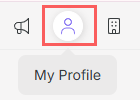
2 - In the top right menu, click on My profile.
3 - In My Profile, click Two-Factor Authentication.

4 - In Two-Factor Authentication, select which option you want to authenticate with:
By Email
4.1 - Select By Email.
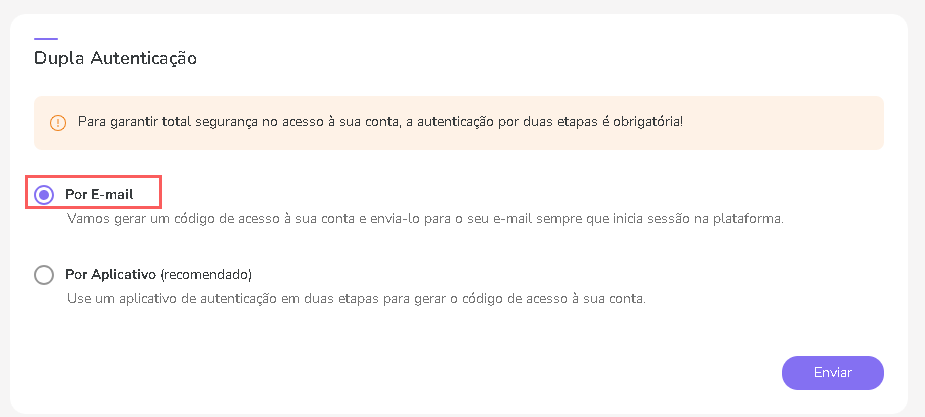
4.2 - Click on Send.
By App (recommended)
4.1 - Select By app.

4.2 - Then, download an authentication app.

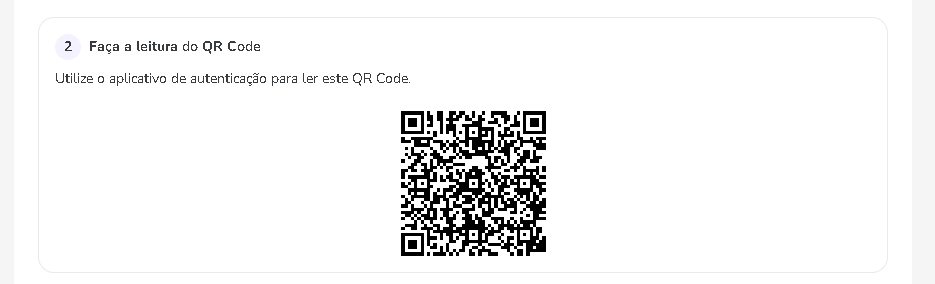
4.3 - After downloading the authentication app, scan the QR Code.
4.4 - Copy and enter the code indicated in the authentication app.
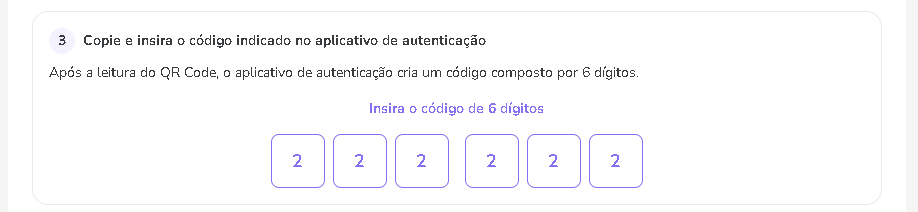
4.5 - Then, click on Send to complete the process.
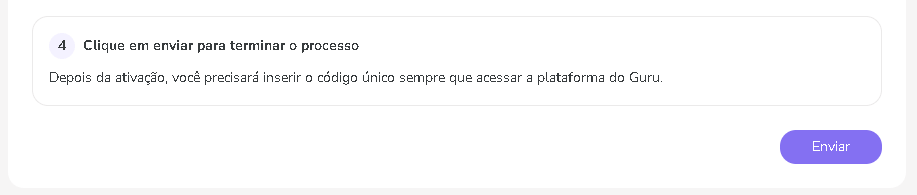
4.6 - Click on Send.
The Two-Factor Authentication function is active. Now, whenever you log in to Guru, a screen will appear to enter the authentication code. You must open the application and enter the code that appears to complete the login.
If you do not have access to the authenticated account, please contact our support.
How to reset your user password
In this step, you will reset access to your account by resetting your password.
Steps:
1 - Access the digital Manager Guru website .
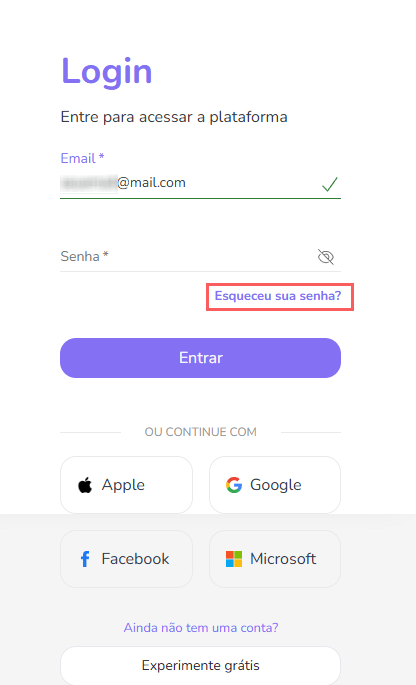
2 - Then, click on Forgot your password?
3 - In Password Reset, enter your registered email to reset the password.
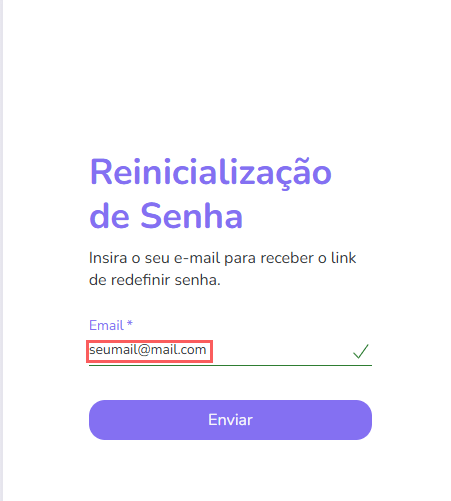
4 - Click on Send.
The password reset will be sent to the registered email.
How to reset the account password
In this step, you will reset your account password.
Steps:
1 - Access the guru admin with your username and password.
2 - In the top right menu, click on My profile.
3 - In My Profile, click Detail.

4 - In Detail, click on Change Password.
5 - In Password enter:
-
Current password: enter your current account password;
-
New password: enter the new password you want for your account;
-
Confirm new password: confirm the new password you want for your account.
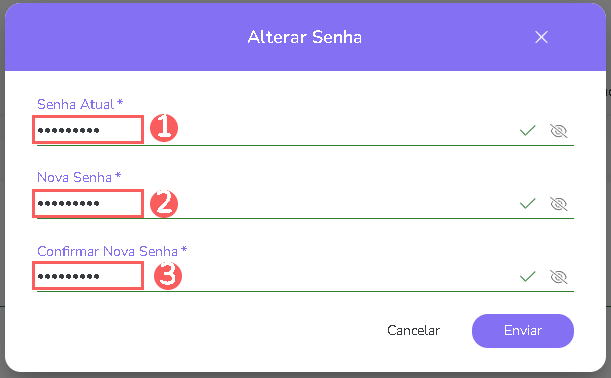
6 - Click on Send.
How to reset a user's authentication
In this step, you will reset a user's authentication.
The reset request can only be made by an account administrator.
Steps:
1 - Access the guru admin with your username and password.
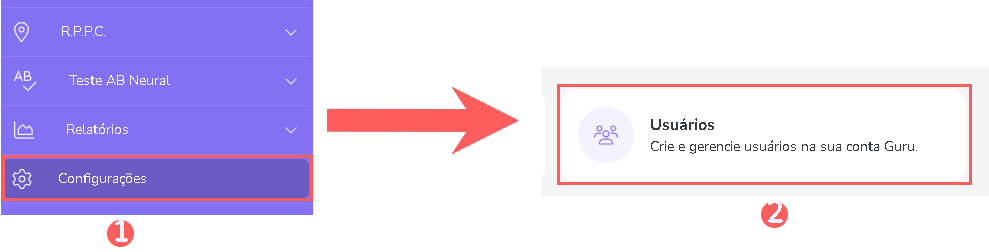
2 - In the side menu, click on Settings, then click on Users.
3 - In the list, locate the user whose authentication you want to reset.
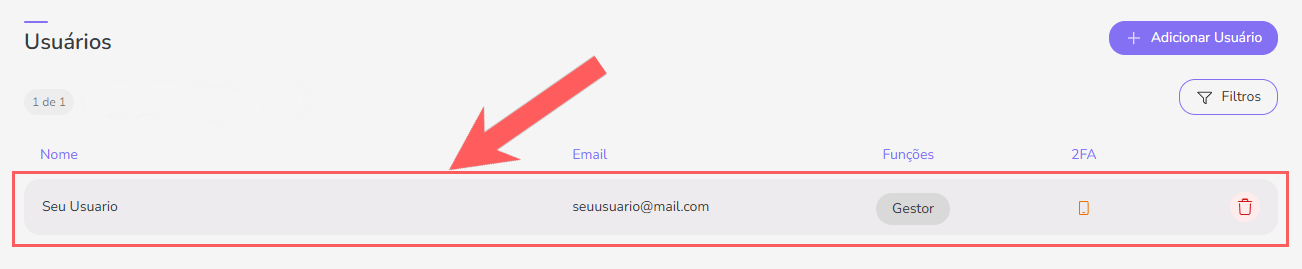
4 - Then, click on Two-Factor Authentication.
5 - In Two-Factor Authentication, click on Reset, to reset your user's authentication.
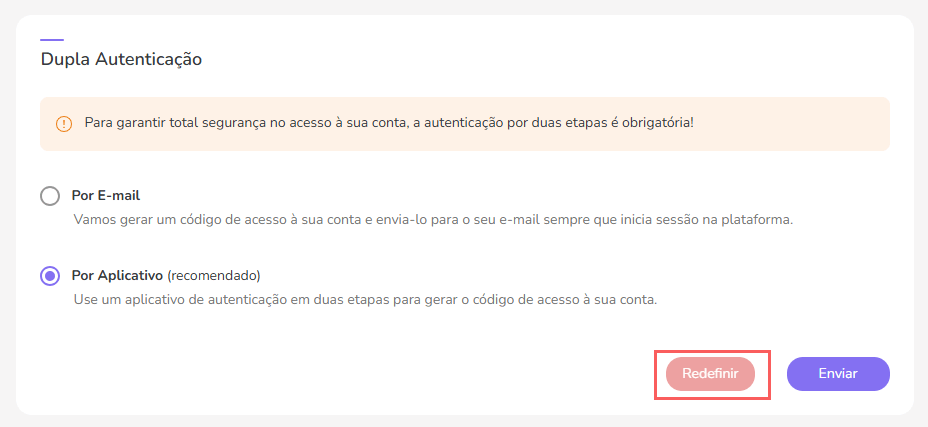
After the reset, your user will be able to access the account and configure a new 2FA, using the authenticator app.
How to reset your account's authentication
In this step, you will get information on how to reset your account's authentication.
If you have more account administrators, you can ask them to reset the authentication. To learn how to request, access How to reset a user's authentication.
Steps:
1 - Contact support via Platform Chat, WhatsApp or email.
2 - Then, an attendant will validate if you are the account holder and will manually reset the authentication.
Done! After the reset, your user will be able to access the account and configure a new 2FA, using the authenticator app.