
In this section, you manage your Guru plan, being able to consult plan information, update credit card details, regularize payments, cancel the subscription, and check your operational limits.
you can change your Guru plan at any time to adjust the number of processed transactions and operational limits according to your business needs. The good news is that, in addition to monthly plans, all our plans are also available in the annual option, which can offer more advantageous conditions for your operation.
There are 3 options you can choose to change your plan:
-
Plus – Add-on to the base plan that increases the limit of processed transactions or operational limits:
-
Plus 1 – 50% increase in sales volume;
-
Plus 2 – operational limits according to the Monk plan*;
-
Plus 3 – benefits of Plus 1 and Plus 2.
-
-
Upgrade – Change to a superior plan, with a higher limit of processed transactions and higher operational limits;
-
Downgrade – Change to an inferior plan, with a lower limit of processed transactions and lower operational limits (in the case of downgrade, it will only be possible between annual plans, meaning, it will not be possible to downgrade from annual plans to monthly plans).
Before changing your plan, consult the operational limits of each one. If you have any questions about the available plans, contact our support.
*When the base plan is the Monk plan, there are no operational limits.
Information about your plan's credits will be displayed when they exceed 80% of the month's usage.

On this Page:
-
How to subscribe to a plan
-
Consult plan information
-
Update contracted Plan
-
Change plan
-
Change credit card details
-
Regularize payment
-
Cancel Subscription (plan)
-
-
Consult operational limits
How to subscribe to a plan
In this section, you will have access to how to subscribe to a plan.
The information bar will be displayed whenever the plan is not subscribed (during the trial period, after the end of the trial period, or after canceling the subscription).
Steps:
1 - Access the guru admin with your username and password.
2- In the top menu, click on Subscribe to Plan.

3 - Then, select the plan most suitable for your total monthly sales number and follow the payment instructions.
Only administrator users can subscribe to the plan.
Consult plan information
In this section, you can consult information about the contracted plan (Guru subscription).
Steps:
1 - Access the guru admin with your username and password.
2 - In the top right menu, click on My Account.
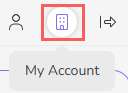
3 - In My Account, click on Subscription.

4- According to the desired action, consult the following topics.
Consult plan information
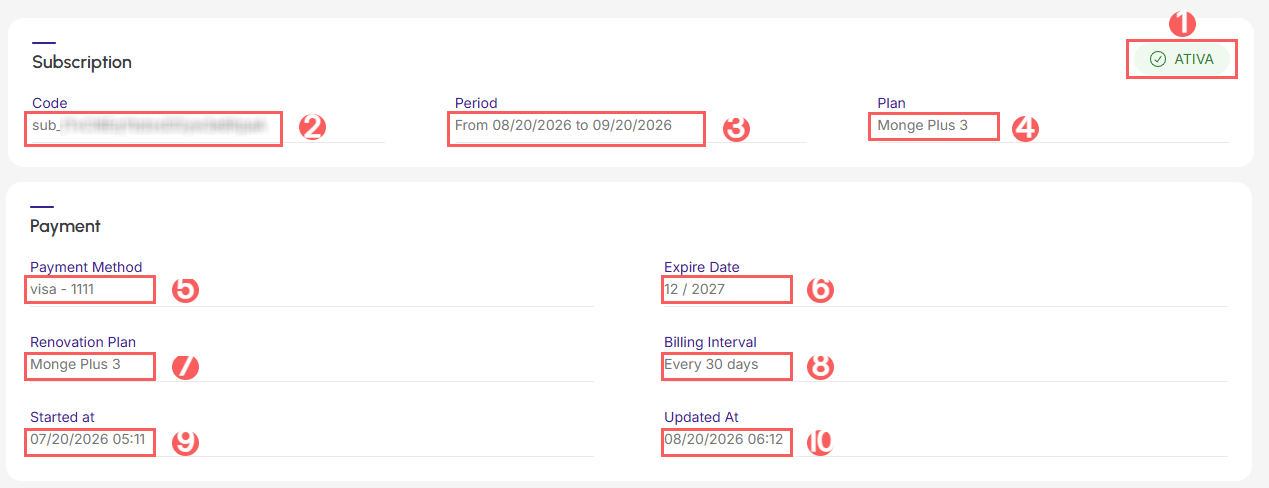
In the Subscription section, you view the details of the contracted plan.
-
Status: current subscription status - Active, Overdue, Canceled or Expired;
-
Subscription code: subscription identifier code;
-
Period: current subscription period with the validity of the current subscription cycle;
-
Plan: name of the currently contracted plan;
-
Payment Method: payment method used for subscription payment;
-
Expire Date: validity of the credit card associated for payment;
-
Renovation Plan: name of the plan that will be applied at the next renewal;
-
Billing Interval: plan billing interval;
-
Started at: date on which the subscription was started;
-
Updated at: date on which the subscription was updated.
Update contracted Plan
In this section, you can update the contracted plan (Guru subscription).
Steps:
1 - Access the guru admin with your username and password.
2 - In the top right menu, click on My Account.
3 - In My Account, click on Subscription.
4 - In the top left menu, select the desired option:
-
Change the card credit for billing the Subscription;
-
Cancel the subscription.

Change plan
In the Subscription section, you can change your plan. If you are on the monthly plan, you can upgrade to the annual plan.
Steps:
1 - In My Account, click on Subscription.
2 - In Subscription, click on Change Plan.

3 - Then, select:
Change credit card details
In the Subscription section, you can change your credit card details.
Steps:
1 - In My Account, click on Subscription.
2 - In Subscription, click on Change Credit Card.

3 - Then, inform:
-
CARD number: enter the card number you wish to change for subscription billing;
-
MM/YY: enter the month and year of the card you wish to change for subscription billing;
-
CVC: enter the CVC of the card you wish to change for subscription billing;
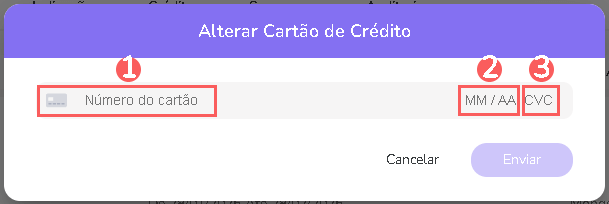
4 - Click on Send.
Regularize overdue payment
The Guru will attempt to charge your subscription payment to the registered credit card. If the first attempt fails, we will make 4 (four) new billing attempts on alternate days (every two days). If the 5th (fifth) charge is also unsuccessful, your subscription will be automatically canceled.
The Guru sends an email and signals in your Admin account that your subscription could not be renewed. When this happens, you will have two alternatives for regularization: click on the top bar within your Guru admin, or change/update the registered credit card details.
If you do not regularize the payment, in practice:
-
Recurring charges (subscription renewals) are not processed;
-
Tracking links stop counting statistics;
-
Integrations with tools are not performed;
-
The account credit balance is updated to 10 units. When the balance reaches zero, Guru Checkout goes offline (will not open and will not process sales).
Click on the message that appears in the top bar of your Guru account.

it is possible to change the registered credit card.
Cancel Subscription (plan)
In the Subscription section, you can cancel your plan.
Steps:
1 - In My Account, click on Subscription.
2 - In Subscription, click on Cancel Subscription.

3 - Then, select the reason for cancellation.
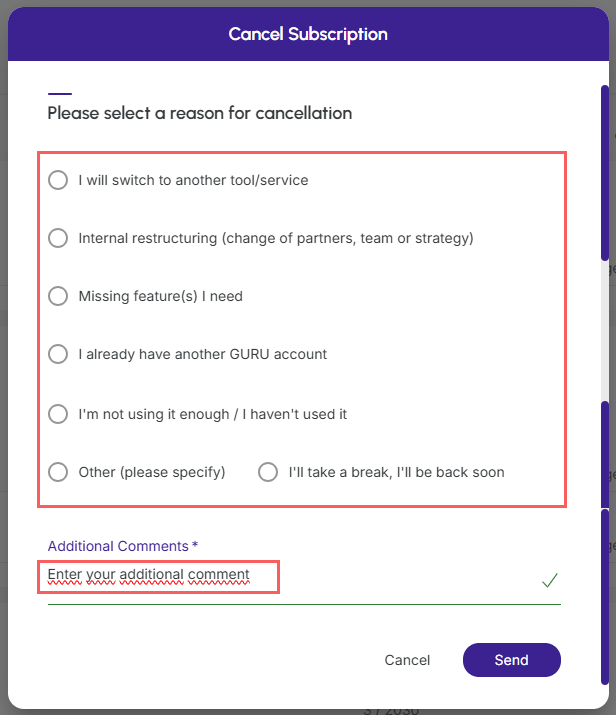
4 - Click on Send.
Consult operational limits
In the Limits section, you view all operational limits of the contracted plan. The system displays a bar for each operational limit with:
-
The used value and the maximum allowed value; and
-
A color scale1 drawing attention to operational limits that are running out or have been exhausted.
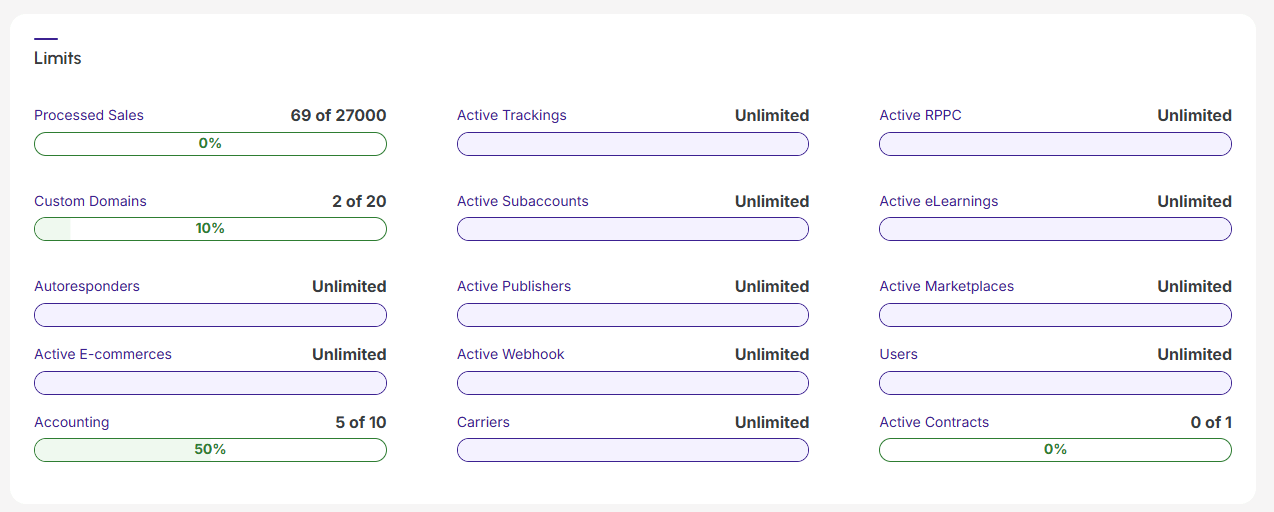
(1) The colors are gray, green, yellow, orange, and red. Operational limits displayed in orange and red require immediate attention.
Tip: to expand your operational limits, consider changing to the Plus 2 or Plus 3 category of the contracted plan.