
WiiChat is a conversational platform powered by AI that helps small and large companies build and deploy chatbots, voice assistants, and other AI communication tools to improve engagement and sell more.
The tool features its own CRM and operates Omnichannel, allowing businesses to automate campaigns on WhatsApp (classified as Autoresponders), Instagram, Messenger, Telegram, and Google Messages all in one place, as well as being a tool for WhatsApp Tools and Sales Recovery.
The integration between Guru and WiiChat helps you to:
-
Create automated abandoned cart recovery campaigns via WhatsApp;
-
Send automatic order created, approved, and dispatched notifications to customers;
-
Perform mass promotional blasts to your contact base and customers;
-
Connect your company to the official WhatsApp APIs, preventing number blocks;
-
Integrate support with spreadsheets and other internal systems or CRMs in your company.
The integration between Guru and WiiChat is done through webhooks. If you have reached the available webhook limit, simply upgrade your plan to the Plus 2 or Plus 3 category.
If you don't have an account yet, create your WiiChat account now, taking advantage of all the benefits of being a Digital Manager Guru client. Guru clients get a 20% discount coupon on the first monthly fee: GURU20.
To activate the integration with WiiChat, you must perform the following 3 steps.
On this page:
-
Step 1: Create a Bot in WiiChat
-
Step 2: Obtain Return URL
-
Step 3: Configure Webhook
-
WiiChat Communication Channels
Before you begin, you need to:
-
Have an active WiiChat account.
-
Be an administrator user in Guru or have permissions to perform the following steps.
Step 1: Create a Bot in WiiChat
In this step, you must access your WiiChat account to obtain the Webhook URL.
Steps:
1 - Access your WiiChat environment with your username and password.
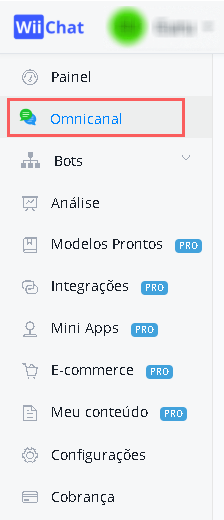
2 - In the side menu, click on Omnichannel.
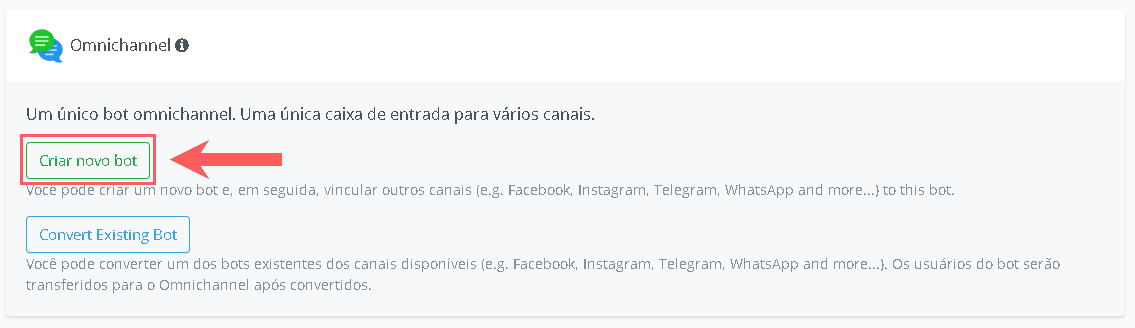
3 - Click on Create new Bot.
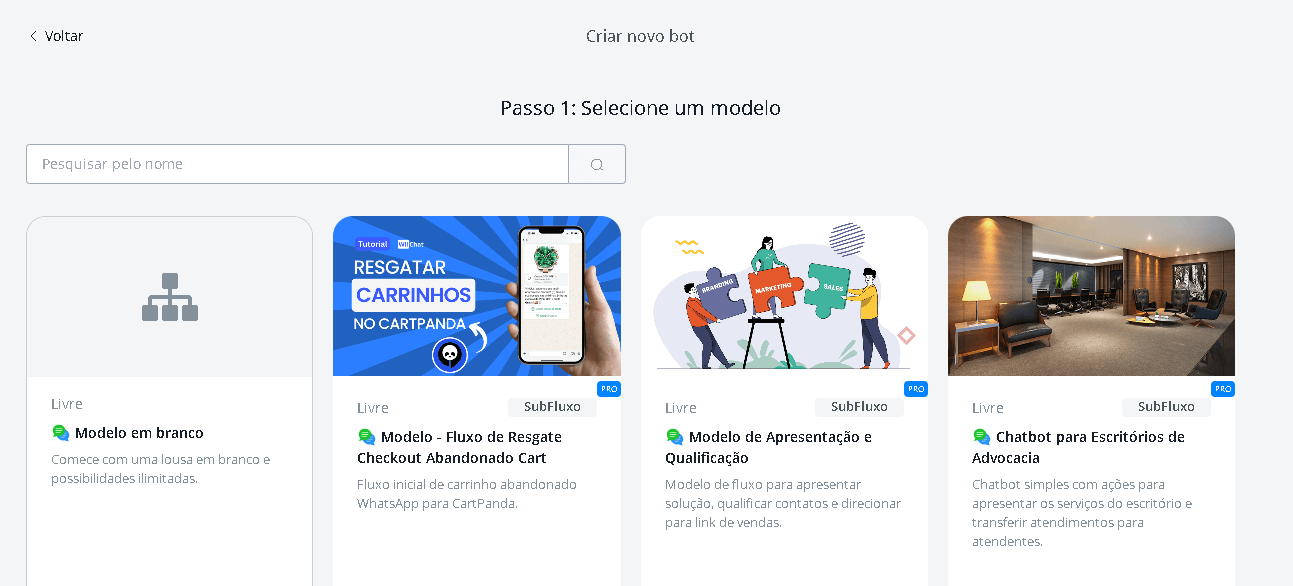
4 - Select a template for your Bot.
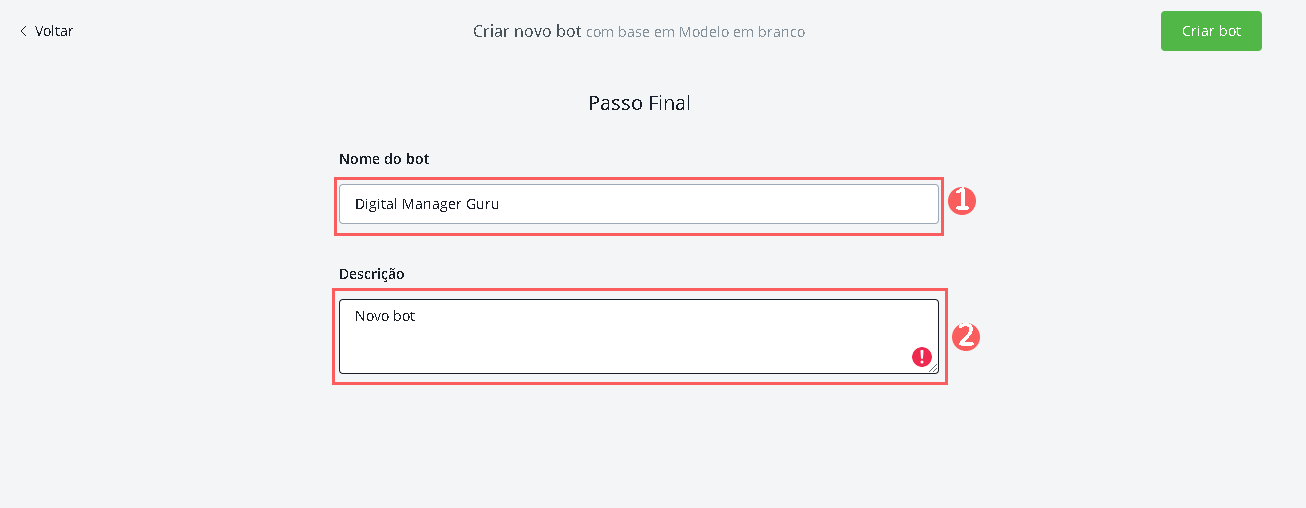
5 - In Create new Bot, enter:
-
Bot name: the name of the Bot you wish to create;
-
Description: description for the created Bot.
6 - Click on Create Bot.
Step 2: Obtain Return URL
In this step, you must access your WiiChat account to obtain the Webhook URL.
Steps:
1 - Access your WiiChat environment with your username and password.
2 - In the side menu, click on Omnichannel.
3 - Click on Open Bot created.

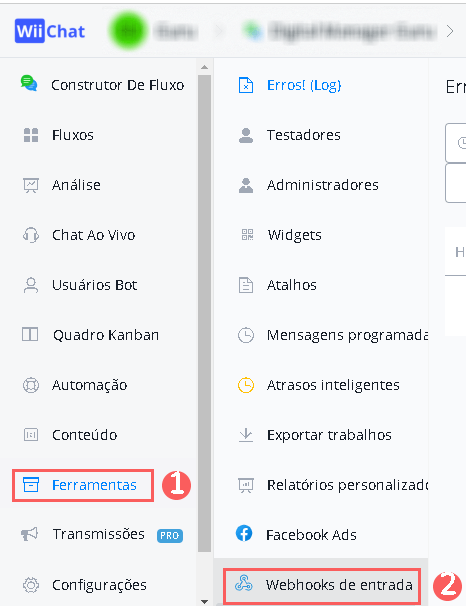
4 - In the side menu, click on Tools, and then Inbound Webhooks.
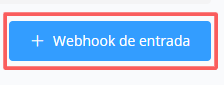
5 - Click on + Inbound Webhook.
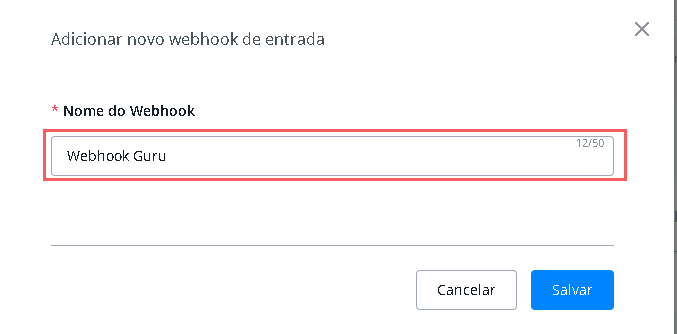
6 - Enter the Webhook Name.
7 - Click on Save.
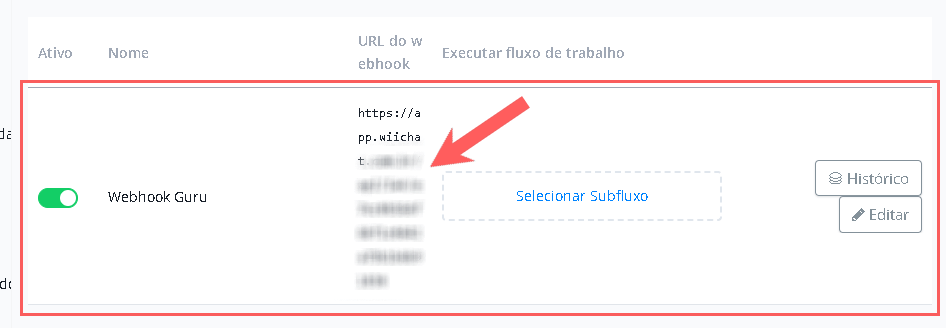
8 - Copy and store the Webhook return URL.
Step 3: Configure Webhook
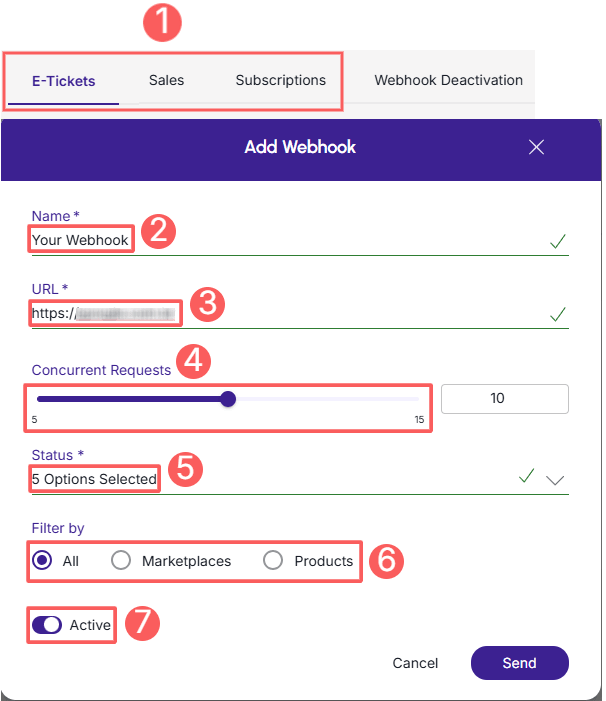
In this step, you must access your Guru account (Settings » Webhooks) and configure an e-ticket, sale, or subscription webhook to send notifications to BotConversa.
When creating the Webhook, remember to:
-
Select: if the webhook is for subscriptions, select the subscription status; if the webhook is for e-tickets, select the e-ticket status; if the webhook is for sales, select the sales status;
-
Name: enter the name of your Webhook;
-
URL: enter the Webhook URL, obtained in step 1 - item 7;
-
Simultaneous sends: select simultaneous sends;
-
Status: select all desired sales statuses; subscription statuses or e-ticket statuses;
-
Filter by: check filter by
all,MarketplacesorProducts(1); -
Toggle the Active button to the on position.
(1) By choosing to filter by "all" or "marketplaces", any new product created will automatically be associated with the webhook.
Check the complete step by step guide:
How to configure a subscriptions, e-tickets or sales webhook.
Done! From this moment on, each updated sale that meets the criteria defined in the configured webhook will be sent to WiiChat.
WiiChat Communication Channels
WiiChat offers support for questions related to customer service automation with Artificial Intelligence, multichannel management, creation of chatbot flows, and integration with the official WhatsApp API.
If you need technical or operational assistance directly from the platform, use the official channels below:
-
Contact Form: to speak with the support or partnerships team, access the official page and fill out the form with your name, email, and WhatsApp - the team will get in touch shortly;
-
Help & Support: for technical requests, platform support, or user questions, send a message to suporte@wiichat.com.br - this is the official channel for problem resolution; and
-
Help Center and Documentation: access the help portal and API documentation to find step-by-step guides on integrations, AI configurations, and tutorials to optimize your customer service.
Tip: For questions exclusively related to settings in the Guru panel or checkout operation, please contact our support team.
More Resources