
Linkseller is a CRM and sales funnel management system that helps organize and manage sales team activities from prospecting to closing deals.
The integration between Guru and Linkseller helps your team to:
-
Generate payment links for proposals and send them to customers automatically; or
-
Create an opportunity in Linkseller from a sale in Guru.
This integration is done via webhooks. If you have reached the available webhooks limit, simply upgrade your plan to the Plus 2 or Plus 3 category.
How the integration works
The integration with Linkseller allows 2 types of automation, each with a different purpose. Below we explain how each automation works and its purpose so you can choose which one to use.
Only one type of automation is allowed at a time in Linkseller.
Generate Checkout URL for the Opportunity (Automation A)
This type of automation aims to generate a checkout link appropriate for the opportunity. If your sales process involves price quotes, consider using this automation.
In practice, the following activities take place:
1 - The activation of the automation happens on the Linkseller side, when an opportunity moves to a stage configured as a trigger (e.g., Awaiting Settlement.). When this happens, Linkseller sends a checkout link generation request to your Guru account.
2 - Guru locates the reference offer1, generates a checkout link, and returns it to Linkseller. If the offer is set up for dynamic values, the amount to charge at checkout corresponds to the opportunity's revenue amount. Otherwise, the charge amount will be the value set in the offer.
3 - Linkseller, in turn, saves the checkout link in the respective opportunity and sends an email to the customer if a template is3 configured.
4 - From that moment on, Linkseller awaits Guru's notification regarding the payment status. Upon receiving a notification, Linkseller notifies the assigned user about the update. If payment is confirmed, the opportunity is moved to the configured stage (e.g., Won).

1 A product with a configured offer must exist in Guru.
2 For the checkout link to reflect the opportunity value, the offer must be set up to accept dynamic values.
3 We recommend adding the field [DIGITAL_MANAGER_URL_CHECKOUT] to the body of the configured email template.
Create Opportunity in Linkseller from a sale in Guru (Automation B)
This type of automation aims to create a sales opportunity in Linkseller from a sale generated in Guru. If you intend to recover sales from unpaid orders, consider using this automation.
In practice, the following activities take place:
1 - The activation of the automation happens on Guru's side when the created or updated sale meets the criteria configured in the webhook for Linkseller. When this happens, Guru sends the sale data to Linkseller.
2 - Upon receiving the sale notification, Linkseller automatically links various data to the Person and Opportunity. It then displays the opportunity in the stage defined in the settings.
3 - From this point on, the Linkseller user (sales rep) is responsible for working the sales opportunity generated from the integration.

Integration and Configuration
To enable the integration, you need to connect both tools, configure the automation on the Linkseller side, and also set up a webhook on Guru's side.
Some configuration steps vary depending on the chosen automation type. Check below for the complete step-by-step guide to integration.
On this page:
-
Step 1: Obtain API Token
-
Step 2: Activate Integration
-
Step 3: Configure Automation
-
Step 4: Configure Webhook
Before starting, you need to:
-
Have an active Linkseller account (other than a Free plan).
-
Have webhook quota available for use in your Guru account.
-
Be an admin user in Guru or have permissions to perform the steps below.
Step 1: Obtain Guru API Token
In this step, you must log into your Guru account to get the API Token.
Steps:
1 - Access the Guru admin using your username and password.
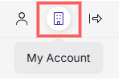
2 - In the top right menu, click on My Account.
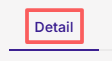
3 - Click on the Detail tab.
4 - Under API, copy and save the API Token.

Step 2: Activate Integration
In this step, you will connect your Guru account to Linkseller.
Steps:
1 - Log into your Linkseller account with your username and password.
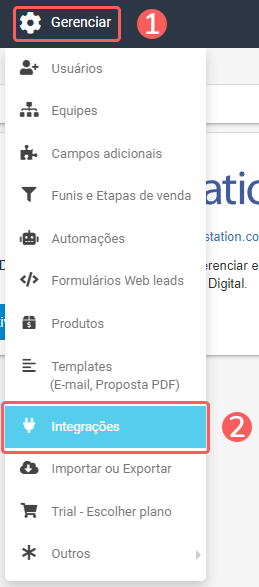
2 - In the top menu, go to Manage, and then click on Integrations.
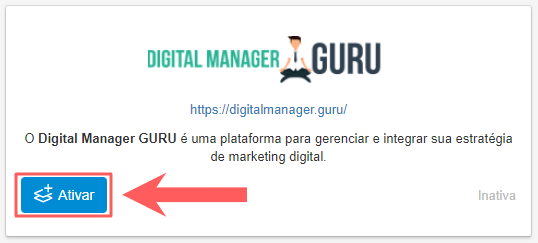
3 - Under Digital Manager Guru, click on Activate.
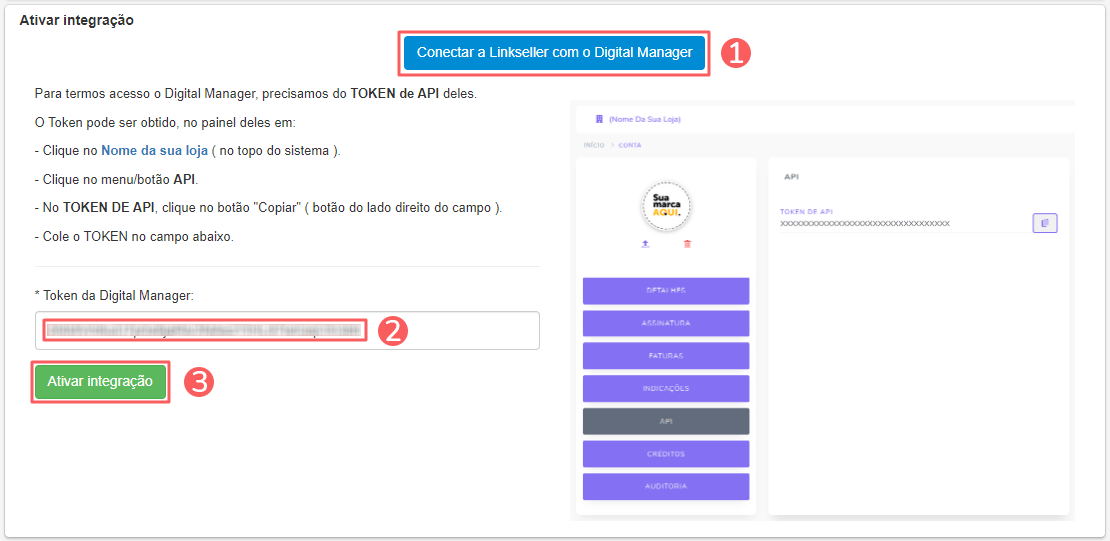
4 - Click on Connect Linkseller with Digital Manager. A field will appear to paste the API Token you copied in step 1. Then click on Activate Integration.
Step 3: Configure Automation
Next, follow the instructions corresponding to the automation you want to use: Automation A or B.
It is not allowed to use both types of automation at the same time.
Automation A: Generate Checkout URL for the Opportunity
In this mode, you will configure Linkseller to automatically request a checkout link from Guru when the opportunity moves to the desired stage.
Step 1: Configure External Sales URL
In this step, you will define a base checkout link for products configured in Linkseller.
Before proceeding, you need to:
-
Have a product with an offer that serves as a base to generate the checkout link.
-
If you want the checkout link to reflect the opportunity value in Linkseller, the offer must accept dynamic values.
Steps:
1 - Access the Guru admin using your username and password.
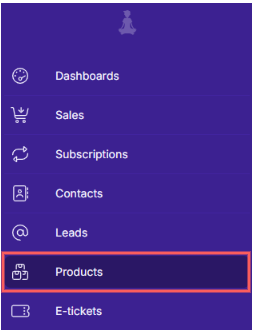
2 - In the side menu, click on Products.
3 - Select the product you want to associate with Linkseller.
.png?cb=0ae15c36c706e4bb8e3e388920dbc8ec)
4 - Go to the Offers tab.
5 - Copy and save the offer link.

6 - Access your Linkseller. account.
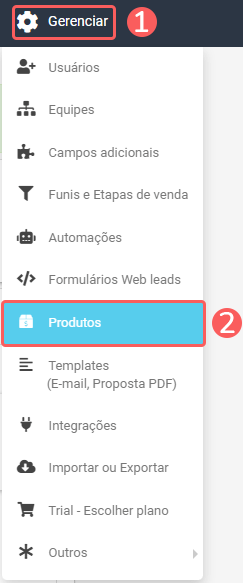
7 - In the top menu, go to Manage, and then click on Products.
8 - Add or edit a product.
9 - Under External Sales/Checkout URL, paste the Guru offer URL.
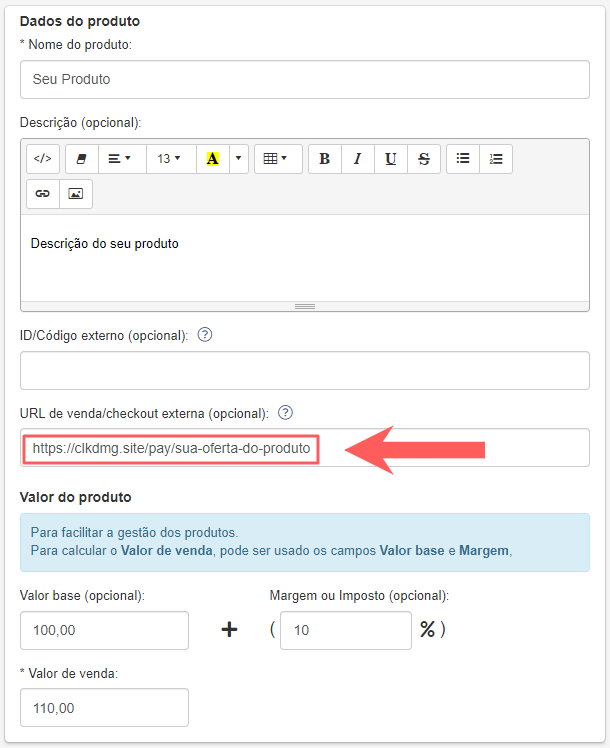
10 - Click on Save.
11 - Repeat items 1 to 10 for the products you want to configure.
Step 2: Configure Funnel Stages and Generic URL
In this step, you will define the condition in Linkseller to trigger the automation, as well as the actions to be performed after the opportunity is created.
Steps:
1 - Still in Linkseller, go to Configure: Checkout URL.
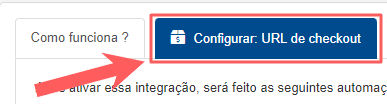
2 - On the screen, fill in the following details:
-
Process when entering stage: select the stage that will trigger the email to the customer;
-
Send an email with template: select the email template that will be sent to the customer;
-
After marked as "Paid", move to stage: select the stage where the opportunity will be moved after payment is processed;
-
Generic checkout URL: enter the link for your generic checkout - obtained in this step, stage 1.
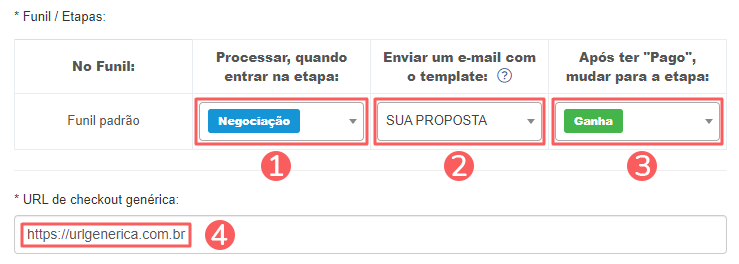
3 - Click on Save.
To finish configuring the integration, go to Step 4: Configure Webhook.
Automation B: Create Opportunity in Linkseller from a sale in Guru
In this mode, you will configure Linkseller to automatically create an opportunity when a sale in Guru changes to a certain status. For example, create a new opportunity when a sale in Guru changes status to Boleto Impresso.
Step 1: Configure Opportunity Creation
In this step, you must set the basic rules for opportunity creation.
Steps:
1 - Still in Linkseller, go to Configure: Opport Creation.

2 - Under Configure opportunity creation, enter:
-
Title: enter the title for the opportunity to be created;
-
Sub Keys (optional): if desired, click this button to add dynamic variables to the title - E.g., Person's Name;
-
Assignee: person who will be responsible for the sale;
-
Sales Stage: funnel stage where you want to insert the new opportunity;
-
Closing date: due date for the Opportunity;
-
Revenue: revenue value of the Opportunity.
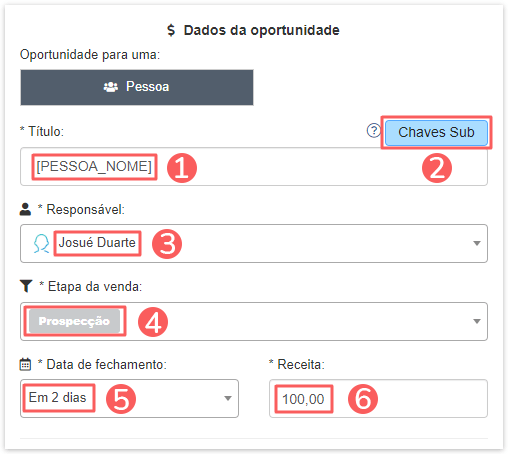
3 - Click on Save.
Step 4: Configure Webhook
In this step, you must access your Guru account (Settings » Webhooks) and configure an e-ticket, sale, or subscription webhook to send notifications to Linkseller.
Steps:
1 - Still in Linkseller, copy the Webhook URL.
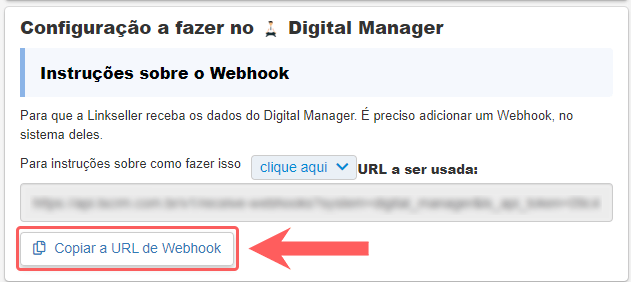
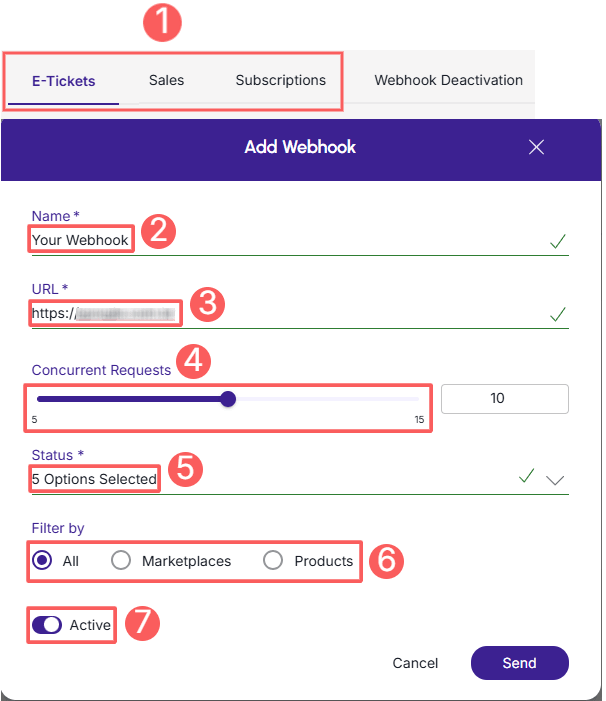
2 - To create the Webhook in Guru, remember to:
-
Select: if the webhook is for subscriptions, select the subscription statuses; if the webhook is for e-tickets, select the e-ticket statuses; if the webhook is for sales, select the sales statuses;
-
Name: enter the name for your Webhook;
-
URL: Webhook URL, obtained in step 1 - item 4;
-
Simultaneous sends: select simultaneous sends;
-
Status: select all desired sales statuses; subscription statuses or e-ticket statuses;
-
Filter by: check filter by
all,MarketplacesorProducts(1); -
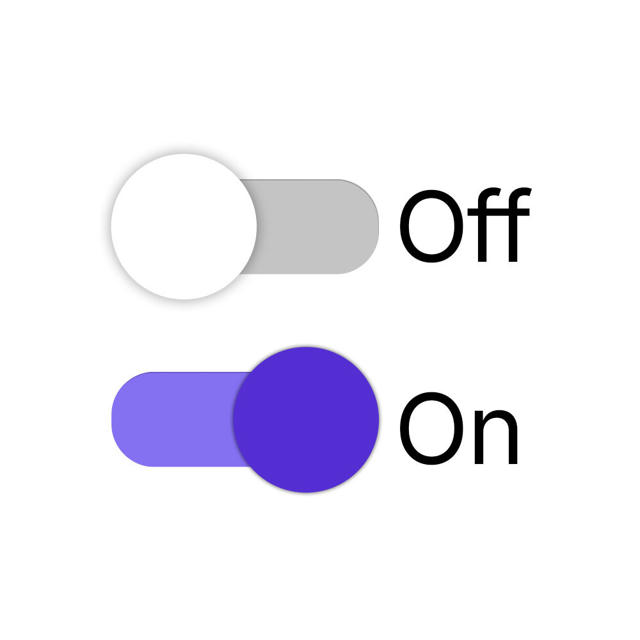
Toggle the Active button to the on position.
(1) By choosing to filter by “all” or “marketplaces”, any new product created will be automatically associated with the webhook.
Check out the complete step-by-step guide:
How to configure a subscriptions, e-tickets or sales webhook.
Done! From this moment on, each updated sale that meets the criteria defined in the configured webhook will be sent to Linkseller.