
LionChat is a customer service platform that combines visual CRM with sales Kanban, smart automations, and multichannel communication, allowing you to manage the entire customer journey in a single environment.
The integration between Guru and LionChat helps you to:
-
Send sale data to the LionChat platform; and
-
Create automated communication workflows with your customers across different channels.
The integration of Guru with LionChat is made through webhooks. If you have reached the available webhook limit, simply upgrade your plan to the Plus 2 or Plus 3 category.
Take advantage of the special conditions for Guru customers on LionChat. Guru customers get a 10% discount for 12 cycles, using the coupon: gurueh10.
To activate the integration with LionChat, you must follow the 3 steps below.
On this page:
-
Step 1: Configure automation in LionChat
-
Step 2: Obtain return URL
-
Step 3: Configure Webhook
-
LionChat Communication Channels
Before starting, you need to:
-
Have an active account on LionChat.
-
Have available webhook limit to use in your Guru account.
-
Be an administrator user in Guru or have permissions to perform the following steps.
Step 1: Configure automation in LionChat
In this step, you must log into your LionChat account to configure the automation.
Steps:
1 - Log into your LionChat account with username and password.
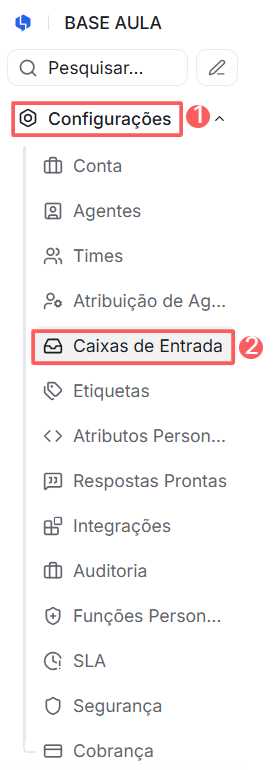
2 - In the side menu, click on Settings and then Inboxes.
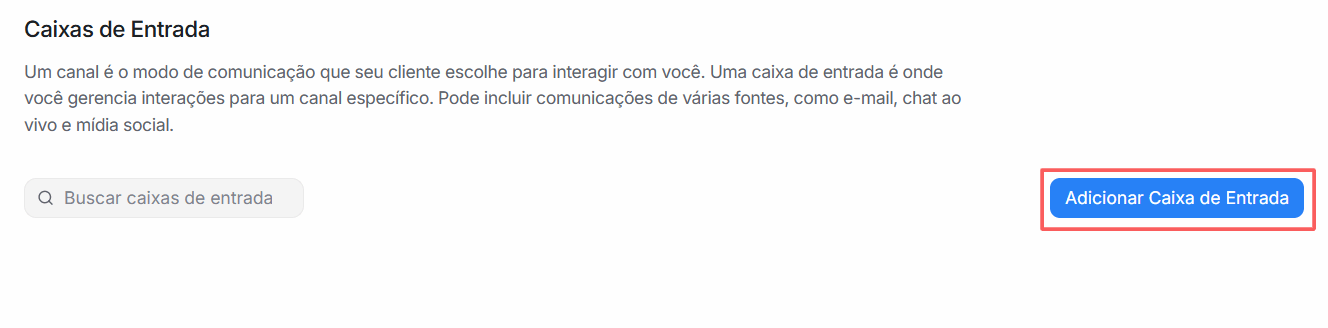
3 - In Inboxes, click on Add Inbox.
4 - In Choose channel, select the provider you want to integrate with LionChat and follow the step-by-step instructions to configure the inbox.
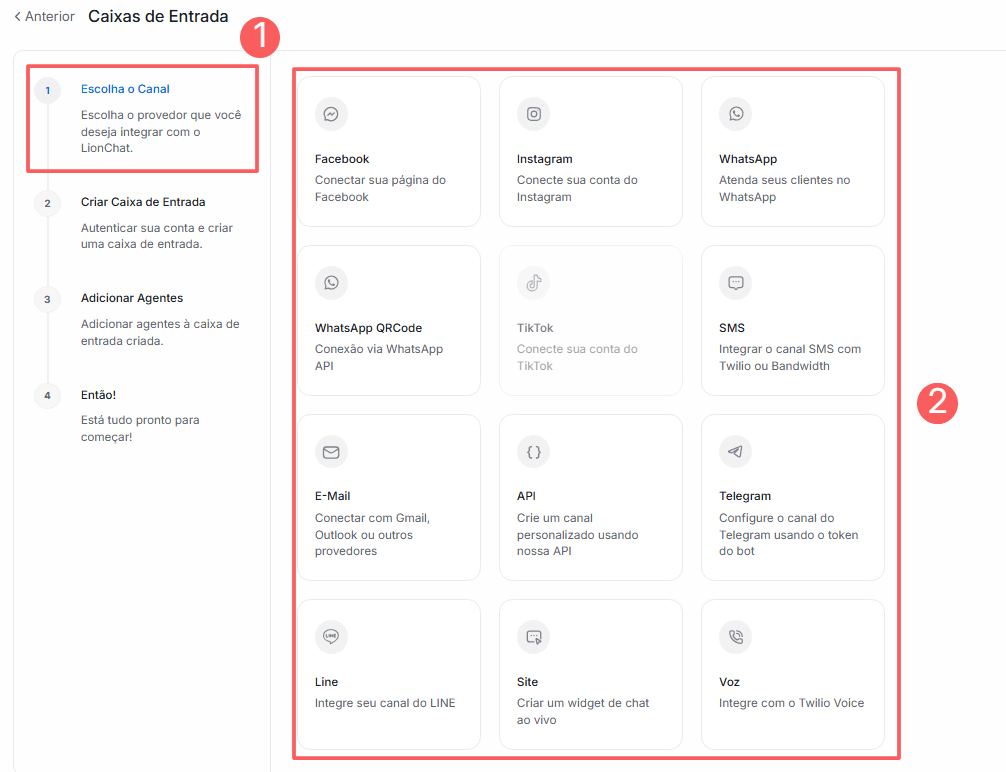
After selecting the desired channel, the setup workflow will adjust according to the specifics of each provider.
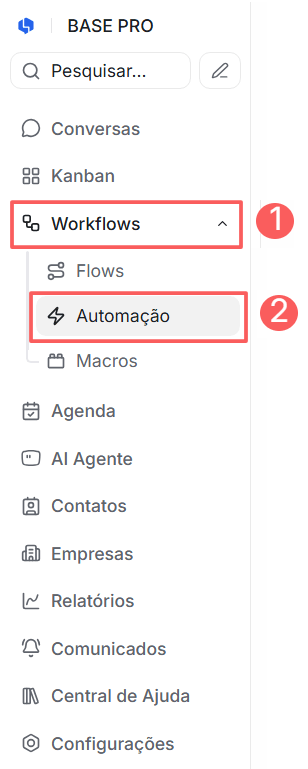
5 - Return to the side menu and click on Workflows, then access Automation.
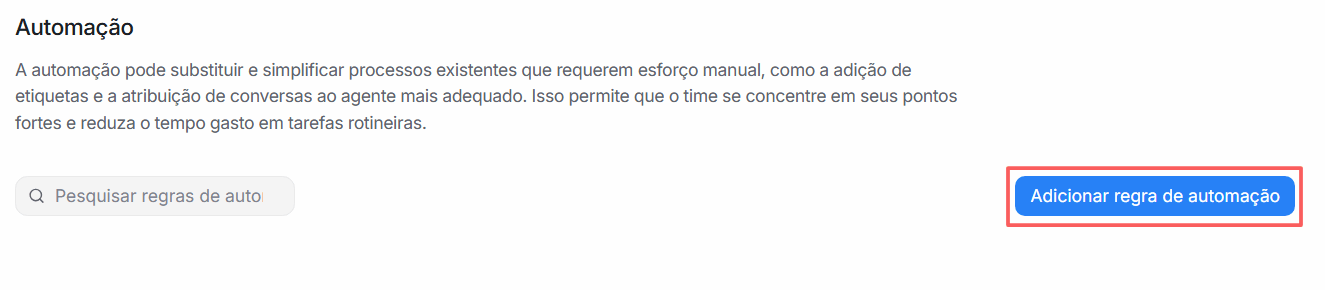
6 - In Automation, click on Add automation rule.
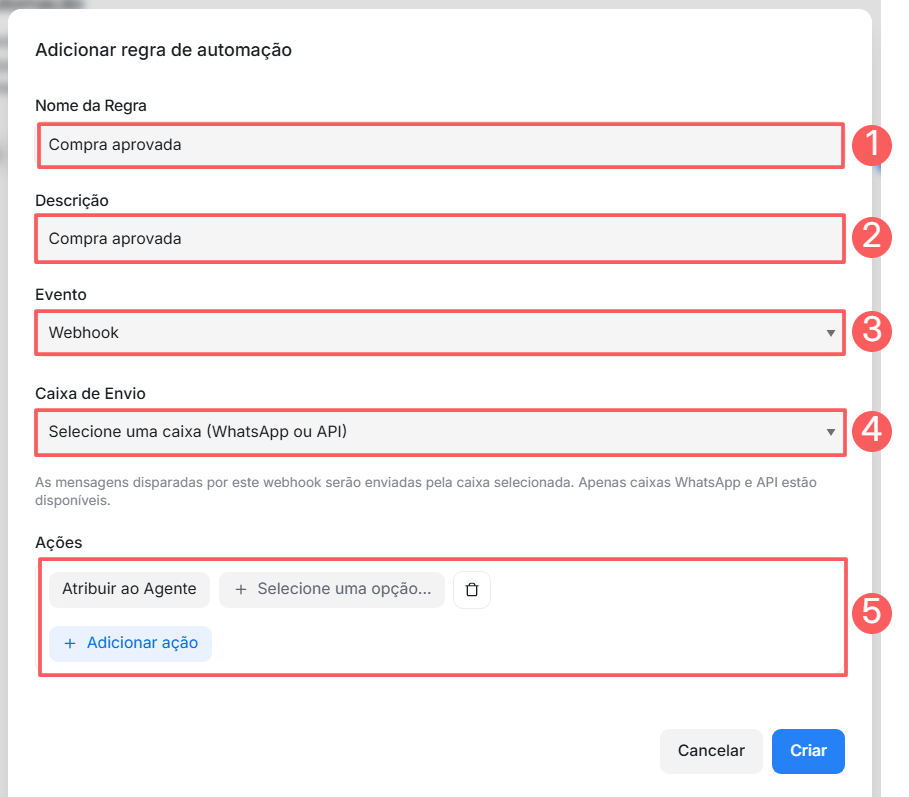
7 - In Add automation rule, enter:
-
Rule name: the name of the automation rule you want to configure;
-
Description: the description of the automation rule you want to configure;
-
Event: the webhook; event type;
-
Outbox: the outbox referring to the selected event type;
-
Actions: the actions you want to configure for the automation.
8 - Click on Create.
Step 2: Obtain return URL
In this step, you must log into your LionChat account to obtain the Webhook URL.
Steps:
1 - Log into your LionChat account with username and password.
2 - In the side menu, click on Settings and then Integrations.
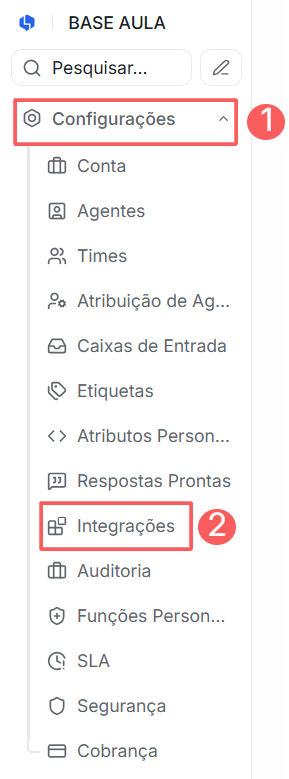
3 - In Integrations, locate Digital Manager Guru and click Configure.
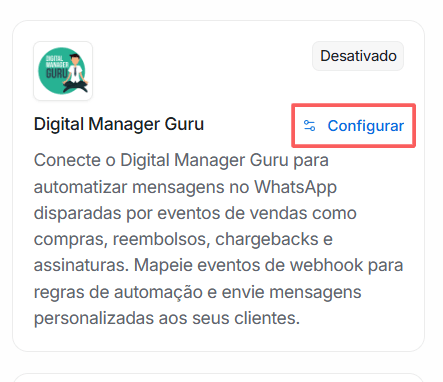
4 - In Digital Manager Guru, click on New Webhook.
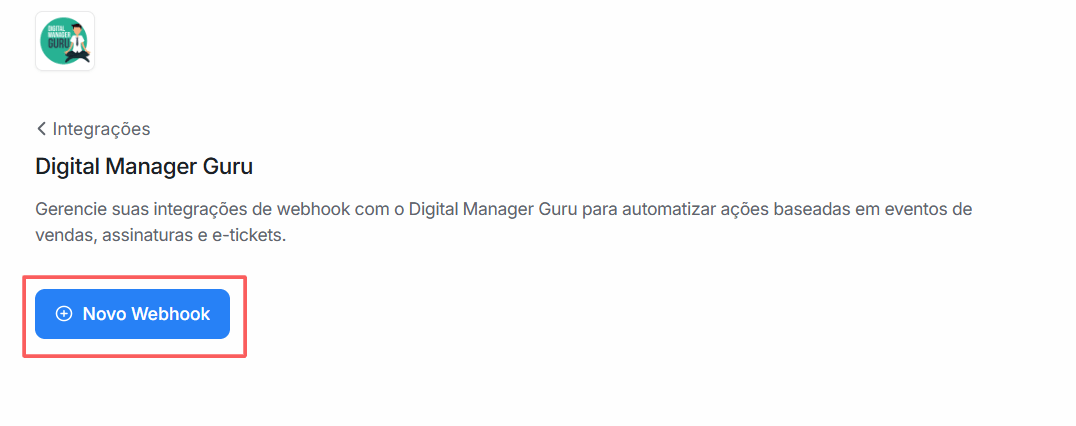
5 - Fill in the basic webhook settings:
-
Webhook Name: enter the name you wish to use for the webhook;
-
Integration Type: enter the type of integration you want to perform - sales, subscriptions or e-ticket.
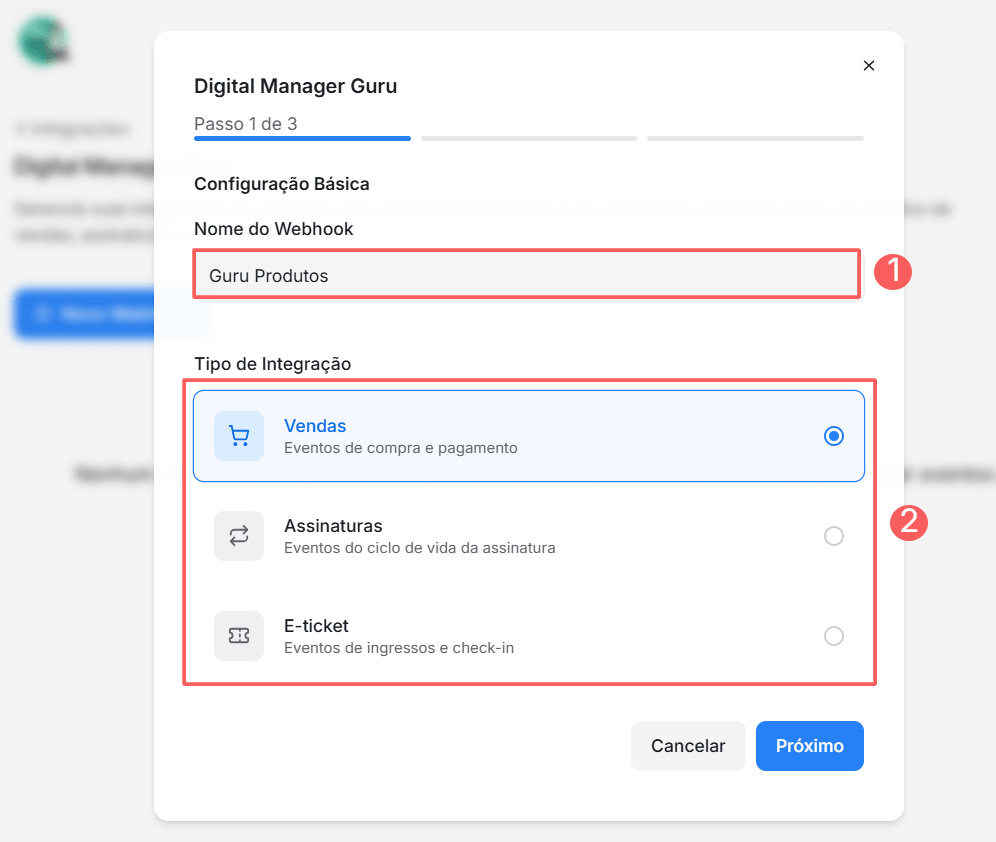
The integration type selected when configuring the webhook in LionChat must be the same type selected when configuring the webhook in Guru.
6 - Click on Next.
7 - In Event Selection, enable which events you want to map.
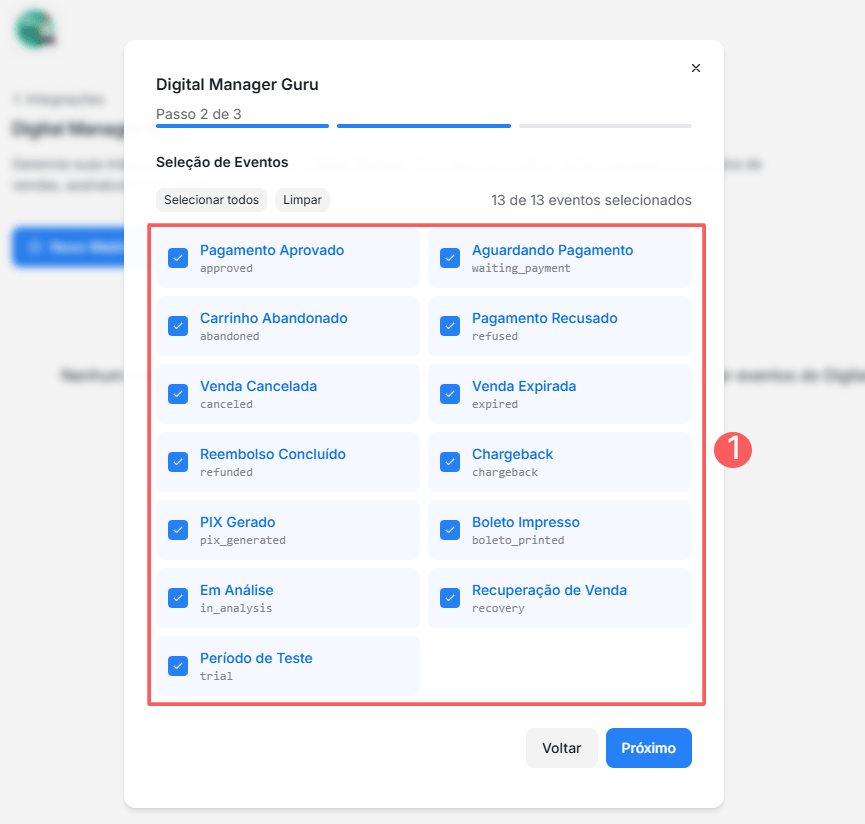
8 - Click on Next.
9 - In Automation Mapping, select which automation should be triggered when the event is received.
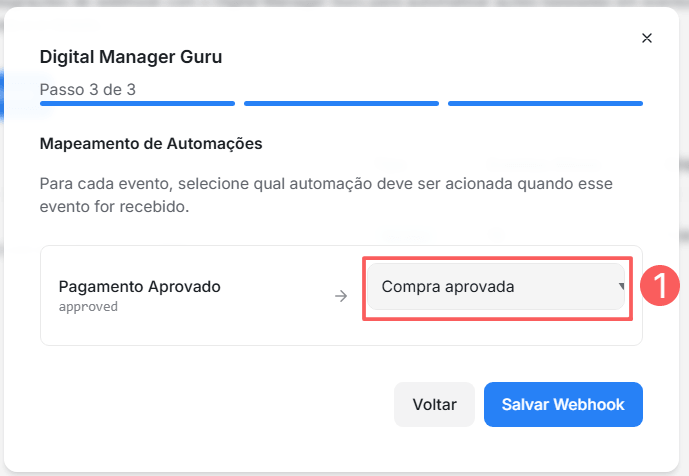
10 - Click on Save Webhook.
11 - Copy and save the Webhook URL.
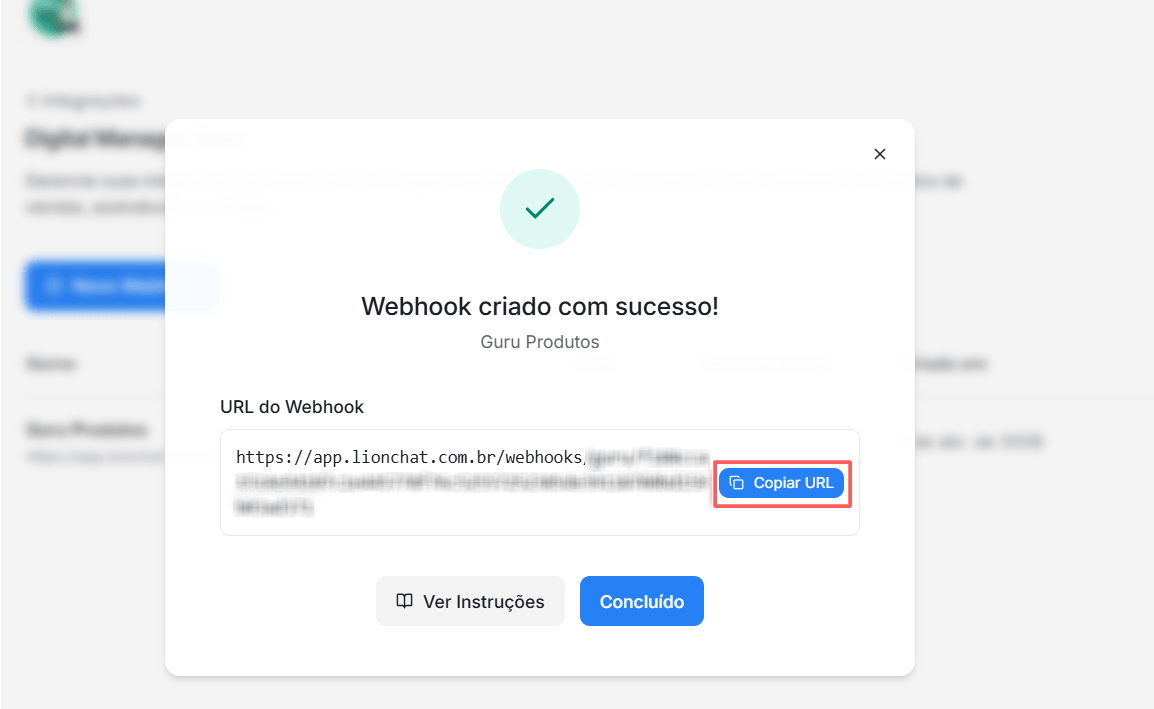
12 - Click on Done.
Step 3: Configure Webhook
In this step, you must access your Guru account (Settings » Webhooks) and configure an e-ticket, sale, or subscription webhook to send notifications to BotConversa.
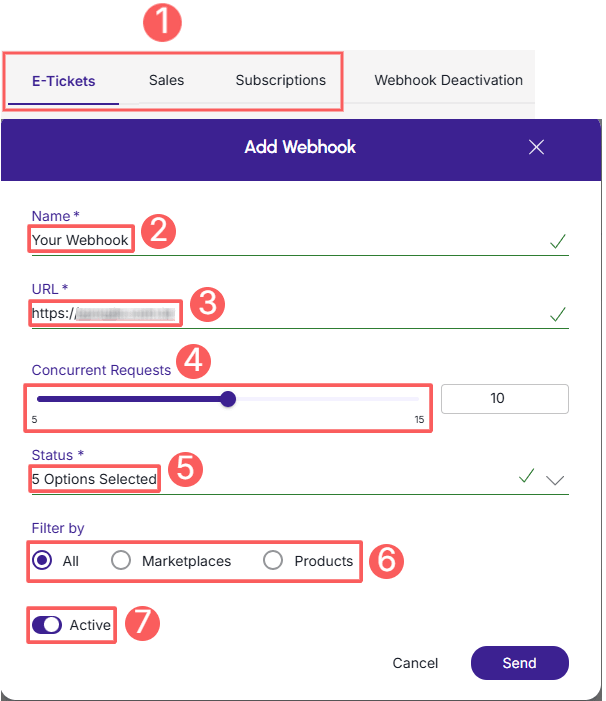
When creating the Webhook, remember to:
-
Select: if the webhook is for subscriptions, select the subscription status; if the webhook is for e-tickets, select the e-ticket status; if the webhook is for sales, select the sales status;
-
Name: enter the name of your Webhook;
-
URL: enter the Webhook URL, obtained in step 1 - item 7;
-
Simultaneous sends: select simultaneous sends;
-
Status: select all desired sales statuses; subscription statuses or e-ticket statuses;
-
Filter by: check filter by
all,MarketplacesorProducts(1); -
Toggle the Active button to the on position.
(1) By choosing to filter by "all" or "marketplaces", any new product created will automatically be associated with the webhook.
Check the complete step by step guide:
How to configure a subscriptions, e-tickets or sales webhook.
Done! From this moment on, each updated sale that meets the criteria defined in the configured webhook will be sent to LionChat.
LionChat Communication Channels
The LionChat provides support for questions related to platform configuration, creating automations, integrations with other tools, customer service management, and general use of features.
If you need technical or operational assistance directly from the platform, use the official channels below:
-
Support via WhatsApp: +55 (11) 96441-1191 - recommended channel for quick questions, operational guidance, and agile tracking of requests;
-
Platform Chat: recommended for matters involving analysis within the platform or sending more detailed information, allows you to contact support directly within the LionChat environment (login required).
Tip: For questions exclusively related to settings in the Guru panel or checkout operation, please contact our support team.