
The Manychat is a marketing and sales automation platform focused on chatbots, which serves to automate conversations and reply to messages intelligently. Through it, you can send Guru sale information to another platform and trigger an automated action, such as E.g.: whenever a sale is recorded or updated in Guru, send an automated message to an Instagram DM with the product name and sale ID.
The integration between Guru and Manychat helps you:
-
Send sale data to the Manychat platform; and
-
Create an automation with an external tool.
To activate the manual integration with Manychat you must perform the following 4 steps.
On this page:
-
Step 1: Obtain API Token in Guru
-
Step 2: Add Guru APP in Manychat
-
Step 3: Activate Integration in Manychat
-
Step 4: Create automation in Manychat
-
Manychat Communication Channels
Before you begin, you need to:
-
Have an active Manychat account.
-
Be an administrator user in Guru or have permissions to perform the following steps.
Step 1: Obtain API Token in Guru
In this step, you will obtain the API Token (user token) in Guru to enter in the installed app field in Manychat, to activate the integration.
Steps:
1 - Access the Guru admin with your username and password.
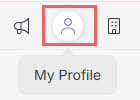
2 - In the top right menu, click on My Profile.
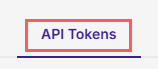
3 - Click on the API Tokens tab.
4 - Under API Tokens, click Add.

5 - Enter the API Token. name.
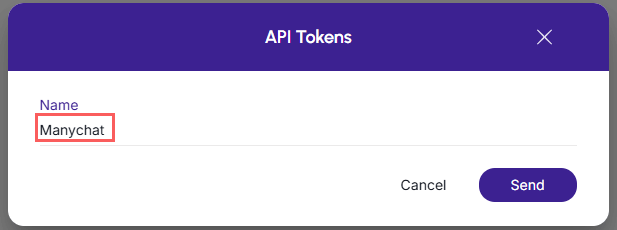
6 - Click Send.
7 - Next, copy and store the API Token.
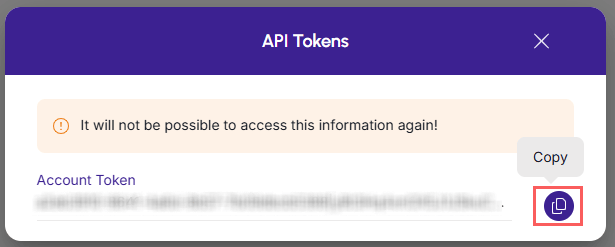
Attention: Copy and save your API token, as it will not be displayed again.
Step 2: Add Guru APP in Manychat
In this step, you must install the Guru app inside your Manychat environment.
Before you begin: You need to have an active Manychat account. If you don't have one yet, create your account before proceeding.
Steps:
1 - Access the Guru App installation link - you must be logged into your Manychat account.
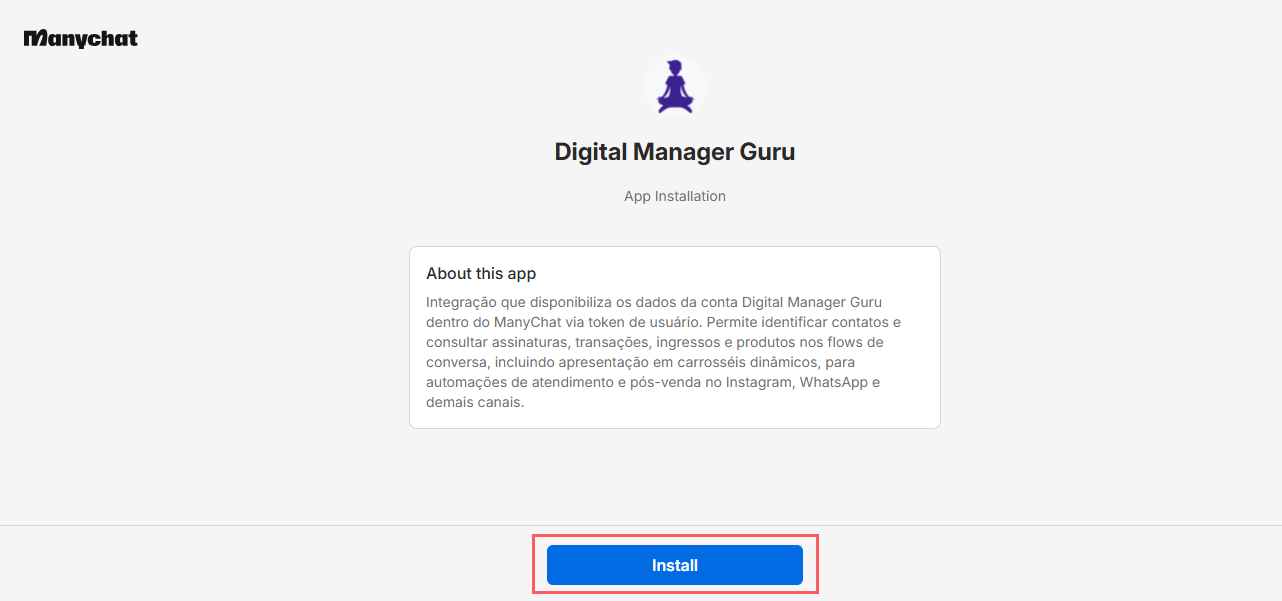
2 - Click Install.
3 - Next, select the account where you want to install the Manychat app.
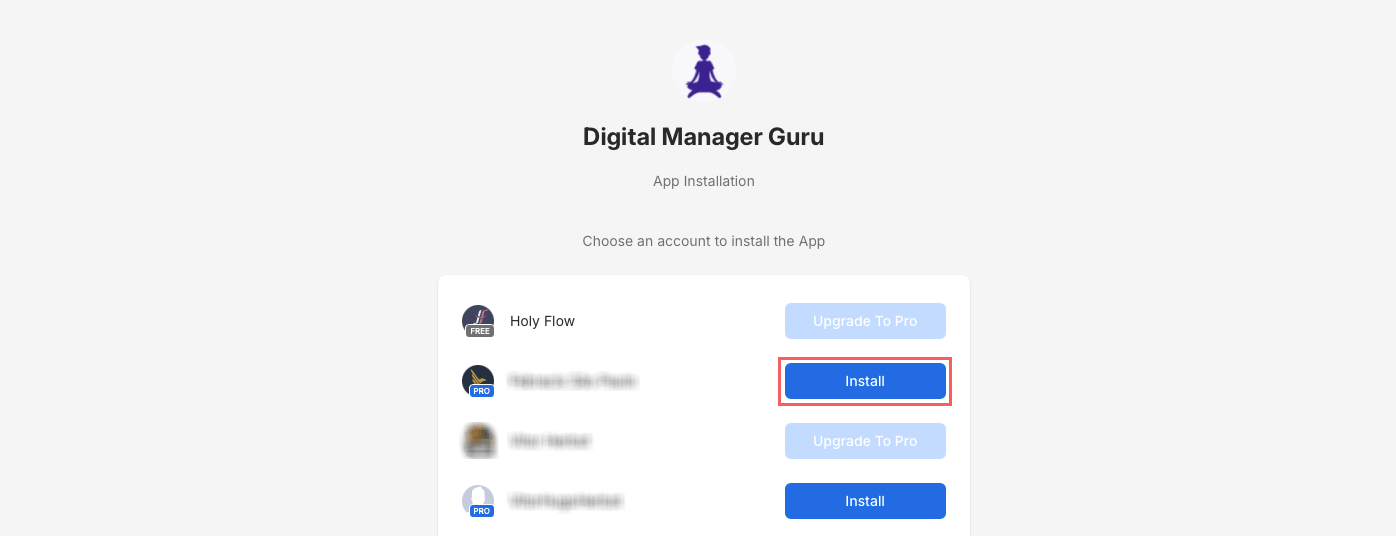
4 - Click Access app settings.
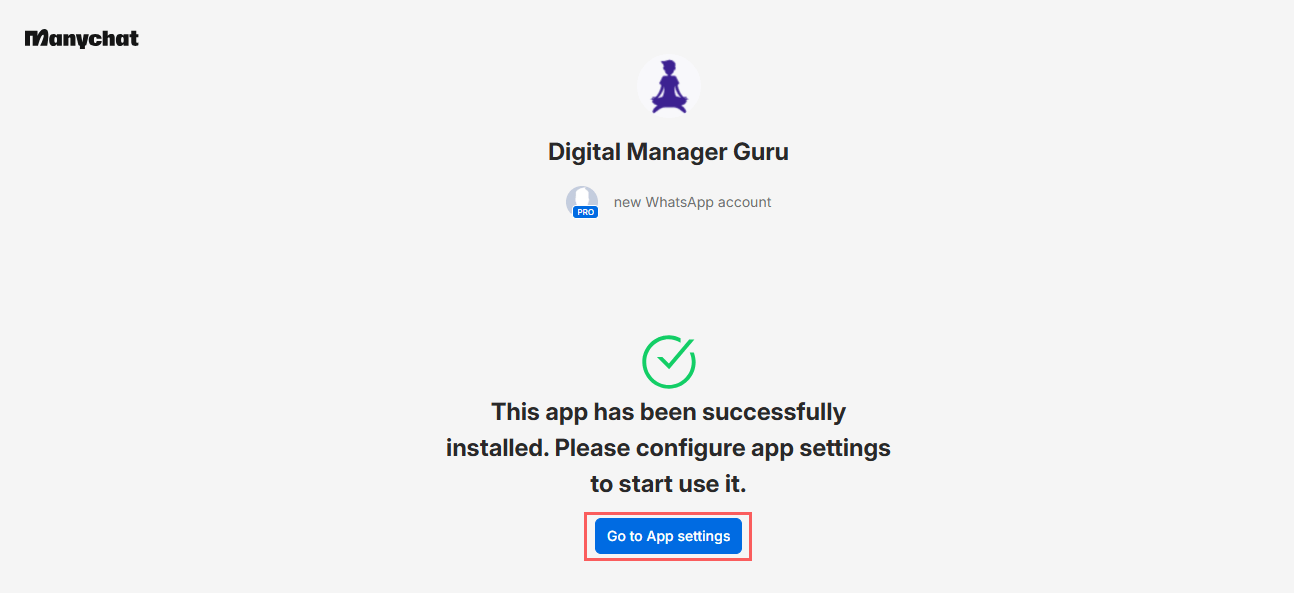
A text box will appear informing that the installation was successful.
5 - By clicking on access app settings, you will be redirected to the Manychat dashboard.
Step 3: Activate Integration in Manychat
In this step, you will enter the API Token obtained from Guru into Manychat to activate the integration.
Steps:
1 - Access your Manychat environment with your username and password.
2 - In the side menu, click on Settings.
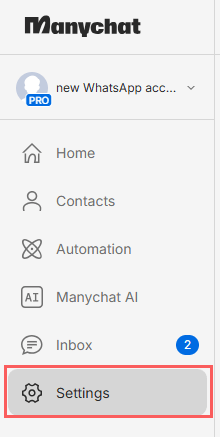
3 - Under Extensions, click Apps.
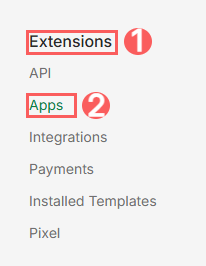
4 - Under Installed Apps, click on the Digital Manager Guru app.

If you do not have the app installed yet, click Add Guru APP in Manychat. After installing from the link, the Guru app will automatically appear in your list.
5 - In App Setup, paste the API Token obtained from step 1 - item 5.
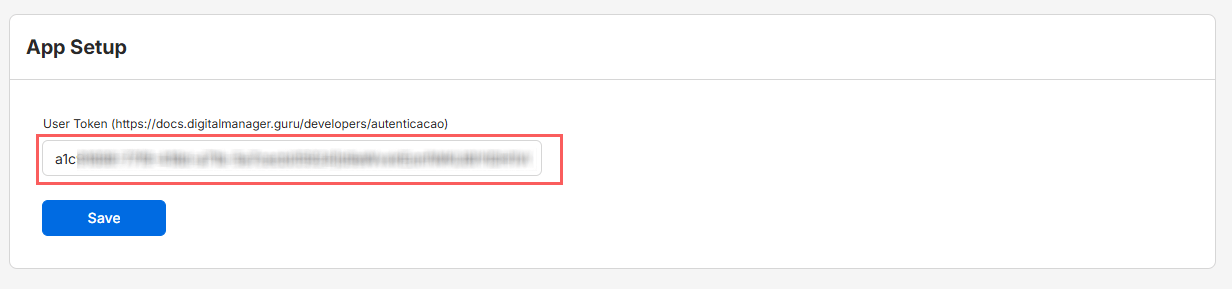
6 - Click Save.
Step 4: Create automation in Manychat
In this step, you will create the automation in Manychat to receive information when a sale is made in Guru.
Steps:
1 - Access your Manychat environment with your username and password.
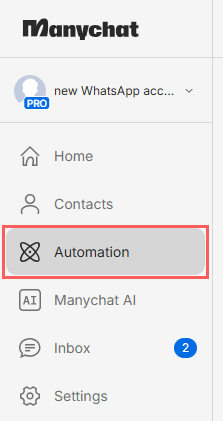
2 - In the side menu, click on Automation.
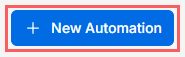
3 - Under My Automation, click New Automation.
4 - Click Start from Scratch, and then Start from Scratch (build your own way).
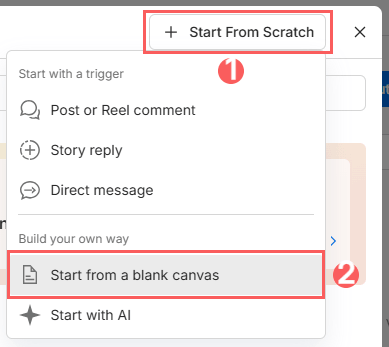
5 - By clicking on Start from Scratch, you can select and configure the automation information you want.
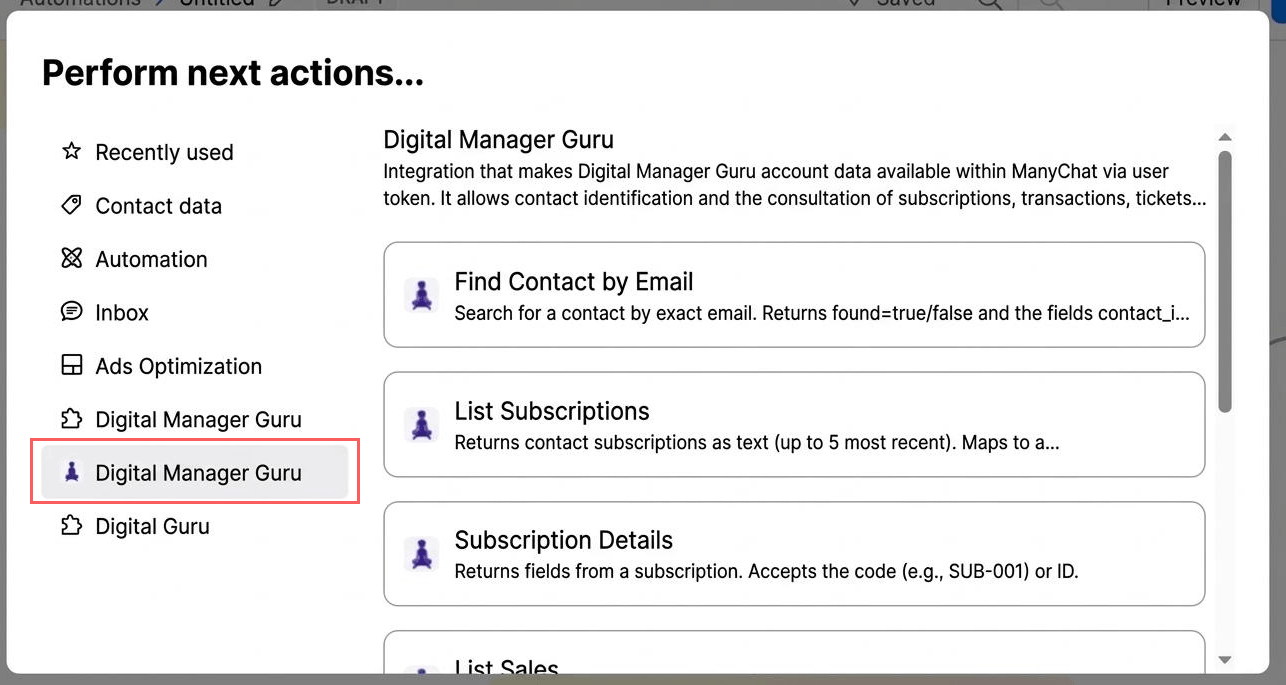
6 - Before starting the actions, you must validate if Digital Manager Guru appears configured.
We will present an example of how to create the automation for a subscription, sale, and e-tickets.
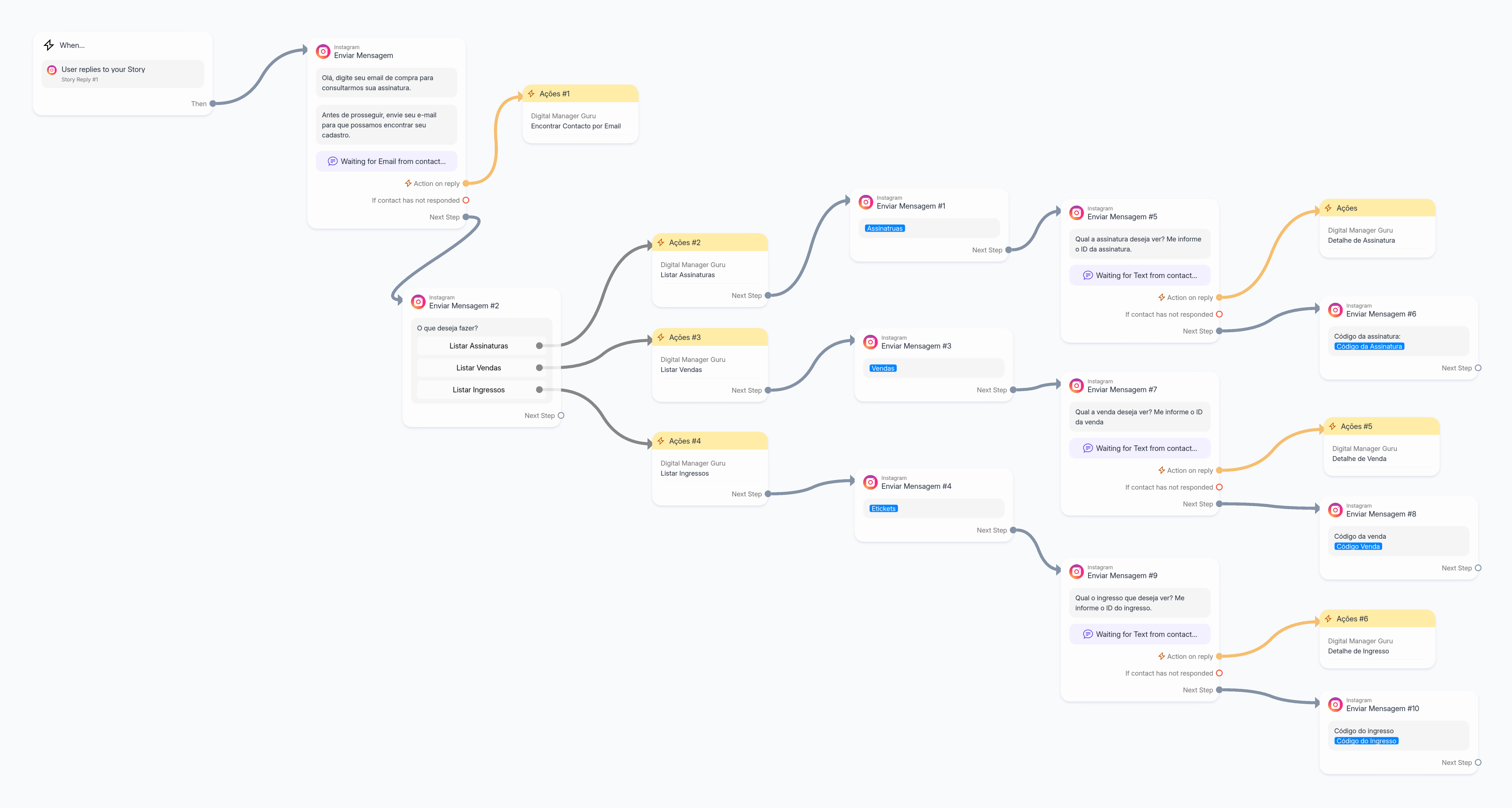
7 - Next, click Publish.
Access and learn How to create an automation in Manychat.
Manychat Communication Channels
The ManyChat provides support for issues related to message automation, conversation flow creation (chatbots), connection with Instagram, WhatsApp, and Facebook APIs, as well as integration and artificial intelligence settings.
If you need technical or operational assistance directly from the platform, use the official channels below:
-
Ticket Support (Help Center): technical support occurs by opening tickets directly through the platform dashboard or help portal; and
-
Help Center and Resources: access the knowledge base to find video tutorials, detailed step-by-step articles on integrations, and answers to frequently asked questions.
Tip: For questions related exclusively to settings in the Guru panel or checkout functionality, contact our support team.
More Resources