
It is possible to configure webhooks to synchronize sales data between Guru and external applications. This feature can be used to send data to your own app or system.
In Guru, you can add webhooks and adjust the sending rules, such as: destination URL, sending status, products or marketplaces to which you want to associate the webhook, and the number of simultaneous sends.
On this page:
-
Webhooks for a sale (order)
-
Add sales webhook
Before you start, you need…
-
Be an administrator user or have permission to perform the following actions.
Webhooks for a Sale (order)
You can use the sales webhook to receive a notification in the destination system every time the sale is updated and meets the conditions configured in the webhook.
This function is useful when you need to take an action1 according to the sale status in question, for example: if the sale is canceled (card not approved), your sales recovery team should contact the customer.
Below you will find the list of sales webhook sending types (triggers):
|
Type |
Sent when… |
|---|---|
|
Abandoned |
The sale has been updated and has the status |
|
Awaiting Payment |
The sale has been updated and has the status |
|
Approved |
The sale has been updated and has the status |
|
Blocked |
The sale has been updated and has the status |
|
Canceled |
The sale has been updated and has the status |
|
Claimed |
The sale has been updated and has the status |
|
Complete |
The sale has been updated and has the status |
|
Delayed |
The sale has been updated and has the status |
|
Expired |
The sale has been updated and has the status |
|
In Analysis |
The sale has been updated and has the status |
|
In Recovery |
The sale has been updated and has the status |
|
Refunded |
The sale has been updated and has the status |
|
Refund Req. |
The sale has been updated and has the status |
|
Rejected |
The sale has been updated and has the status |
|
Trial |
The sale has been updated and has the status |
(1) The Guru webhook only sends sale information. The destination system or application is responsible for interpreting and taking the necessary actions according to the information received in the post.
Add Webhook
You can configure webhooks in the Guru admin through the following operations: add, update, deactivate, and remove. All actions performed are recorded by the platform and can be consulted in the Audit.section.
Consult the integration limit1 active (category webhooks) for the contracted plan. If you have reached the available limit, simply upgrade to the Plus 2 or Plus 3 category.
(1) During the testing period, a maximum of 2 active webhooks is allowed.
Steps:
1 - Access the Guru admin with your username and password.
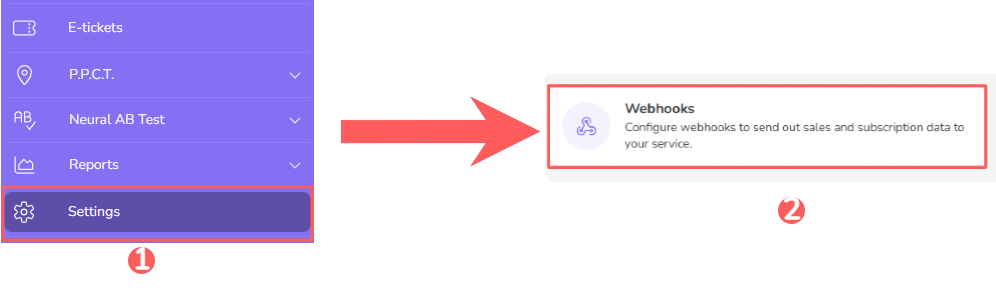
2 - In the side menu, click on Settings and then Webhooks.
3 - In Webhooks, click on Sales.
4 - In the upper right corner, click on Add Webhook.
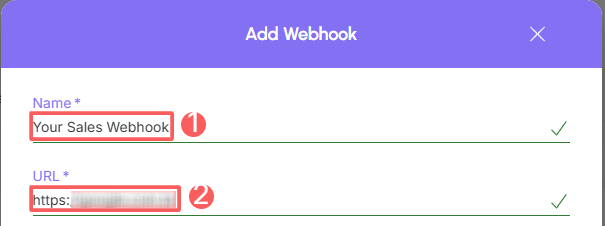
5 - Fill in the information:
Basic Data
-
Name: your webhook's name;
-
URL: Destination URL obtained from the system in question (or from the responsible developer).
Sending Rules:
-
Concurrent Requests: maximum number of concurrent requests that Guru should perform - indicate an appropriate value to avoid overloading the destination server;
-
Status: for which sale statuses the webhook should be sent - you can select more than one.
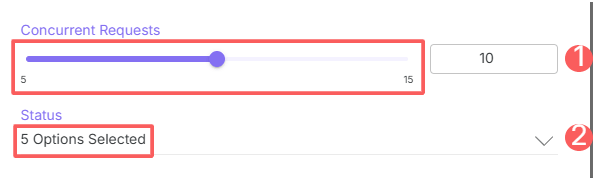
For example: if you configure the webhook for 5 simultaneous sends, if 6 simultaneous sends are made, the sixth send is placed in a waiting queue with a delay (delay) of 10 seconds.
Webhook sending funnel:
-
Destination URL + object ID (transaction or subscription) -> maximum one webhook at a time;
-
Destination URL -> maximum number of simultaneous webhooks configured.
Record Filtering
According to the webhook type, you can filter by: All, Marketplaces or Products.
-
Filter by: check filter by
all,MarketplacesorProducts(1); -
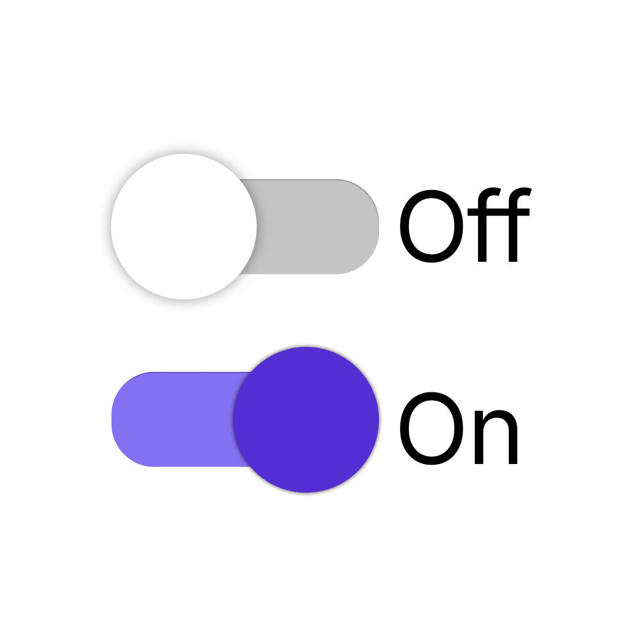
Send on shipment update: if you want the webhook to also be sent when a carrier update is received, switch the button to the on position;
-
Active: switch the button to the on position.
(1) When choosing to filter by “all” or “marketplaces”, any new product created will be automatically associated with the webhook.
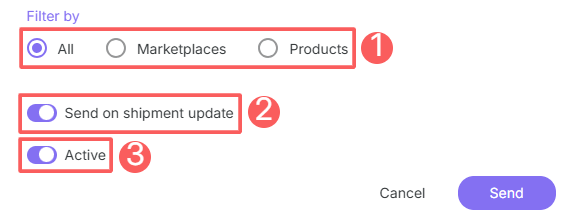
If you filter by Marketplaces or All, whenever you create a new product that meets the requirements, it will be associated with the corresponding webhooks.
Only sales that meet the indicated filtering criteria will be sent by the webhook.
it is possible to activate the “Send on carrier update” option to send a webhook update whenever data is received from a carrier, such as a tracking code or changes in shipping status.
6 - Click on Send.
From this moment, each updated sale that meets the defined criteria will be sent to the destination URL.