
Pluga is an automation tool that connects various tools. Through it, you can send sales information from Guru to another platform and trigger an automated action.
Practical example: whenever a sale is recorded or updated in Guru, send an automated message to a Slack channel with the product name and sale ID.
The integration between Guru and Pluga helps you:
-
Send sales data to the Pluga platform; and
-
Create an automation with an external tool.
To activate the integration with Pluga, you must complete the following 3 steps.
On this page:
-
Step 1: Obtain Return URL in Pluga
-
Step 2: Configure Webhook
-
Step 3: Test Webhook in Guru and Configure Automation in Pluga
-
Pluga Communication Channels
Before starting, you need to:
-
Have an active account in Pluga.
-
Have webhook quota available for use in your Guru account.
-
Be an administrator user in Guru or have permissions to execute the following steps.
Step 1: Obtain Return URL in Pluga
In this step, you must log into your Pluga account to generate the Webhook URL needed to integrate Guru and Pluga.
Steps:
1 - Access your Pluga environment with your username and password.
2 - Click Create.
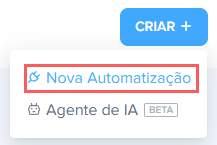
3 - Then, click New Automation.
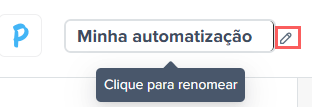
4 - If you want, you can click to rename the Automation Name.
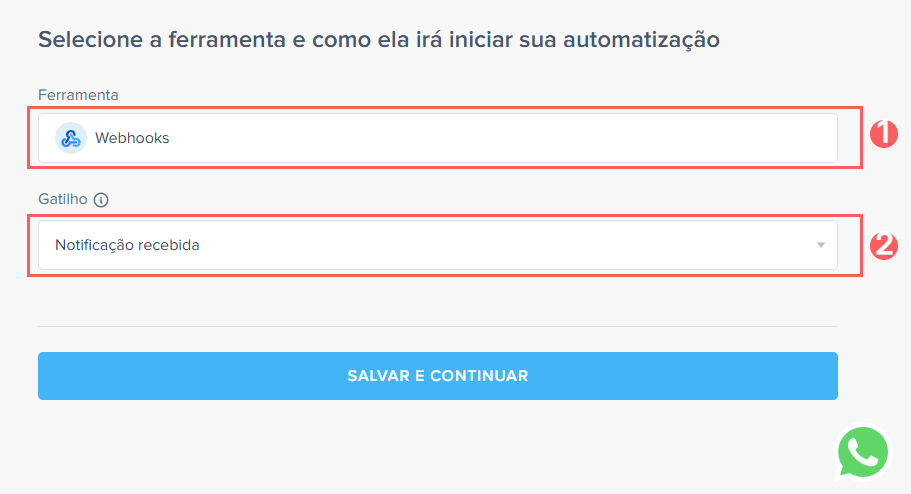
5 - Next, select the tool and how it will start your automation.
-
Tool: search for Webhooks;
-
Trigger: select the option notification received.
6 - Save and Continue.
7 - Under Configure your Webhooks account, copy and store the Webhook URL.
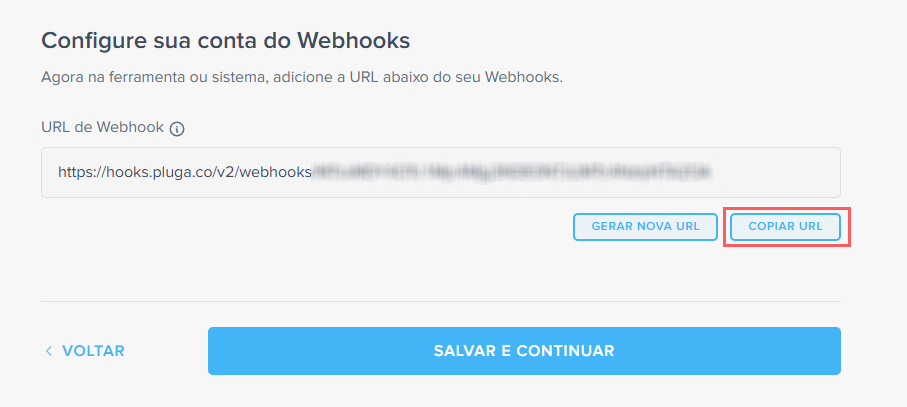
Note: If necessary, you can click Generate new URL to create a new webhook URL. If you do this, make sure to replace the old link inside Guru's settings.
8 - Save and Continue.
When you click Save and continue, Pluga will open the screen where it will be listening to the URL. At this moment, you must configure the webhook in Guru (according to step 2), make a test sale, and wait a few moments until the data model (JSON) is automatically loaded.
Step 2: Configure Webhook
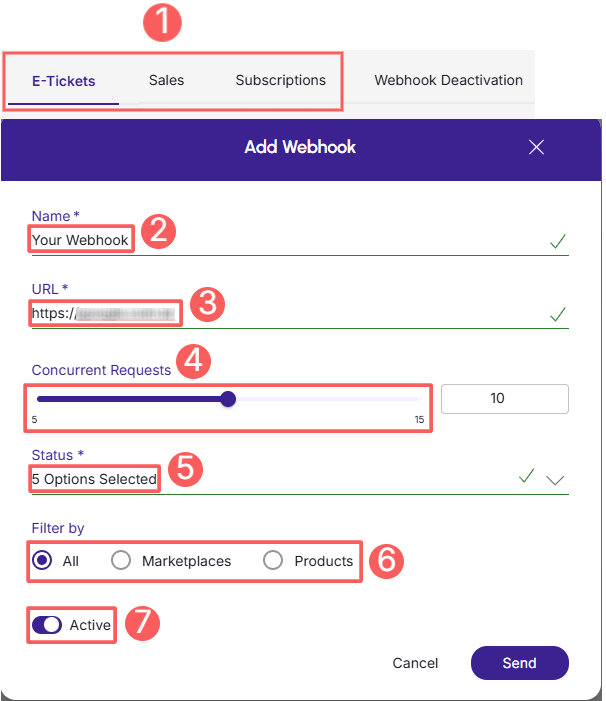
In this step, you must access your Guru account (Settings » Webhooks) and configure an e-ticket, sale, or subscription webhook to send notifications to BotConversa.
When creating the Webhook, remember to:
-
Select: if the webhook is for subscriptions, select the subscription status; if the webhook is for e-tickets, select the e-ticket status; if the webhook is for sales, select the sales status;
-
Name: enter the name of your Webhook;
-
URL: enter the Webhook URL, obtained in step 1 - item 7;
-
Simultaneous sends: select simultaneous sends;
-
Status: select all desired sales statuses; subscription statuses or e-ticket statuses;
-
Filter by: check filter by
all,MarketplacesorProducts(1); -
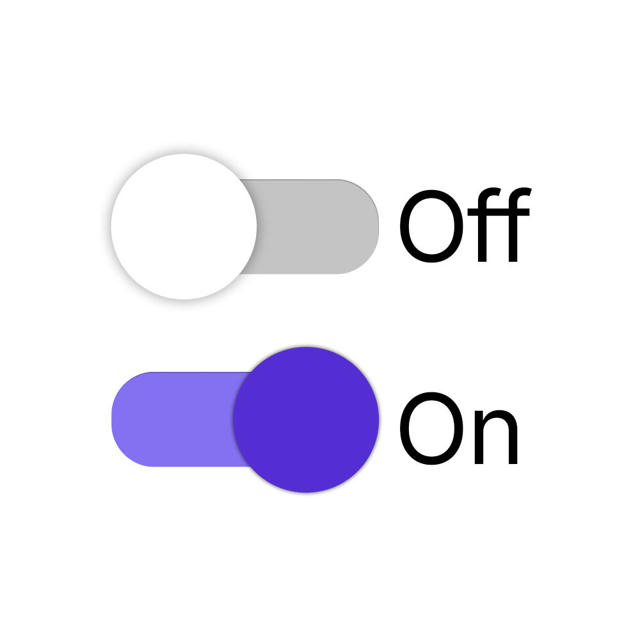
Toggle the Active button to the on position.
(1) By choosing to filter by "all" or "marketplaces", any new product created will automatically be associated with the webhook.
Check the complete step by step guide:
How to configure a subscriptions, e-tickets or sales webhook.
Done! From this moment on, each updated sale or subscription that meets the criteria defined in the configured webhook will be sent to Pluga.
Step 3: Test Webhook in Guru and Configure Automation in Pluga
In this step, you will validate the integration between Pluga and Guru. To do this, after creating the webhook in Guru (step 2), you will need to make a test sale in Guru. This trigger will send the necessary data so that Pluga can identify the event and map the data model for automation.
Steps:
1 - Access the Guru admin with your username and password.
2 - Make a test sale in Guru after creating the webhook.
3 - Return to your Pluga environment with your username and password.
4 - Under Adjust Webhooks options wait for Pluga to "Listen to the Webhooks URL to generate the data model".
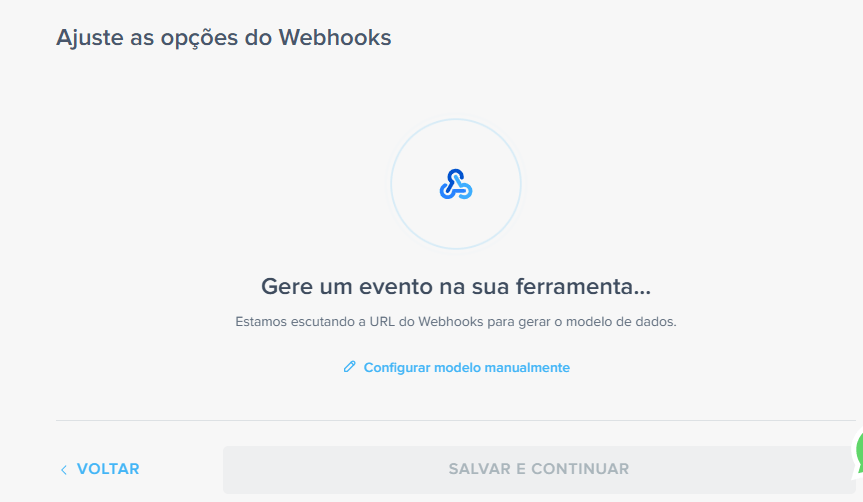
For the data model (JSON) to be generated automatically, Pluga needs to "listen" to the Webhook URL right after the test sale is made in Guru. Loading takes only a few seconds, so wait for the screen to refresh before proceeding with the automation setup.
5 - Then, as soon as Pluga receives the event, the JSON model is populated automatically.
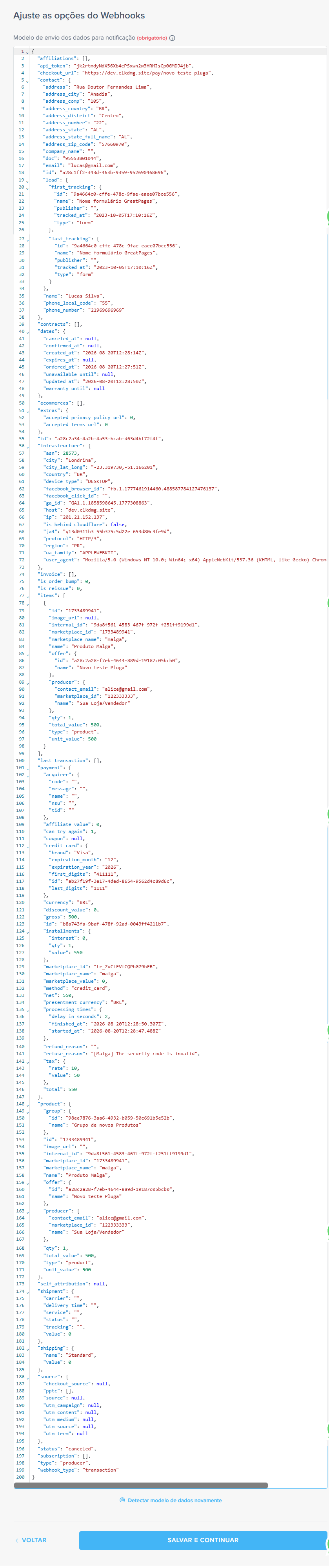
6 - Click Save and Continue.
7 - Next, under Tool and Action select:
-
Tool: the Webhooks tool;
-
Action: the action to be executed.
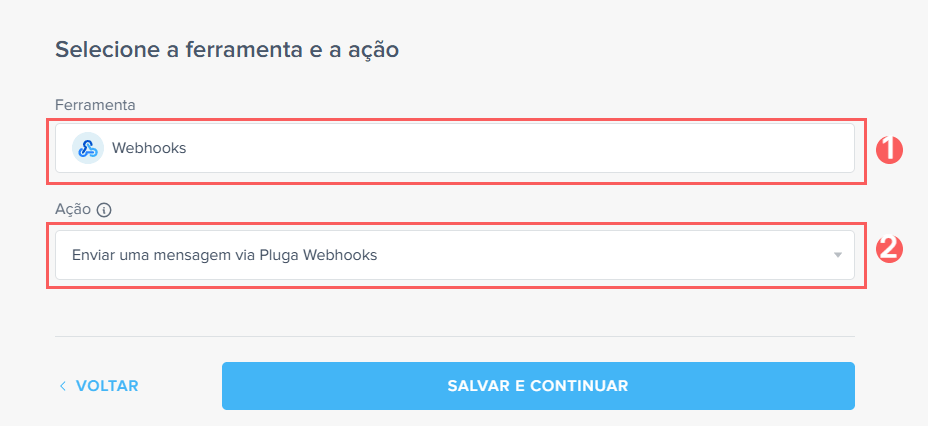
8 - Click Save and Continue.
9 - Next, under Adjust Webhooks options enter:
-
Tool name (required): type Digital Manager Guru;
-
Request method (optional): the request method that will be used;
-
Data response model (optional): the data model (in JSON format) that will return to Pluga.
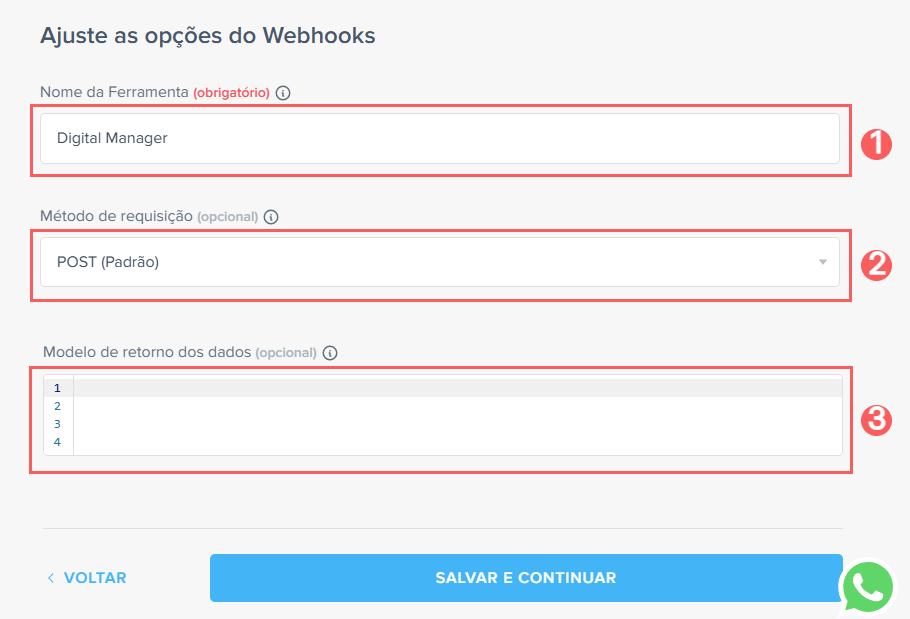
10 - Click Save and Continue.
11 - Under Customize the information to make it your own, select field mapping:
-
Tool API URL (required): the API address where Pluga will send the desired information;
-
Tool field (optional): the name and information of the source tool that will be sent by Pluga Webhooks;
-
Headers (optional): the key and value to be sent as request headers information;
-
Request search parameters (optional): the key and value to be sent as request search parameters information.
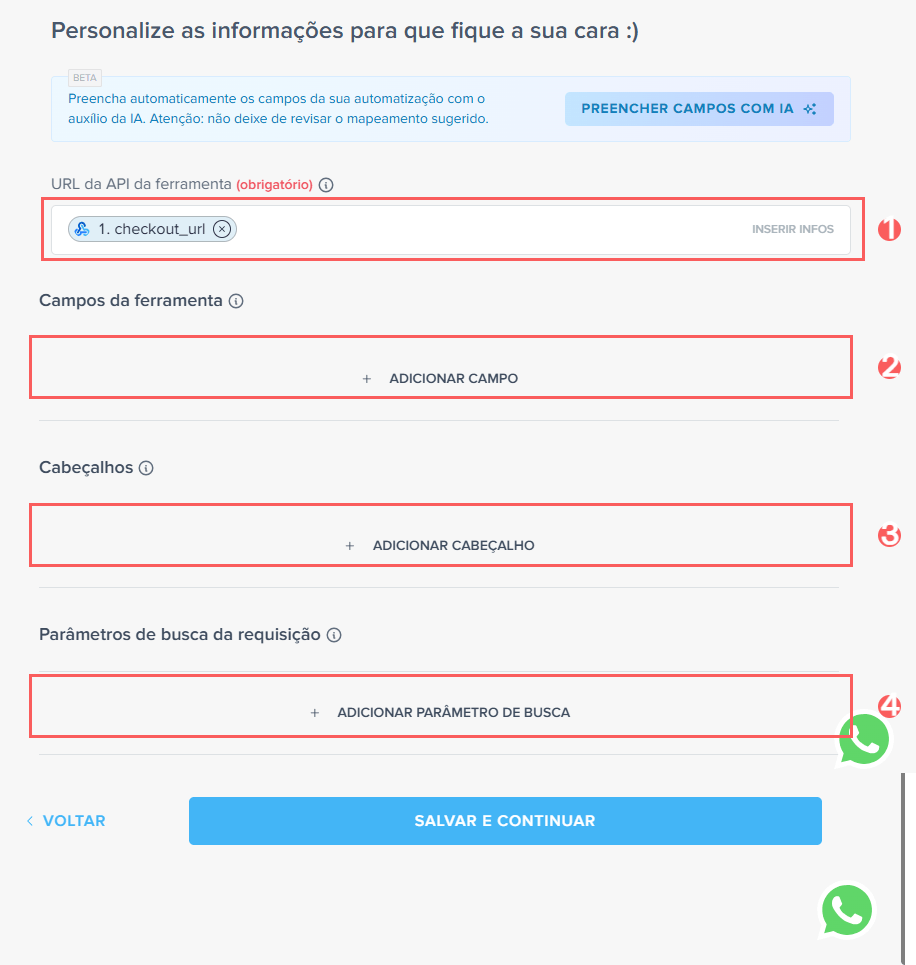
12 - Click Save and Continue.
13 - Next, click Finish Automation.
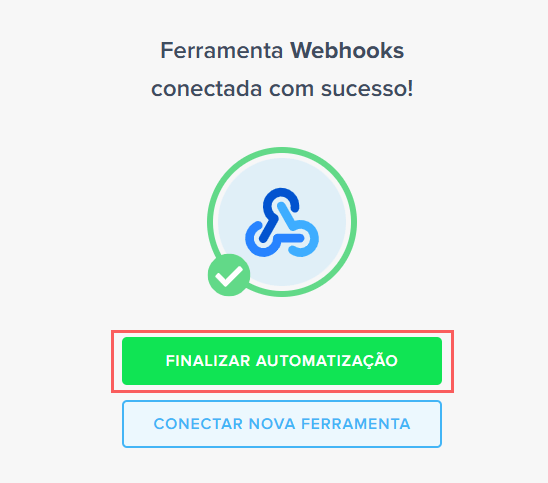
14 - After clicking Finish Automation, a text box will appear with the automation confirmation.
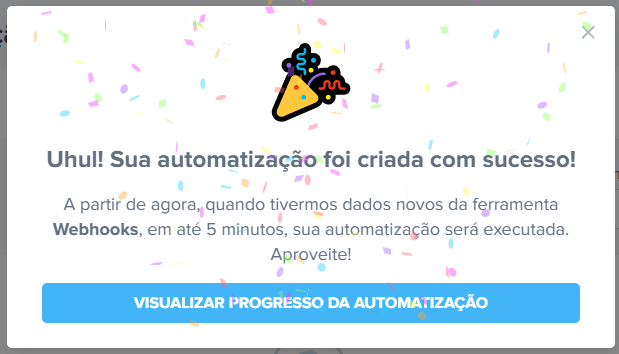
Depending on the tool you are connecting via Guru Webhook, you will need to configure a few more settings, such as selecting the Slack channel, the message to be sent, or choosing the contact list and fields to send to your CRM. If you have any questions during these steps, visit the Pluga Help Center or contact the tool's technical support.
Pluga Communication Channels
Pluga offers support for issues related to integration between web tools, workflow automation, and sending data via Webhooks.
If you need technical or operational assistance directly from the platform, use the official channels below:
-
Ticket Support: main support occurs through submitting an official request directly through the Help Center - this channel allows detailed logging for more effective resolution;
-
WhatsApp Support: for questions and guidance, Pluga provides support via WhatsApp +55 (21) 9 9329-1014 - business hours are Monday to Friday, from 09:00 AM to 06:00 PM (BRT / UTC-3); and
-
Help Center and FAQ: access the knowledge base to find detailed articles, guides, and solutions for the most common integration and billing errors - you can access the YouTube channel for setup.
Tip: For questions exclusively related to settings in the Guru panel or checkout operation, please contact our support team.