
BotConversa is a CRM, chatbot, and communication system that helps organize and manage sales team activities from prospecting to deal closing, allowing you to send automated messages via WhatsApp to your customers.
The integration between Guru and BotConversa helps you to:
-
Send sales data to the BotConversa platform; and
-
Create a communication campaign for messaging tools.
The integration of Guru with BotConversa is done through webhooks. If you have reached the available webhook limit, simply upgrade your plan to the Plus 2 or Plus 3 category.
To activate the integration with BotConversa, you must complete the following 2 steps.
On this page:
-
Step 1: Obtain Return URL
-
Step 2: Configure Webhook
-
BotConversa Communication Channels
Before you begin, you need to:
-
Have an active account on BotConversa.
-
Have available webhook capacity in your Guru account.
-
Be an administrator user in Guru or have permissions to execute the following steps.
Step 1: Obtain Return URL
In this step, you must log in to your BotConversa account to obtain the Webhook URL.
Steps:
1 - Access your BotConversa environment with your username and password.
2 - In the side menu, click on Automation.
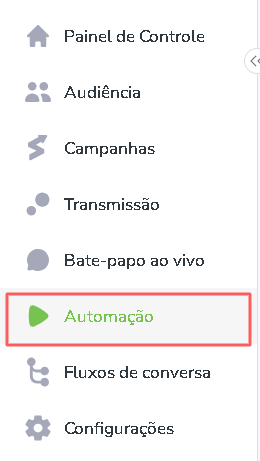
3 - Next, click on Webhooks, and then on Add New Webhook.

4 - Enter the Webhook name.
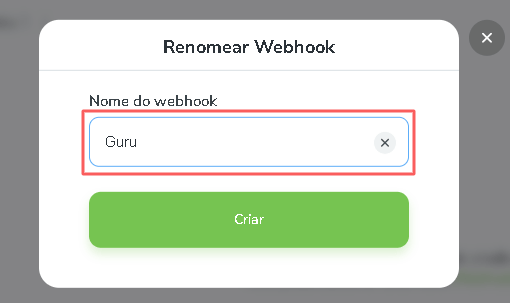
5 - Click on Create.
6 - Click on the created Webhook.
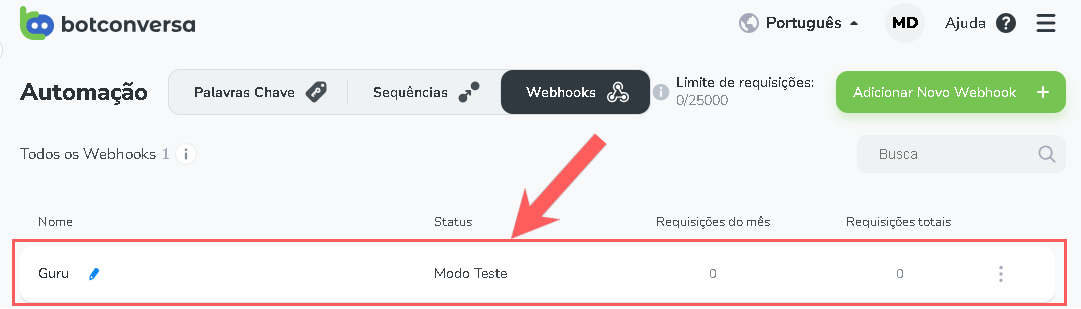
7 - Copy and store the Webhook URL.

Step 2: Configure Webhook
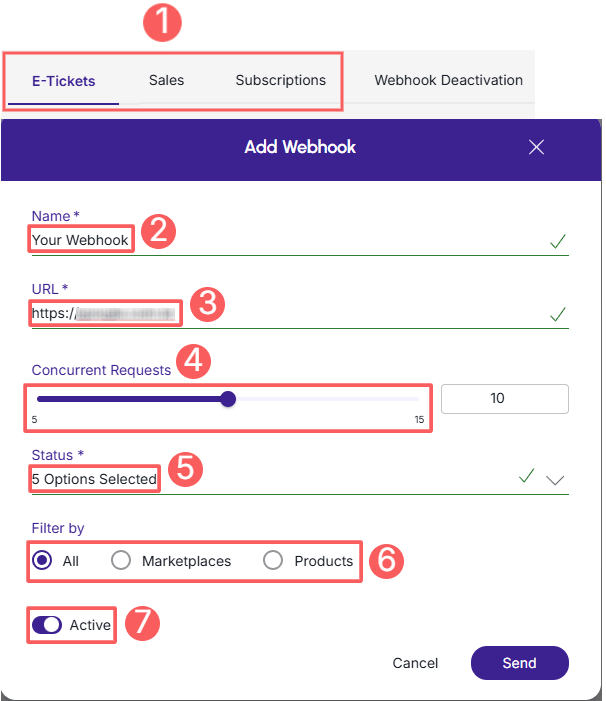
In this step, you must access your Guru account (Settings » Webhooks) and configure an e-ticket, sale, or subscription webhook to send notifications to BotConversa.
When creating the Webhook, remember to:
-
Select: if the webhook is for subscriptions, select the subscription status; if the webhook is for e-tickets, select the e-ticket status; if the webhook is for sales, select the sales status;
-
Name: enter the name of your Webhook;
-
URL: enter the Webhook URL, obtained in step 1 - item 7;
-
Simultaneous sends: select simultaneous sends;
-
Status: select all desired sales statuses; subscription statuses or e-ticket statuses;
-
Filter by: check filter by
all,MarketplacesorProducts(1); -
Toggle the Active button to the on position.
(1) By choosing to filter by "all" or "marketplaces", any new product created will automatically be associated with the webhook.
Check the complete step by step guide:
How to configure a subscriptions, e-tickets or sales webhook.
Done! From now on, each updated sale that meets the criteria defined in the configured webhook will be sent to BotConversa.
BotConversa Communication Channels
BotConversa offers support for issues related to message automation, conversation flow creation (chatbots), WhatsApp API connection, and artificial intelligence configurations.
If you need technical or operational assistance directly from the platform, use the official channels below:
-
Support via WhatsApp: primary support is available through the official number - business hours are Monday to Friday, from 8 AM to 10 PM (BRT / UTC-3), via WhatsApp at +55 11 93620-5322;
-
Email Support: for formal requests or technical questions, send a message to suporte@botconversa.com.br - response time is up to 24 business hours; and
-
Help Center and Resources: access the knowledge base to find video tutorials and step-by-step articles on integrations and answers to frequently asked questions.
Tip: For questions exclusively related to settings in the Guru panel or checkout operation, please contact our support team.