
OneSendz is a WhatsApp Marketing platform that allows you to create campaigns, automations, manage conversations, and track reports in a single dashboard, centralizing customer communication and automating marketing, sales, and support processes.
The integration between Guru and OneSendz helps you to:
-
Send sales data to the OneSendz platform;
-
Automate actions and communications based on purchase events; and
-
Create campaigns and communication flows via WhatsApp.
The integration of Guru with OneSendz is done via webhooks. If you have reached the available webhook limit, simply upgrade your plan to the Plus 2 or Plus 3 category.
To activate the integration with OneSendz, you must complete the following 4 steps.
On this page:
-
Step 1: Obtain Guru API Token
-
Step 2: Connect Guru to OneSendz
-
Step 3: Obtain Return URL
-
Step 4: Configure Webhook
-
OneSendz Communication Channels
Before you begin, you need:
-
To have an active account at OneSendz.
-
To have available webhook limit for use in your Guru account.
-
To be an administrator user in Guru or have permissions to perform the following steps.
Step 1: Obtain Guru API Token
In this step, you must access your Guru account to obtain the API Token.
Steps:
1 - Access the Guru admin with your username and password.
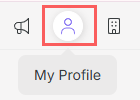
2 - In the top right menu, click on My Profile.
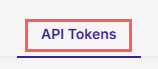
3 - Click on the API Tokens. tab.
4 - Under API Tokens, click on Add.

5 - Enter the name OneSendz.
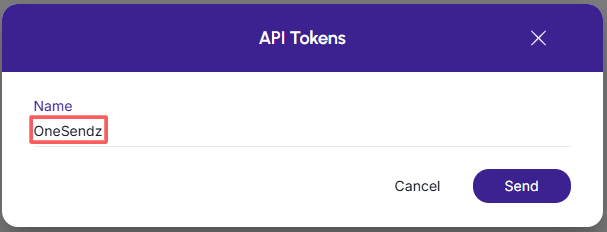
6 - Click on Send.
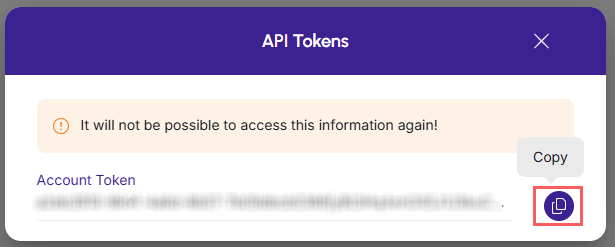
7 - Copy and store the generated API Token.
Step 2: Connect Guru to OneSendz
In this step, you must connect Guru to your OneSendz account.
Check the OneSendz tutorial for more information on configuring automation when integrating with Guru.
Steps:
1 - Access your OneSendz account with your username and password.
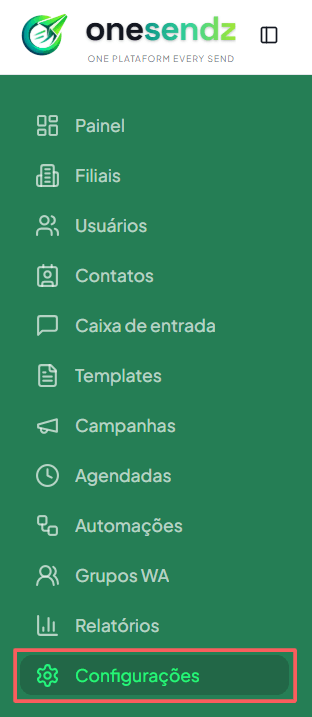
2 - In the side menu, click on Settings.
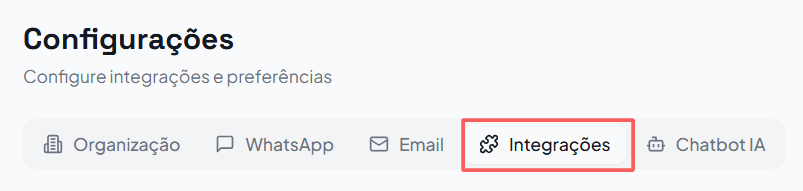
3 - Under Settings, access Integrations.
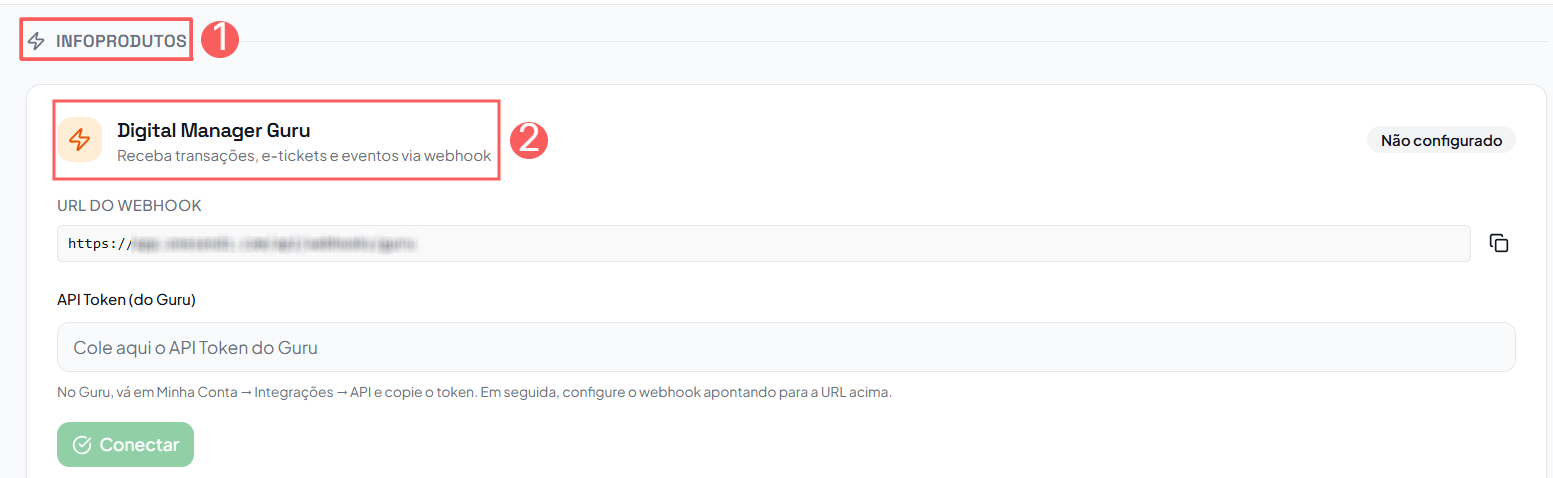
4 - Under Integrations, go to the Infoproducts section and locate the Digital Manager Guru. card.
5 - Under Digital Manager Guru, in API Token, paste the API token - obtained in step 1, item 7.
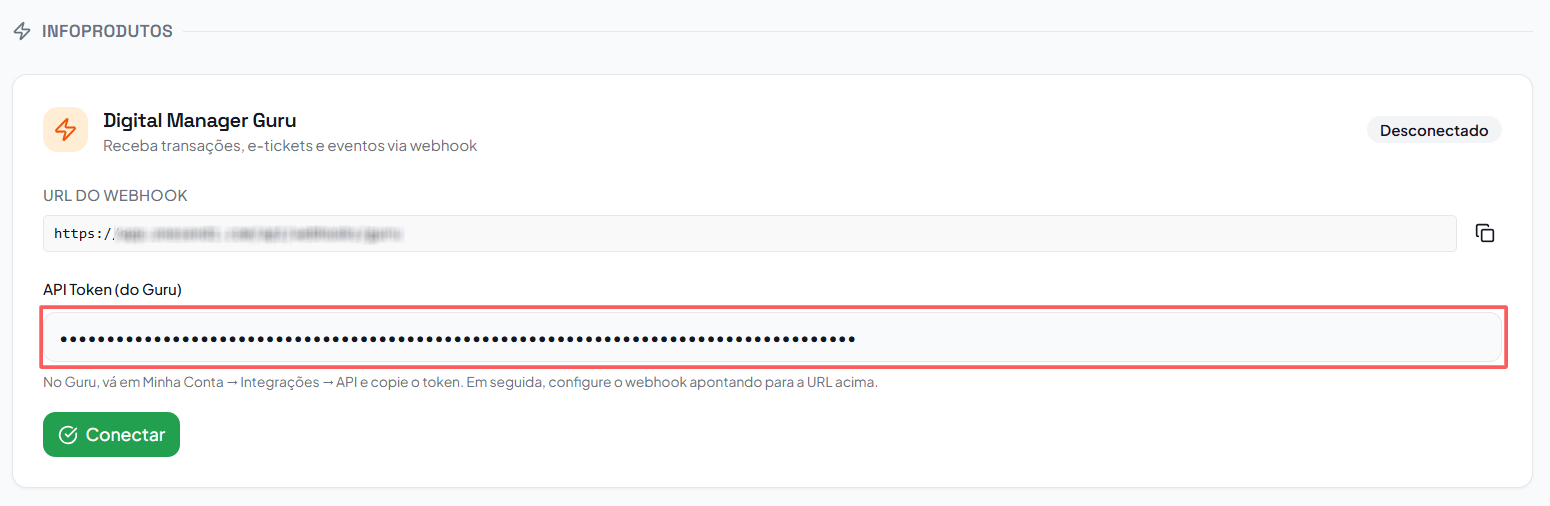
6 - Click on Connect.
7 - Next, your Guru account will be connected to OneSendz.
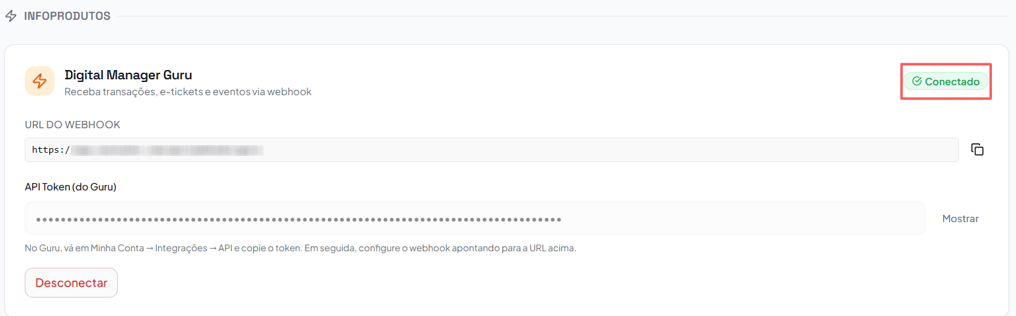
When connecting your Guru account to OneSendz, the status will change to Connected.
Step 3: Obtain Return URL
In this step, you must access your account on OneSendz to obtain the Webhook URL.
Steps:
1 - Access your OneSendz account with your username and password.
2 - In the side menu, click on Settings.
3 - Under Settings, access Integrations.
4 - Under Integrations, go to the Infoproducts section and locate the Digital Manager Guru. card.
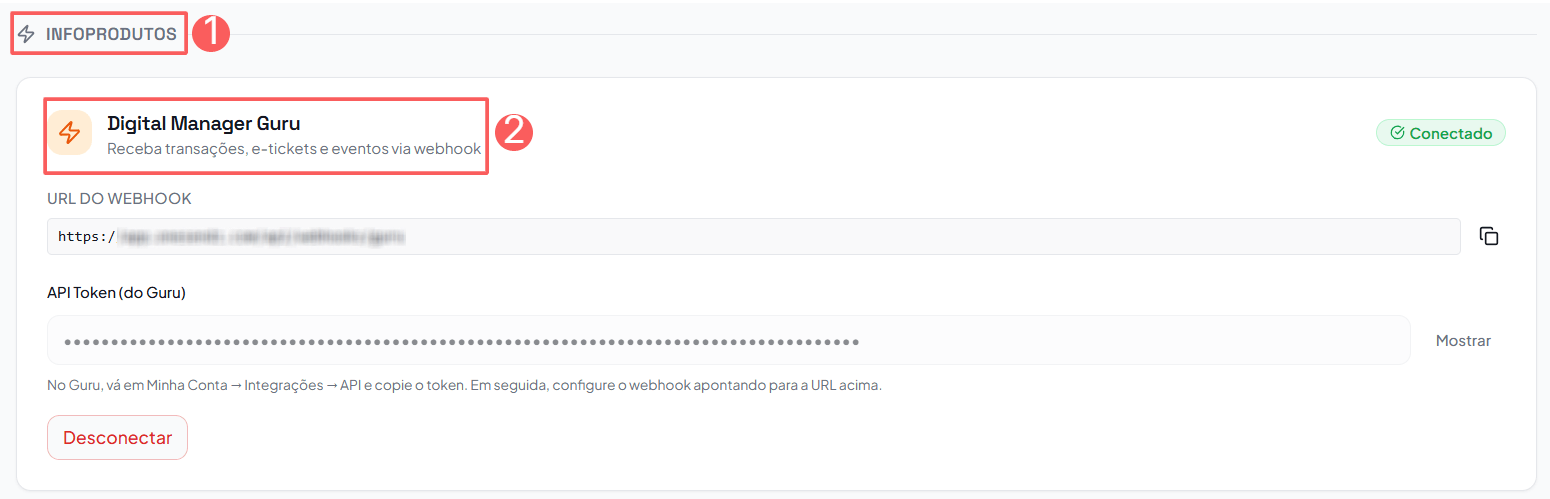
5 - Copy and store the Webhook URL.
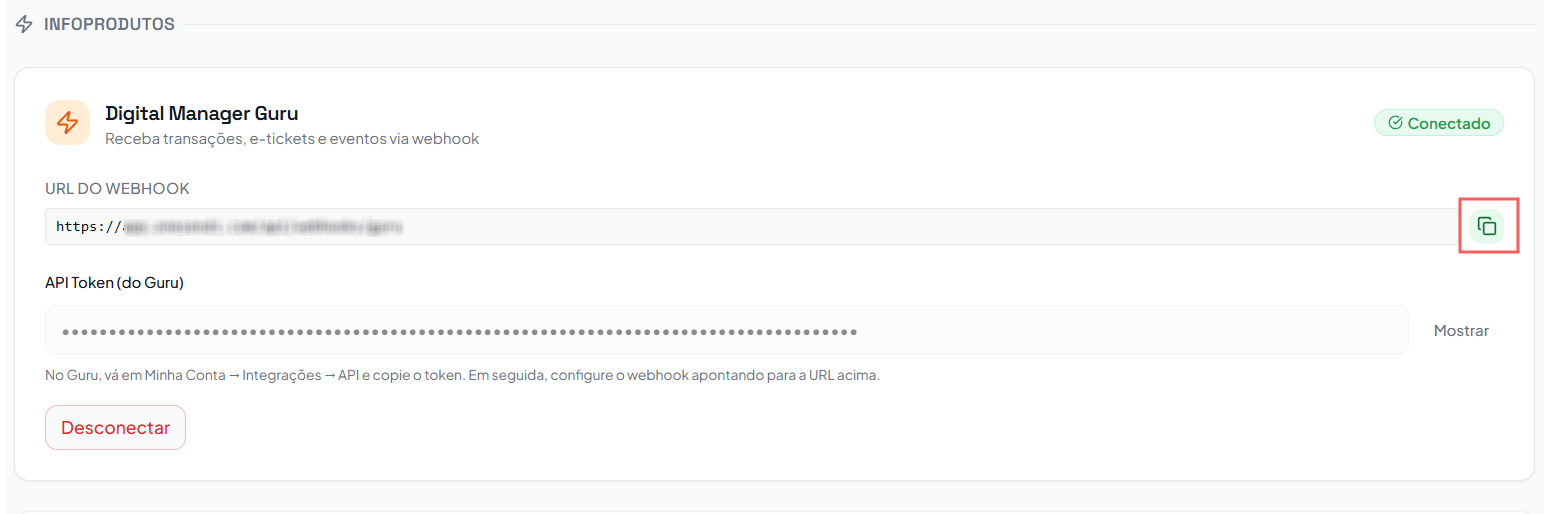
Step 4: Configure Webhook
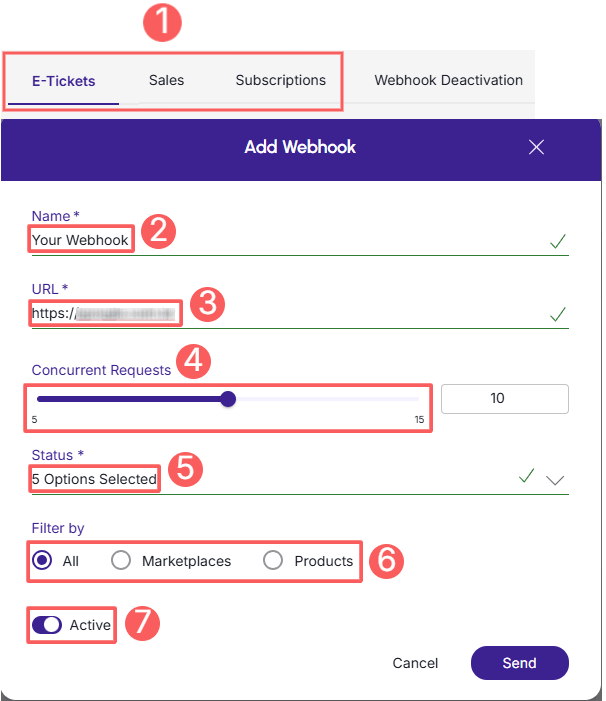
In this step, you must access your Guru account (Settings » Webhooks) and configure an e-ticket, sale, or subscription webhook to send notifications to BotConversa.
When creating the Webhook, remember to:
-
Select: if the webhook is for subscriptions, select the subscription status; if the webhook is for e-tickets, select the e-ticket status; if the webhook is for sales, select the sales status;
-
Name: enter the name of your Webhook;
-
URL: enter the Webhook URL, obtained in step 1 - item 7;
-
Simultaneous sends: select simultaneous sends;
-
Status: select all desired sales statuses; subscription statuses or e-ticket statuses;
-
Filter by: check filter by
all,MarketplacesorProducts(1); -
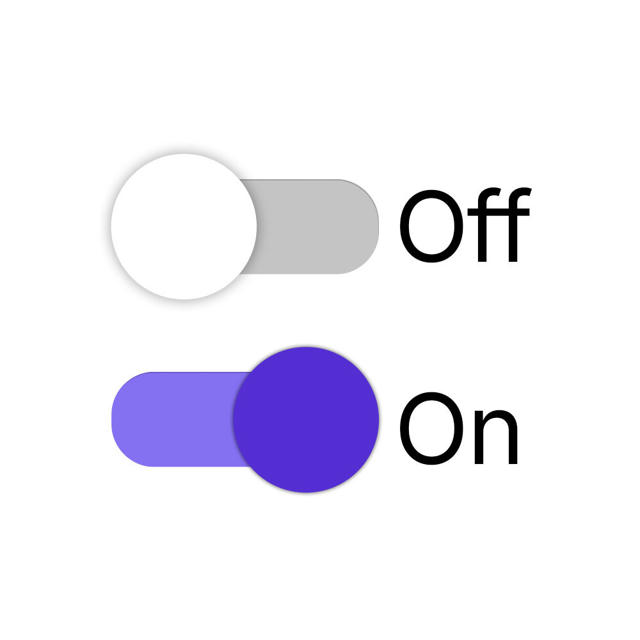
Toggle the Active button to the on position.
(1) By choosing to filter by "all" or "marketplaces", any new product created will automatically be associated with the webhook.
Check the complete step by step guide:
How to configure a subscriptions, e-tickets or sales webhook.
Done! From this moment on, each updated sale that meets the criteria defined in the configured webhook will be sent to OneSendz.
OneSendz Communication Channels
OneSendz offers support for issues related to sending messages via WhatsApp, automations, conversation management, and the use of platform features
If you need technical or operational assistance directly from the platform, use the official channels below:
-
Help Center: access the OneSendz FAQ to check answers about platform features;
-
WhatsApp Support: support can be provided via the company's official number - through WhatsApp + 55 (11) 99102-7604.
Tip: For questions exclusively related to settings in the Guru panel or checkout operation, please contact our support team.