Sales lists managed by Guru are automatically listed in the Tracking Groups area, Sales List. section.
To find the sales list in a list with many records, you can search and filter the list as well as export it to PDF.
On this page:
-
Consult the Sales List
-
Filter Sales List data
-
Export Sales List data
Consult the Sales List
By default, the subscriptions list is organized by update date (from newest to oldest), according to the Started on. column. For faster page loading speed, only the first 30 records are displayed. If you want to view the remaining items on the list, you can scroll to the bottom of the page and click See more in the bottom center of the screen.
The list displays the following information:
-
Status: displays the current state of the sale - one of the possible sale statuses; will be displayed;
-
Code: identification number of the sale - hover over the code to check the associated payment processor;
-
Contact: name of the contact (buyer);
-
Product: name of the product linked to the order (sale);
-
Created on: date the sale was made;
-
Value: sale amount charged to the buyer;
-
Tracking Source: when the pin icon is displayed, it indicates that the sale is associated with a tracking created in Guru (P.P.C.T.) - click on the sale to view the tracking details;
-
Payment method: icon indicating the payment method used by the buyer - hover over the icon to view the description.

Filter Sales List data
You can use the sales list filters to view a smaller subset of existing sales. This feature is useful for finding specific sales you want to view.
Steps:
1 - Select the Tracking Groups list - a screen with the data will be displayed.
2 - In Sales List, click Filters.
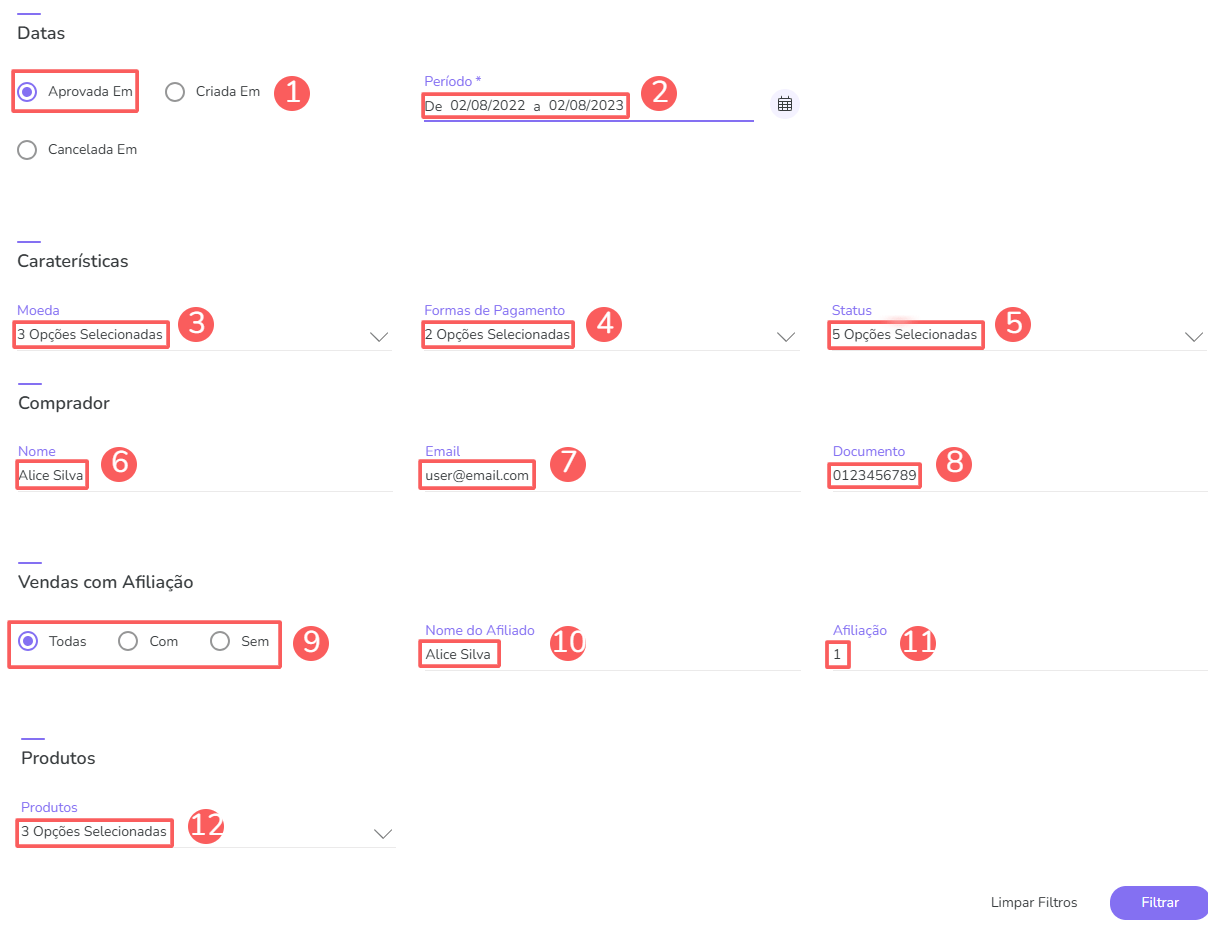
3 - Fill in one or more filter options:
-
Filter by Date: determines which date type will be used in the search - Approved on, Created on or Canceled on;
-
Period: searches for sales with start and end dates - if desired, use the preset time range buttons;
-
Currency: searches for the currency used in the sale;
-
Payment Methods: searches for the payment method used in the sale;
-
Status: searches for the sale status;
-
Name: searches for the buyer's name;
-
Email: searches for the buyer's email;
-
Document: searches for the buyer's document ID;
-
Affiliation type: searches for the affiliation type;
-
Affiliate name: searches for the entered name;
-
Affiliation: searches for the entered affiliation code;
-
Products: searches for the selected products.
4 - Click Filter.
To remove the applied filters, simply click Clear Filters.
Export Sales List data
Export to PDF is available in Guru's sales list section. Clicking export will generate a PDF file of the sales.
Steps:
1 - Select the Tracking Groups list - a screen with the data will be displayed.
2 - In Sales List, click XLS.
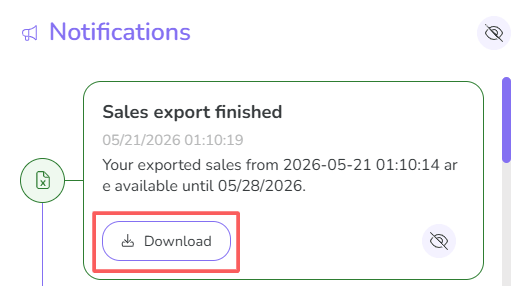
3 - After a few minutes, you will receive a notification in the Guru admin with the Download link. Click the red notification icon 1 to view the list of notifications.
1 You may need to reload the page in your browser (press CTRL+F5) for the notification icon to change color.
4 – Locate the corresponding notification and click Download.