
The results of A/B Tests help you analyze visitor traffic to your pages and checkouts and, thus, increase your conversion rate.
You will be able to add new A/B tests for Leads, Sales, and Checkout, or associate already created tests with your tracking groups.
On this page:
-
A/B Tests for Leads
-
Add AB Tests for Leads
-
Associate already created AB Tests for Leads
-
-
A/B Tests for Sales
-
Add AB Tests for Sales
-
Associate already created AB Tests for Sales
-
-
A/B Tests for Checkouts
-
Add AB Tests for Checkouts
-
Associate already created AB Tests for Checkouts
-
Leads AB Test
In the A/B Test for Leads section, you can view all lead information from RPPCs. In addition, you can add RPPC for AB Test for Leads and associate them with already created RPPC for AB Test for Leads.
Steps:
1 - Select the list of Tracking Groups - a screen with the data will be displayed.
2 - In Leads AB Test, the list displays the following information:
-
Name: traffic division name;
-
Source: traffic origin where the tracking link will be used;
-
Window: a/B Test duration window;
-
Active%: current learning percentage of the Neural A/B Test for Leads;
-
Min.%: minimum learning percentage of the Neural A/B Test for Leads;
-
Active links: number of active links for that Neural A/B Test for Leads;
-
Inactive links: number of inactive links for that Neural A/B Test for Leads;
-
Friendly URL: automatically generated from the traffic division name, it is a simple text to remember or type that will appear at the end of the tracked URL - if desired, you can change;
-
Duplicate: creates a copy of the selected Neural A/B Test for Leads with a new name and disclosure URL;
-
Remove: when the remove icon is displayed, it indicates that this Neural A/B Test has not yet received any clicks.

3 - If desired, click on the AB test for leads and consult the A/B Test for Leads information.
Add Leads AB Test
You can add a new AB test for leads to the Tracking Group or add an existing AB Test for Leads tracking.
Steps:
1 - Select the list of Tracking Groups - a screen with the data will be displayed.
2 - In A/B Test for Leads, click on Add.

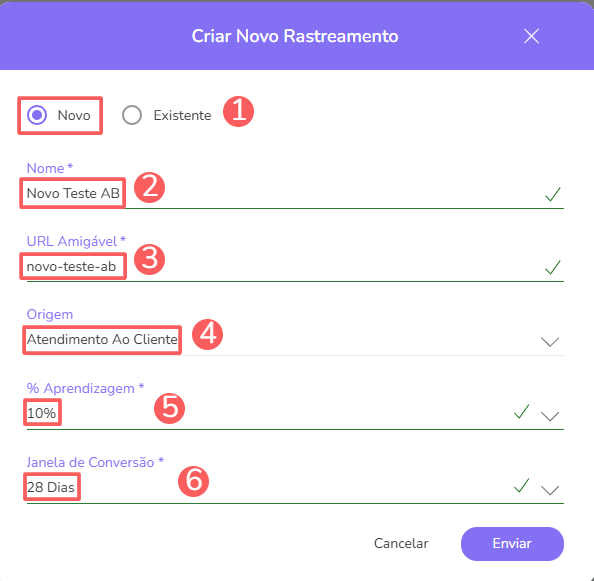
3 - In Create New Tracking, enter the following data:
-
New: select the new option;
-
Name: enter the traffic division name;
-
Friendly URL: automatically generated from the traffic division name, it is a simple text to remember or type that will appear at the end of the tracked URL - if desired, you can change;
-
Origin: select the traffic origin where the tracking link will be used;
-
% Learning: enter the percentage of traffic you want to keep as learning (test);
-
Conversion Window: enter the days (last X days) to consider for conversion score calculation.
4 - Click on Send.
Associate already created AB Tests for Leads
it is possible to associate existing AB Tests for Leads with a created Tracking Group. This feature is useful for associating already created AB Tests for Leads with Tracking Groups in Guru.
Steps:
1 - Select the list of Tracking Groups - a screen with the data will be displayed.
2 - In A/B Test for Leads, click on Add.
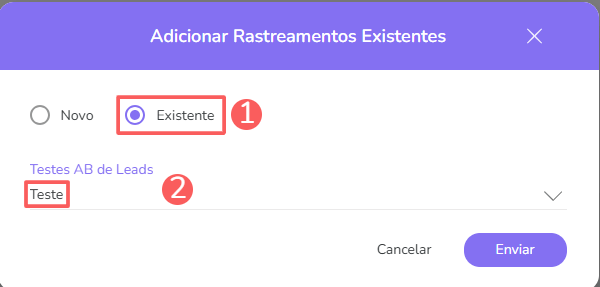
3 - In Add Existing Trackings, enter the following data:
-
Existing: select the existing option;
-
A/B Tests for Leads: select the already created AB Test for Leads.
4 - Click on Send.
If necessary, it is possible to duplicate or remove an AB test for leads.
A/B Test for Sales
In the A/B Test for Sales section, you can view all sales information. In addition, you can add AB Test for Sales and associate them with an already created AB Test for Sales.
Steps:
1 - Select the list of Tracking Groups - a screen with the data will be displayed.
2 - In A/B Test for Sales, the list displays the following information:
-
Name: traffic division name;
-
Origin: traffic origin where the tracking link will be used;
-
Window: a/B Test duration window;
-
Active%: current learning percentage of the Neural A/B Test for Sales;
-
Min.%: minimum learning percentage of the Neural A/B Test for Sales;
-
Active links: number of active links for that Neural A/B Test for Sales;
-
Inactive links: number of inactive links for that Neural A/B Test for Sales;
-
Friendly URL: automatically generated from the traffic division name, it is a simple text to remember or type that will appear at the end of the tracked URL - if desired, you can change;
-
Duplicate: creates a copy of the selected Neural A/B Test for Sales with a new name and disclosure URL;
-
Remove: when the remove icon is displayed, it indicates that this Neural A/B Test has not yet received any clicks.

3 - If desired, click on the AB test for Sales and consult the A/B Test for Sales information.
Add AB Test for Sales
You can add a new AB test for Sales to the Tracking Group or add an existing AB Test for Sales tracking.
Steps:
1 - Select the list of Tracking Groups - a screen with the data will be displayed.
2 - In A/B Test for Sales, click on Add.
3 - In Create New Tracking, enter the following data:
-
New: select the new option;
-
Name: enter the traffic division name;
-
Friendly URL: automatically generated from the traffic division name, it is a simple text to remember or type that will appear at the end of the tracked URL - if desired, you can change;
-
Origin: select the traffic origin where the tracking link will be used;
-
% Learning: enter the percentage of traffic you want to keep as learning (test);
-
Conversion Window: enter the days (last X days) to consider for conversion score calculation.
4 - Click on Send.
Associate already created AB Tests for Sales
it is possible to associate existing AB Tests for Sales with a created Tracking Group. This feature is useful for associating already created AB Tests for Sales with Tracking Groups in Guru.
Steps:
1 - Select the list of Tracking Groups - a screen with the data will be displayed.
2 - In A/B Test for Sales, click on Add.
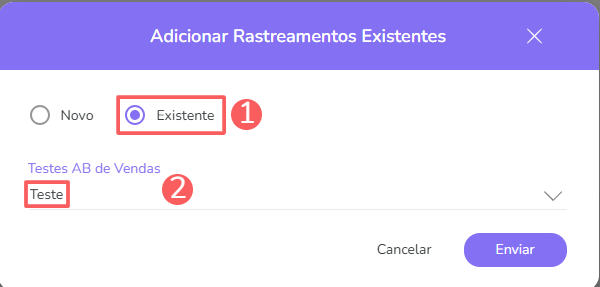
3 - In Add Existing Trackings, enter the following data:
-
Existing: select the existing option;
-
A/B Tests for Sales: select the already created AB Test for Sales.
4 - Click on Send.
A/B Test for Checkouts
In the A/B Test for Checkouts section, you can view all checkout information. In addition, you can add AB Test for Checkouts and associate them with an already created AB Test for Checkouts.
Steps:
1 - Select the list of Tracking Groups - a screen with the data will be displayed.
2 - In A/B Test for Checkouts, the list displays the following information:
-
Name: traffic division name;
-
Window: a/B Test duration window;
-
Active%: current learning percentage of the Neural A/B Test for Checkout;
-
Min.%: minimum learning percentage of the Neural A/B Test for Checkout;
-
Active links: number of active links for that Neural A/B Test for Checkout;
-
Inactive links: number of inactive links for that Neural A/B Test for Checkout;
-
Friendly URL: automatically generated from the traffic division name, it is a simple text to remember or type that will appear at the end of the tracked URL - if desired, you can change;
-
Duplicate: creates a copy of the selected Neural A/B Test for Checkout with a new name and disclosure URL;
-
Remove: when the remove icon is displayed, it indicates that this Neural A/B Test has not yet received any clicks.

3 - If desired, click on the Sales AB test and consult the checkout AB Test information.
Add Checkout AB Test
You can add a new Checkout AB test to the Tracking Group or add an existing Checkout AB test tracking.
Steps:
1 - Select the list of Tracking Groups - a screen with the data will be displayed.
2 - In Checkout AB Test, click on Add.
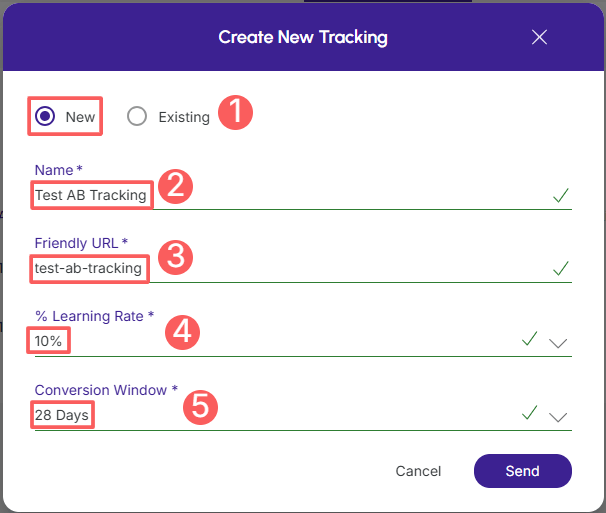
3 - In Create New Tracking, enter the following data:
-
New: select the new option;
-
Name: enter the name of the traffic division;
-
Friendly URL: automatically generated from the traffic division name, it is a simple text to remember or type that will appear at the end of the tracked URL - if desired, you can change it;
-
% Learning: enter the percentage of traffic you want to keep as learning (test);
-
Conversion Window: enter the days (last X days) to consider for conversion score calculation.
4 - Click on Send.
Associate already created Checkout AB Tests
it is possible to associate existing Checkout AB Tests with a created Tracking Group. This feature is useful for associating already created Checkout AB Tests with Tracking Groups in Guru.
Steps:
1 - Select the list of Tracking Groups - a screen with the data will be displayed.
2 - In Checkout AB Tests, click on Add.
3 - In Add Existing Trackings, enter the following data:
-
Existing: select the existing option;
-
Checkout AB Tests: select the already created Checkout AB Test.
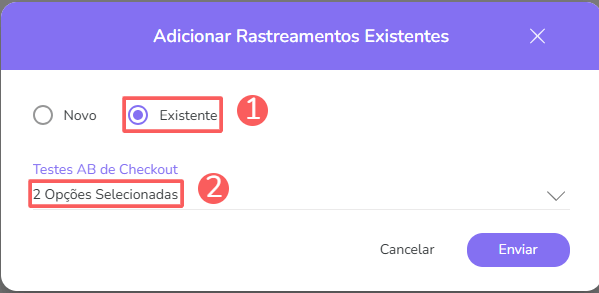
4 - Click on Send.