If you have any problem or question about your Guru account features, the FAQ can help you find answers or know how to solve a problem.
On this page you will find frequently asked questions and troubleshooting related to tracking and A/B Testing.
On this page:
-
Setup and Installation
-
Cost and ROI Import
-
Errors or Malfunctions
-
Tracking Metrics
Setup and Installation
- Do I need to install any script on my page to use Guru's tracking?
No, it is not necessary to install scripts on your pages, because our tracking is done through links, called P.P.C.T..
- Can I add UTM to the P.P.C.T. link?
Yes, you can use UTM in the Sales P.P.C.T. link and in the Leads P.P.C.T.. The accepted UTM parameters are: utm_content, utm_medium , utm_term and utm_campaign.
The parameter utm_source can be added to the P.P.C.T. URL, however it will be disregarded by Guru, because when creating a Sales / Lead P.P.C.T. you must inform the traffic source where the link will be used (this value is considered as utm_source).
- Can I generate the P.P.C.T. link on my own domain?
Yes, just configure the domain within Guru and make it "default for tracking".
If you want to use more than one domain for your tracking, you can create a tracking group and link a domain to the group. This way, all P.P.C.T.s belonging to the group will have the link generated based on the domain configured for the group.
- Can I use Guru's tracking even when using an external Checkout?
Yes, as long as the checkout used is integrated with Guru as external checkout or generic integration. You must check which field is used by the other platform to store and send tracking information in the sale to Guru.
- Do I need to register sales on the platform to use Guru's tracking?
Ideally yes, as the sale is part of the tracking. Otherwise, the tracking funnel will be incomplete, showing only clicks and checkouts or clicks and captures.
- I intend to create campaigns from different traffic sources pointing to the same landing page, how many P.P.C.T. links should I create?
In this case, it will depend on your strategy, but we recommend at least:
-
One Sales P.P.C.T. or Leads P.P.C.T. for each traffic source - you can use UTMs to differentiate the use of Sales / Lead P.P.C.T. within the same traffic source. Ex: each UTM combination can differentiate one campaign from another;
-
One Checkout P.P.C.T. for each product offer - the same Checkout P.P.C.T. can be used on different pages, if desired;
-
One Capture P.P.C.T. for each lead capture form - the same Capture P.P.C.T. can be used on different pages, if desired.
- I will have several campaigns and ads from the same advertiser pointing to a single sales page, do I have to create an P.P.C.T. for each campaign?
It is not necessary to create an P.P.C.T. for each campaign. You can have only one P.P.C.T. per traffic source, and segment campaigns, ad sets, and ads through UTM parameters.
Cost and ROI Import
- How do I import ad costs and track the ROI of my campaigns?
You can connect your traffic source accounts to Guru (e.g., Facebook and Google Ads) so that your ad costs are imported automatically. If you are advertising on a traffic source not integrated with Guru, you can manually enter costs in P.P.C.T. » Traffic Cost.
- I connected my ad accounts, but the costs were not imported into Guru. What happened?
Costs are not imported in real time. The update of current day costs occurs every 2 hours and during the night, the costs of the last 7 days are updated. Therefore, you should wait at least 2 hours for costs to be imported for the first time.
Errors or Malfunctions
- I changed the destination URL of my Sales/Leads P.P.C.T., but the tracked link still opens the old URL. What should I do?
If you are still seeing the old URL, it is probably cached.
You can clear your device's cache and try to access it again. If clearing the cache doesn't work, it may be because the page is still in the network cache and this can take 1 to 2 days to clear. Alternatively, just ask someone who hasn't opened this P.P.C.T. recently to test it and see if the new URL is displayed.
- My P.P.C.T. link displays the error "this site cannot be accessed", what should I do?
P.P.C.T. links only open if they are active. Check if the P.P.C.T. you are trying to open is active within Guru.
- I configured all necessary P.P.C.T.s, but the conversion is not being marked. What could it be?
In tracking, conversion is not marked when there are configuration errors, when your Guru subscription is not active, or the account is out of credits.
To identify the problem and try to correct it, perform the following checks:
-
Check if the Guru subscription is active: if your trial period has expired or your subscription has been canceled, simply subscribe to a plan for tracking conversions to be registered again.
-
Check the account credit balance: if your Guru account credit balance is zero, you must upgrade your plan to resume registering sales and, consequently, marking conversions in tracking.
-
Review your tracking settings:
-
Validate if the traffic sources are pointing to the P.P.C.T. URL and if the purchase buttons on the page point to the checkout P.P.C.T.;
-
Validate if all P.P.C.T.s used are configured for the same product and same tracking field. Example: Product =
(Tracking) Globaland field =src. -
Validate if all P.P.C.T.s are using the correct tracking field according to the type of checkout used:
-
If using Guru Checkout: always select the field
src -
If using External Checkout: select the field defined for the checkout in question.
-
-
If the problem persists after all checks, contact support.
- Guru correctly imported ad costs, but did not link them to any tracking. What happened?
This usually happens when the ad URL does not contain an P.P.C.T. or the advertiser hid the destination URL information in the cost report.
In the case of Facebook ad costs:
-
Video ad: Meta hides the ad URL and sends this information empty in the cost import, which makes it impossible to link the cost to an P.P.C.T..
Although costs cannot be linked to a specific tracking, they are registered as untracked and considered in the calculation of General ROI. This information can be viewed in Dashboard » P.P.C.T. (Summary), Traffic section.
- The ad cost was linked to the P.P.C.T., but not to the respective UTM. What happened?
This usually happens when the UTM value contains special characters, spaces, or was dynamically generated by the ad platform.
To correct this problem, we always recommend creating UTMs manually, without special characters and without empty spaces. Example: utm_campaign=campaign1&utm_medium=video001
Tracking Metrics
- How do I track the results of tracked campaigns?
You can track the results of your campaigns in a unified or individualized way:
-
Individualized results: just go to the P.P.C.T. menu and access the desired P.P.C.T.. The results are displayed in the Funnel (Sales P.P.C.T.), Capture Funnel, or Conversion Window (Leads P.P.C.T.) tabs.
-
Unified results: just go to the Dashboards menu and select the panel according to the type of tracking and results you want to view:
-
P.P.C.T. - Summary: displays a general summary of all tracking in the period.
-
P.P.C.T. - Sales: displays the unified metrics of Sales P.P.C.T.s.
-
P.P.C.T. - Leads Captures: displays the unified metrics of lead capture.
-
P.P.C.T. - Leads Sales: displays the unified metrics of lead campaigns that generated revenue.
-
P.P.C.T. - Checkout: displays the unified metrics of Checkout P.P.C.T.s.
-
- How can I tell if the sale was tracked or not?
Guru displays a flag that helps you differentiate a tracked sale from an untracked sale. When the sale is linked to a tracking:
-
In the sales listing: a "locator" icon appears next to the sale.

-
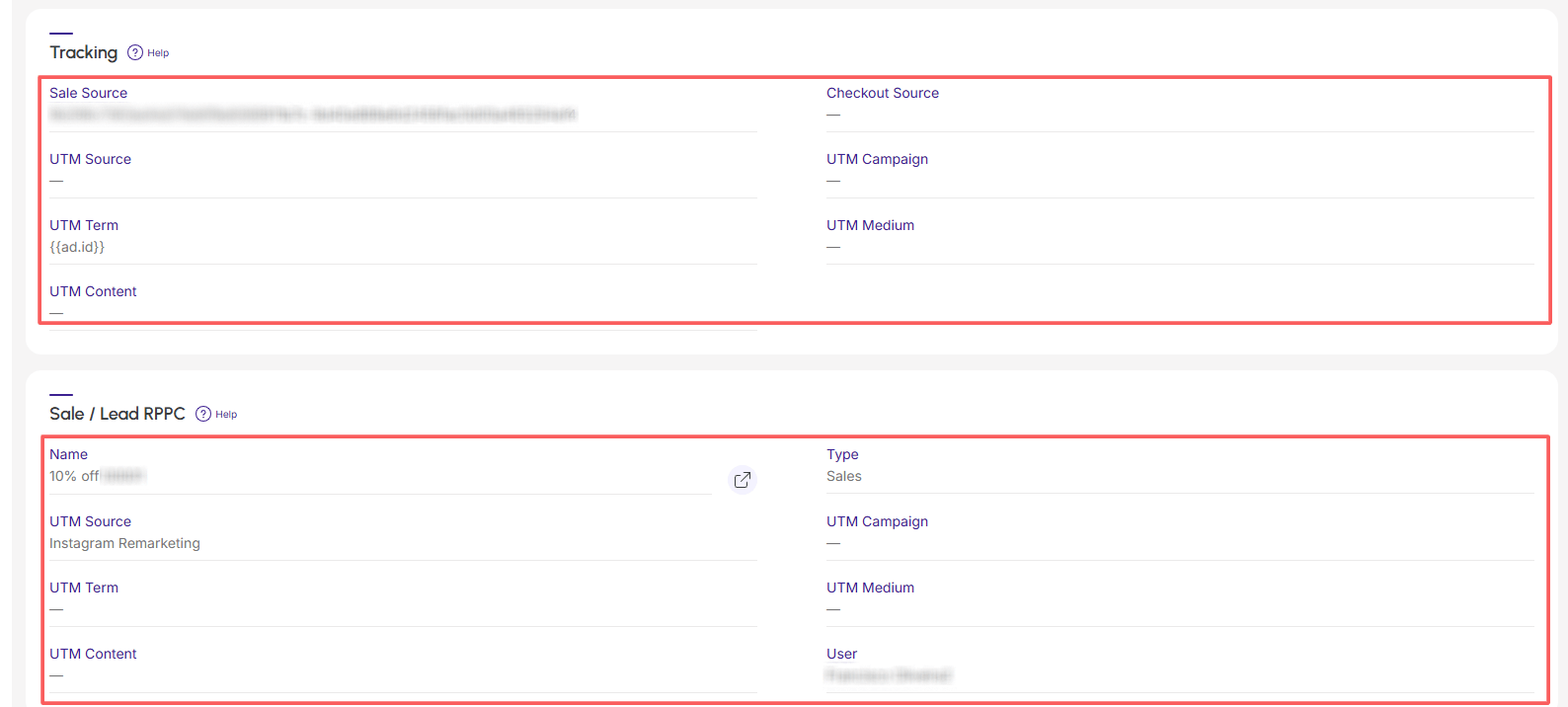
In the sale detail: the "Tracking" tab appears containing the tracking details.