You can create a Tracking Group to gather and organize related tracking information, whether from Captures, Checkouts, Leads, or Sales, optimizing your data analysis process and campaigns.
To do this, you can add, duplicate, update information, or remove a Tracking Group.
On this page:
-
Add Tracking Groups
-
Duplicate Tracking Groups
-
Update Tracking Groups
-
Remove Tracking Groups
Add Tracking Groups
In this section, you will add Tracking Groups.
Steps:
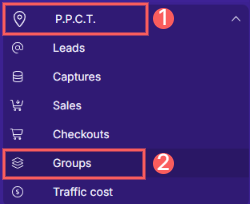
1 - In the side menu, access R.P.P.C, and then click on Groups.
2 - In Tracking Groups, click on Add.

3 - In Add Group, enter the following data:
-
Name: name or title to identify the tracking;
-
Product: select the product - we recommend choosing the Global Tracking product(1);
-
Custom Domains: select the custom domain for the group's tracking links.
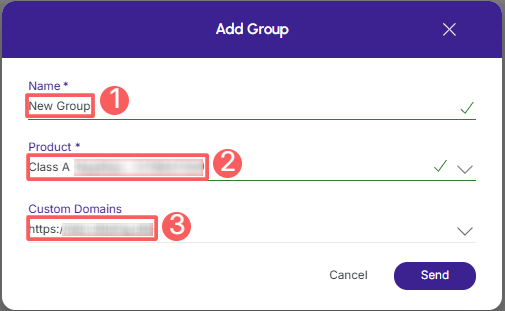
(1) By default, always select the Global (Tracking) product for all elements (P.P.C.T.s) involved in tracking. If this product does not exist, create it in Products.
4 - Click on Send.
Duplicate Tracking Groups
To save time, you can duplicate a similar Tracking Group instead of adding a new one. This option is useful if you want to include options from a Tracking Group such as name, product, custom domain, and user.
When using the Duplicate feature, Guru will create a copy of the selected tracking group with a new name.
To duplicate an existing Tracking Group, follow the steps below.
Steps:
1 - In the side menu, access R.P.P.C, and then click on Groups.
2 - Hover over the desired P.P.C.T. Group and click on Duplicate.

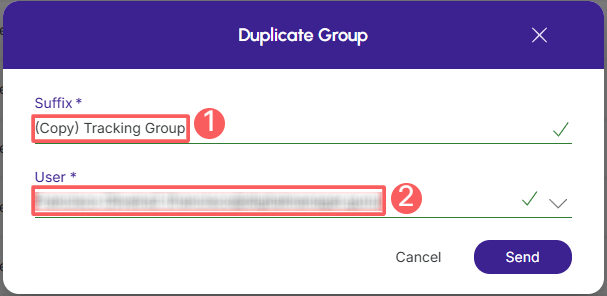
3 - In Duplicate Group, enter:
-
Suffix: name or title of the duplicated group;
-
User: select the user responsible for creating and managing the duplicated group.
4 - Click on Send.
To confirm, a message will be displayed indicating that the group was successfully duplicated.
Update Tracking Groups
After creating a Tracking Group, you can edit it to change the name, product, custom domain, and user.
To edit a Tracking Group, follow the steps below.
Steps:
1 - In the side menu, access R.P.P.C, and then click on Groups.
2 - In the list of your Tracking Groups, select the P.P.C.T. Group you want to update.

3 - Consult the Tracking Group information.
Remove Tracking Groups
it is possible to remove a Tracking Group, provided it has not received its first click. When a Group is removed, the record is permanently deleted and cannot be restored.
To remove a Tracking Group:
Steps:
1 - In the side menu, access R.P.P.C, and then click on Groups.
2 - In the list of your Tracking Groups, select the P.P.C.T. Group you want to remove.
3 - In Detail, click on Remove¹.
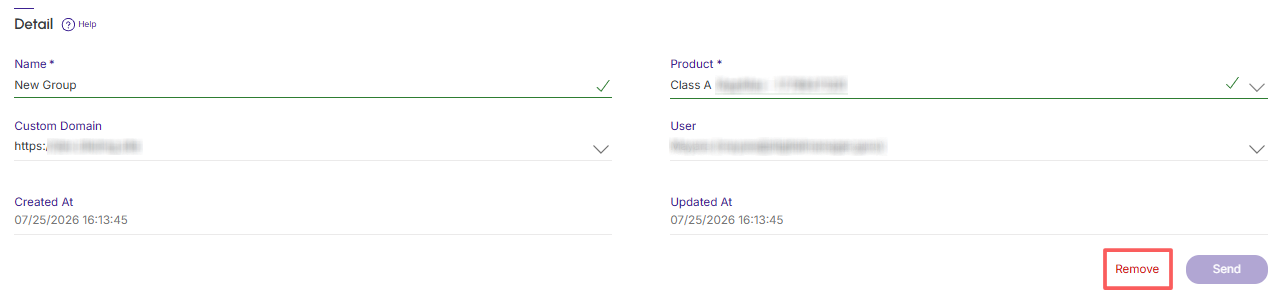
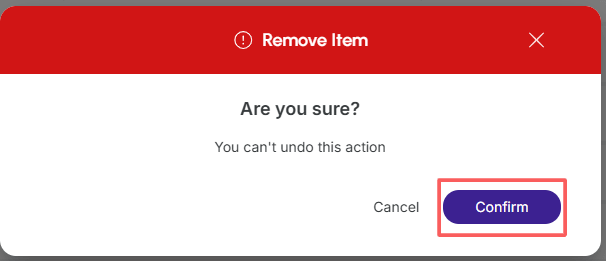
4 - A confirmation window is displayed. If you wish to proceed with the removal, click on Confirm.