
In this article, you will learn how to connect the Instapage form to the Capture P.P.C.T. to track lead conversion in Digital Manager Guru.
On this page:
-
Step 1: Get Destination URL
-
Step 2: Connect Instapage form to Guru's Capture P.P.C.T.
Before you start, you need to:
-
Have an active Instapage account.
-
Have a page with your form created.
-
Have an active autoresponder integration. To activate this integration, click here.
-
Be an administrator user or have permission to perform the following actions.
Step 1: Get Destination URL
In this step, you must obtain the action url of the Capture P.P.C.T., which you will use as a basis to build the GreatPages form's redirection URL.
Steps:
1 - Access the Guru admin with your username and password.
2 - In the side menu, go to P.P.C.T., then click on Capture.

3 - Select the P.P.C.T. you want to Connect.
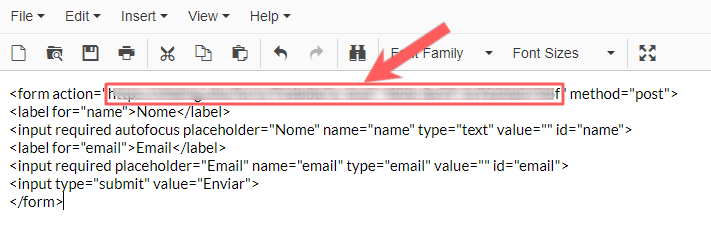
4 - In Detail, click to copy the FORM Code.

5 - Paste the FORM Code into a Text Editor of your choice (e.g., notepad).
6 - Copy the Value of the action, which is in quotes.
Step 2: Connect Instapage form to Guru's Capture P.P.C.T.
In this step, you will enable the sending of data captured by Instapage to Guru (Capture P.P.C.T.).
Steps:
1 - Access your Instapage environment with your username and password and edit the Instapage page where the form is located.
2 - Click on the form to open its settings.
3 - Select Submission.
4 - Click on Outside URL and paste the link copied in step 1.2.
5 - Press Save
6 - Copy the code below.
<script>
window.instapageFormSubmitSuccess = function( form )
{
// get values from form fields

var param1 = window.__page_generator ? $( form ).find( 'input[name="'+ 'Name' +'"]').val() : $( form ).find( 'input[name="'+ base64_encode( 'Name' ) +'"]').val();
var param2 = window.__page_generator ? $( form ).find( 'input[name="'+ 'Email' +'"]').val() : $( form ).find( 'input[name="'+ base64_encode( 'Email' ) +'"]').val();

// Get the actual redirect url

var redirect_url = ijQuery( form ).find( 'input[name="redirect"]' ).val();

// Amend redirect url in form by adding fields from form

$( form ).find( 'input[name="redirect"]' ).val( redirect_url + '?name='+ param1 + '&email='+ param2);
}
</script>
7 - If you want to add custom fields to your code, paste the code into a text editor and follow the steps in this video. (optional)
8 - Click on Settings.
9 - Select HTML/CSS.
10 - In the Head tab, paste the code you copied in step 2.6 (if you added custom fields, paste the code copied in step 2.7).
11 - Save the changes by clicking on Save.
Click Publish to publish the form.