
In this article you will learn how to connect the Active Campaign form to the Forms P.P.C.T., to track lead conversions in Guru.
To connect, you must access the Forms P.P.C.T. and obtain the action URL, then configure the email parameter in the URL and then insert it into the form redirect.
We recommend testing the form to verify that the lead's data reaches Guru.
On this page:
-
Step 1: Obtain Destination URL
-
Step 2: Build the Redirect URL
-
Step 3: Configure redirection in the Active Campaign form
-
Step 4: Test the form
Before you begin, you need to:
-
Have a Forms P.P.C.T. created.
-
Have access to an Active Campaign environment.
-
Be an administrator user or have permission to perform the following actions.
Step 1: Obtain Destination URL
In this step, you must obtain the action URL from the Forms P.P.C.T. which you will use as the base to build the Active Campaign form redirect URL.
Steps:
1 - Access the Guru admin with your username and password.
2 - In the side menu, go to P.P.C.T., and then click Captures.
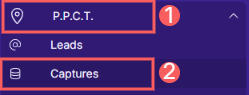
3 - Select the P.P.C.T. you want to Connect.
4 - Under Detail, click to copy the Form Code

5 - Paste the Form Code into a Text Editor of your choice (e.g., Notepad).
6 - Copy the Value of the action, which is inside quotes.
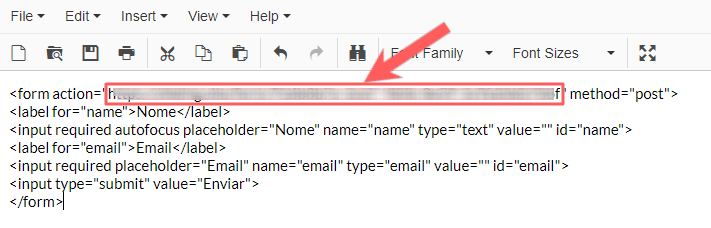
Step 2: Build the Redirect URL
In this step you will build the Active Campaign form redirect URL, adding the email parameter to be sent to the Forms P.P.C.T..
Steps:
1 - Access your Active Campaign environment with your username and password.
2 - In the left side menu, go to Contacts, then click Fields and copy the Value of the Email.
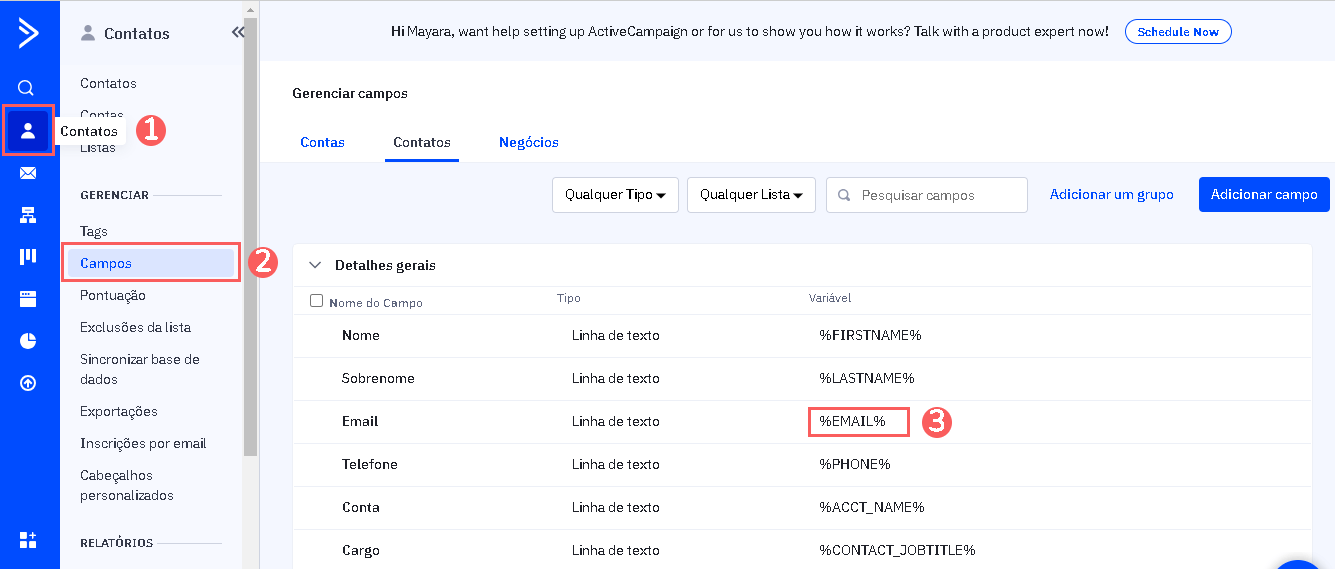
3 - Open a Text Editor of your choice (e.g., Notepad) and paste the URL copied from step 1 item 6.

4 - Next, in the text editor, insert a “?” at the end of the URL, enter email and insert “=”, then paste the Email Value copied from step 2 item 2.

Step 3: Configure redirection in the Active Campaign form
In this step you will activate the sending of data captured by Active Campaign to Guru (Forms P.P.C.T.).
Steps:
1 - Copy the URL created in the text editor.

2 - Go back to the Active Campaign environment.
3 - In the left side menu, click Website, and then Forms.
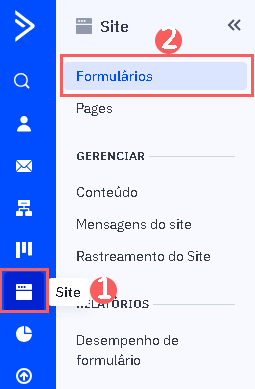
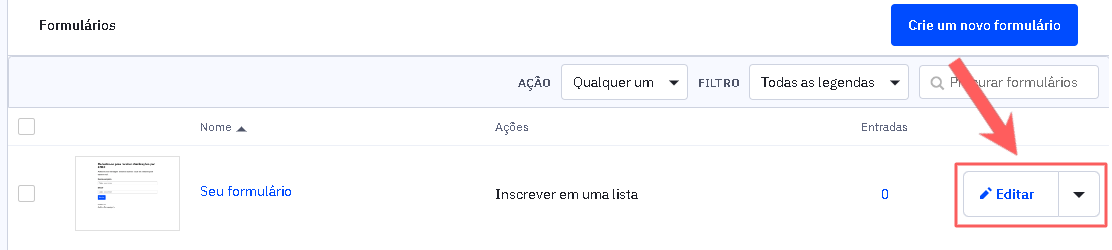
4 - Locate the Form you want to connect and click Edit.
5 - Click Options, then select the option “Open URL” and paste the URL you built (see step 1 of step 3).
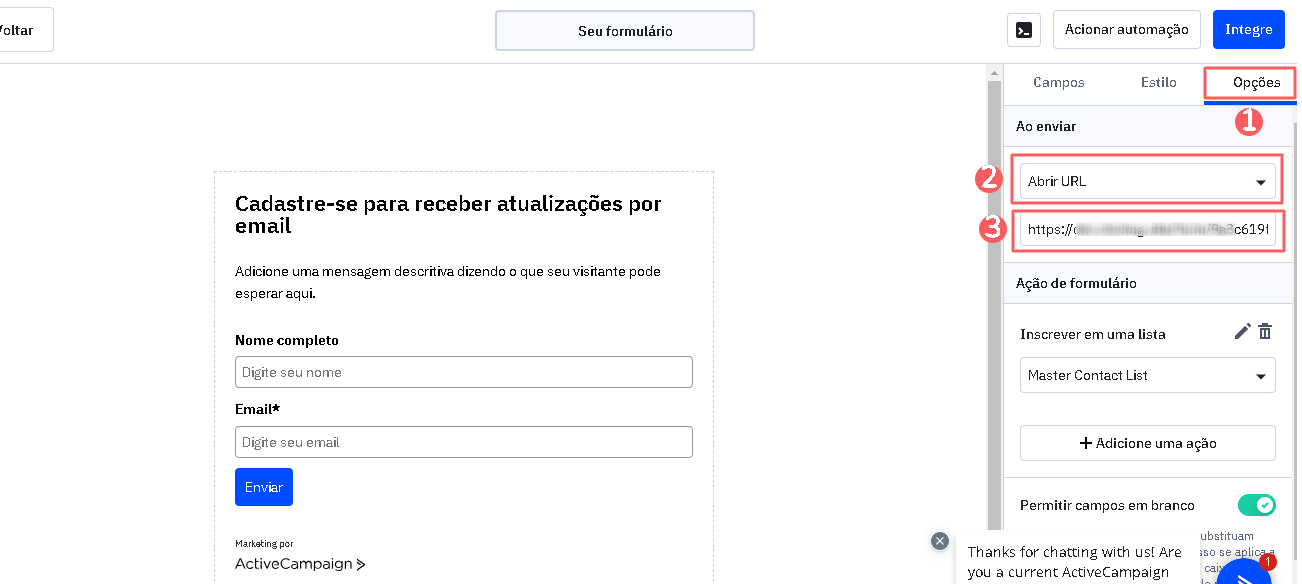
6 - Click Integrate, and then Save and exit.
Step 4: Test the form
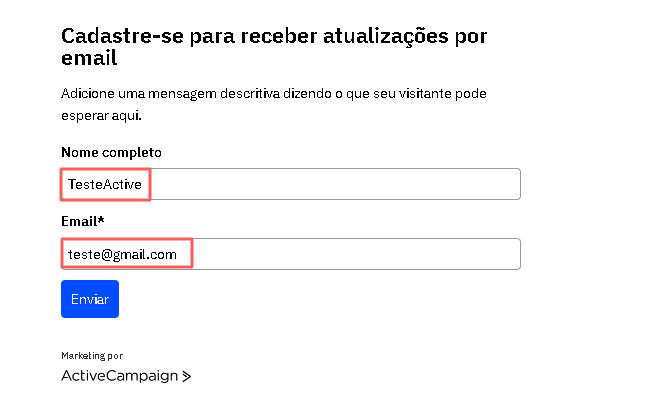
In this step, you should test the form with dummy data and confirm if it appears in the lead list of the Forms P.P.C.T. you connected.
Steps:
1 - View the form page, fill it out with dummy data, and submit.
2 - Then, return to the Guru admin.
3 - In the side menu, go to P.P.C.T., and then click Captures.
4 - Select the P.P.C.T. you connected.
5 - Then, under Leads verify if the Email entered in the test is in the Lead list.
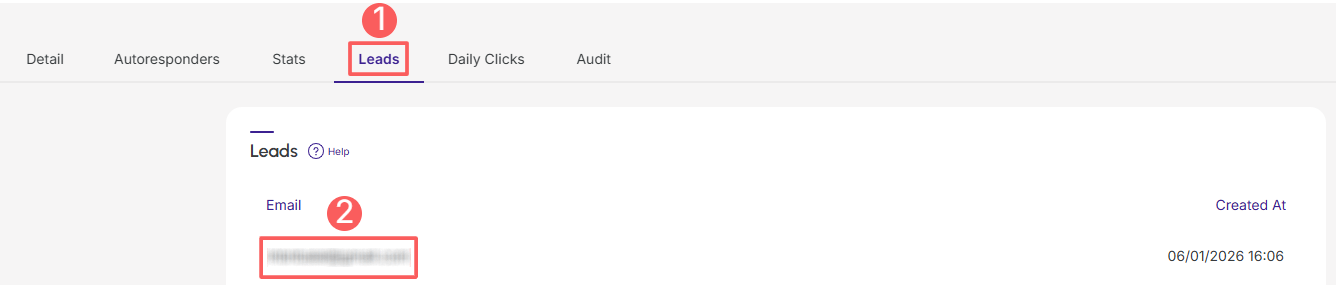
If the email used is in the Lead list, the P.P.C.T. is connected to the form.