
In the UTMs section, you'll find a set of essential parameters that allow you to precisely track the origin of traffic, the channel used, the linked campaign, and even the specific version of the ad or link clicked.
By adding UTMs to Sales P.P.C.T. links, Guru gathers detailed data that facilitates understanding the performance of each campaign, including the user's path to conversion.
it's possible to apply advanced filters to segment data according to UTM parameters — for example, isolating sales originating from a specific campaign, medium, or creative. This makes analysis much more efficient, allowing you to quickly identify the most effective elements of your sales strategies.
On this page:
-
UTMs
-
Filter Sales P.P.C.T. UTM data
-
Manage Sales P.P.C.T. UTM filters
-
UTMs
In the UTMs section, you can view the tracking information if you used UTMs in the tracking link. In addition, you can use the filter to view a smaller subset of existing P.P.C.T.s. This feature is useful for finding specific P.P.C.T.s you want to view.
Steps:
1 - Select the Sales P.P.C.T. list - a screen with the data will be displayed.
2 - In UTM, the list displays the following information:
-
UTM Campaign: value of the UTM Campaign parameter passed in the P.P.C.T. link;
-
UTM Medium: value of the UTM Medium parameter passed in the P.P.C.T. link;
-
UTM Term: value of the UTM Term parameter passed in the P.P.C.T. link;
-
UTM Content: value of the UTM Content parameter passed in the P.P.C.T. link;
-
Total Clicks: the total number of clicks in the tracking.

Filter Sales P.P.C.T. UTM data
You can filter the data using UTM parameters.
Steps:
1 - Select the Sales P.P.C.T. list - a screen with the data will be displayed.
2 - In " UTMs", click on " Filters. ".
3 - Fill in one or more filter options:
-
UTM Campaign: searches for the value of the UTM Campaign parameter passed in the P.P.C.T. link;
-
UTM Medium: searches for the value of the UTM Medium parameter passed in the P.P.C.T. link;
-
UTM Term: searches for the value of the UTM Term parameter passed in the P.P.C.T. link;
-
UTM Content: searches for the value of the UTM Content parameter passed in the P.P.C.T. link.
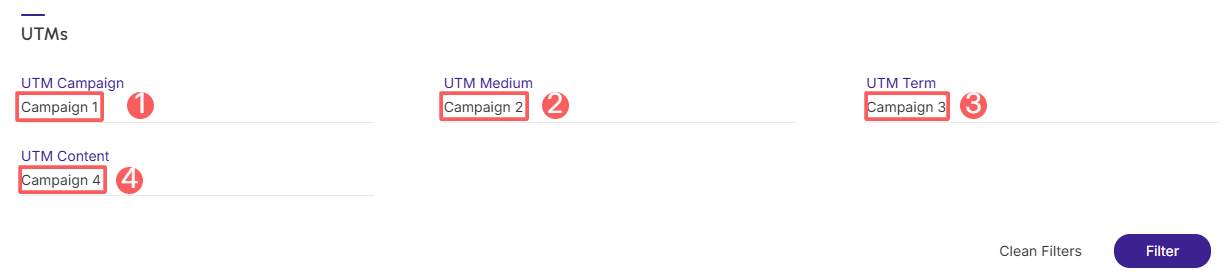
4 - Click on Filter.
To remove the applied filters, just click on Clear Filters.
Manage UTM filters for Sales P.P.C.T.
You can check the number of applied filters when using filters to view the information you want. This feature is useful if you want to check how many filters have been applied.
In addition, it is possible to clear the filters without accessing the Filters icon again, facilitating the removal of applied filters.
Consult applied filters
You can check the number of applied filters.
Steps:
1 - In the side menu, access Sales P.P.C.T. . After the page loads, a list with all Sales P.P.C.T. will be displayed.
2 - Click on the desired Sales P.P.C.T. , and under UTMs, click on Filters.
3 - Fill in one or more filter options - apply the filters you want to consult.
4 - Then, the number of applied filters will appear on the screen.

If you want to apply other filters, click Filter UTM data for Sales P.P.C.T..
Clean applied filters
You can remove the applied filters without having to click on the filters icon.
Steps:
1 - In the side menu, access Sales P.P.C.T. . After the page loads, a list with all Sales P.P.C.T. will be displayed.
2 - Click on the desired Sales P.P.C.T. , and under UTMs, click on Filters.
3 - Fill in one or more filter options - apply the filters you want to consult.
4 - Then, click on Clean Filters.

If you want to apply other filters, click Filter the UTM data of the Sales P.P.C.T..