Performance metrics are fundamental to understanding and optimizing your campaign results, enabling more strategic and assertive decisions.
In the Sales section, you have access to detailed information for each transaction — such as status, code, buyer contact, product sold, creation date, and sale value. These data highlight campaign performance and allow you to identify which sources and strategies generate the most return. Furthermore, the analysis can be refined with specific filters, making it possible to view only the most relevant records for your operation.
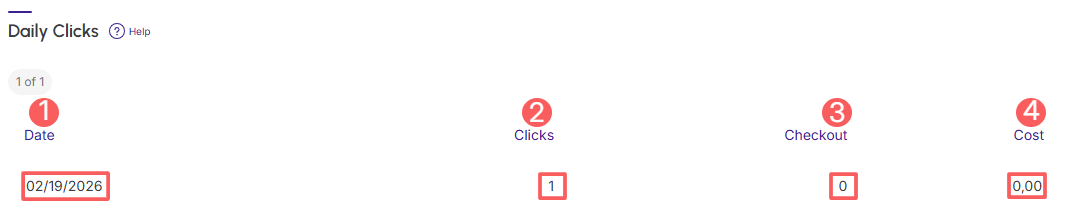
In the Leads section, you can track captured contacts, and with Daily Clicks you visualize the initial audience behavior, understanding how many accesses each link received per day.
Thus, the Sales P.P.C.T. presents itself as a complete tool, offering indicators that go beyond simple sales accounting, characterizing an engagement thermometer that allows you to evaluate the real impact of each action on your revenue.
On this page:
-
Sales
-
Filter Sales P.P.C.T. Sales
-
Manage Sales P.P.C.T. Sales Filters
-
-
Leads
-
Daily Clicks
Sales
In the Sales section, you can view all sales information for P.P.C.T.s. Additionally, you can use the filter to view a smaller subset of existing P.P.C.T.s. This feature is useful for finding specific P.P.C.T.s you want to view.
Steps:
1 - Select the Sales P.P.C.T. list - a screen with the data will be displayed.
2 - In Sales, the list displays the following information:
-
Status: displays the current sale status - one of the possible sale statuses will be displayed;
-
Code: sale identification number - hover over the code to consult the associated payment processor;
-
Contact: customer name (buyer);
-
Product: name of the product linked to the order (sale);
-
Ordered At: date of sale;
-
Value: sale value charged to the buyer;
-
Tracking Origin: when the locator icon is displayed, it indicates that the sale is associated with a tracking created in Guru (P.P.C.T.) - click on the sale to view tracking details;
-
Payment Method: icon indicating the payment method used by the buyer - hover over the icon to view the description.

Filter Sales P.P.C.T. Sales
You can filter the sales data of the Sales P.P.C.T.
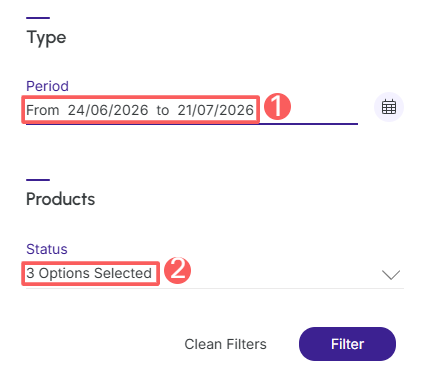
By default, only records from the last 28 days will be shown, but the period can be changed in the filters, in the Period.field.
Steps:
1 - Select the Sales P.P.C.T. list - a screen with the data will be displayed.
2 - In Sales, click on Filters.
3 - Fill in one or more filter options:
-
Period: searches for sales with start and end dates - if desired, use the predefined time range buttons;
-
Status: displays the current status of the Sales P.P.C.T. - one of the possible sale statuses;will be displayed;- if you want to filter regardless of status, just select all.
4 - Click on Filter.
To remove the applied filters, just click on Clear Filters.
Manage Sales P.P.C.T. Sales Filters
You can check the number of applied filters when using filters to view desired information. This feature is useful if you want to check how many filters have been applied.
Additionally, it is possible to clear the filters without accessing the Filters icon again, facilitating the removal of applied filters.
Consult applied filters
You can check the number of applied filters.
Steps:
1 - Select the Sales P.P.C.T. list - a screen with the data will be displayed.
2 - In Sales, click on Filters.
3 - Fill in one or more filter options - apply the filters you want to consult.
4 - Then, the number of applied filters will appear on the screen.

If you want to apply other filters, click Filter Sales P.P.C.T. Sales.
Clean applied filters
You can remove the applied filters without needing to click the filters icon.
Steps:
1 - Select the Sales P.P.C.T. list - a screen with the data will be displayed.
2 - In Sales, click on Filters.
3 - Fill in one or more filter options - apply the filters you want to consult.
4 - Then, click on Clean Filters.

If you want to apply other filters, click Filter Sales P.P.C.T. Sales.
Leads
In the Leads section, you can view all lead information such as email and lead creation date. This feature is useful for finding leads captured in the campaign.
Steps:
1 - Select the Sales P.P.C.T. list - a screen with the data will be displayed.
2 - In Lead, the list displays the following information:
-
Email: email of the lead found in the campaign;
-
Created At: date the lead was created.

Daily Clicks
In the Daily Clicks section, you can consult the daily summary of trackings. This feature is useful for detailing daily clicks.
Steps:
1 - Select the Sales P.P.C.T. list - a screen with the data will be displayed.
2 - In Daily Clicks, the list displays the following information:
-
Date: displays the number of clicks tracked in the tracking;
-
Clicks: displays the number of clicks in the tracking;
-
Checkout: displays the number of clicks from the tracking that went through checkout;
-
Cost: displays the total costs of the tracking.