
You can locate a Sales P.P.C.T., which are automatically registered in Guru in the section P.P.C.T.
To find a Sales P.P.C.T. in a list with many records, you can search and filter the list.
On this page:
-
Consult Sales P.P.C.T. list
-
View Sales P.P.C.T. data
-
Filter Sales P.P.C.T. list
-
Manage Sales P.P.C.T. filters
-
-
Show hidden Sales P.P.C.T.
Consult Sales P.P.C.T. list
By default, the P.P.C.T. list is displayed in alphabetical order (A to Z), by product name. For faster page loading, only the first 30 records are displayed. If you want to view the other items in the list, you can scroll to the bottom of the page and click on View more at the bottom center of the screen.
The list displays the following information:
-
Name: name that identifies the tracking;
-
Source: tracking traffic ource;
-
Field: tracking field used in tracking;
-
Product: product that identifies the tracking;
-
User: tracking owner;
-
Disclosure URL: tracking disclosure URL;
-
Destination URL: tracking destination URL;
-
Duplicate: creates a copy of the selected sales tracking with a new name and disclosure URL;
-
Deactivate: when active, the disclosure URL will no longer be available – there will be no more redirection to the payment URL informed in the button.

View Sales P.P.C.T. data
You can view1 all sales P.P.C.T. information or update1 the P.P.C.T. data.
(1) permission is required to perform these actions.
Steps:
1 - Access the Sales P.P.C.T. list - if desired, you can apply a filter.
2 - Locate the desired Sales P.P.C.T. in the list.
3 - Click on the desired Sales P.P.C.T.
4 - Consult the sales P.P.C.T. information.

Filter Sales P.P.C.T. list
You can use the filters to view a smaller subset of existing Sales P.P.C.T.s. This feature is useful for finding specific P.P.C.T.s you want to view.
By default, only records from the last 28 days will be shown.
Steps:
1 - In the side menu, go to P.P.C.T., and then click on Sales. After the page loads, a list with all Sales P.P.C.T.s will be displayed.
2 - In Sales P.P.C.T., click on Filters.
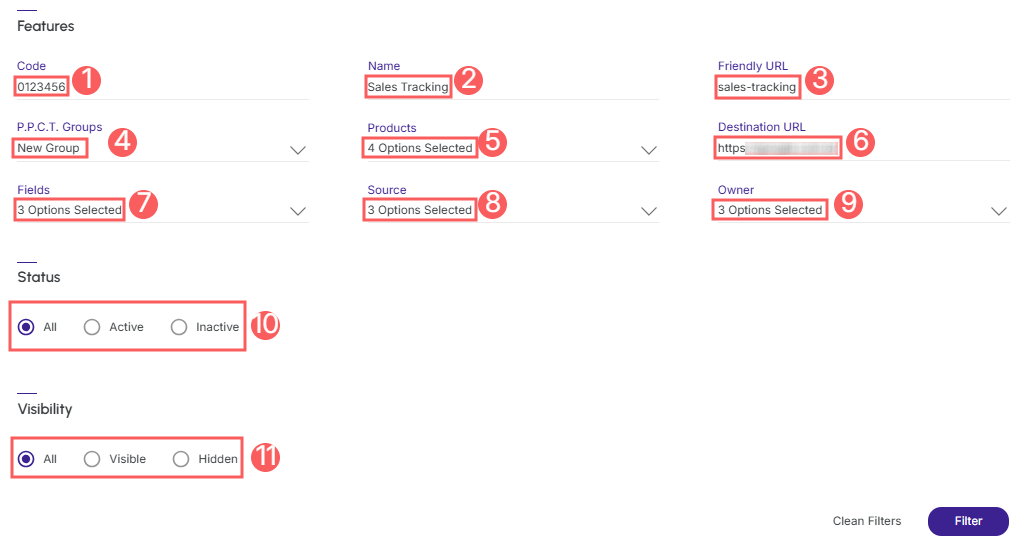
3 - Fill in one or more filter options:
-
Code: searches for the informed identification code - you can inform only part of the code. Ex.: the first 4 digits;
-
Name: searches for P.P.C.T.s that have the informed name or parts of the name;
-
Friendly URL: searches by the P.P.C.T.'s URL;
-
P.P.C.T. Groups: searches for sales linked to the selected P.P.C.T. group(s);
-
Products: searches for the product that identifies the tracking;
-
Destination URL: searches by the P.P.C.T.'s destination URL;
-
Fields: searches by the P.P.C.T.'s field;
-
Source: searches by the P.P.C.T.'s traffic source location;
-
Owner: searches by the tracking owner;
-
Status: displays P.P.C.T.s that have the status corresponding to the selected value (Active or Inactive) - If you want to ignore this filter, select the “All” option;
-
Visibility: displays only sales P.P.C.T.s that are visible or hidden in the sales P.P.C.T. list - If you want to ignore this filter, select the “All” option.
4 - Click on Filter.
To remove the applied filters, simply click on Clean Filters.
Manage Sales P.P.C.T. filters
You can check the number of applied filters when using filters to view the information you want. This feature is useful if you want to check how many filters have been applied.
In addition, it is possible to clear the filters without accessing the Filters icon again, facilitating the removal of applied filters.
Consult applied filters
You can check the number of applied filters.
Steps:
1 - In the side menu, go to P.P.C.T., and then click on Sales. After the page loads, a list with all Sales P.P.C.T.s will be displayed.
2 - In Sales P.P.C.T., click on Filters.
3 - Fill in one or more filter options - apply the filters you want to consult.
4 – Then, the number of applied filters will appear on the screen.

If you want to apply other filters, click How to filter the Sales P.P.C.T. list.
Clean applied filters
You can remove the applied filters without having to click on the filters icon.
Steps:
1 - In the side menu, go to P.P.C.T., and then click on Sales. After the page loads, a list with all Sales P.P.C.T.s will be displayed.
2 - In Sales P.P.C.T., click on Filters.
3 - Fill in one or more filter options - apply the filters you want to consult.
4 – Then, click on Clean Filters.

If you want to apply other filters, click How to filter the Sales P.P.C.T. list.
Show hidden Sales P.P.C.T.
You can use the filters to view hidden P.P.C.T.s. This feature is useful for displaying P.P.C.T.s that are no longer marketed and cannot be deleted because they have the first click.
To filter the Sales P.P.C.T. list:
Steps:
1 - In the side menu, go to P.P.C.T., and then click on Sales. After the page loads, a list with all Sales P.P.C.T.s will be displayed.
2 - In Sales P.P.C.T., click on Filters.
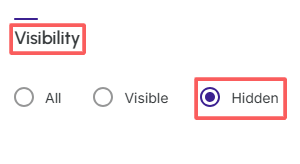
3 - Select in the option visibility the filter hidden:
-
Visibility: displays only the P.P.C.T.s that are visible or hidden in the P.P.C.T. list - If you want to ignore this filter, select the “All” option.
4 - Click on Filter.
More Resources