
it is possible to add pre-defined smart fields to the form to customize your event's registration form. This feature is useful for creating smart fields such as document, address, privacy policy, and terms of use.
You can add Customizable Fields to smart forms.
On this page:
-
Document
-
Address
-
Privacy Policy
-
Terms of Use
Document
In the Document section, you customize the document field for your form.
Steps:
1 - Access the desired ticket - a screen with the data will be displayed.
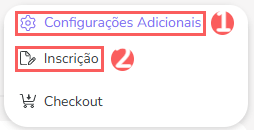
2 - Click on Additional Settings and then on Registration.
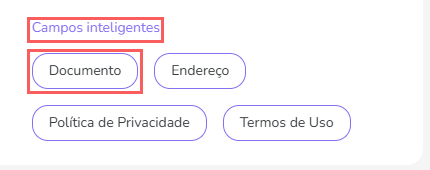
3 - In Smart Fields, click on Document.
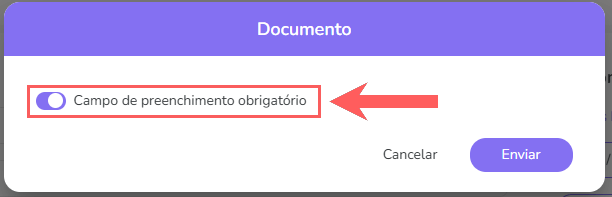
4 - In Document, adjust the selector to the option:
-
Mandatory field: when enabled, the document field will appear as a mandatory field.

5 - Click on Submit.
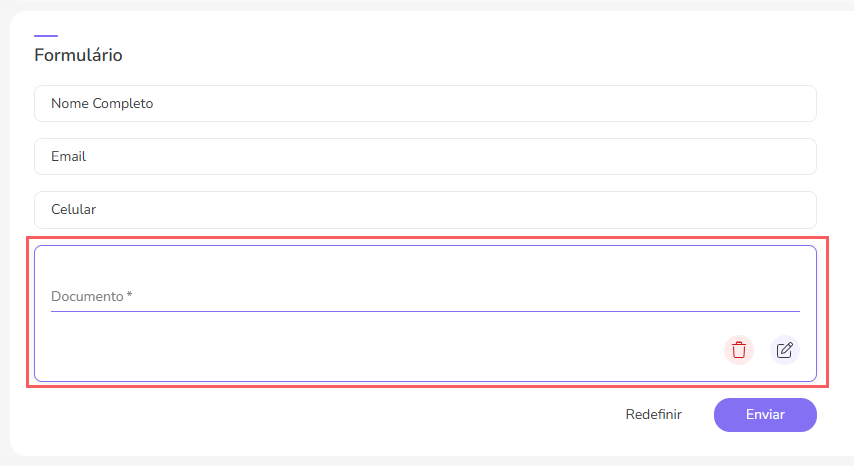
6 - Then, the field will be added to the form.
7 - Click on Submit. To confirm that the field has been saved, a message will be displayed for a few seconds in the top right corner of the page.
Address
In the Address section, you customize the address field for your form.
Steps:
1 - Access the desired ticket - a screen with the data will be displayed.
2 - Click on Additional Settings and then on Registration.
3 - In Smart Fields, click on Address.
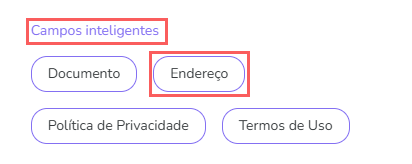
4 - In Address, adjust the selector to the option:
-
Mandatory field: when enabled, the address field will appear as a mandatory field.
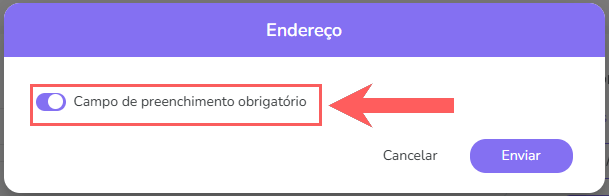
5 - Click on Submit.
6 - Then, the field will be added to the form.
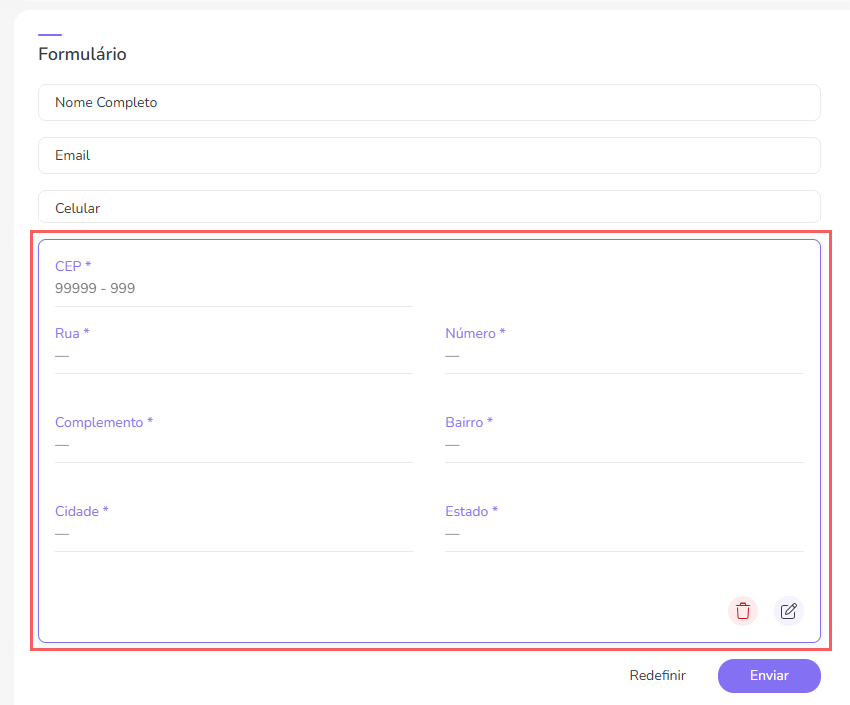
7 - Click on Submit. To confirm that the field has been saved, a message will be displayed for a few seconds in the top right corner of the page.
Privacy Policy
In the Privacy Policy section, you customize the privacy policy field for your form.
Steps:
1 - Access the desired ticket - a screen with the data will be displayed.
2 - Click on Additional Settings and then on Registration.
3 - In Smart Fields, click on Privacy Policy.
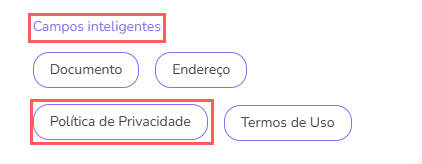
4 - In Privacy Policy, enter:
-
URL: enter the URL for the privacy policy.
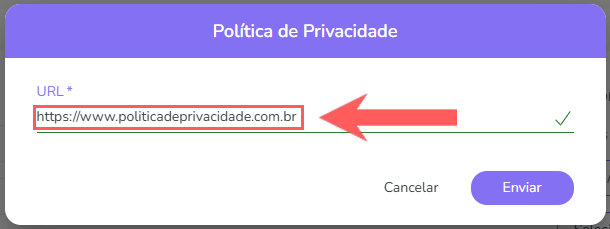
5 - Click on Submit.
6 - Then, the field will be added to the form.
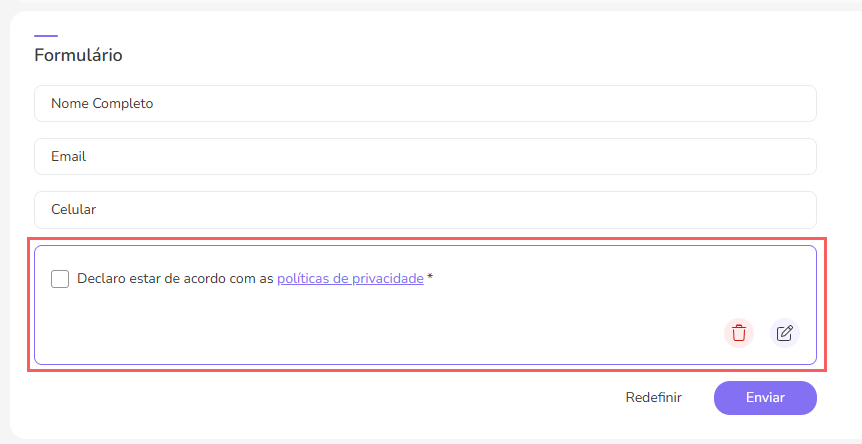
7 - Click on Submit. To confirm that the field has been saved, a message will be displayed for a few seconds in the top right corner of the page.
Terms of Use
In the Terms of Use section, you customize the terms of use field for your form.
Steps:
1 - Access the desired ticket - a screen with the data will be displayed.
2 - Click on Additional Settings and then on Registration.
3 - In Smart Fields, click on Terms of Use.
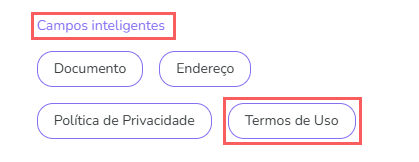
4 - In Terms of Use, enter:
-
URL: enter the URL for the terms of use.
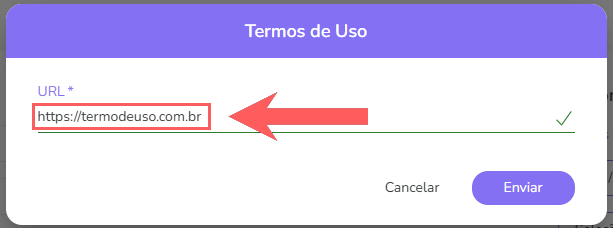
5 - Click on Submit.
6 - Then, the field will be added to the form.
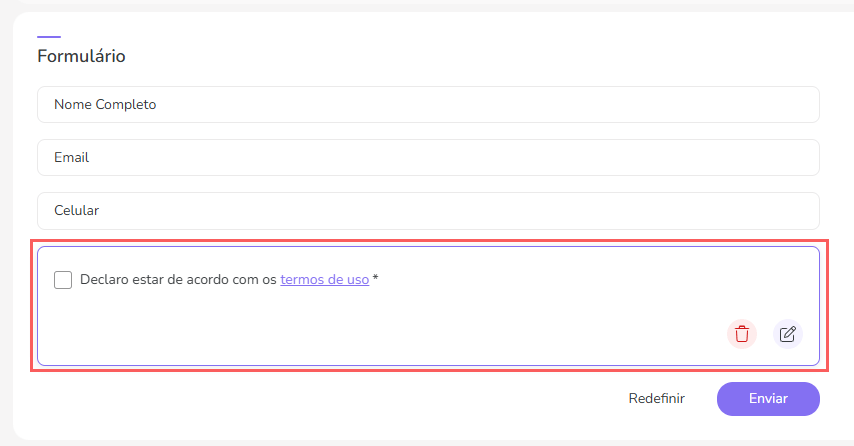
7 - Click on Submit. To confirm that the field has been saved, a message will be displayed for a few seconds in the top right corner of the page.