
The Guru provides a customer portal, a secure self-service area perfect for your customers to manage their tickets and payment history without needing to contact your support team.
Through this portal, your customers can view their tickets, send invitations, cancel invitations, and cancel tickets.
To learn how to access the customer portal, see my Orders Area (buyer's view).
On this page:
-
Operations available in the customer portal
-
How to direct your customers to self-service
-
How to integrate the customer portal into your application or platform
Operations available in the customer portal
After completing checkout, your ticket is automatically available for viewing in the customer portal. In addition to viewing, you can make some operations available on the ticket.
Ticket Inquiry
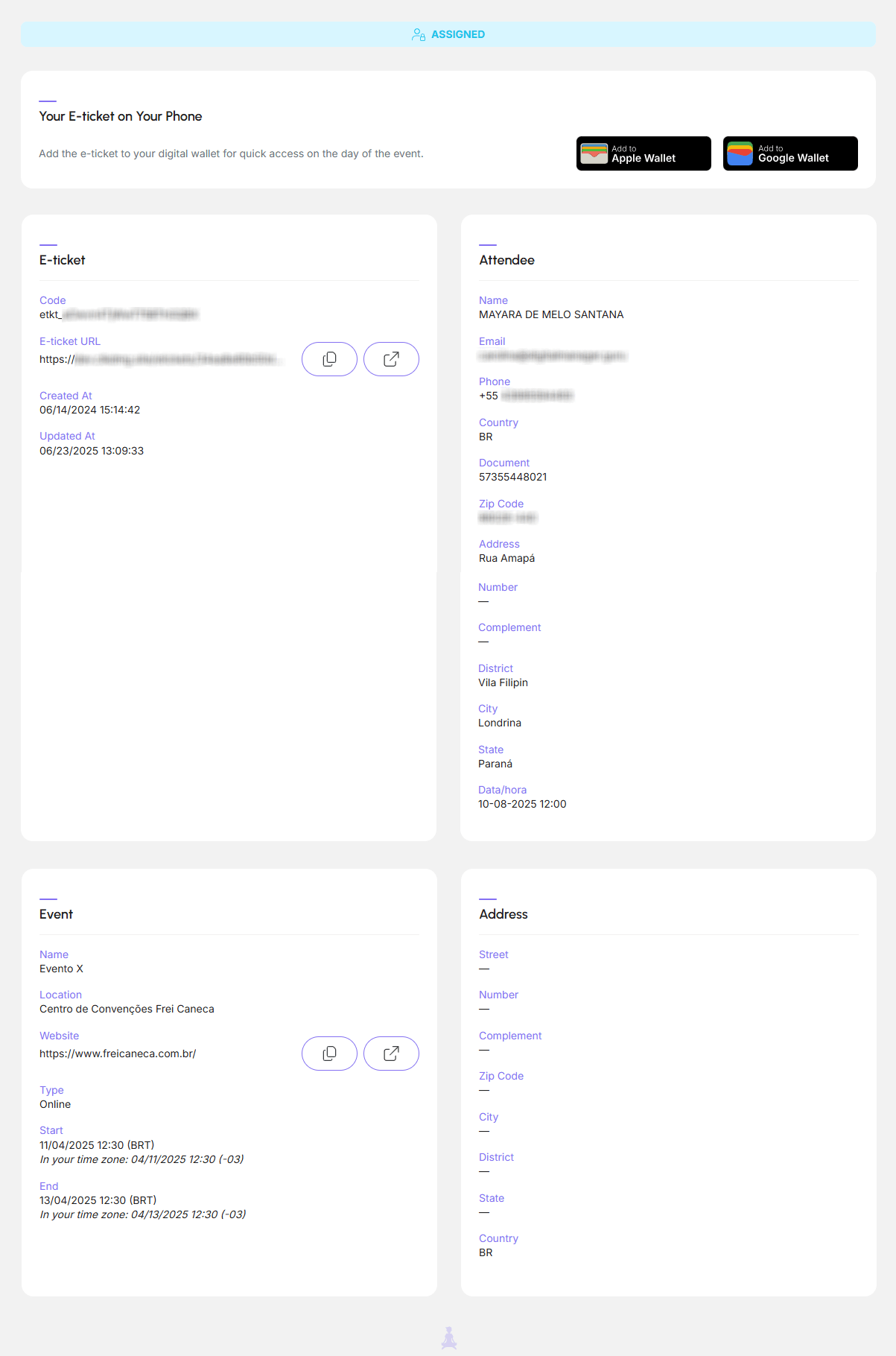
In the Tickets section in the customer portal, the buyer can locate and view the details of all tickets. This feature is useful for the customer to confirm generated tickets, or to obtain their support channels.
The inquiry displays the ticket code, participant, event, and event address, when applicable.
Modify Ticket
If you wish, you can allow the customer to modify a ticket. This way, they can access the customer portal themselves and perform the operation without needing to contact your support service.
The customer can send an invitation, cancel an invitation, and cancel a ticket.
See the step-by-step guide on how to modify a ticket through the customer portal.
How to direct your customers to self-service
When the customer contacts your support service, it may be necessary to direct them to self-service, available in the customer portal.
This option is useful, for example, when your customer needs to send an invitation to a participant/guest, cancel an invitation, or cancel a ticket.
To direct a customer to self-service, your attendants should guide them through the following steps:
Steps:
1 - Access the My Orders portal - available at https://digitalmanager.guru/myorders;
2 - Enter the email associated with the ticket;
3 - Check the email inbox;
4 - Click on the received link to access the customer portal - the link expires after 10 minutes.
5 - Perform the desired operation.
We recommend sharing this tutorial with your customers or replicating it in your help center.
How to integrate the customer portal into your application or platform
If desired, you can integrate the customer portal into your application or platform through single sign-on (SSO) mode, available in the Guru API.
This way, your customer performs a single login and can navigate between your system and the customer portal transparently and securely.
To perform this integration, share this material with your developer.