
it is possible to configure the pre-defined smart form fields to update or remove fields from your event's registration form.
On this page:
-
Update form field
-
Remove form field
Update form field
Once created, it is possible to update the form field. This feature is useful when you need to change the triggering rule.
Steps:
1 - Access the desired ticket - a screen with the data will be displayed.
2 - Click on Additional Settings, and then Registration.

3 – In the Formfield, click on Update.
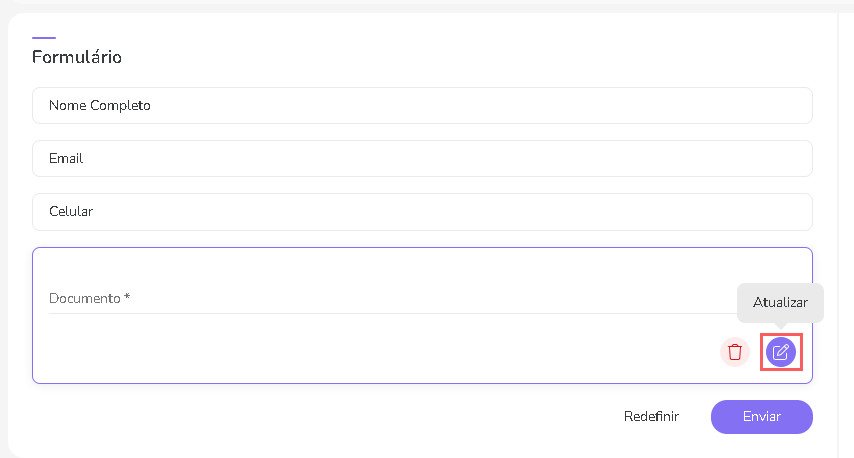
4 - Adjust the selector to the option:
-
Mandatory field: when enabled, the field will appear as a mandatory field.
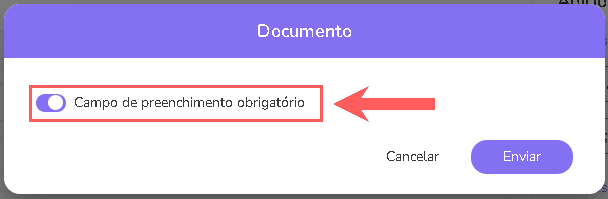

THE update setting will be available for all fields, as long as the field is added to the form.
5 - Click on Submit.
Remove form field
Once created, it is possible to remove the form field. This feature is useful when you do not want to add the smart field.
Steps:
1 - Access the desired ticket - a screen with the data will be displayed.
2 - Click on Additional Settings, and then Registration.
3 - In Form, click the Remove button corresponding to the form field.
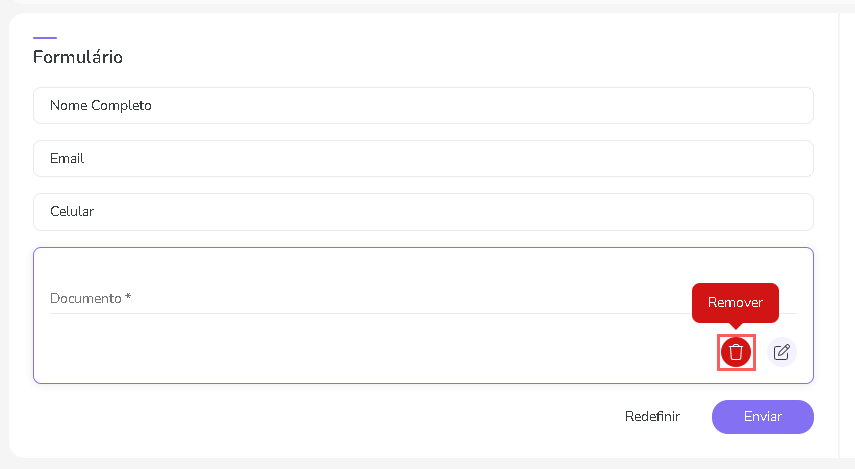
4 - Confirm if you want to delete. To confirm that the field has been deleted, a message will be displayed for a few seconds in the top right corner of the page.
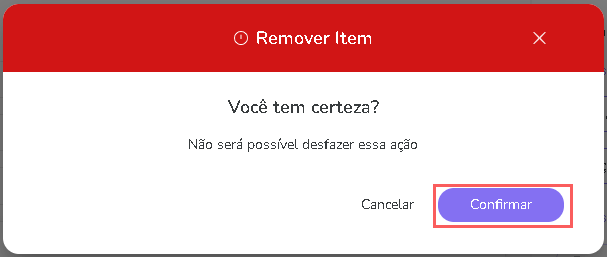
THE remove setting will be available for all fields, as long as the field is added to the form.