
You can also export the information from your tickets' custom forms to a spreadsheet (XLSX file).
The information will appear as an extra field in the XLSX spreadsheet, and will only be included in the spreadsheet after the buyer fills in the custom fields after ticket validation, i.e., after checkout.
This feature can be useful for tasks such as:
-
Storing a backup of your tickets.
-
Quickly obtaining a list of the main tickets or offer links used, and
-
Accessing information related to the ticket buyer.
TICKET export is performed in the background and usually takes a few minutes. When the file is ready, you receive a notification in the Guru admin and an email containing the download link.
THE export is limited to 10,000 tickets. If you have a larger number of records, apply a filter to reduce the size of the list for export, and there is no limitation on exporting custom form fields.
Before exporting tickets, you can apply a filter to export only the desired tickets.
On this page:
-
How to Export Custom Forms
Before you start, you need to…
-
Be an administrator user or have permission to perform the following actions.
-
Have one or more tickets registered in Guru.
Export Custom Forms
EXPORTING tickets to a spreadsheet is available in the E-tickets section of the Guru admin. The export of form information applies in the same way as the export of tickets and will be included in the same exported spreadsheet.
When exporting the spreadsheet, the information will appear as extra fields in the spreadsheet, with the data requested in the customization of the registration form.
Important: Information about custom forms will only be available after the buyer fills in the fields during ticket validation after purchase.
Before exporting tickets, you can apply a filter to export only the desired tickets.
Steps:
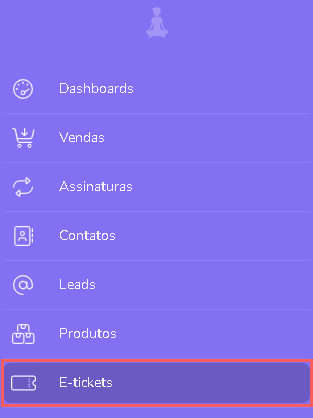
1 - In the side menu, access E-tickets.
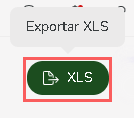
2 - Under Tickets, click on XLS.
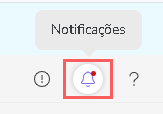
3 - After a few minutes, you will receive a notification in the Guru admin with the download link. Click on the notification icon1 in red to view the list of notifications.
1 You may need to refresh the page in your browser (press CTRL+F5) for the notification icon to change color.
4 - Locate the corresponding notification and click Download.
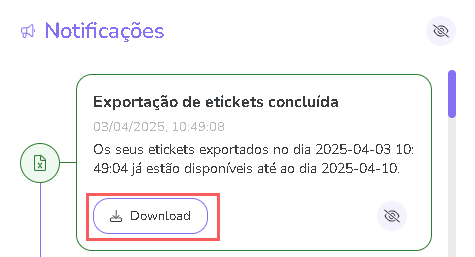
THE download link will be sent by email.