
As an event organizer, agility and organization in accreditation are essential for your participants' first impression. Guru offers a robust solution to efficiently manage access, elevating the event experience from the first contact.
In Guru, you can register a user specifically for accreditation, ensuring that the responsible teams have agile and structured access to the necessary information. This feature aims to improve the fluidity of the entry process and contribute to a positive experience for participants, reflecting the seriousness and organization of the event.
How it works
You must create a role and activate the specific permission, and then create the user and assign the created role to them. The user will receive an email with access data, and will be able to perform the participant check-in.
The created user will only have access to the permission configured in the role.
On this page:
-
Create roles
-
Create user
-
What to do next?
Create roles
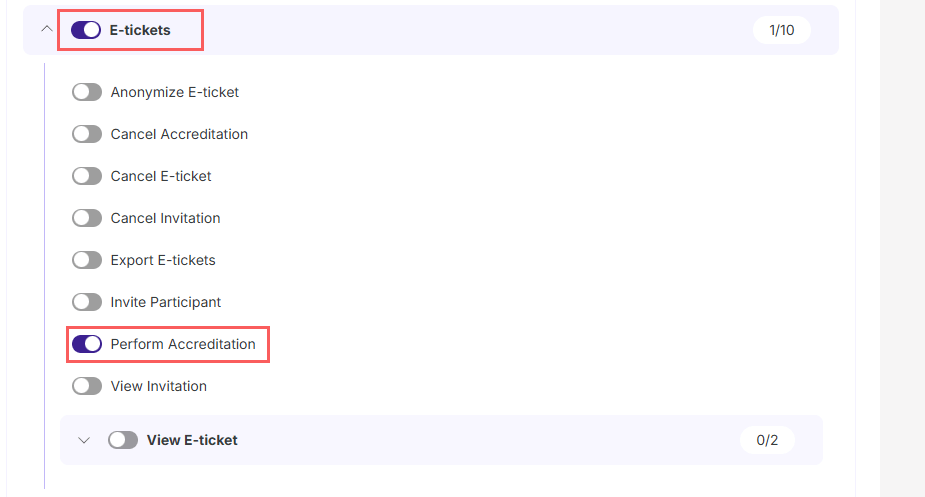
In this section, you will create the accreditation role to associate the user in Guru. When creating the role, you must access the registration tab and activate the 'perform accreditation' permission.
Steps:
1 - Access the guru admin with your username and password.
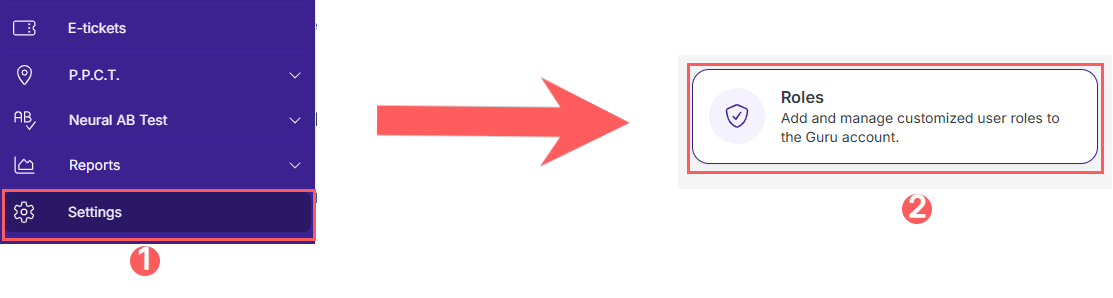
2- In the side menu, click on Settings, then click on Roles.
3 - In Roles, click on Add Role.
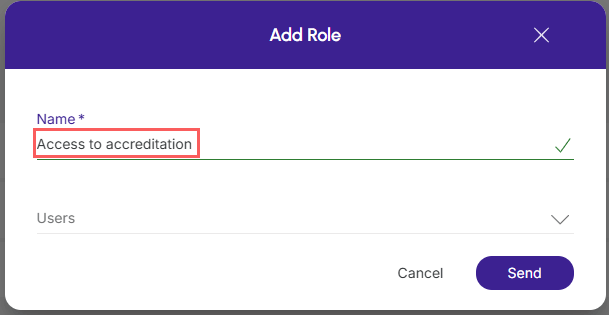
4 - In Add Role, enter:
-
Name: the name of the role - example accreditation access.
5 - Click on Send.
6 - A screen will be displayed with the roles for permissions.
7 - Click on the Entries tab.
8 - In the list, activate the option E-tickets, and then the permission Perform Accreditation.
.jpg?cb=8837a4ea6a4e7db37d2e094edac9e7bf)
9 - Click on Send.
Create user
In this section, you will add the user to associate the role previously created in Guru.
Steps:
1 - Access the guru admin with your username and password.
2- In the side menu, click on Settings, then click on Users.
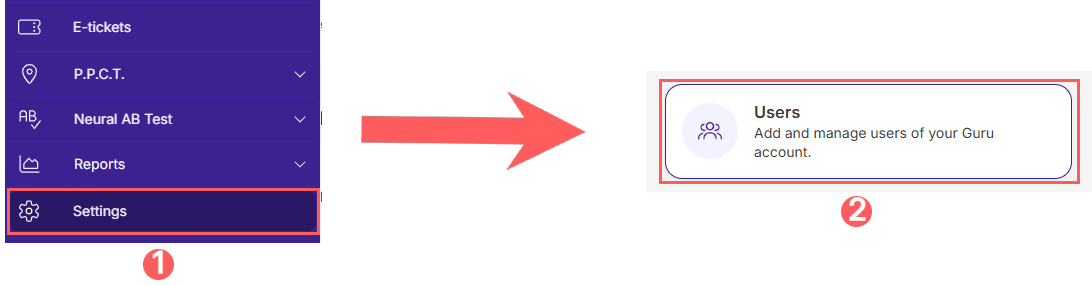
3 - In Users, click on Add User.
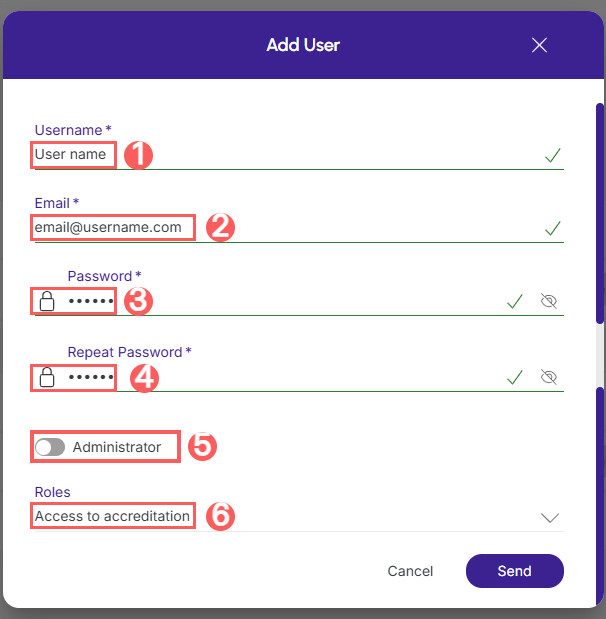
4 - In Add User, enter:
-
Username: the user'sname;
-
Email of the user: the email of the user you want to add;
-
Password: the password for your user;
-
Repeat password: confirm the password for your user;
-
Administrator: change the button to the off position;
-
Roles: select the role created for the accreditation user.
5 - Click on Send.
What to do next?
Next, the created user will receive an email with access data for the Guru admin. The user will only access what was configured (permission) in the created role.
From the access, the created user will be able to perform the accreditation of event participants.
How to Perform Participant Check-in
You can check in participants through the accreditation mode, by scanning a QR code or manually.
The accreditation must be done via the browser when accessed by mobile.
Consult:
More Resources