
It is possible to check in participants through the accreditation mode, by reading a QR code, or manually. This feature is useful when you want to confirm the presence of participants at the event.
On this page:
-
Accreditation mode
-
Manual Check-in
-
Cancel Check-in
Before you start, you need to…
-
Be an administrator or have permission to perform the following actions.
-
Have one or more registered tickets in Guru.
Accreditation mode
In the Accreditation mode section, you can confirm your participant's presence by reading the QR code associated with the ticket.
Attention: The attendee must have their ticket with them and can obtain it through the My Orders environment.
Steps:
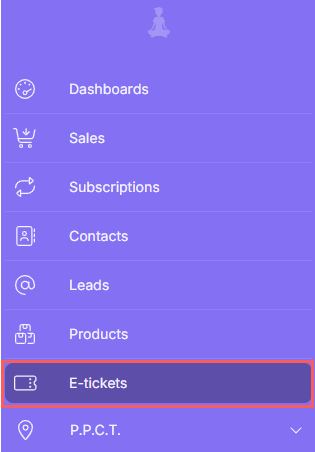
1 - In the side menu, go to E-tickets.
2 - In E-tickets, click on Accreditation Mode.
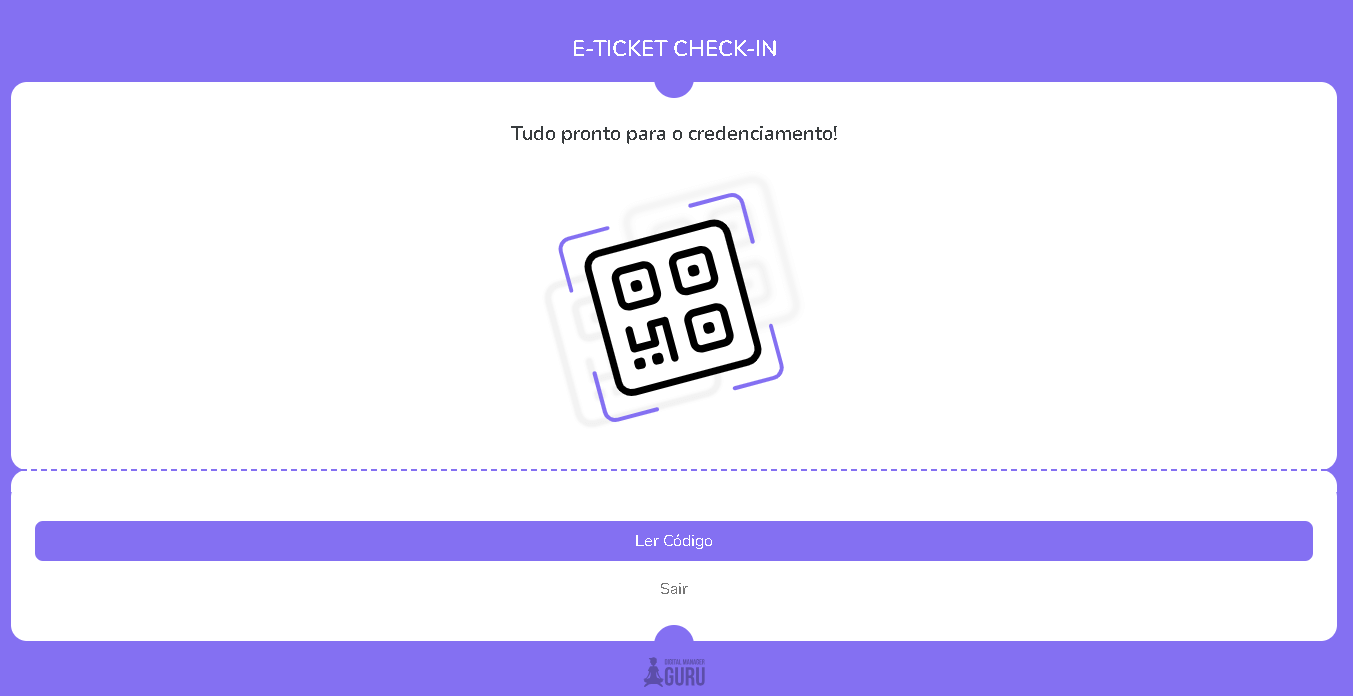
3 - A screen will appear to perform the accreditation. Click on Read Code - another screen will be displayed.
4 - Point your mobile device to the QR code on the participant's ticket.
Attention: You must allow access to the mobile device's camera.
After reading the QR code, you should receive a successful check-in notification.
Manual Check-in
In the Manual Check-in section, you can perform accreditation manually, through the ticket details.
Steps:
1 - In the side menu, go to E-tickets.
2 - In the list, select the ticket you want to check-in - check-in will only be available for tickets with assigned or invited status.

Cancel attendee Check-in.
Anytime, you can cancel the participant's check-in, through the ticket details.
Steps:
1 - In the side menu, go to E-tickets.
2 - In the list, select the ticket you want to cancel the check-in - cancel Check-in will only be available if the check-in has been performed.

3 - Cancel the check-in of the attendee.
More Resources