
By integrating your ActiveCampaign account, you can pass leads captured by Guru, buyer data, and sale information in order to segment your contacts in ActiveCampaign, engaging with them in a personalized way while monitoring conversions and revenue.
To activate the integration, you need to obtain your API credentials from your ActiveCampaign account, and then define the rules for contact segmentation and map additional fields from the sale or subscription.
On this page:
-
Step 1: Obtain API Credentials
-
Step 2: Activate the integration
-
What to do next
Before you begin, you need to:
-
Have an account with ActiveCampaign.
-
Be an administrator user or have permission to perform the following actions.
Step 1: Obtain API Credentials
In this step, you will obtain the API credentials from your ActiveCampaign account.
Steps:
1 - Log in to your ActiveCampaign account with your username and password.
2 - In the top right menu, click on Settings.

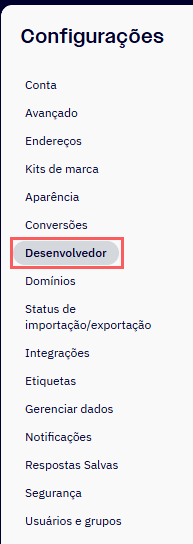
3 - In the left side menu, click on Developer.
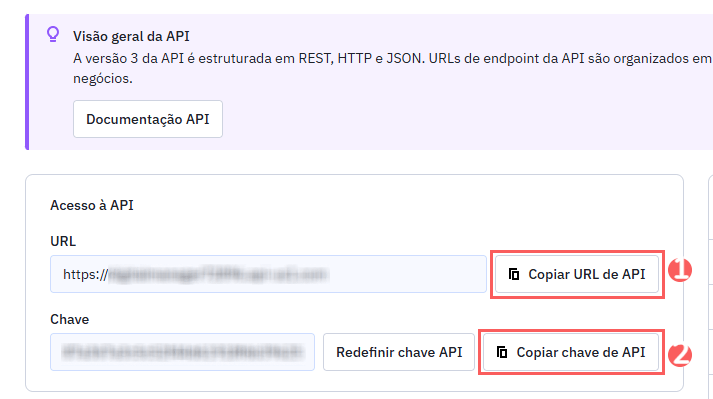
4 - Copy and store the API URL and the API Key.
Step 2: Activate Integration with ActiveCampaign
In this step, you will enter the API credentials obtained from ActiveCampaign into Guru.
The API key/token will not be available after saving the integration. If you change the API key, it will no longer be valid, requiring you to return to the ActiveCampaign environment to retrieve the key.
This change will provide greater security for your account, making it impossible to view integration data.
Steps:
1 - Log in to the Guru admin with your username and password.
2 - In the side menu, access Settings > Integrations > Autoresponders > ActiveCampaign.

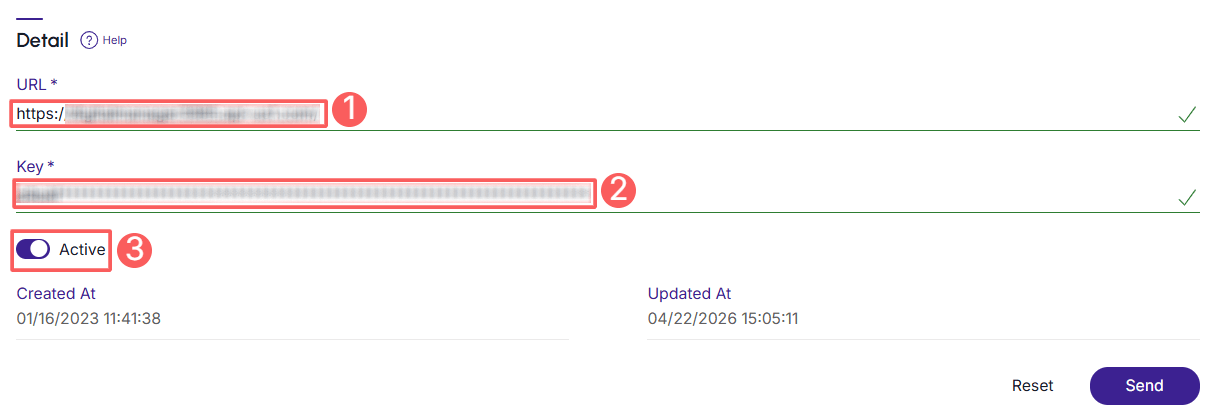
3 - In the Details tab, enter:
-
API URL: your API URL obtained in step 1 - item 4;
-
API Key: your API key obtained in step 1 - item 4;
-
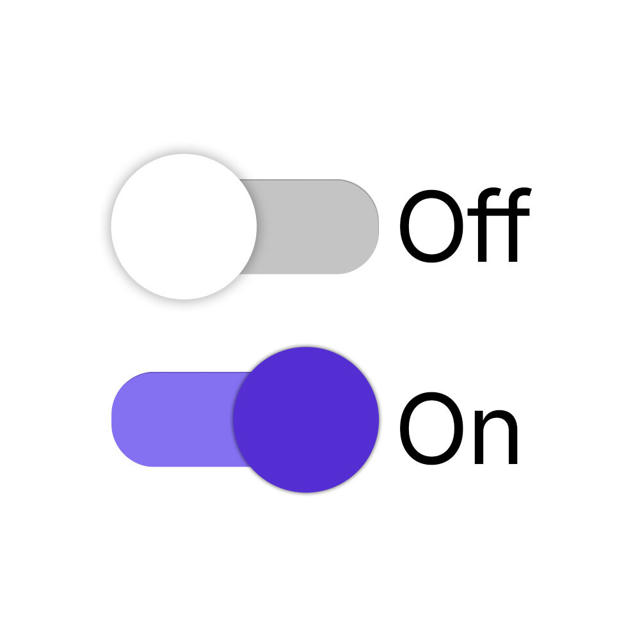
Active: toggle the button to the on position.
4 - Click on Send.
To confirm that the integration is active, you should see a notice in the upper right corner.
What to do next
Once the integration with ActiveCampaign is active, you must configure the rules for contact segmentation in ActiveCampaign and map any additional fields you want (optional step).
This configuration is done through:
1 - Mapping Sales Status to ActiveCampaign;
2 - Sending Custom Data to ActiveCampaign.