Performance metrics are essential to understand and improve your customer's journey, being crucial for the success of any business. In this context, the P.P.C.T. of Leads stands out as a robust tool, assisting in the analysis and improvement of performance from lead capture to conversion.
In the Sales section, you have complete access to the information of leads generated by the P.P.C.T.s, allowing a detailed view of performance. Furthermore, we will explore the relevance of leads themselves, from their acquisition to qualification, and the crucial role of daily clicks as a thermometer of initial attraction and engagement of your audience.
On this page:
-
Sales
-
Filter P.P.C.T. Lead sales
-
Manage P.P.C.T. Lead sales filters
-
-
Leads
-
Daily Clicks
Sales
In the Sales section, you can view all information about P.P.C.T. leads. In addition, you can use the filter to view a smaller subset of existing P.P.C.T.s. This feature is useful for finding specific P.P.C.T.s you want to view.
Steps:
1 - Select the P.P.C.T. Lead list - a screen with the data will be displayed.
2 - In Sales, the list displays the following information:
-
Status: displays the current state of the sale - one of the possible sale statuses will be displayed;
-
Code: sale identification number - hover over the code to consult the associated payment processor;
-
Product: name of the product linked to the order (sale);
-
Ordered at: sale completion date;
-
Value: sale value charged to the buyer;
-
Payment Method: payment method of the sale.

Filter P.P.C.T. Lead sales
You can filter the P.P.C.T. sales data.
By default, only records from the last 28 days will be shown, but the period can be changed in the filters, in the Period.field.
Steps:
1 - Select the P.P.C.T. Lead list - a screen with the data will be displayed.
2 - In Sales, click on Filters.
3 - Fill in one or more filter options:
-
Period: searches for sales with start and end dates - if desired, use the predefined time range buttons;
-
Status: displays the current state of the P.P.C.T. of leads - one of the possible sale statuses.will be displayed.
.png?cb=c22a4a96ea4b4a79795db61888a95a60)
4 - Click on Filter.
To remove the applied filters, simply click on Clean Filters.
Manage P.P.C.T. Lead sales filters
You can check the number of applied filters when using filters to view desired information. This feature is useful if you want to check how many filters have been applied.
In addition, it is possible to clear the filters without accessing the Filters icon again, facilitating the removal of applied filters.
Consult applied filters
You can consult the quantity of applied filters.
Steps:
1 - Select the P.P.C.T. Lead list - a screen with the data will be displayed.
2 - In Sales, click on Filters.
3 - Fill in one or more filter options - apply the filters you want to consult.
4 – Then, the number of applied filters will appear on the screen.

If you want to apply other filters, click Filter P.P.C.T. Lead Sales.
Clean applied filters
You can remove the applied filters without needing to click the filters icon.
Steps:
1 - Select the P.P.C.T. Lead list - a screen with the data will be displayed.
2 - In Sales, click on Filters.
3 - Fill in one or more filter options - apply the filters you want to consult.
4 – Then, click on Clear Filters.

If you want to apply other filters, click Filter P.P.C.T. Lead sales.
Leads
In the Leads section, you can view lead information, such as email and lead creation date. This feature is useful for finding leads captured in tracking.
Steps:
1 - Select the P.P.C.T. Lead list - a screen with the data will be displayed.
2 - In Leads, the list displays the following information:
-
Email: email of the lead found in tracking;
-
Created At: date the lead was created.

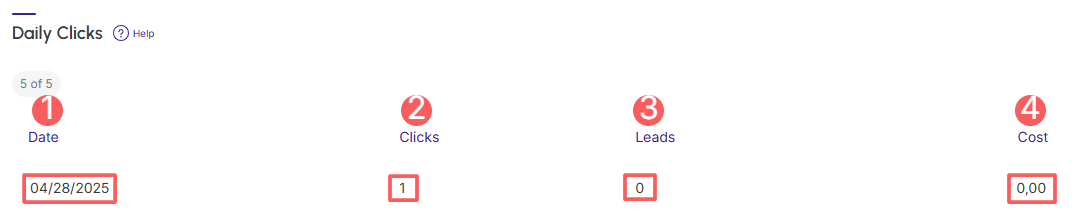
Daily Clicks
In the Daily Clicks section, you can consult the daily summary of trackings. This feature is useful for detailing daily clicks of lead tracking.
Steps:
1 - Select the P.P.C.T. Lead list - a screen with the data will be displayed.
2 - In Daily Clicks, the list displays the following information:
-
Date: displays the date the click was tracked;
-
Clicks: displays the number of clicks tracked;
-
Leads: displays the number of leads tracked;
-
Cost: displays the total costs of tracked leads.