
The Conversion Window in the Lead P.P.C.T. is a tool to analyze the time between a lead's first interaction and its effective conversion into a sale, offering an in-depth perspective on the customer journey, allowing you to identify patterns and optimize your strategies.
You will find information about:
-
Capture Funnel: presents the steps a lead takes until conversion;
-
Conversion Window: central analysis of conversion time, showing the evolution of the time period until sale;
-
Approval by Payment Method: details which payment methods are resulting in more conversions;
-
Advertisers: informs about the advertisers generating conversions;
-
Sales Origin: identifies the traffic sources that culminate in sales; and
-
UTMs: analyzes the performance of each UTM parameter in the conversion journey, providing data on the effectiveness of your campaigns.
With this view, it is possible to optimize response time and campaigns, improving conversion rates.
On this page:
-
Capture Funnel
-
Conversion Window
-
Filter Conversion Window of Lead P.P.C.T.
-
Manage filters of the Lead P.P.C.T. Conversion Window
-
-
Approval by Payment Method
-
Advertisers
-
Sales Origin
-
UTMs
Capture Funnel
In the Capture Funnel section, you will see the number of clicks, leads captured in the period, and new leads. Additionally, you can observe the main indicators, such as:
Steps:
1 - Select the Lead P.P.C.T. list - a screen with the data will be displayed.
2 - In Capture Funnel, the list displays the following information:
-
Total Inside Period: displays the total sales within the period;
-
Total Cost: displays the total costs of captures in the period;
-
Total: displays the total sales captured in the period;
-
ROI Inside Period: displays the ROI in the period;
-
General ROI: displays the ROI invested and sold in the period.

Conversion Window
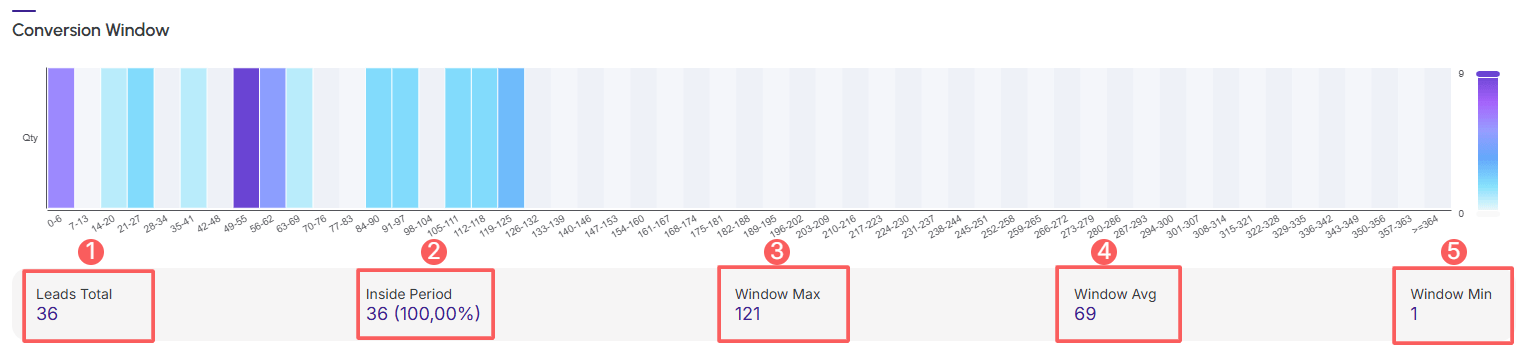
In the Conversion Window section, you can analyze the evolution of the time period between a lead's first interaction and its conversion to a sale.
Graph
The graph displays the variation of total leads, maximum, average, and minimum window, which can be daily (for periods up to 31 days) or monthly (for periods over 31 days).
Steps:
1 - Select the Lead P.P.C.T. list - a screen with the data will be displayed.
2 - In Conversion Window, the list displays the following information:
-
Leads Total: displays the quantity of total tracked leads for the period;
-
Inside Period: displays the quantity of leads tracked in the period;
-
Window Max: displays the maximum conversion period of the tracked lead;
-
Window Avg: displays the average conversion period of the tracked lead;
-
Window Min: displays the minimum conversion period of the tracked lead.
Filter Conversion Window of Lead P.P.C.T.
You can filter the capture funnel data.
By default, only records from the last 28 days will be shown, but the period can be changed in the filters, in the Period.field.
Steps:
1 - Select the Lead P.P.C.T. list - a screen with the data will be displayed.
2 - In Conversion Window, click on Filters.
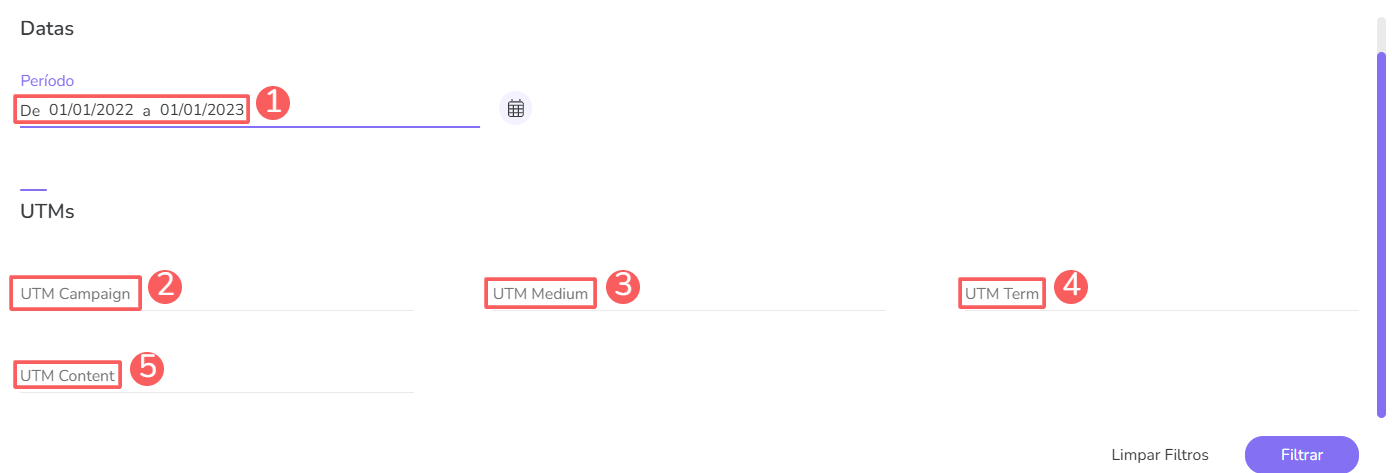
3 - Fill in one or more filter options:
-
Period: searches for sales with start and end dates - if desired, use the predefined time range buttons;
-
UTM Campaign: searches by the value of the UTM Campaign parameter passed in the P.P.C.T. link;
-
UTM Medium: searches by the value of the UTM Medium parameter passed in the P.P.C.T. link;
-
UTM Term: searches by the value of the UTM Term parameter passed in the P.P.C.T. link;
-
UTM Content: searches by the value of the UTM Content parameter passed in the P.P.C.T. link.
4 - Click on Filter.
To remove the applied filters, just click on Clear Filters.
Manage filters of the Lead P.P.C.T. Conversion Window
You can check the number of applied filters when using filters to view desired information. This feature is useful if you want to check how many filters have been applied.
In addition, it is possible to clear the filters without accessing the Filters icon again, facilitating the removal of applied filters.
Consult applied filters
You can check the number of applied filters.
Steps:
1 - Select the P.P.C.T. Leads list - a screen with the data will be displayed.
2 - In Conversion Window, click on Filters.
3 - Fill in one or more filter options - apply the filters you want to consult.
4 – Then, the number of applied filters will appear on the screen.

If you want to apply other filters, click Filter Conversion Window of Lead P.P.C.T..
Clear applied filters
You can remove the applied filters without needing to click on the filters icon.
Steps:
1 - Select the Lead P.P.C.T. list - a screen with the data will be displayed.
2 - In Conversion Window, click on Filters.
3 - Fill in one or more filter options - apply the filters you want to consult.
4 – Then, click on Clear Filters.

If you want to apply other filters, click Filter Conversion Window of Lead P.P.C.T..
Approval by payment method
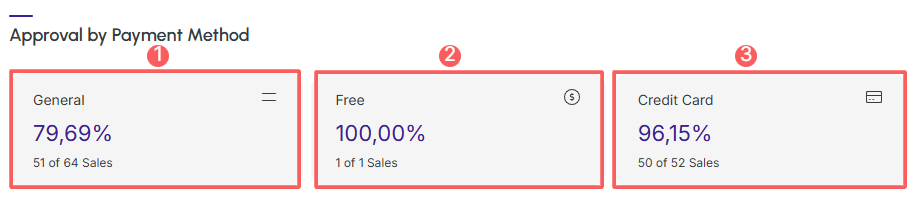
In the Approval by payment method section, it is possible to consult conversions by payment method used.
Steps:
1 - Select the Lead P.P.C.T. list - a screen with the data will be displayed.
2 - In Approval by Payment Method, the list displays the following information:
-
General(1): total sales by payment methods;
-
Free:
-
Credit Card(1): percentage of sales approved for credit.
Publishers
In the Publishers section, it is possible to consult the origin of lead tracking. For each tracking origin, metrics such as:
Steps:
1 - Select the Lead P.P.C.T. list - a screen with the data will be displayed.
2 - In Advertisers, the list displays the following information:
-
Name(1): displays the name of the tracking origin in the period;
-
Sales Qty: displays the number of sales by tracking origin in the period;
-
Lead Qty: displays the number of leads by tracking origin in the period;
-
Total: displays the total sales by tracking origin in the period.

(1) To know the origin of sales, you will need to have trackings created. If there are no active trackings, the origin will report “no trackings”.
Guru Tip:
You can export the spreadsheet by clicking on the CSV.
Sale Source
In the Sales Source section, it is possible to consult the sales ranking grouped by Sales Origin, informed in the tracking link, when the P.P.C.T.are created.
Steps:
1 - Select the Lead P.P.C.T. list - a screen with the data will be displayed.
2 - In Sales Source, the list displays the following information:
-
Name(1): displays the name of the tracking origin in the period;
-
Publisher: displays the tracking origin in the period;
-
Sales Qty: displays the number of sales by tracking origin in the period;
-
Leads Qty: displays the number of leads by tracking origin in the period;
-
Total: displays the total sales by tracking origin in the period.

(1) To know the origin of sales, you will need to have trackings created. If there are no active trackings, the origin will report “no trackings”.
Guru's Tip:
You can export the spreadsheet by clicking on the CSV.
UTMs
In the UTMs section, you can view the tracking information if you have used UTMs in the tracking link.
Steps:
1 - Select the P.P.C.T. Leads list - a screen with the data will be displayed.
2 - In UTMs, the list displays the following information:
-
UTMs: displays the value of the UTM parameter inserted in the URL - identifies where the traffic came from;
-
Sales Qty: displays the number of sales by tracking UTMs in the period;
-
Lead Qty: displays the number of leads by tracking UTMs in the period;
-
Total: displays the total sales by tracking UTMs in the period.

Guru's Tip:
You can export the spreadsheet by clicking on the CSV.