
To create subscriptions and make recurring charges, you must register products of the type subscription in the Guru admin with at least one linked offer.
In the product registration, you can enter the basic information of the offered plan such as identification code, type, name, and illustrative image.
In the offer registration, you can define components such as charge value, payment methods, in addition to subscription rules such as intervals, billing cycles, plan change options (upgrade and downgrade) and so on.
On this page:
-
Create a subscription
-
Define subscription duration (billing intervals)
-
Configure subscription with infinite cycles (charge until canceled)
-
Configure subscription with charge limit (pre-defined cycles)
-
Apply discount coupon to subscription (cycles with discount coupon)
-
Apply term discount to subscription (cycles with discount)
-
Apply term surcharge to subscription (cycles with surcharge)
-
Register plan change options (upgrade/downgrade)
Before you start, you need to…
-
Be an administrator user or have permission to perform the following actions.
Create a subscription
The Guru automatically creates a subscription when a customer signs up for a plan using the platform checkout. The charge amount, payment method, surcharge, discount, installment plan, trial period, and other offer settings are applied to the subscription.
To create a subscription (recurring charge) in Guru, follow the steps below:
1 - Create a product
Register a product of type subscription in the Guru admin. If you sell different subscription plans (e.g., monthly, semi-annual, and annual), you must register each plan as a different product.
2 - Add an offer
Add at least one offer to the product, informing the charge amount, available payment methods, installment rules, shipping (when applicable), and other information.
3 - Define the subscription rules
Still in the offer editing, you must define the subscription rules such as intervals, billing cycles, and plan change options (upgrade and downgrade).
4 - Copy and promote the checkout link
After completing the offer registration, you will have access to the checkout links. You must copy the desired link and publish it on a web page or send it directly to your customers. Your customer must complete the checkout for the subscription to be created in the Guru admin and linked to the customer registration.
To learn how the recurring billing system works, consult this topic.
Define subscription duration (billing intervals)
When configuring a recurring charge, you must define the duration of the subscription cycle, which consequently impacts the frequency with which the system will make the next charges.
How it works
Upon expiration of an active subscription, guru schedules and performs the charge for the next cycle (renewal). If the payment method is credit card, the charge is made automatically. In case of other offline payment methods, the system issues and sends the customer an email1 containing payment instructions.
The charge always occurs on the day the new subscription cycle begins. For example: for a 7-day subscription, the charge will be made on the 8th day.
To learn more about how subscription cycles and renewal date calculation work, consult this topic.
(1) You must activate the sending of transactional sales email according to the subscription's payment method. Ex.: if you accept payment for subscriptions with bank slip, activate the option sales with printed bank slip.
Configuration
The correct configuration of the subscription interval requires filling in 2 fields:
-
Interval type: corresponds to the duration of the subscription cycle, which can be in days, months, weeks, or years.
-
Interval: corresponds to the size of the interval (numeric) - the informed value will be combined with the selected interval type.
See this example showing the configuration of subscription intervals for different scenarios:
|
Interval Type |
Interval |
Subscription Duration |
Renewal happens |
|
Days |
7 |
Valid for 7 days. |
On the 8th day - start of the new cycle. |
|
Months(1) |
1 |
Valid for 1 month. |
On the 31st day - start of the new cycle. |
|
Weeks |
2 |
Valid for 2 weeks. |
On the 15th day - start of the new cycle. |
|
Years |
1 |
Valid for 1 year. |
On the 366th day - start of the new cycle. |
(1) For monthly subscriptions, the calculation of the next cycle will be based on the fixed day, i.e., the date the buyer signed the subscription. For example, if the subscription started on the 5th, the next charge will be on the 5th of the following month. However, if the start day was the 30th or 31st, the charge in months with 28, 29, or 30 days will be made on the last business day of the month.
You configure the subscription interval in the product offer of the subscription.
Configure subscription with infinite cycles (charge until canceled)
You can define that a subscription will have no expiration date. In this case, the system will make recurring charges until the subscription is canceled.
For example, a streaming platform may have an “XYZ Plan” that is automatically renewed until the customer requests the cancellation of the subscription.
To correctly configure a subscription with infinite cycles, inform:
-
Cycles = 0 (zero)
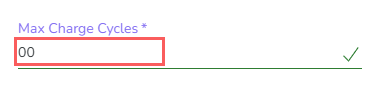
You configure the number of billing cycles in the creation of the product Offer of the subscription.
(*) You can also determine whether the subscription should (or should not) be canceled due to payment failure.
Configure subscription with charge limit (pre-defined cycles)
You can also define that a subscription will have a certain number of charges.
For example, an educational center may have an “XYZ Course” with a duration of 12 months that can be paid in 12 monthly installments.
To correctly configure a subscription with a charge limit, inform:
-
Cycles: maximum number of charges you want to make for the subscription - you must enter a value other than zero.
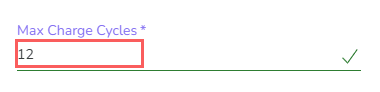
You configure the number of billing cycles in the creation of the product Offer of the subscription.
(*) You can also determine whether the subscription should (or should not) be canceled due to payment failure.
Apply discount coupon to subscription (cycles with discount coupon)
You can configure coupons with discounts on the subscription billing cycles. You can offer an automatic discount for cash purchases or a coupon code to be applied at checkout, at the time of purchase.
The correct configuration of cycles with a discount coupon in the subscription requires filling in 3 fields:
-
Discount Types: the coupon can be configured to offer a fixed discount value or a percentage discount on the subscription value;
-
Value: discount value - the informed value will be combined with the selected discount type;
-
Maximum subscription cycles1: number of subscription cycles that the coupon can be used when applied - example: max subscription cycle = 2; means that the coupon will be applied for the next 2 subscription cycles.
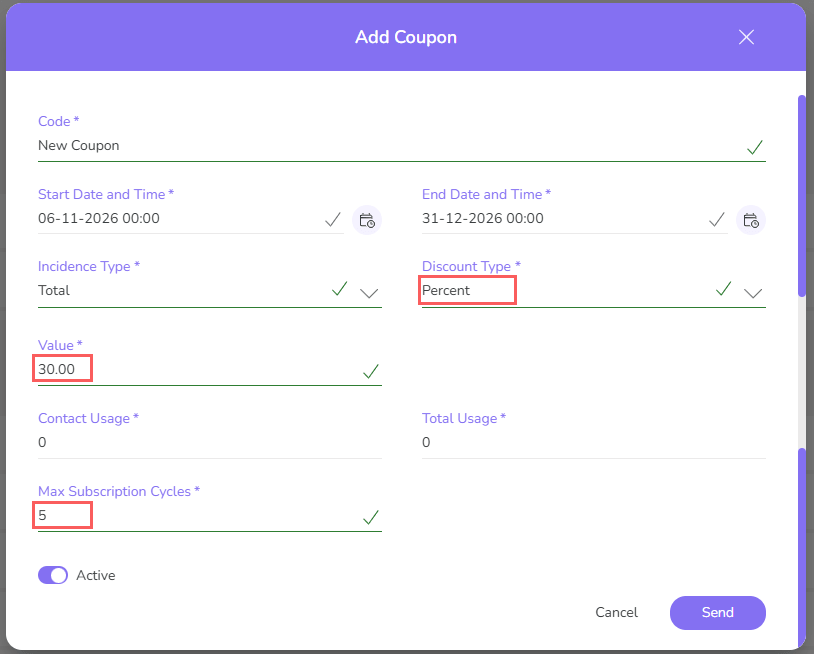
(1) The coupon discount can be applied to one or more subscription cycles. If a coupon with a maximum of 3 cycles is applied to a subscription that is already in cycle 2, the discount will be applied in cycles 3, 4, and 5, for example.
You can limit the use of the discount coupon to products, offers, or emails/documents. Access how to configure discount coupon.
Apply term discount to subscription (cycles with discount)
You can apply a fixed discount value to the first “x” billing cycles of the subscription. In this case, the system will make the first “x” charges with a lower value than the other subscription charges.
For example, a software company may have an “XYZ Plan” worth $100 and offer a promotional discount of $50 on the first 3 charges.
The correct configuration of cycles with a discount in the subscription requires filling in 3 fields:
-
Value: corresponds to the gross charge amount - without discount applied;
-
Discount: corresponds to the fixed discount value that will be applied to the first “x” billing cycles - you must enter a value greater than 0 in the “Cycles with discount” field;
-
Cycles with discount: corresponds to the number of cycles in which the discount will be applied.
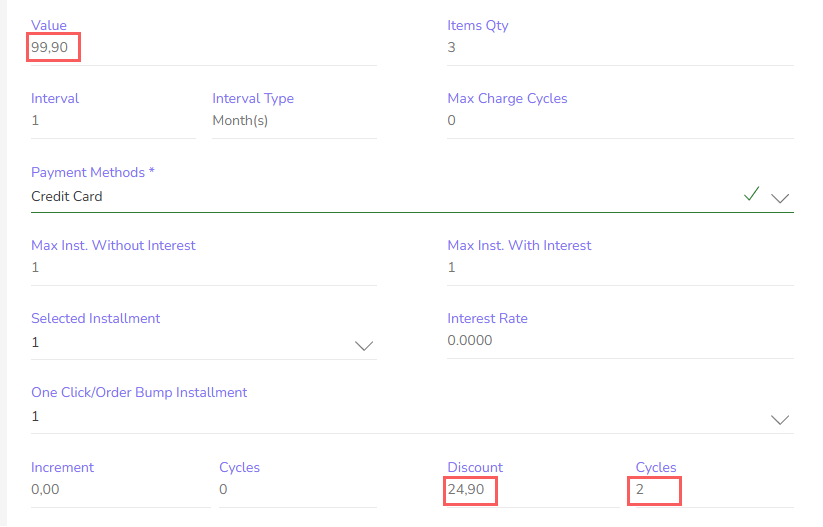
In the illustrated scenario, the system will behave as follows:
|
Billing Cycle |
Amount to charge the customer |
|---|---|
|
1 |
$ 50 |
|
2 |
$ 50 |
|
3 |
$ 50 |
|
(other cycles) |
$ 100 |
You configure discounted cycles when creating the Subscription product Offer.
Apply term surcharge to subscription (cycles with surcharge)
You can apply a fixed surcharge amount to the first “x” billing cycles of the subscription. In this case, the system will perform the first “x” charges with a higher value than the other subscription charges.
For example, an educational center may have an “XYZ Course” for $100, with an enrollment fee of $80 on the 1st charge.
The correct configuration of cycles with surcharge in the subscription requires filling in 3 fields:
-
Value: corresponds to the gross billing amount - without surcharge applied;
-
Surcharge: corresponds to the fixed surcharge amount that will be applied to the first “x” billing cycles - you must enter a value greater than 0 in the “Cycles with surcharge” field;
-
Cycles with surcharge: corresponds to the number of cycles to which the surcharge will be applied.
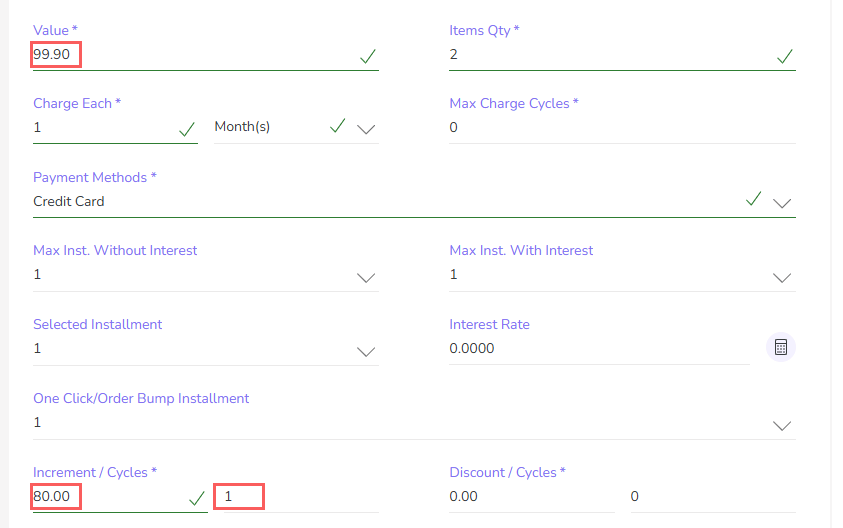
In the illustrated scenario, the system will behave as follows:
|
Billing Cycle |
Amount to charge the customer |
|---|---|
|
1 |
$ 180 |
|
2 |
$ 100 |
|
(other cycles) |
$ 100 |
You configure cycles with surcharge when creating the Subscription product Offer.
Register options for plan change (upgrade/downgrade)
If you have different subscription plans, you can configure the options for plan change (upgrade and downgrade).
When a plan has items registered for downgrade (lower option) and upgrade (higher option), an active subscription can be changed at any time to one of the available options.
If you have subscription webhooks configured, a new webhook will only be generated when the charge is made, and not when there is a change in admin/my orders.
The Upgrade or Downgrade will always be done by the offer value, and does not include any surcharges or discounts.
For example, a company with 3 available plans (Light, Basic, and Premium) can allow plan changes as follows:
|
Contracted Plan |
Downgrade Options |
Upgrade Options |
|---|---|---|
|
Light |
(not applicable) |
Basic |
|
Premium |
||
|
Basic |
Light |
Premium |
|
Premium |
Light |
(not applicable) |
|
Basic |
You add options for plan change when editing the Subscription product Offer.
(*) The plan changes can be made directly in the Subscriptions section in the Guru admin by any user with permission to perform this action. If desired, you can also make plan changes available in the self-service portal.
More Resources