
It is possible to add or update offer information such as product price, name, payment methods, and shipping fee.
In the offer, you can also add complementary product(s) for order bump, configure discounts and also define intervals1 and cycles1 of recurring charges, as well as options for upgrade1/downgrade1 of plan.
It is only possible to register offers for products linked to payment processors compatible with Checkout Guru.
1 Settings available only for subscription / recurring billing products.
On this page:
-
Add offer
-
Duplicate offer
-
Update offer
-
Remove offer
-
Activate / Deactivate offer
Before you start, you need…
-
Be an administrator user or have permission to perform the following actions;
-
Have one or more registered products.
Add offer
In this section, you will add the product offer.
Steps:
1 - Access the offer list in the desired product's registration.
2 - In Offers, click on Create Offer.
3 - Fill in the offer information.
Duplicate offer
To save time, you can duplicate a similar offer instead of adding a new one. Consult the material on best practices for creating products and offers to know whether to duplicate the offer or add a new offer to the existing product.
When using the duplicate feature, Guru copies all information from the original offer and creates another offer with a different identification code and with the "(Copy)" snippet at the end of the name.
To duplicate an existing offer, follow the steps below:
Steps:
1 - Access the offer list in the desired product's registration.
2 - Hover over the desired Offer and click on Duplicate.

3 - A confirmation window is displayed. To proceed with the action, click Duplicate.
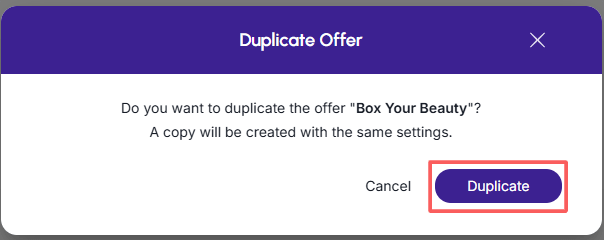
A message will be displayed for a few seconds in the top-right corner of the page, informing you that the offer was successfully duplicated.
4 - Fill in the offer details.
Important: The duplicated offer does not activate automatically. Access the desired offer and click to activate offer.
Update offer
After creating offers, you can edit them to change name, value, payment methods, and other information.
It is not allowed to update price, billing intervals, and cycles in recurring billing offers with linked subscriptions. In this case, use the add offer.
To edit an offer, follow the steps below:
Steps:
1 - Access the offer list in the desired product's registration.
2 - In your Offers list, select the Offer you want to update.

3 - Fill in the offer information.
Remove offer
It is possible to remove an offer as long as it does not have associated sales or subscriptions. When an offer is removed, the record is permanently deleted and cannot be restored.
Alternatively, you can deactivate the offer instead of removing it.
To remove an offer:
Steps:
1 - Create, duplicate or edit an offer - an editing window will be displayed.
2 - In Detail, click on Remove Offer.
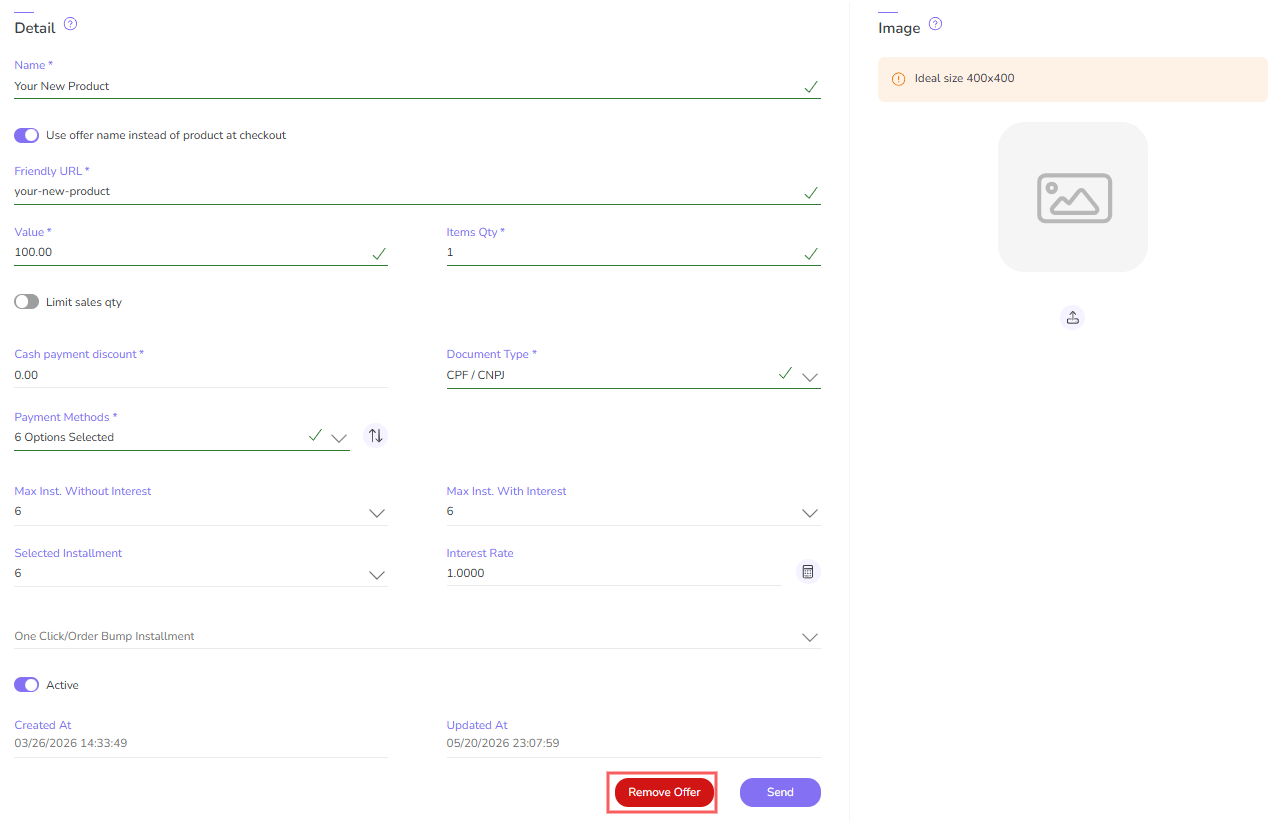
3 - A confirmation window is displayed. If you wish to proceed with the removal, click on Confirm.
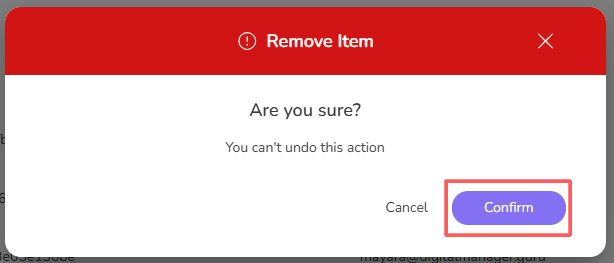
1 The button is only visible if the offer has no associated sales or subscriptions.
Activate / Deactivate Offer
You can deactivate or reactivate an offer at any time.
When deactivating an offer, checkout links become unavailable for access. This feature is useful when the offer cannot be deleted and you want to prevent the customer from making a purchase through the checkout link in question.
When accessing the link of a deactivated offer, error 404 (access denied) is displayed.
You can reactivate an offer at any time. By performing this action, checkout links become available again to receive payments.
To activate or deactivate an offer:
Steps:
1 - Access the list of offers in the desired product registration.
2 - Locate the desired offer and change the selector to the desired position (activate or deactivate):

More Resources