At Guru, you can allow your customers to configure and manage the information that will be available on the customer portal!
With Guru, you have total control to define what your customers can view and modify. This includes data from sales orders, details and modifications of e-tickets , and relevant information about subscriptions.
This way, you offer complete and efficient self-service, according to the options you enable in the self-service settings. This simplifies the management and replication of this information to your customers' portal, optimizing everyone's experience.
On this page:
-
Customer Portal Inquiry
-
Order Inquiry (sales)
-
Ticket Inquiry (e-tickets)
-
Subscription Inquiry
-
-
Modify subscription
-
Change payment method
-
Change plan (upgrade/downgrade)
-
Cancel Subscription
-
Customer Portal Inquiry
After completing checkout, the order (sale), ticket (e-tickets) and/or subscription is automatically available for inquiry on the customer portal. In addition to inquiry, you can make some operations available for the subscription.
Operations involving changes to the subscription are only available on the customer portal if you enable them in the self-service settings.
Order Inquiry (sales)
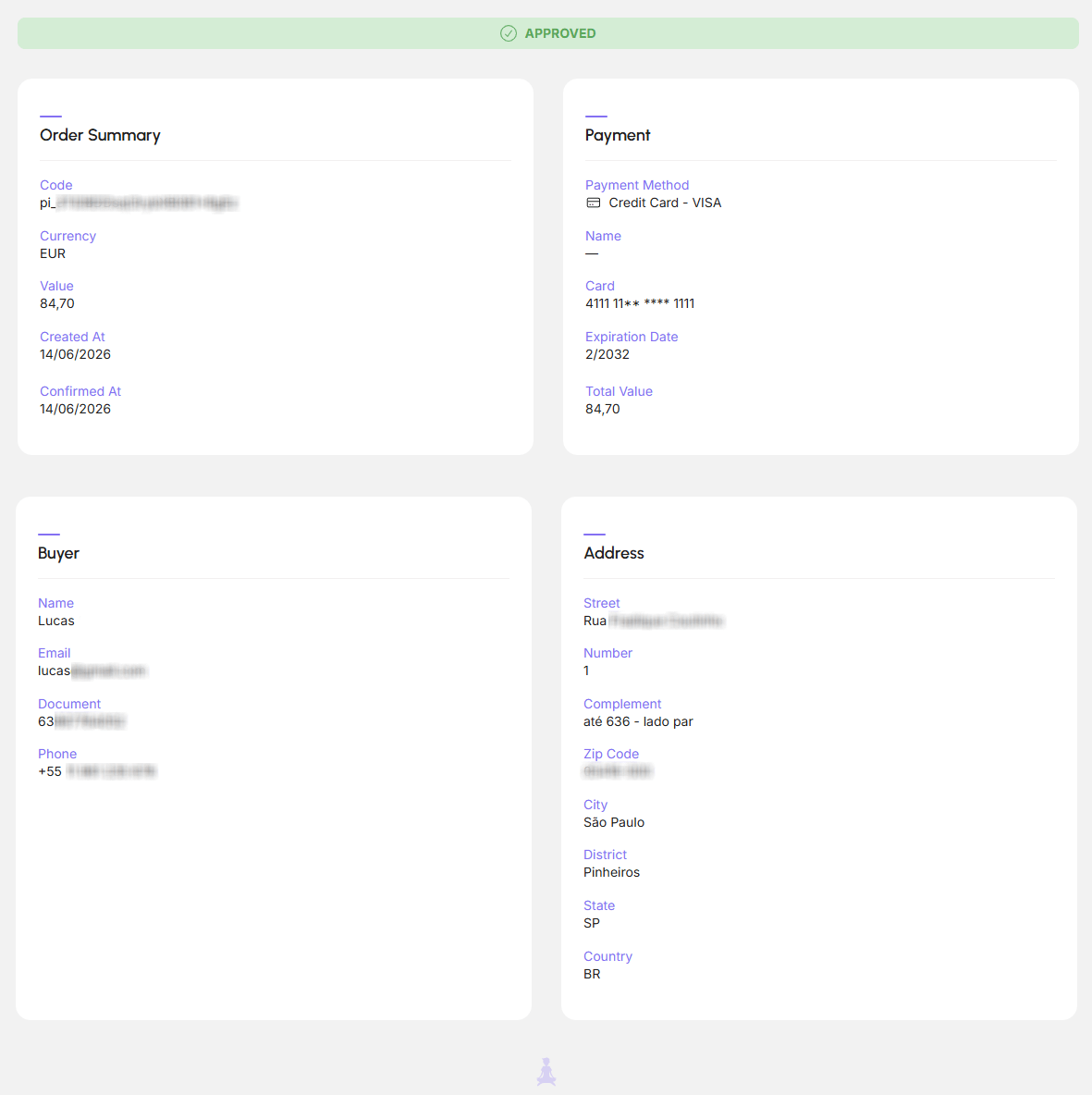
In the Orders section on the customer portal, the buyer can locate and view the details of all previous orders and payments. This feature is useful for the customer to confirm the order status or obtain their support channels.
The inquiry displays the order code, payment, as well as buyer data and address, when applicable.
Ticket Inquiry (e-tickets)
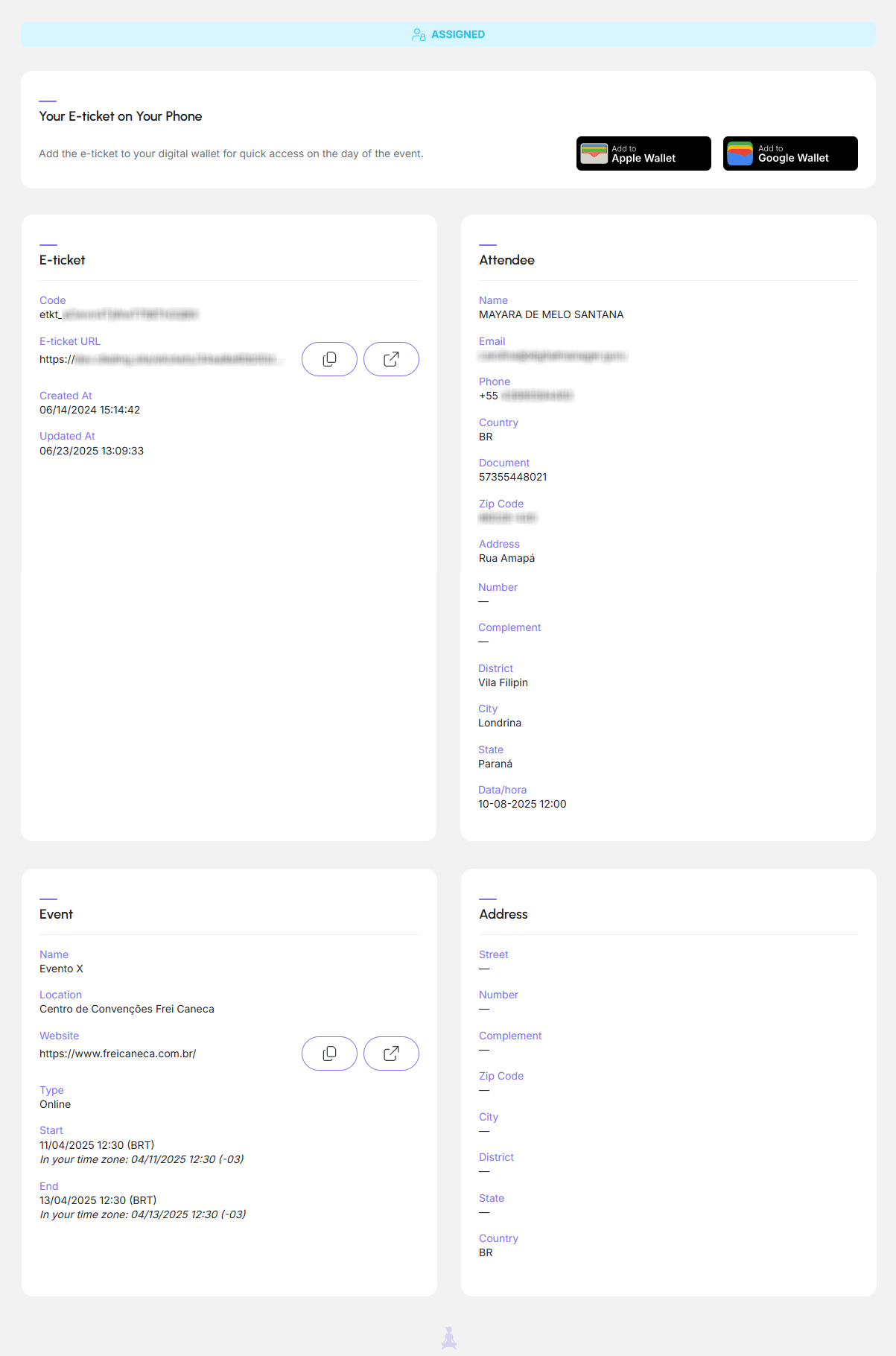
In the Tickets section on the customer portal, the buyer can locate and view the details of all tickets. This feature is useful for the customer to confirm the ticket status, copy the E-ticket URL, view participant and event data, or obtain their support channels.
The inquiry displays the ticket code, the e-ticket URL, participant data, event information (in-person or online), as well as buyer data and address, when applicable.
Subscription Inquiry
If you sell any subscription product, your customer can locate and view the details of all subscriptions made, whether active or not, in the section Subscriptions on the customer portal.
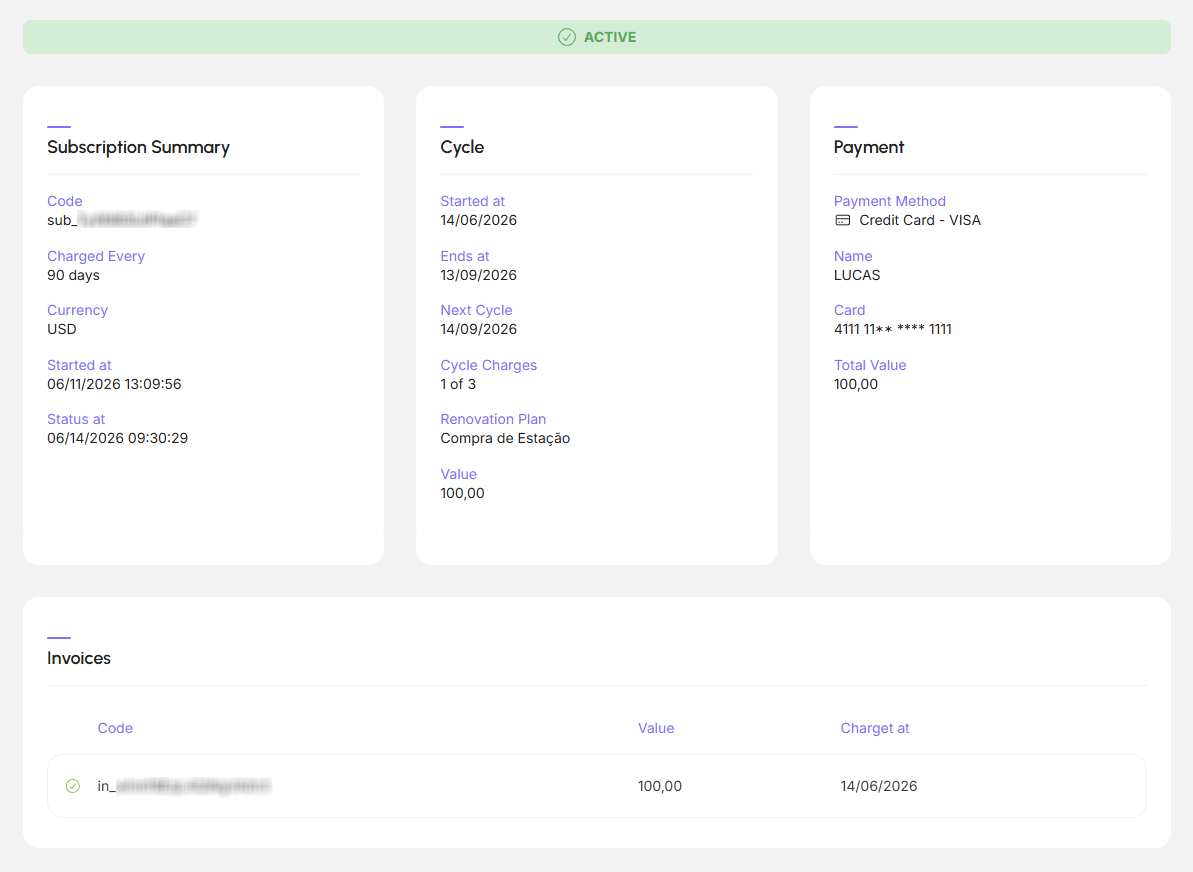
This feature is useful for the customer to confirm the subscription status, update credit card details, or obtain their service channels.
The query displays the plan name, periodicity, payment method, current cycle details, payment data, and payment history (invoices).
Modify Subscription
If you wish, you can allow the customer to modify a subscription. This way, they can access the customer portal themselves and perform the operation without needing to contact your customer service.
Change payment method
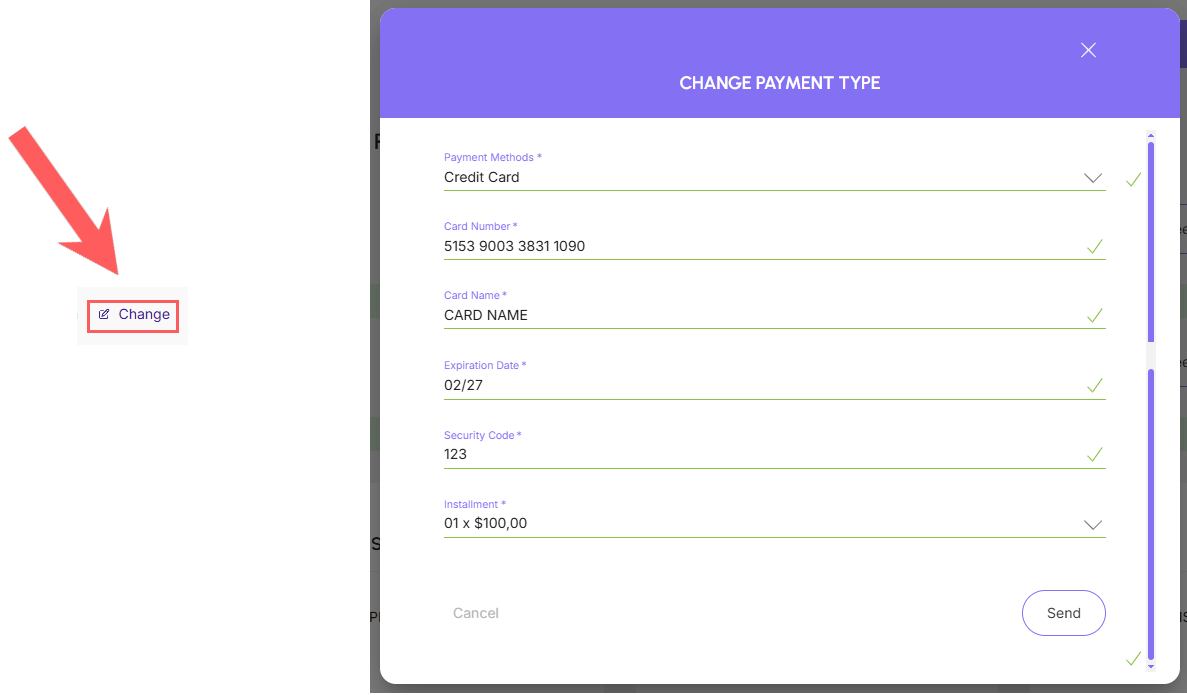
When you allow this action, Guru displays the option Change Payment Method in the respective query in the customer portal.
This way, the customer can click on this option to update the payment method for the subscription in question. For example: change credit card details or change the payment method to a bank slip.
To allow this action, you must activate the “Customer can change payment method” option in the self-service settings.
Change plan (upgrade/downgrade)
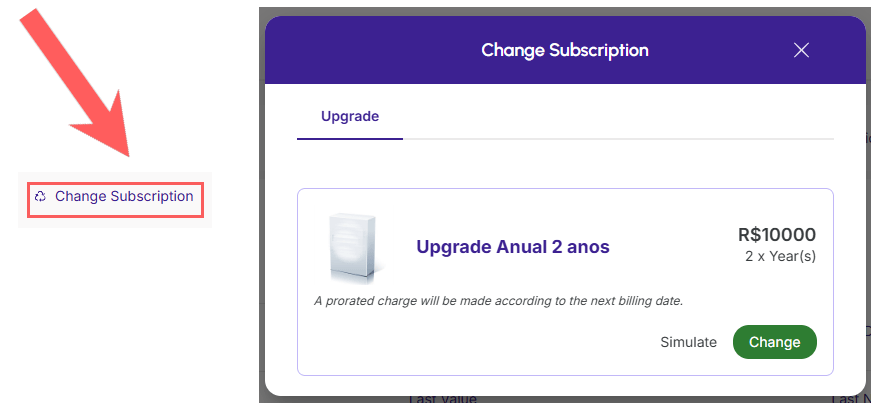
When you allow this action, Guru displays the option Change Subscription in the respective query in the customer portal.
This way, the customer can click on this option and switch to one of the plans available for upgrade or downgrade. For example: switch from the basic plan to the premium plan.
To allow this action, you must also register plan change options in the offer linked to the subscription in question.
In case of a installment plan, a validation will occur that does not allow overlapping charges on the customer's card. That is, the customer will only be able to pay in installments within that cycle, for example, if they made an upgrade to a plan where there are 4 months left until the next cycle, the installment payment will be allowed for a maximum of 4 months.
Cancel Subscription
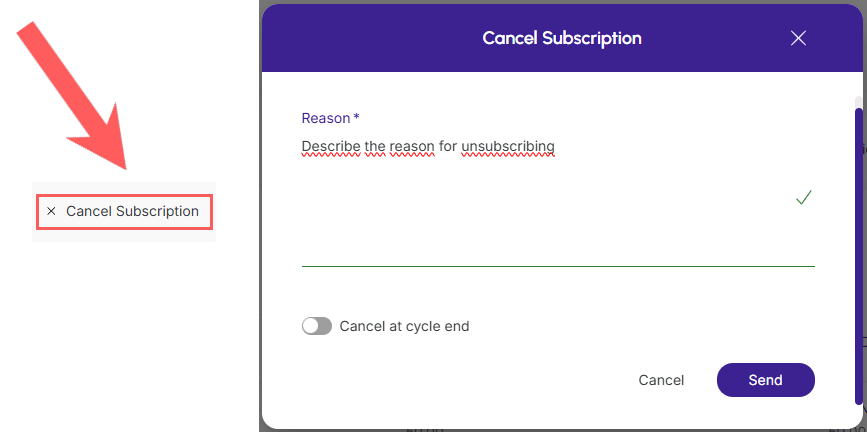
When you allow this action, Guru displays the option Cancel Subscription in the respective query in the customer portal. This way, the customer can click on this option to cancel the subscription in question and stop future charges.
To allow this action, you must activate the “Customer can cancel” option in the self-service settings.