
Transactional email is a fundamental part of the relationship with your customers. After completing a purchase on your website, the customer expects a company update regarding the stages of the order they just placed. If the customer is updated throughout the purchase and delivery process, this can greatly contribute to their satisfaction.
In Guru, you can enable the sending of transactional emails about purchase confirmation, payment status, e-ticket status, subscription status and product delivery. In the message body, there are parameters that are replaced by data from the seller, buyer, order, or subscription in question.
For each type of transactional email, you can choose to use the standard template (texts created by Guru) or create your own email templates to further customize the message content.
Go further in your relationship with your customers
Integrate an sms or autoresponder tool and send personalized messages according to the sales status.
The activation of transactional email sending can be applied at 3 levels:
-
Global Level: applies to the checkout of all registered products - default configuration;
-
Product Level: applies to the product in question - overrides the definitions of item 1;
-
Offer Level: applies to the product offer in question - overrides the definitions of items 1 and 2.
In this tutorial, whenever possible, you will be guided to perform the configuration at a global level (recommended). To perform configurations at other levels, access the Checkout tab in the product or offer registration in question.
On this page:
-
Enable sending transactional emails for sales
-
Enable sending transactional emails for sales (E-tickets)
-
Enable sending transactional emails for subscriptions
-
Create transactional email templates
-
What transactional emails are sent by Guru
Before you start, you need to…
-
Be an administrator user or have permission to perform the following actions.
Enable sending transactional emails for sales
You can choose for which situations (sales status) you want to send a transactional email to the customer.
Steps:
1 - According to the configuration level you want to apply:
1.1 - Global Level: access Settings » Checkout.
1.2 - Product Level: access Products » (desired product) » Checkout.
1.3 - Offer Level: access Products » (desired product) » Offers » (desired offer) » Checkout.
2 - Click on Emails.
3 - Activate the option Send transactional emails - by default, all emails are activated.
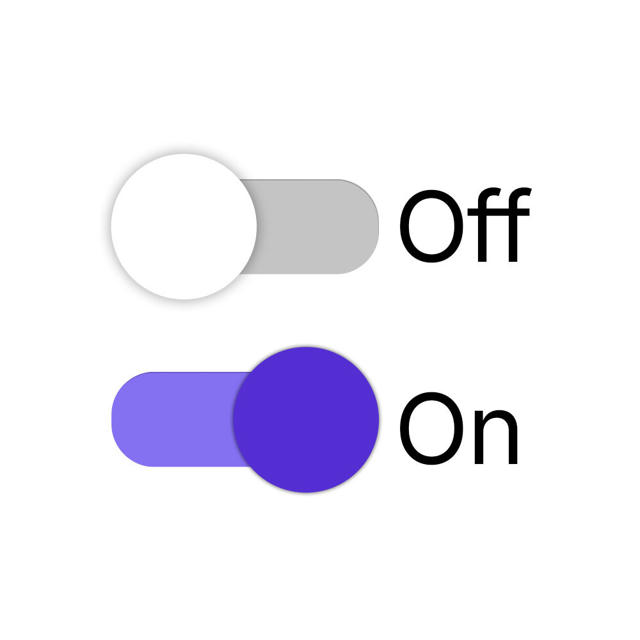
4 - If you want to deactivate the sending of an email, turn off the desired option:
-
Approved sales;
-
Cancelled sales;
-
Abandoned sales;
-
Refunded sales;
-
Pending sales;
-
Billet printed sales;
-
Expired sales.
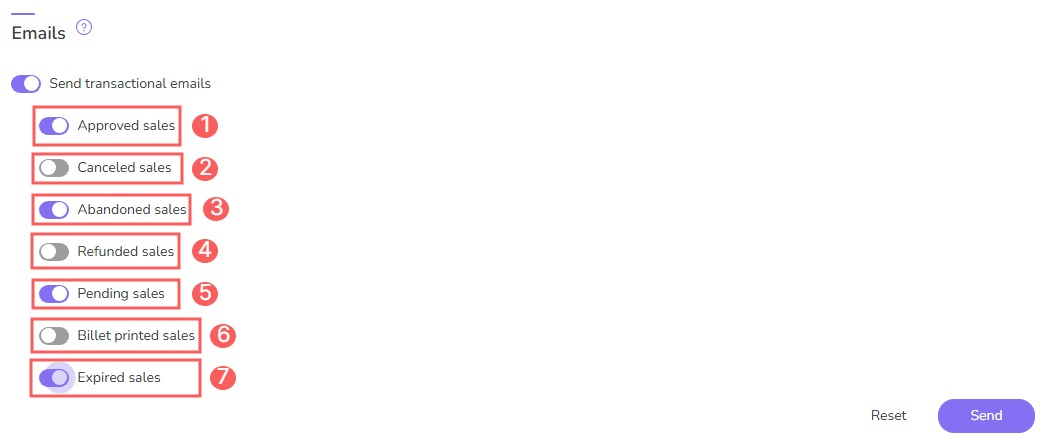
5 - Click on Send.
Done! From this moment on, whenever the sale is updated and there is a transactional email activated for the corresponding status, the respective email will be sent to the customer.
Tip: create a personalized text for each transactional email. Access Settings » Transactional Emails.
Activate the sending of transactional emails for sales (E-tickets)
You can choose for which situations (e-ticket statuses) you want to send a transactional email to the customer.
To configure transactional emails for e-tickets, consult:
Activate transactional emails for e-tickets.
Activate sending of transactional emails for subscriptions
You can choose for which situations (subscription status) you want to send a transactional email to the customer.
To configure transactional emails for subscriptions, see:
Enable transactional emails for subscriptions
Create transactional email templates
If you wish, you can create message templates for each type of transactional email you will send to your customers.
To create email templates, see:
How to create transactional email templates
What transactional emails are sent by Guru
Transactional emails are sent to customers according to the status of the sale, e-tickets, and subscription. See below the situations/events in which these messages are sent.
Transactional emails for one-time sales
Guru sends a transactional email for each of these sale statuses/events:
-
Abandoned;
-
Awaiting Payment;
-
Approved;
-
Overdue;
-
Blocked;
-
Billet Printed;
-
Canceled;
-
Complete;
-
In Analysis;
-
In Recovery;
-
Expired;
-
Initiated;
-
Order Sent1;
-
Order Delivered1;
-
Claimed;
-
Refunded;
-
Refund Requested;
-
Rejected.
1 Sent only when the product offer in question has active integration with a carrier.
Transactional emails for one-time sales of E-tickets
Guru sends a transactional email for each of these ticket statuses/events:
-
Open1 (ticket created);
-
Assigned1;
-
Invited2 3;
-
Checked-in performed;
-
Canceled;
-
Notice/Reminders23
-
Buyer - Tickets to Assign1
-
Guest - Tickets to Validate2
-
Event Start Reminder 3
-
1 Email sent 7 days before the event advising that there are still e-tickets to assign.
2 Reminder email sent 7 days before the event advising that the ticket has not yet been generated.
3 For the guest who has the ticket generated, a reminder email is sent 2 days before the event, with the link to access the ticket - reminder that the event is about to start.
Transactional emails for subscriptions
Guru sends a transactional email for each of these subscription statuses/events:
-
Active Subscription;
-
Overdue Subscription1;
-
Canceled Subscription1;
-
Expired Card2;
-
Trial Ending3.
1 Sent only if the first charge was successful.
2 Three reminder emails are sent: 14 days before the charge; 7 days before the charge; and 3 days before the charge.
3 Two reminder emails are sent: 7 days before the charge and another 3 days before the charge.
More Resources