
You can customize the general behavior of Checkout Guru for subscriptions and the recurring billing system, such as billing retries, free trial period, self-service options, among other settings.
The general subscription settings can be applied at 3 levels:
-
Global Level: applies to all registered subscription products - default setting;
-
Product Level: applies to the product (plan) in question - overrides global level definitions;
-
Offer Level: applies to the product offer in question - overrides the aforementioned definitions.
In this tutorial, you will be guided to perform the global level configuration (recommended). To configure at other levels, access the Subscription tab in the product or offer registration.
On this page:
-
Customize billing retry
-
Define subscription cancellation rule
-
Configure subscription to continue cycles when overdue
-
Enable Facebook event tracking on renewals
-
Enable lead conversion on subscription renewal
-
Define self-service options for the customer
-
Enable sending transactional emails
-
Customize information about renewals
-
Display information about increase or discount
-
Configure free trial for the subscription
-
End the trial period early
-
Display remaining subscription cycles quantity
-
Define default tracking for renewals
-
Subscription Upgrade Value Calculation
-
Smart Renewal Date Selection
-
Consult Audit
Before you start, you need to…
-
Be an administrator user or have permission to perform the following actions.
Customize billing retry
When Guru attempts to process the subscription payment and the transaction is not approved, a new billing attempt is scheduled and performed by the system.
You can customize the number of billing retries and the interval between them. This option is useful to prevent a subscription from being immediately canceled if payment fails.
For example: you can make 4 billing attempts (on alternate days) before canceling the subscription.
The billing retry applies only to subscriptions with a credit card registered as a payment method.
Some billing retries via Pagar.me may not be allowed. For more details, consult this link.
Steps:
1 - According to the configuration level you wish to apply:
1.1 - Global Level: access Settings » Subscriptions.
1.2 - Product Level: access Products » (desired product) » Subscriptions.
1.3 - Offer Level: access Products » (desired product) » Offers » (desired offer) » Subscriptions.
2 - Fill in the following fields:
-
Number of retries: number of billing attempts that will be made;
-
Days between retries: interval (in days) between retries.

3 - Click on Send.
Define subscription cancellation rule
You can define whether the subscription should (or should not) be canceled in case of payment failure. By activating this option, Guru automatically cancels the subscription if there is no timely offline payment confirmation (bank slip, PIX, etc.) or if the number of credit card billing retries is exceeded.
This feature is useful if you need to block the customer's access1 to your product/service, for example: content in a membership area.
You can manage customer access to content through integration with membership areas or webhooks.
Steps:
1 - According to the configuration level you wish to apply:
1.1 - Global Level: access Settings » Subscriptions.
1.2 - Product Level: access Products » (desired product) » Subscriptions.
1.3 - Offer Level: access Products » (desired product) » Offers » (desired offer) » Subscriptions.
2 - Adjust the selector in the option:
-
Cancel due to failed renewal: when enabled, automatically cancels the subscription after payment failure of the last billing attempt - when disabled, the subscription remains with overdue status even after the last billing attempt.

.jpg?cb=8837a4ea6a4e7db37d2e094edac9e7bf)
3 - Click on Send.
Attention: when updating this setting, the change will be applied to all new and old subscriptions. However, already canceled subscriptions will not be affected, as the cancellation status is irreversible.
Configure subscription to continue cycles when overdue
You can define whether the subscription should remain active when payment is overdue. By activating this option, the customer continues to have access to the product/service and billing for subsequent cycles remains active, even without current payment confirmation.
To activate this option, you must deactivate Cancellation on renewal failure, thus allowing you to configure billing for cycles with an overdue subscription.
This functionality is valid only for new subscriptions started after activation, not affecting existing subscriptions.
Steps:
1 - According to the configuration level you wish to apply:
1.1 - Global Level: access Settings » Subscriptions.
1.2 - Product Level: access Products » (desired product) » Subscriptions.
1.3 - Offer Level: access Products » (desired product) » Offers » (desired offer) » Subscriptions.
2 - Adjust the selector in the option:
-
Continue cycles when delayed: when enabled, keeps the subscription active without payment processing. The customer has the possibility to pay the current cycle, even with the previous cycle's payment overdue - When disabled, all cycles are interrupted after payment failure of the last billing attempt.

3 - Click on Send.
Enable Meta event tracking on renewals
You can enable conversion event tracking for subscription renewals. By activating this option, Guru sends the purchase event to the meta pixel every time a subscription is renewed.
The conversion event tracking helps optimize ad targeting, reduce cost per action, and measure results.
To track conversion events on subscription renewals, you need to activate integration with the Facebook API.
Steps:
1 - According to the configuration level you wish to apply:
1.1 - Global Level: access Settings » Subscriptions..
1.2 - Product Level: access Products » (desired product) » Subscriptions.
1.3 - Offer Level: access Products » (desired product) » Offers » (desired offer) » Subscriptions.
2 - Adjust the selector in the option:
-
Track each renewal event on Meta: when activated, Guru sends an event to the Meta pixel every time a subscription is renewed.

3 - Click on Send.
Enable (or disable) lead conversion on subscription renewal
By default, Guru marks a sales conversion in lead tracking every time a subscription payment occurs, regardless of whether it is the first payment or a renewal.
If you prefer, you can enable (or disable) conversion in the Lead RPPC for subscription renewals. This option is useful for isolating the first sale (subscription activation) from sales related to renewals, avoiding distorting the results in the conversion funnel of the Lead RPPC and in the RPPC Leads Sales.
Steps:
1 - According to the configuration level you wish to apply:
1.1 - Global Level: access Settings » Subscriptions.
1.2 - Product Level: access Products » (desired product) » Subscriptions.
1.3 - Offer Level: access Products » (desired product) » Offers » (desired offer) » Subscriptions.
2 - Adjust the selector in the option:
-
Track lead conversion on renewal: when activated, Guru adds a sales conversion to the respective Lead RPPC every time a subscription is renewed.

3 - Click on Send.
Define self-service options for the contact
The Guru provides a self-service portal (My Orders), where your customer can manage subscriptions and view payments made.
Although the inquiry is always available, you can define which subscription-related operations the customer can perform in the self-service portal.
Steps:
1 - According to the configuration level you wish to apply:
1.1 - Global Level: access Settings » Subscriptions.
1.2 - Product Level: access Products » (desired product) » Subscriptions.
1.3 - Offer Level: access Products » (desired product) » Offers » (desired offer) » Subscriptions.
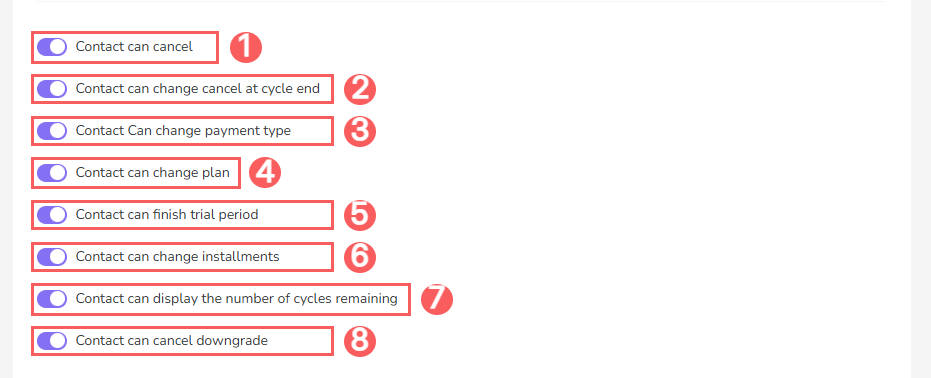
2 - Adjust the selector for the following options:
-
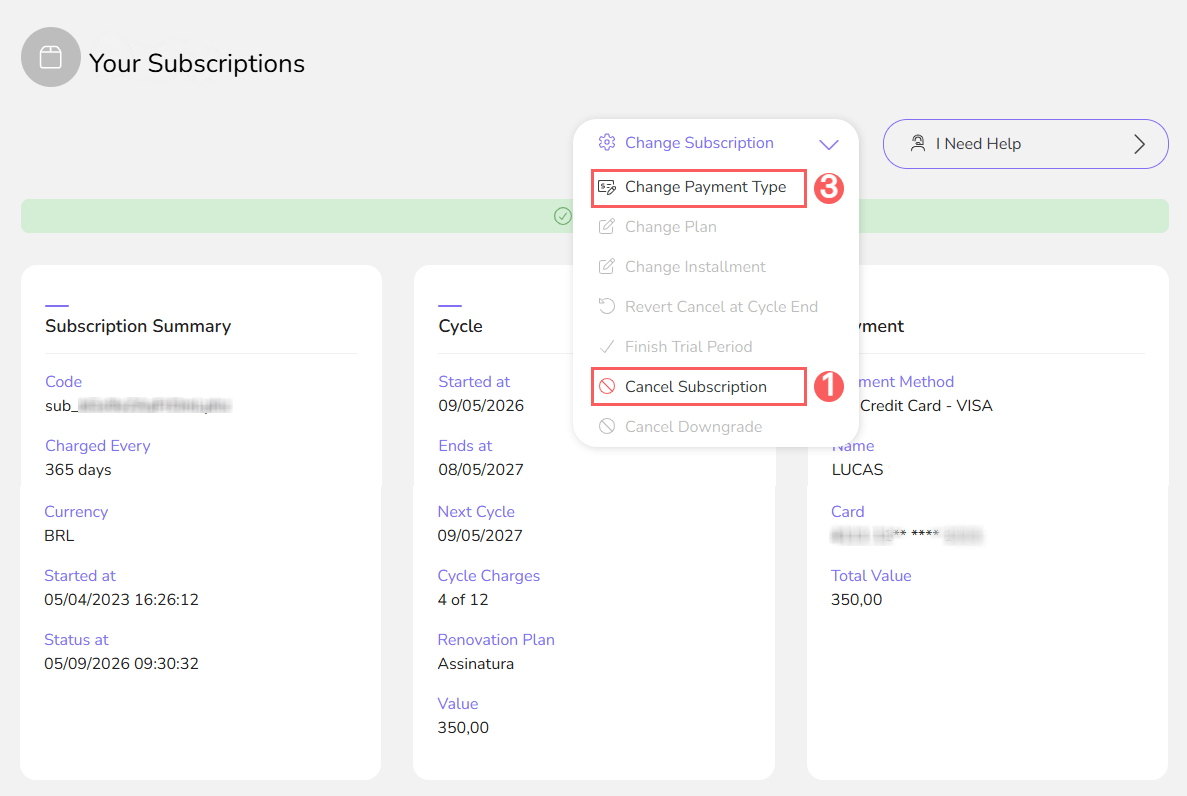
Contact can cancel: when activated, allows the contact to cancel the subscription;
-
Contact can change cancel at cycle end: when activated, allows the contact to change the cancellation at the end of the cycle;
-
Contact can change payment type: when activated, allows the contact to update the payment method;
-
Contact can change plan: when activated, allows the contact to change plans (upgrade/downgrade);
-
Contact can finish trial period: when activated, allows the contact to end the trial period early;
-
Contact can change installment: when activated, allows the contact to change the installment configuration;
-
Contact can display the number of cycles remaining: when activated, the contact can view the current cycle and the number of cycles they still have;
-
Contact can cancel downgrade: when activated, allows the contact to cancel the downgrade.
Result in My Orders:
3 - Click on Send.
Reduce support requests by providing your customers with the access tutorial for the My Orders. Portal. If you wish, you can integrate your application with the self-service portal via the Guru API using Single Sign-On (SSO) authentication.
Enable sending transactional emails
You can choose for which situations (subscription status) you want to send a transactional email to the customer.
Steps:
1 - According to the configuration level you want to apply:
1.1 - Global Level: access Settings » Subscriptions.
1.2 - Product Level: access Products » (desired product) » Subscriptions.
1.3 - Offer Level: access Products » (desired product) » Offers » (desired offer) » Subscriptions.
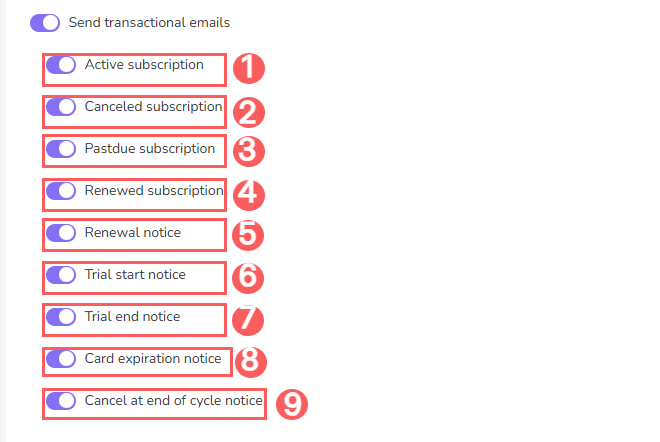
2 - Activate the option Send transactional emails - by default, all emails are activated.
3 - Adjust the selector for the following options:
-
Active subscription: when activated, sends an email informing that the subscription is active and renewed;
-
Canceled subscription: when activated, sends an email informing that the subscription is canceled.
-
Pastdue subscription: when activated, sends an email informing that the subscription payment is pastdue;
-
Renewal subscription(1): when activated, sends a renewal subscription email 14 days before the charge for customers with credit card paid subscriptions;
-
Renewal notice: when active, sends an email informing that the subscription has been renewed;
-
Trial start notice: when active, sends emails informing that the trial period is starting;
-
Trial end notice: when active, sends emails 7 and 3 days in advance, informing that the trial period is ending;
-
Card expiration notice: when active, sends emails 14 and 7 days in advance, informing that the card associated with the subscription is about to expire;
-
Cancell at end of cycle notice: when active, sends emails 14 days in advance, informing that your subscription will be canceled at the end of the current cycle.
(1) Subscription renewal reminders are sent for all payment methods.
4 - Click on Send.
Tip: create a personalized text for each transactional email. Access Settings » Transactional Emails.
When the subscription is updated and the transactional email is activated for the corresponding status, the respective email is automatically sent to the subscriber.
Customize information about renewal
You can define how renewal information will be displayed in Checkout Guru.
Steps:
1 - According to the configuration level you want to apply:
1.1 - Global Level: access Settings » Subscriptions.
1.2 - Product Level: access Products » (desired product) » Subscriptions.
1.3 - Offer Level: access Products » (desired product) » Offers » (desired offer) » Subscriptions.
2 - Adjust the selector for the following options:
Show or hide the interval between renewals
When activated, it displays the number of days between renewals.
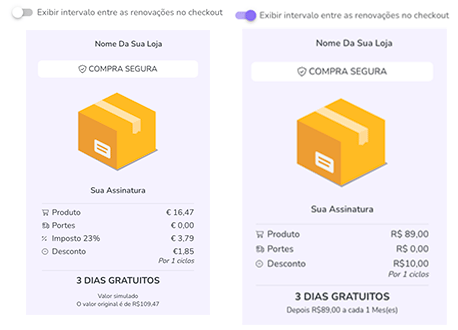
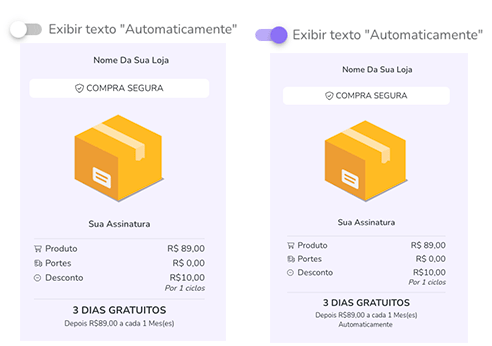
Show text “Automatically“
When activated, it displays the word “Automatically“ next to the interval between renewals.
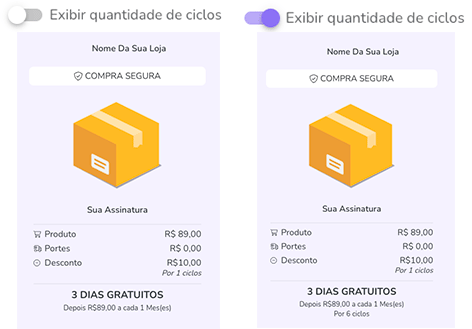
Show or hide the number of billing cycles
3 - Click on Send.
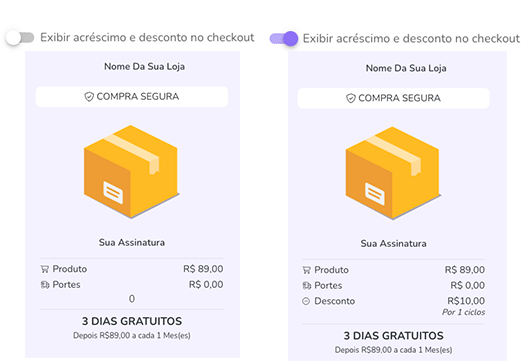
Show information about increase or discount
You can show or hide information about increases or discounts per cycle in Checkout Guru.
Steps:
1 - According to the configuration level you wish to apply:
1.1 - Global Level: access Settings » Subscriptions.
1.2 - Product Level: access Products » (desired product) » Subscriptions.
1.3 - Offer Level: access Products » (desired product) » Offers » (desired offer) » Subscriptions.
2 - Adjust the selector to the option Display increment and discount at checkout.
3 - Click on Send.
Configure free trial for the subscription (trial)
You can allow potential customers to try your product or service for a limited period before you start charging them.
Using the free trial, you can define the number of days a subscription can be in the trial period. Once the trial period ends, Guru attempts to activate the subscription, processing the first payment with the data provided in the Guru Checkout during the free trial activation.
Steps:
1 - According to the configuration level you want to apply:
1.1 - Global Level: access Settings » Subscriptions.
1.2 - Product Level: access Products » (desired product) » Subscriptions.
1.3 - Offer Level: access Products » (desired product) » Offers » (desired offer) » Subscriptions.
2 - Enter:
-
Trial Days1: the number of free trial days before making the 1st subscription charge.
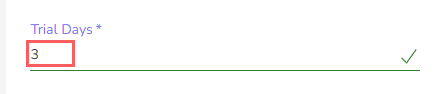
(1) Maximum trial days configuration limit: 3650.
3 - Click on Send.
If the customer does not intend to continue with the subscription after the trial period, the respective subscription must be canceled before the 1st charge is made.
End the trial period early
You can allow customers to end the trial period early, enabling the customer to subscribe to the plan at any time.
As soon as the trial period ends, billing will be carried out immediately for the subscription to be activated.
Steps:
1 - According to the configuration level you want to apply:
1.1 - Global Level: access Settings » Subscriptions.
2 - Adjust the selector to the option:
-
Contact can finish trial period: when activated, the contact can finish the trial period early.

3 - Click on Submit.
Display remaining subscription cycles
You can display the number of remaining cycles of a subscription, allowing the contact to see the current cycle and how many remaining cycles they still have.
Steps:
1 - According to the configuration level you want to apply:
1.1 - Global Level: access Settings » Subscriptions.
1.2 - Product Level: access Products » (desired product) » Subscriptions.
1.3 - Offer Level: access Products » (desired product) » Offers » (desired offer) » Subscriptions.
2 - Adjust the selector to the option:
-
Contact can display the number of cycles remaining: when activated, the contact can view the current cycle and the number of cycles they still have.

3 - Click on Send.
Set default tracking for renewals
If you prefer, you can register subscription renewals in a sales tracking exclusive for this purpose. This option is useful for isolating the results of customer acquisition campaigns, avoiding distorting the ROI of the original tracking with renewals of existing subscriptions.
Steps:
1 - According to the configuration level you want to apply:
1.1 - Global Level: access Settings » Subscriptions.
1.2 - Product Level: access Products » (desired product) » Subscriptions.
1.3 - Offer Level: access Products » (desired product) » Offers » (desired offer) » Subscriptions.
2 - Inform:
-
Tracking Renewals: select the tracking that should register subscription renewals - active sales trackings will be listed.

3 - Click on Send.
If this option is not filled, subscription renewals will be linked to the original tracking (when applicable).
Subscription Upgrade Value Calculation
You can determine the type of calculation for the upgrade amount to be charged, by means of the total value, next cycle, and difference or proportional (pro rata) calculation.
Steps:
1 - According to the configuration level you wish to apply:
1.1 - Global Level: access Settings » Subscriptions.
1.2 - Product Level: access Products » (desired product) » Subscriptions.
1.3 - Offer Level: access Products » (desired product) » Offers » (desired offer) » Subscriptions.
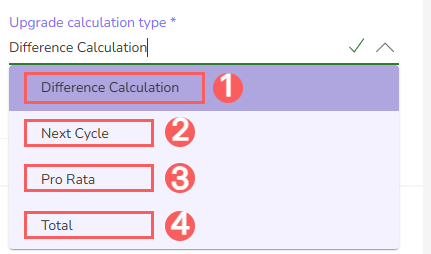
2 - In Upgrade Calculation Type, select:
-
Difference Calculation: the upgrade calculation based on the difference from the current offer - for example, if the current offer is 100 and the new offer is 120, the difference of 20 will be charged as soon as the upgrade is performed;
-
Next cycle: the subscription upgrade will be charged in the next renewal cycle;
-
Pro Rata: the upgrade charge will be proportional - the difference in value between the current plan and the new plan will be paid, adjusted by the remaining time of the current billing cycle;
-
Total: the upgrade charge will be the total value of the upgrade plan.
3 - Click on Submit.
Smart Renewal Date Selection
If you work with recurrence, you will have the option to activate the smart renewal date selection. This feature is useful when you want to optimize the billing date for subscriptions, allowing the system to select the best date for subscription renewal.
How it works
The Guru’s recurrence system goes beyond billing on fixed or pre-determined dates. Through this functionality, Guru analyzes the card-issuing bank and identifies the best day of the week to perform the renewal charge, even if that means not charging on the initially scheduled date - the result is an increase of up to 5% in approval on the first renewal attempt.
-
For example, your recurring business generates R$100,000.00 annually, by activating this option, you have an increase of up to 5,000.00 in revenue. THE main gain, therefore, is a significant improvement in the effectiveness of subscription renewals, directly impacting your revenue.
Steps:
1 - According to the configuration level you want to apply:
1.1 - Global Level: access Settings » Subscriptions.
2 - Adjust the selector in the option:
-
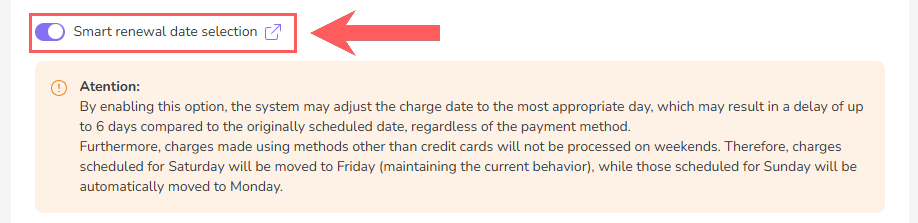
Smart Renewal Date selection: when activated, allows the system to select the best billing date for subscriptions.
3 - Click on Send.
Attention: When activating the "Smart Renewal Date Choice", it is important to be aware that the system may adjust the billing date to the best day, even if this means a delay of up to 6 days in relation to the original date.
For a better understanding of this information, observe the following scenarios:
-
If the original billing date falls on a thursday, but the best day is wednesday, the billing will be scheduled for the following week's Wednesday and not for Thursday, resulting in a 6-day billing delay; or
-
If the original billing date is a friday, and the best day tuesday, the billing will be scheduled for the following week's Tuesday, and not for Friday, causing a 4-day billing delay.
In addition, other payment methods (except credit card) will no longer be charged on weekends. Thus, charges originally scheduled for saturday will be brought forward to Friday (following the already established behavior), while charges scheduled for sunday will be automatically transferred to Monday.
Consult Audit
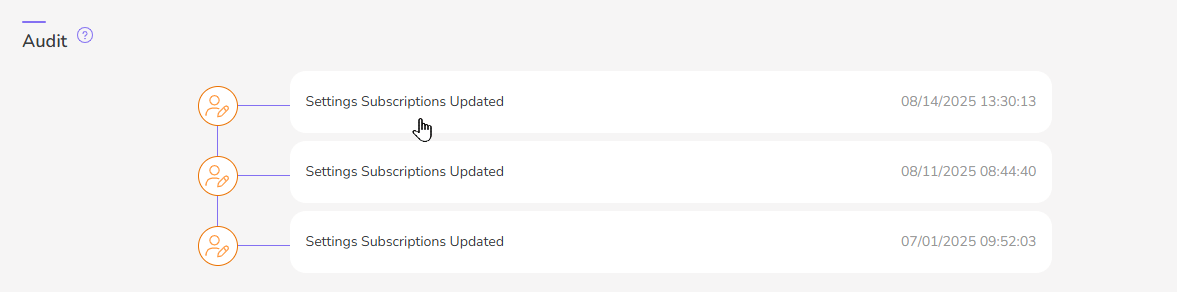
As a security measure, Guru stores a history of all operations performed, identifying user, date/time of operation, and other details. At any time, you can consult the history of changes made to subscription settings.
Steps:
1 - According to the configuration level you want to apply:
1.1 - Global Level: access Settings » Subscriptions.
2 - In Subscription Configuration, click on the Audit tab.
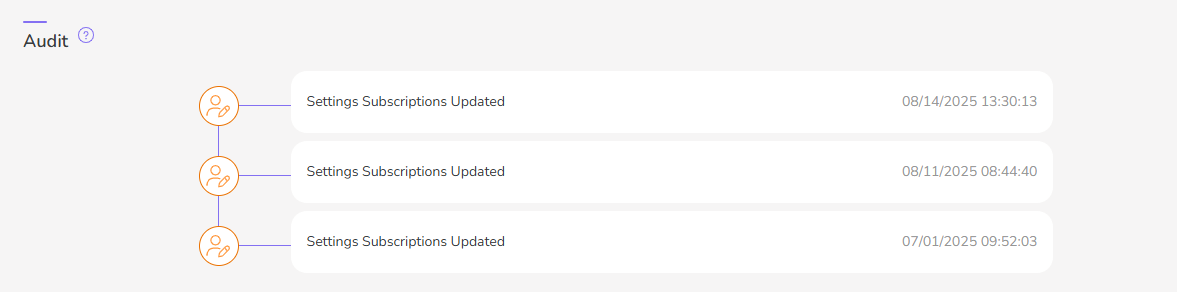
3 - Activities are displayed on a timeline (from most recent to oldest).
4 - If desired, you can view the activity details by clicking on its title.
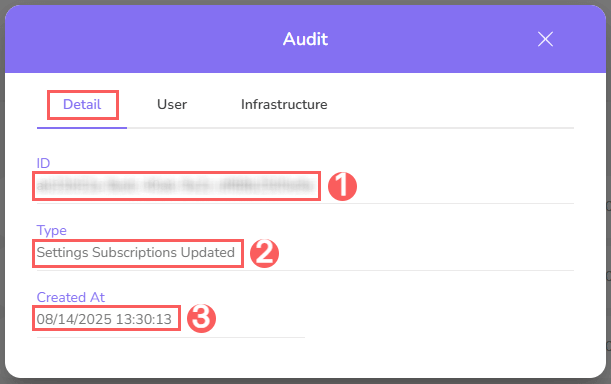
5 - Click on one of the available sections to view the data:
Detail
Displays detailed information about the activity in question.
-
ID: identification number (ID) of the update;
-
Type of change made;
-
Created at: date of activity registration.
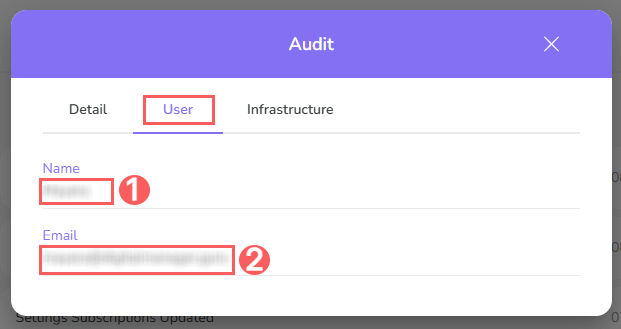
User
Displays information about the user who performed the action.
-
Name: name of the user who performed the operation;
-
Email: email of the user who performed the operation.
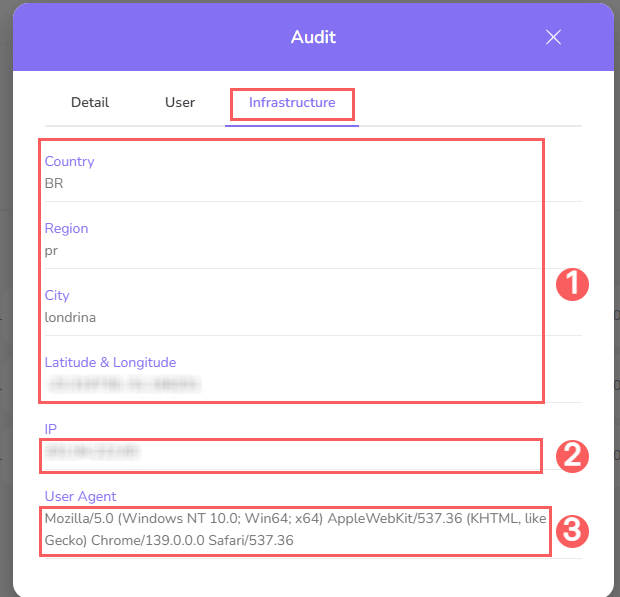
Infrastructure
Displays infrastructure information (country, IP, user agent…) related to the activity.
-
Country, Region, City, Latitude & Longitude: location of the device that performed the activity.
-
IP: device IP address.
-
User Agent: identification of the user agent that performed the operation.
Protect your data. Increase your business security.
Create and manage users determining what each employee can see and do within the organization.
More Resources