
In Checkout Guru, you can configure coupons with exclusive discounts for your customers. You can offer an automatic discount for cash purchases or a coupon code that your customer will apply at checkout, at the time of purchase.
To use this feature, you will need to access the settings in the Guru admin. In the Coupons section, you can create the coupon and adjust the application rules, such as: validity date, discount incidence, fixed or percentage value, usage limits, among others.
Limits on the use of Discount Coupons
The Coupon can be used for all sales, except in the following situations:
-
1-Click Sales;
-
Order Bump Sales;
-
Free subscription sales.
Depending on the payment processor you use, some sales may not be processed due to having a very low value. Ex.: Sales below R$5.00 are not processed by Pagar.me.
For the customer to be able to use the coupon during the purchase, it is necessary to activate this option in the checkout settings.
On this page:
-
Add a Coupon Code
-
Duplicate a Coupon Code
-
Limit Coupon usage to Products
-
Limit Coupon usage to Offers
-
Limit Coupon usage to Emails or Documents
Before you start, you need to…
-
Be an administrator user or have permission to perform the following actions.
Add a Coupon Code
You can add a discount coupon, configuring start date, end date, start time, end time, incidence type, discount type, discount value, number of times the coupon can be used, and the number of cycles the coupon can be used in a subscription.
Steps:
1 - Access the Guru admin with your username and password.
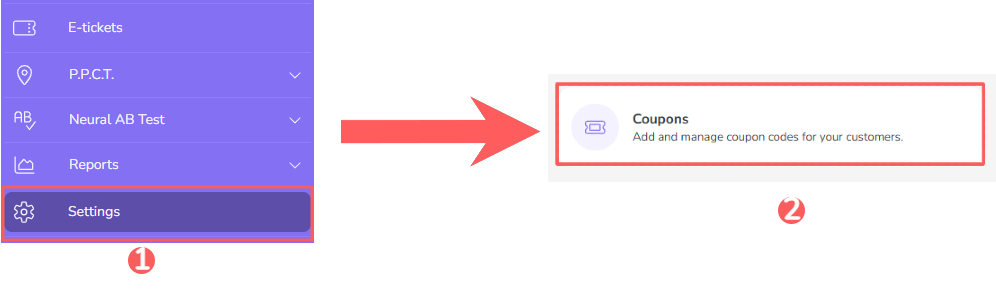
2 - In the side menu, click on Settings and then Coupons.
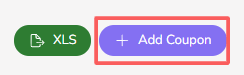
3 - Click on Add Coupon.
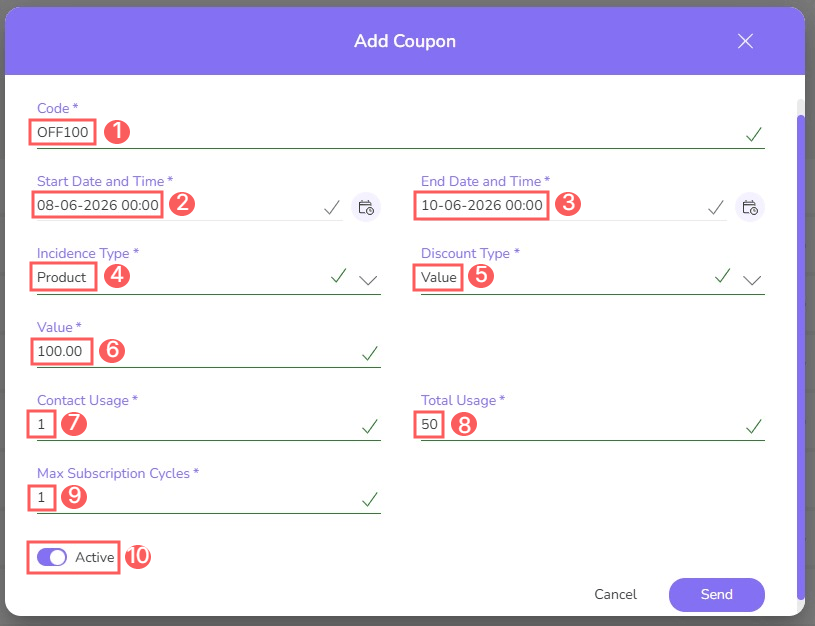
4 - Enter:
-
Code1: information that the customer will have to enter in the discount coupon field at checkout;
-
Start date and time: start date and time of the coupon's validity;
-
End date and time: end date and time of the coupon's validity;
-
Incidence Type: the discount can apply to the value of the Product, Shipping, or Total purchase value;
-
Discount Type: discount
percentualor infixed value; -
Value: discount value - the informed value will be combined with the selected discount type;
-
Contact Usage: number of times each contact can make a purchase with this coupon - example: contact usage = 2, means that each customer can make 2 purchases with the coupon (same eligible email or document, depending on the selected option);
-
Total Usage: total number of times the coupon can be used - example: total usage = 500; means that the coupon is available for the first 500 customers who apply the coupon to their purchase;
-
Max Subscription Cycles2: number of subscription cycles the coupon can be used for when applied - example: max subscription cycle = 2; means that the coupon will be applied for the next 2 subscription cycles.
-
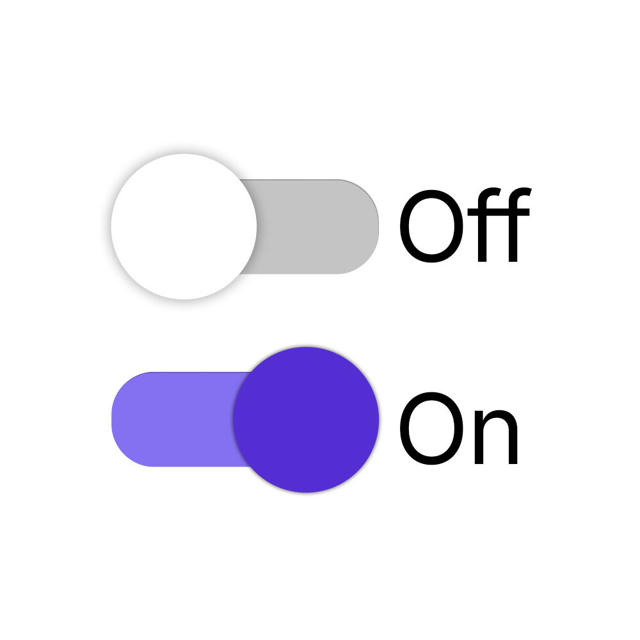
Active: switch to the on position.
1 You can apply the coupon code via the URL parameter "coupon=".
2 A zero value is infinite, meaning the coupon will be applied to all subscription cycles.
5 - Click on Send.
The coupon code can be applied at checkout via the URL parameter "coupon=".
After configuring the coupon, remember to activate it in the respective checkout.
Duplicate a Discount Coupon
To save time, you can duplicate a discount coupon instead of adding a new one. This option is useful if you want to include the same discount coupon, containing details such as validity date, discount incidence, fixed or percentage value, usage limits, and if the discount will be applied to the same product.
When using the duplicate feature, Guru copies all information from the original discount coupon and creates another coupon with a different identification code and with the “(Copy)” snippet at the end of the name.
If you want the discount coupon to be applied to a new product and with other information, use the Add Coupon feature.
To duplicate an existing Discount Coupon:
Steps:
1 - In the side menu, click on Settings and then Coupons.
2 - Hover over the desired Coupon code and click on Duplicate.

3 - A confirmation window is displayed. To proceed with the action, click Duplicate.
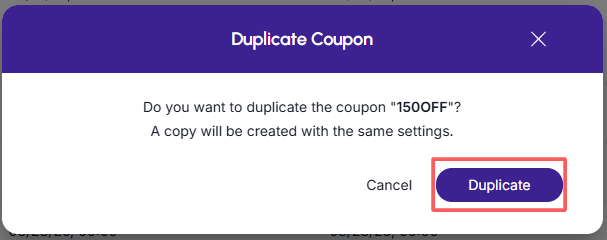
A message will be displayed for a few seconds in the top-right corner of the page, informing you that the coupon was successfully duplicated.
4 - Then, you can edit the coupon information.
Limit Coupon usage to Products
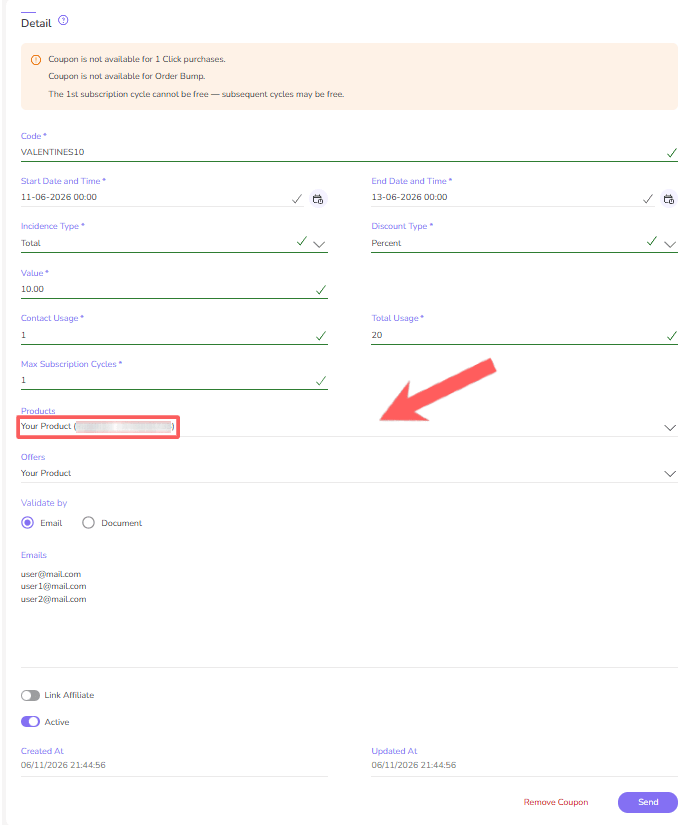
You can limit the use of the discount coupon to certain products. In this case, the coupon will only be accepted when purchasing the associated products.
Steps:
1 - Access the coupon list - if desired, you can apply a filter.
2 - Locate the desired coupon in the list.
3 - Click on the desired coupon.

4 - In the Products field, select the products that will be eligible for using the discount coupon.
5 - Click on Send.
Limit Coupon usage to Offers
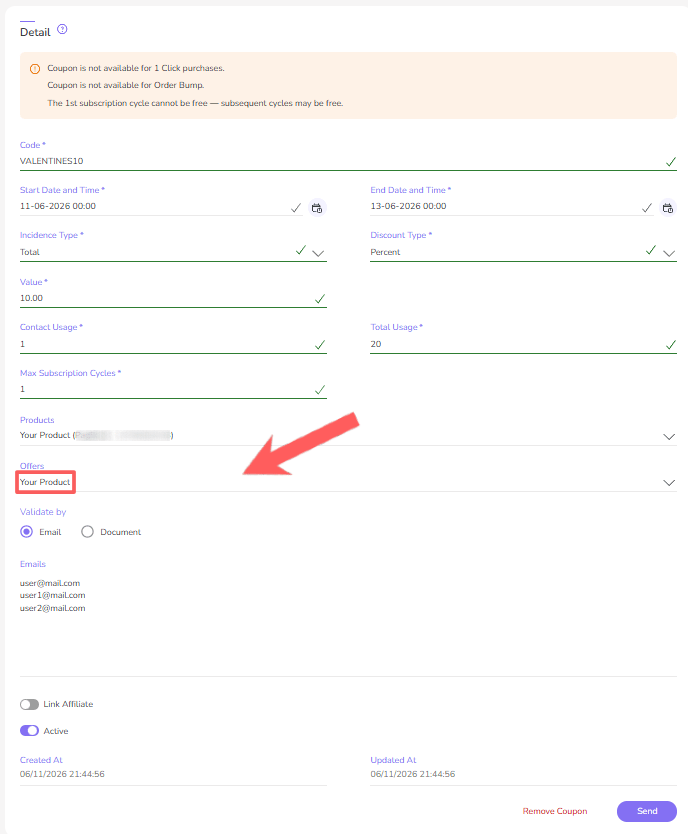
You can limit the use of the discount coupon to certain offers. In this case, the coupon will only be accepted when purchasing the associated offers.
Steps:
1 - Access the coupon list - if desired, you can apply a filter.
2 - Locate the desired coupon in the list.
3 - Click on the desired coupon.
4 - In the Offers field, select the products that will be eligible for using the discount coupon.
5 - Click on Send.
Limit Coupon usage to Emails and Documents
You can limit the use of the discount coupon to certain emails or documents. This feature is useful for limiting the use of the coupon to an exclusive buyer base. In this case, the coupon will only be accepted if the buyer provides an email or document associated with the coupon.
Steps:
1 - Access the coupon list - if desired, you can apply a filter.
2 - Locate the desired coupon in the list.
3 - Click on the desired coupon.
4 - In the Validate by field, select email or document to limit the use of the discount coupon.
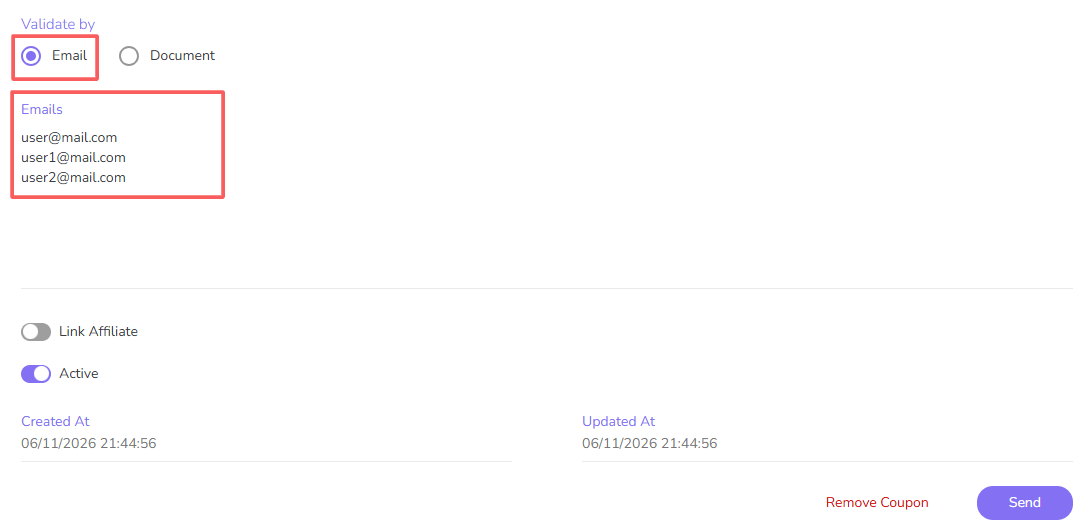
Document
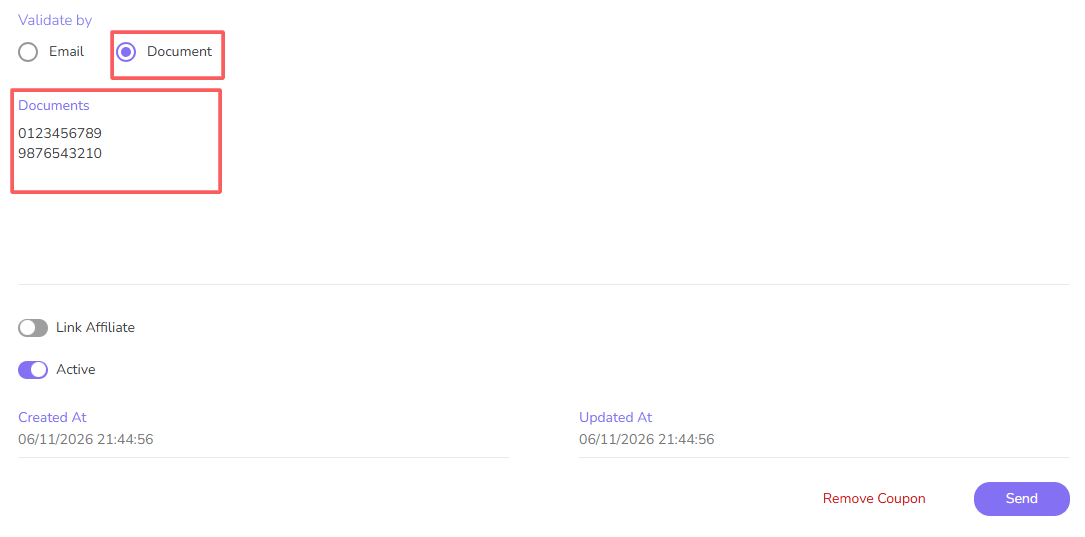
5 - Click on Send.