
Find answers to frequently asked questions and situations related to subscription management.
On this page:
-
Trial Period
-
Payment
-
Renewal
-
Plan Change
-
Cancellation
-
Refund
-
Sending the subscription to other tools
Trial Period
In this section, you'll find answers to questions related to subscriptions with a trial period.
- Can I offer a trial period to the customer? How does it work?
Yes, you can. To do so, you must configure the number of trial days in the subscription settings.
To activate the trial period, your customer must fill out all information and complete the checkout normally. Although payment details are entered immediately, the 1st charge will only take place after the trial period ends.
- I'm going to offer a trial period, when will the customer be charged?
The 1st charge occurs the day after the trial period expires.
The scheduling and processing of the charge are carried out according to the selected payment method. For more details, check this link.
- How do I grant access to my content or service during the trial period?
it is possible to grant access to your content, platform, or service as soon as the subscription has the trial trial period activated. This release can be automatic or not, depending on the type of integration used (native or webhooks).
Native Integration (built by Guru - selected membership areas only):
If your content is hosted in a membership area with a native integration built by Guru and configured through our admin, it is possible to automatically grant access to the student upon activating the trial trial period of the subscription and revoke access if payment is not made after the trial period ends.
To do this, you must:
-
Enable integration with the membership area - note that native integration requires entering integration keys or membership area login details in Guru; and
-
Map the product in Guru to the course/class/service in the membership area - settings may vary depending on the selected membership area.
Check your membership area tutorial for step-by-step instructions.
Integration via Webhooks:
If your product is a service, proprietary platform, or content hosted in a membership area integrated via webhooks, you must:
-
Configure a subscription webhook for the destination system mapping the dispatch of the respective subscription product with the status
trialandtrial canceled; and -
Confirm with the destination system whether access will be:
-
Granted upon receiving a subscription webhook with status
trial; and -
Blocked upon receiving a subscription webhook with status
trial canceled.
-
If you use a membership area, refer to the respective tutorial for step-by-step instructions.
- The customer decided not to continue, how do I cancel the trial period?
To do this, simply access the subscription and click Cancel. This operation prevents the 1st charge from being processed. If there are integrations with a membership area or webhooks, the information is sent so access can be revoked.
Payment
In this section, you'll find answers to questions related to subscription payment.
- The trial period expired and the payment didn't go through, what happens to the subscription?
If the 1st subscription payment is not approved or confirmed, the subscription status changes to Trial Canceled. In this case, the subscription was not activated and no new charges will be made.
- My customer tried to subscribe to a plan, but the payment was declined. Is it necessary to go back to checkout to activate the subscription?
Yes, because activating a subscription requires the 1st payment to be approved. In this case, you should instruct the customer to access checkout again and try subscribing to the plan using another payment method.
- How to know the reason for a subscription payment refusal?
Each payment or charge attempt for the subscription is equivalent to a sale in Guru.
To check the reason for refusal, you must access the details of the corresponding sale and check the refusal reason (field Reason).
When this information is available, you can view it. Otherwise, you must contact your payment processor support for more information.
- The customer wants to change the subscription payment method, is it possible?
Yes, it is possible to change the payment method to another option configured in the renewal offer of the respective subscription.
The change of payment method can be done through the guru dashboard or directly by the customer1 in the "My Orders" portal.
To allow customers to change the payment method of their current subscription themselves, you must:
-
Enable the option “Customer can change payment method” in the subscription settings; and
-
Add one or more payment methods to the plan offer to be presented to the customer. To do this, you must edit the plan offer and save the changes.
- The renewal payment was declined, what will happen to the subscription?
According to the subscription billing settings, one of the scenarios below will apply:
|
Scenario that may occur |
Applicable situation |
Note |
|---|---|---|
|
When retries are still available. |
The retry will not be performed if the transaction was returned with a return code that prevents retrying. |
|
|
When the number of retries is exhausted And the option “Cancel due to renewal failure” is active. |
The subscription changes status to |
|
|
No Action |
When the number of retries is exhausted And the option “Cancel due to renewal failure” is disabled. |
The subscription remains with status |
- Is there any way to settle the subscription payment without having to wait for the next charge attempt?
Yes, if the corresponding invoice has the status ag. pagamento you can send a link for the customer to settle payment immediately. The link is similar to the checkout and your customer only needs to enter the payment details and click “Pay Now”.
(*) The payment method entered in the link only settles the open payment. The payment method registered on the subscription continues to be used for future renewals.
- is it possible to send the payment link to the customer before the renewal date?
No, it is not possible to send a payment link to the customer before the renewal date. What the system allows is the charge advance, that is, adjusting the subscription cycle so the next charge is scheduled for an earlier date.
How advancing the renewal date works
If your goal is to advance the date of the next charge (that is, make the renewal happen before the scheduled date), you can change the end date of the current subscription cycle.
To do this, access the Subscription you want to advance renewal for, click edit and select the option change cycle end date, then set the new end date to 1 day before the date you wish to make the next charge - the new payment date will be the day following the end date of the current cycle.
When changing the end date of the current cycle, the start date of the next cycle (renewal) is also changed.
To ensure sufficient time for scheduling the next charge, the cycle end date must be at least 5 days after the current date.
To perform the advancement, the subscription must be in active status and outside the automatic renewal period (it cannot be in the final 3 days before renewal).
The invoice for the new renewal is not available immediately at the moment you change the cycle end date.
- The bank slip expired, how do I issue a new bank slip for payment?
You can issue a new bank slip for payment of a subscription that has this payment method configured. To do this, simply generate a new charge for the subscription in question.
Alternatively, you can send a link for the customer to settle payment. This option allows the customer to pay the open balance using a payment method different from the one configured in the subscription.
- The Pix expired, how do I issue a new Pix for payment?
You can issue a new PIX code for payment of a subscription that has this payment method configured. To do this, simply generate a new charge for the subscription in question.
Alternatively, you can send a link for the customer to settle payment. This option allows the customer to pay the open balance using a payment method different from the one configured in the subscription.
Renewal
In this section, you'll find answers to questions related to subscription renewal.
- I need to change the renewal terms of an active subscription, is it possible?
Yes, it is possible to do this through the Change renewal offer1. Feature. This way, subsequent subscription renewals will be based on the rules of the renewal offer2 and no longer on the original offer.
This feature is useful when you need to change subscription rules such as interval, billing cycles, payment methods, installments, amount to charge, and surcharge or discount rules.
- Can I change the charge date of a subscription?
Yes, you can. Simply change the end date of the current cycle to one day before the intended date for the subscription charge.
- The number of billing cycles is exhausted, what happens to the subscription?
When all scheduled charges for the subscription have been made, the subscription changes to expirada at the end of the last billing cycle. From this moment on, no new charges will be made.
Plan change
In this section, you'll find answers to questions related to changing the subscription product and/or offer.
- is it possible to change the plan of an existing subscription?
GURU offers the possibility to change an active subscription at any point in its lifecycle.
The most common scenario is when the customer wants to switch to a higher (upgrade) or lower (downgrade) plan than the current one. However, there may be situations where the subscription needs to be changed due to strategic decisions such as retention, bonuses, or price list changes.
There are four methods to change a subscription:
|
Type of Change |
Scenario |
Feature in Guru |
Can it be done by the subscriber? |
|---|---|---|---|
|
Immediate, without proration |
Immediate change to the subscription, without any pro-rated charges for the customer. |
No |
|
|
Immediate, with pro-rating |
Immediate change to a higher plan with pro-rated charges, when applicable. |
|
Yes1 |
|
Scheduled, with pro-rating |
Change to a lower plan to be executed on the next cycle (renewal) with pro-rating, when applicable. |
Yes1 |
|
|
Scheduled, without pro-rating |
Change to be executed on the next cycle (renewal), without any pro-rated charges for the customer. |
No |
1 Requires plan change options in the current offer and enabling the "customer can change plan" option.
- Can I allow the customer to change plans themselves?
Yes, you can enable self-service features in the "My Orders" portal so that the customer themselves can change the plan of an active subscription (upgrade/downgrade) managed by Guru.
To do this, you must:
-
Enable the option “Customer can change plan” in the subscription settings; and
-
Add one or more upgrade and downgrade offers to the plan offer to be presented to the customer.
The plan change options will be displayed to the customer when they access the "my Orders" portal and view the subscription in question.
- Can my support agent change a plan at the customer's request?
Yes, they can. Through the Guru admin, a user with proper permissions can access the customer's subscription and make changes such as changing the payment method, changing the plan (upgrade/downgrade), changing the end date of the current cycle , or even canceling the subscription.
All changes made by the user will be displayed in the audit log of the respective subscription.
- is it possible to offer an upgrade right after subscription activation?
If the integration with the payment processor you use has the one Click featureavailable, you can offer a 1-Click Upgrade right after the subscription activation.
The One Click feature allows the customer to immediately switch to a higher plan, authorizing payment for the difference between plans with just one click of a button.
To offer 1-Click Upgrade, you must:
-
Direct the customer to your own payment confirmation page; and
-
On that page, make an upgrade offer showing an action button that points to the One Click Upgrade URL of the desired plan;
-
Ensure that the new offered plan is registered as an upgrade option for the originally subscribed plan.
Cancellation
- Can I allow the customer to cancel the subscription themselves?
Yes, you can allow the customer to voluntarily cancel the subscription managed by Guru through the self-service portal ("My Orders").
To do this, you must Enable the option “Customer can cancel” in the subscription settings. This way, the “Cancel” option will be displayed to the customer when they access the "my Orders" portal and view the subscription in question.
- Does the cancellation take effect immediately or can I schedule it for the end of the cycle?
Both forms of cancellation are possible, although by default cancellation takes effect immediately.
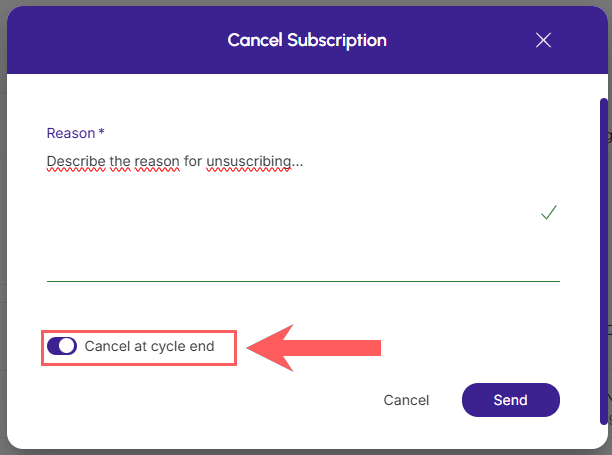
Cancel subscription only at the end of the cycle:
To schedule the subscription cancellation, you must enable the option “cancel at end of cycle”.
This way, the subscription will remain ativa until the current billing cycle expires. When the billing cycle expires, the subscription will automatically change to cancelada and from that moment on, no charges will be made.

- The subscription is scheduled to cancel at the end of the cycle, will my student continue to have access to content in the members area?
It depends on the members area you use and how the integration was performed.
Native Integration (built by Guru):
Since the subscription status has not changed, the members area will only be informed when the subscription changes to cancelada. Therefore, your student should retain access to the content until it is canceled. Unless there is an expiration date scheduled directly in the members area.
Integration via Webhooks (built by the members area itself):
Although the subscription remains ativa, when scheduling the cancellation, Guru sends a webhook about the cancellation scheduled for the end of the cycle. Likewise, when the subscription changes to canceled, a new webhook will be sent to the members area.
Since the target system is the one deciding which actions to take, check with your members area support to be sure whether the student's access will be cut off only at the end of the cycle or immediately upon receiving the scheduled cancellation notice webhook.
Refund
In this section you will find answers to questions related to refund operations through the Guru panel.
- How does the sale refund work through the Guru panel?
The refund operation via Guru panel depends on the payment method used by the customer and the payment processor used.
Credit card sales
When it comes to a sale on cartão de crédito, guru sends a refund request to the payment processor, which in turn issues the chargeback/refund to the credit card used in the purchase.
- What should I do if I cannot refund a sale due to lack of balance in the payment processor?
The Guru sends the refund request to the payment processor only at the moment you click on the Refund. Option. If an error occurs during this procedure, such as insufficient balance* in your payment processor account, you should try processing the refund later.
(*) Wait until you have sufficient balance in the account to perform the refund. As a best practice, we recommend always leaving some balance available in the payment processor account for eventual refund requests.
- Why is the sale listed as refunded in Guru, but the refund was not issued to the customer?
The automatic refund option is not available for your payment processor - check here.
When refunding is unavailable, the sale in Guru changes to Reembolsada. Still, you must contact the payment processor to find out how to process the refund manually.
- Why is the “Refund” button not available on a specific sale?
The Refund option is available only in certain scenarios. If this option is not available in the sale details, it means that:
-
The sale was never in the status Approved: if the sale appears as paid in the payment processor, try forcing a Status Update before issuing the refund;
-
The sale was made through an external checkout: process the refund directly through the checkout platform;
-
The refund operation is not available for this payment method: contact payment processor support to find out how to perform the refund manually.
-
Your user does not have permission to process refunds: request this permission from your Guru account administrator and try again after a few minutes.
Sending the subscription to other tools
In this section you will find answers to questions related to sending the subscription to other integrated tools in your Guru account.
- The student's access was not granted in the members area, what to do?
The members area tool is responsible for deciding and granting student access upon receiving a sale notification from Guru.
The Gruru sends the subscription notification to the members area minutes after the subscription is updated in the system. In some cases, granting student access may take a bit longer to happen due to system overload at the source or destination.
If student access is not granted in the members area, perform the following procedures:
1 - Check if the sale status is Approved
Access the sale details and confirm if it has the status Approved. As a rule, the members area usually grants access to customers whose sale payment is confirmed (which makes the subscription status active).
2 - Check if it was sent to the members area
Still in the subscription details, access the audit option and look for a recent item1 indicating a dispatch to your members area2. Depending on the processing result of the dispatch, the displayed icon may be blue (success) or red (error).

1 Audit events are listed from newest to oldest.
2 Depending on the type of integration with your members area, the icon may be a graduation cap (native integration) or a plug (webhook integration).
2.1 - Dispatch sent successfully
In this case, it may be that the members area is experiencing server instability and the processing of Guru sales was impacted. Wait at least 30 minutes and check the members area again to see if the situation has normalized.
If after 30 minutes the student's access is not granted, contact members area support to check why the sale sent by Guru has not been processed by them yet.
2.2 - Error sending
In this case, you should click on the audit log and check which error1 is described. In most cases, the error is returned by the members area. If you have any questions, contact our support via chat.
1 The description of the error returned by the destination platform is displayed in the JSON field. In some cases, this message may be in English. Copy the content and use a translator if necessary.
2.3 - Dispatch does not exist
In this case, it might be that the integration with the members area is disabled or incorrect.
To check if there is any issue with the configuration, follow one of the procedures below according to the integration type1 of your members area:
1 In native integration, you view a Guru configuration screen when clicking on the members area logo in the Settings » Integrations » Members Area section.
- The SMS was not sent to the customer, what to do?
The SMS platform is responsible for scheduling and sending the SMS to the customer after receiving a notification from Guru.
The Guru sends the message template1 and the recipient2 to the SMS tool minutes after the sale is updated in the system. In some cases, sending the SMS may take a bit longer than expected due to overload in the source or destination system.
1 Configured message template for the respective sale status.
2 Mobile phone number provided by the buyer at checkout.
If the expected SMS is not sent to the customer, perform the following procedures:
1 - Check if it was sent to the SMS platform
In the sale details, go to the audit option and look for a recent item1 that indicates a send to your SMS platform. Depending on the result of the dispatch processing, the displayed icon may be blue (success) or red (error).

1 Audit events are listed from newest to oldest.
1.1 - Dispatch completed successfully
In this case, the SMS platform might be experiencing server instability and the processing of notifications received from Guru was impacted. Wait at least 30 minutes and check the SMS platform again to see if the situation has normalized.
If after 30 minutes the SMS dispatch is still not listed, contact the SMS platform support to verify why the message request sent by Guru has not yet been delivered to the recipient.
1.2 - An error occurred during dispatch
In this case, you should click on the audit item and check which error1 is described. Most of the time, the displayed error is returned by the SMS platform. Common returned errors:
-
Insufficient balance: in this case, you must add credits to the SMS platform to send new SMS messages.
-
Nonexistent or incorrect phone: the phone number provided by the customer is incorrect or does not exist.
1 THE error description returned by the destination platform is displayed in the JSON field. In some cases, this message may be in English. Copy the content and use a translator if necessary.
1.3 - No dispatch exists
In this case, the integration with the SMS platform may be disabled or incorrect. To check if there is any configuration issue, go to Settings » Integrations » SMS and make sure that:
-
The integration is active - when the integration is active, it will appear right below the name Active; and
-
There is a status mapping (of type "sale") for the sale status in question.
If any of the items above were not met, redo the integration with the SMS platform.
Next, access the sale and resend to the SMS platform. Wait a few minutes, reload the page, and check the sale audit to validate if it was sent.
If the problem persists, contact our support via chat.
- The sale does not appear in my invoicing system, what to do?
The invoicing platform is responsible for processing and recording locally the sale sent by Guru.
The Guru sends the sale notification to the invoicing platform minutes after the sale is updated locally. In some cases, the sale may take a bit longer to appear in the destination system due to overload in the source or destination system.
If the sale does not appear within 30 minutes in the invoicing system, perform the following procedures:
1 - Check if it was sent to the invoicing platform
In the sale details, go to the audit option and look for a recent item1 that indicates a send to your invoicing platform. Depending on the result of the dispatch processing, the displayed icon may be blue (success) or red (error).

1 Audit events are listed from newest to oldest.
1.1 - Dispatch completed successfully
In this case, the invoicing platform might be experiencing server instability and the processing of notifications received from Guru was impacted. Wait at least 30 minutes and check the invoicing platform again to see if the situation has normalized.
If after 30 minutes the sale is still not listed in the invoicing system, contact the support of this tool to check why the sale sent by Guru is not yet displayed.
1.2 - An error occurred during dispatch
In this case, you should click on the audit item and check which error1 is described. Most of the time, the displayed error is returned by the invoicing platform. Try analyzing the returned error to identify which support (Guru or invoicing system) you should contact.
1 The error description returned by the destination platform is displayed in the JSON field. In some cases, this message may be in English. Copy the content and use a translator if necessary.
1.3 - No dispatch exists
In this case, the integration with the invoicing platform may be disabled or incorrect, or the sale product in question is not configured for this invoicing system. To check if there is any configuration issue, perform the following checks:
-
Check if the integration is active
-
Go to Settings » Integrations » Invoicing
-
Check if the invoicing tool appears with a colored logo. Otherwise, configure the integration.
-
-
Check if the product is configured for this invoicing tool
-
Go to Product » (desired product) » Invoicing Tab
-
Check if the invoicing tool configuration is active and properly configured.
-
If any of the items above were not met, redo the settings as instructed.
Next, access the sale and resend to the invoicing platform. Wait a few minutes, reload the page, and check the sale audit to validate if it was sent.
If the problem persists, contact our support via chat.
- The sale appears on the invoicing platform but the invoice was not issued, why?
The invoicing system is responsible for issuing the invoice based on instructions sent by Guru along with the sale.
In the invoicing configuration, there are options that, when activated, will prevent the automatic and/or immediate issuance of the invoice in the destination tool. They are:
-
Issuance delay: if you configured a value greater than zero, it means that the invoice issuance will be delayed by X days, where X is the value you provided.
-
"Issue after warranty" option selected: in this case, the invoicing tool will be instructed to issue the invoice only when the product's warranty period1 expires.
-
"Do not issue" option selected: in this case, the invoicing tool will only be instructed to record the sale in the system. This means you will need to access the invoicing tool and issue the invoices manually.
If you want to enable automatic and immediate invoice issuance for future sales, update the invoicing tool configuration2 and the product settings in question.
If the options mentioned above do not exist or were already disabled, there may be an error or incorrect setting on the invoicing platform, such as an expired or missing digital certificate. In this case, contact the invoicing platform support for help with these issues.
1 Setting configured directly in the invoicing tool.
2 Setting that will be automatically applied to new products created.
- is it recommended to migrate active subscriptions from one processor to another?
We recommend letting active subscriptions expire on the source payment processor or migrating them as PIX to the destination processor, due to security measures given data vulnerability.
More Resources