
The subscriptions (recurring charges) registered in Guru are automatically listed in the subscriptions Section.
To find subscriptions in a list with many records, you can search and filter the list.
To create and manage subscriptions through Guru, see subscription settings.
On this page:
-
Consult the list of subscriptions
-
View subscription data
-
How to filter the list of subscriptions
-
Manage subscription filters
-
-
Update subscription list
Before you start, you need to…
-
Be an administrator user or have permission to perform the following actions.
-
Have one or more subscriptions managed by Guru.
Consult the list of subscriptions
By default, the list of subscriptions is organized by update date (newest to oldest), according to the Started on. Column. For faster page loading, only the first 30 records are displayed. If you want to view the other items in the list, you can scroll to the bottom of the page and click on View more in the bottom center of the screen.
The list displays the following information:
-
Status: displays the current status of the subscription - will be displayed one of the possible subscription statuses;
-
Code: subscription identification number;
-
Contact: customer name;
-
Product: name of the product linked to the subscription;
-
Started on: subscription start date - if the subscription has a trial period, the start date when the customer activated the trial period will be displayed. Otherwise, the date of the 1st payment will be displayed;
-
Updated on: date of the last subscription status update;
-
Number of charges: displays the number of charges already made;
-
Charged every: displays the subscription billing interval;
-
Payment method: icon indicating the payment method registered for charges - hover over the icon to view the label.

View subscription data
You can view1 all subscription information or modify1 an active subscription (cancel, change plan, update payment method, etc.).
(1) you must have permission to perform these actions.
Steps:
1 - Access the list of subscriptions - if you wish, you can apply a filter.
2 - Locate the desired subscription in the list.
3 - Click on the desired subscription.
4 - Consult the subscription information.

How to filter the list of subscriptions
You can use filters to view a smaller subset of existing subscriptions. This feature is useful for finding specific subscriptions you want to view.
Attention: list searches have a maximum selection limit of up to 100 items per filter.
By default, only records from the last 28 days will be shown, but the period can be changed in the filters, in the Period.field.
Steps:
1 - In the side menu, access Subscriptions. After the page loads, a list with all subscriptions will be displayed.
2 - In Subscriptions, click on Filters.
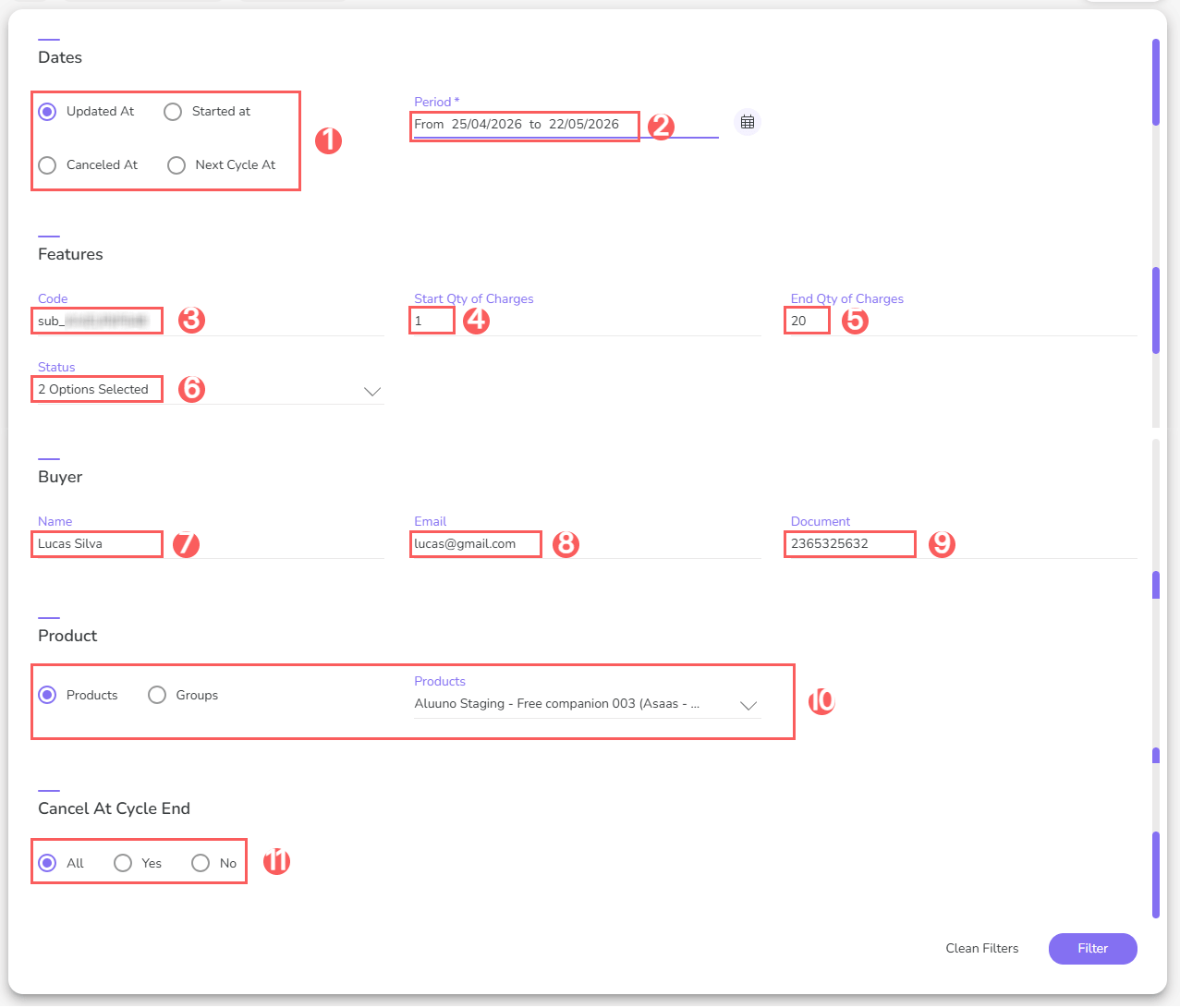
3 - Fill in one or more filter options:
-
Filter by Date1: determines which type of subscription date will be used in the search: Started on, Updated on, Canceled on or Next Cycle on;
-
Period: searches for subscriptions made in the informed period - you can use the predefined time interval buttons or select the date you want to view;
-
Code: searches for the subscription with the informed identification code;
-
Start Qty of Charges2: searches for subscriptions with a number of charges greater than or equal to the informed value - Ex.: by entering 5, the system searches for all subscriptions with more than 4 charges made;
-
End Qty of Charges2: searches for subscriptions with a number of charges less than or equal to the informed value - Ex.: by entering 10, the system searches for all subscriptions with up to 10 charges made;
-
Status: searches for subscriptions with status corresponding to the informed value(s) - you can choose more than one status for filtering;
-
Contact Name: searches for subscriptions where the subscriber's name (contact) matches the informed value. If desired, you can enter only part of the name. Ex.: the first 2 letters;
-
Contact Email: searches for subscriptions where the subscriber's email (contact) matches the informed value;
-
Contact Document: searches for subscriptions where the subscriber's document (contact) matches the informed value - if desired, you can enter only part of the document. Ex.: the first 2 digits;
-
Products: searches for subscriptions linked to the selected product(s) - products with at least one registered subscription will be displayed;
-
Cancel at Cycle end: searches for All subscriptions, only those that will be canceled at the end of the cycle (Yes) or only those that will not be canceled at the end of the cycle (NO).
(1) To filter subscriptions by a specific period, you must select the fields Updated On, Started On, Canceled On, and Next Cycle On.
(2) To filter subscriptions with a limited charge interval, you must fill in the fields Initial Number of Charges and Final Number of Charges. For example, to filter subscriptions with a minimum of 3 charges and a maximum of 6 charges, enter: Initial Number of Charges = 3; Final Number of Charges = 6.
If you add more than one filter, only subscriptions that meet all the informed conditions will be displayed.
4 - Click on Filter.
To remove the applied filters, just click on Clear Filters.
Manage Subscription Filters
You can check the number of applied filters when using filters to view desired information. This feature is useful if you want to check how many filters have been applied.
In addition, it is possible to clear the filters without accessing the Filters icon again, facilitating the removal of applied filters.
Consult applied filters
You can consult the number of applied filters.
Steps:
1 - In the side menu, access Subscriptions. After the page loads, a list with all subscriptions will be displayed.
2 - In Subscriptions, click on Filters.
3 - Fill in one or more filter options - apply the filters you want to consult.
4 – Then, the number of applied filters will appear on the screen.

If you want to apply other filters, click How to filter the list of subscriptions.
Clear applied filters
You can remove the applied filters without needing to click on the filters icon.
Steps:
1 - In the side menu, access Subscriptions. After the page loads, a list with all subscriptions will be displayed.
2 - In Subscriptions, click on Filters.
3 - Fill in one or more filter options - apply the filters you want to consult.
4 – Then, click on Clear Filters.

If you want to apply filters, click How to filter the list of subscriptions.
Update the list of subscriptions
You can update the list of existing subscriptions.
Steps:
1 - In the side menu, access Subscriptions. After the page loads, a list with all subscriptions will be displayed.
2 - In Subscriptions, click on Update.
After clicking update, the page will load, and then it will appear updated.
More Resources