
It is possible to make several modifications to the subscription throughout its lifecycle according to customer needs. This feature is useful for your support team to resolve payment issues, refund requests, cancellations, and specific changes to the subscription.
You can also provide self-service options for subscriptions in the Customer Portal.
On this page:
-
Change payment method
-
Change plan (upgrade/downgrade)
-
Change addition/discount in subscription offers
-
Remove addition/discount in subscription offers
-
Change renewal offer
-
Change current offer
-
Change current cycle end date
-
Change trial end date
-
End trial period early
-
Cancel subscription
-
Revert cancellation at the end of the cycle
-
Apply a discount coupon to an active subscription
-
Remove a discount coupon from an active subscription
-
Other operations
-
Get payment URL for overdue invoices
-
Refund subscription payment
-
Add comment
-
Before you start, you need to…
-
Be an administrator or have permission to perform the following actions.
-
Have one or more registered subscriptions.
Change payment method
You can change the payment method of an active subscription at any time, such as changing the associated credit card. This option is useful to avoid default or cancellation of the subscription when it is no longer possible to make charges using the previously authorized payment method.
In the self-service options, you can allow the subscriber to update credit card details through the Customer Portal.
Steps:
1 - Access the desired subscription - a screen with the data will be displayed.
2 - In the section Detail, click on Change - a new window will be displayed.

3 - In Change, select:
-
Choose the change: the option Payment Method;
-
Payment Methods1: the payment methods available in the offer linked to the subscription.
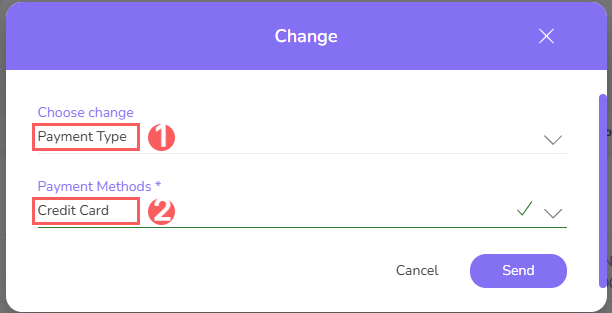
(1) The payment methods available in the offer linked to the subscription will be displayed.
4 - Click on Send to save the changes.
Change plan (upgrade and downgrade)
You can change an active subscription to a superior option (upgrade) or inferior (downgrade). This feature is useful when you offer different plan options and receive a plan change request.
The plan change is only available for subscriptions associated with an offer with upgrade and/or Downgrade options.
In case of installment plan, a validation will occur that does not allow overlapping charges on the customer's card. That is, the customer will only be able to pay in installments within that cycle, for example, if they made an upgrade of the plan where there are 4 months left until the next cycle, the installment payment will be allowed for a maximum of 4 months.
(*) The plan change is unavailable during the renewal process even when there are associated upgrade and downgrade options.
Steps:
1 - Access the desired subscription - a screen with the data will be displayed.
2 - In the section Detail, click on Change Subscription - a new window will be displayed.

3 - In Change Subscription, according to the operation you intend to perform, select:
Upgrade
3.1 - Click on Upgrade.
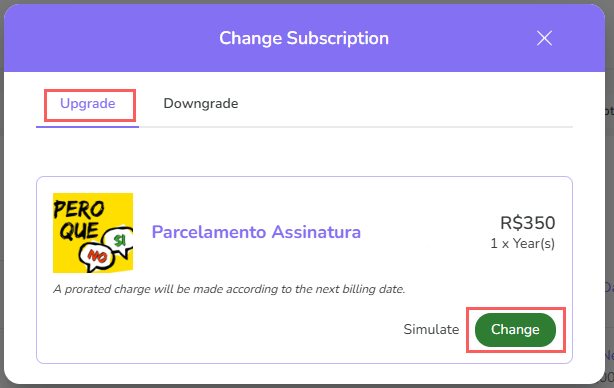
3.2 - Then, click on Change.
Downgrade
3.1 - Click on Downgrade.
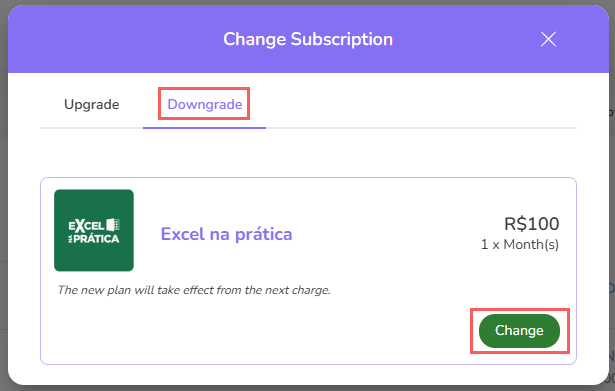
3.2 - Then, click on Change.
Upgrade involves proportional billing and is only performed after payment confirmation.
Tip: you can click on Simulate to see the values and inform the client before performing the operation.
Downgrade is a scheduled event and only takes effect at the end of the current cycle (next billing).
Change addition/discount in subscription offers
You can change the addition and/or discount of the offer during an active subscription. When performing this action and the renewal offer is changed, the configuration present in the subscription is added to the offer.
The addition and/or discount defined in the subscription are added to the addition/discount defined in the offer - for example, if an addition of 10 is defined in the offer and an addition of 5 is defined in the subscription, the final value will be 15.
This feature is useful when it is necessary to change the rules of a subscription offer, such as the amount to be charged and rules for addition or discount in certain cycles.
Attention! The settings to change the addition and/or discount obey some criteria, such as:
-
if the Subscription Status is active;
-
the subscription cannot be in the renewal process, and
-
cannot be marked to be Canceled at the end of the cycle.
Steps:
1 - Access the desired subscription - a screen with the data will be displayed.
2 - In the section Detail, click on Change - a new window will be displayed.
3 - In Change:
-
Choose the change: the option Addition/Discount;
-
Start cycle: define the cycle in which the addition or discount will be applied to the subscription offer - cycle in which the addition and/or discount application will start;
-
Addition/cycles: define the addition value and the number of cycles that this addition will be applied to the subscription offer;
-
Discount/cycles: define the discount value and the number of cycles that this discount will be applied to the subscription offer.
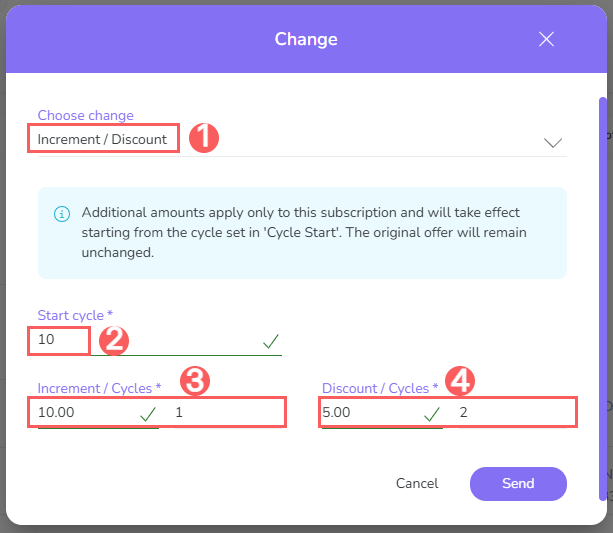
4 - Click on Send.
Done! The addition and/or discount have been applied to this subscription.
Remove addition/discount from subscription offers
You can remove the addition and/or discount from an active subscription's offers. This feature is useful when you no longer want the selected subscription to have additional values applied, or to change the values applied to the subscription.
Steps:
1 - Access the desired subscription - a screen with the data will be displayed.
2 - In the Detail section, click on Change - a new window will be displayed.
3 - In Change, click on Remove Increments/Discount Extra.
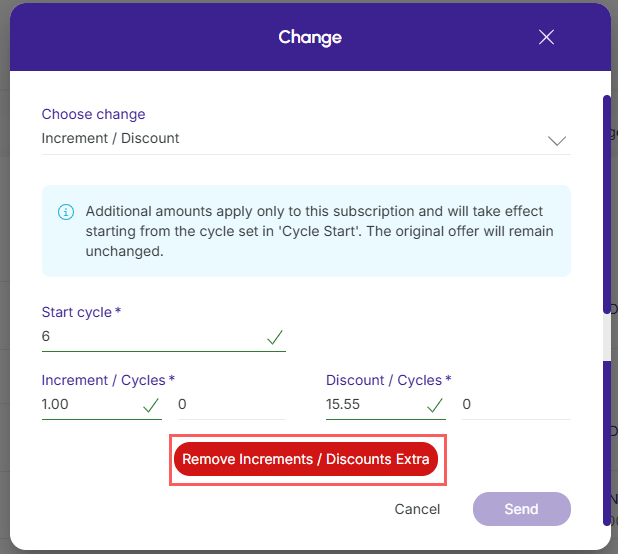
4 - Click on Send.
Change renewal offer
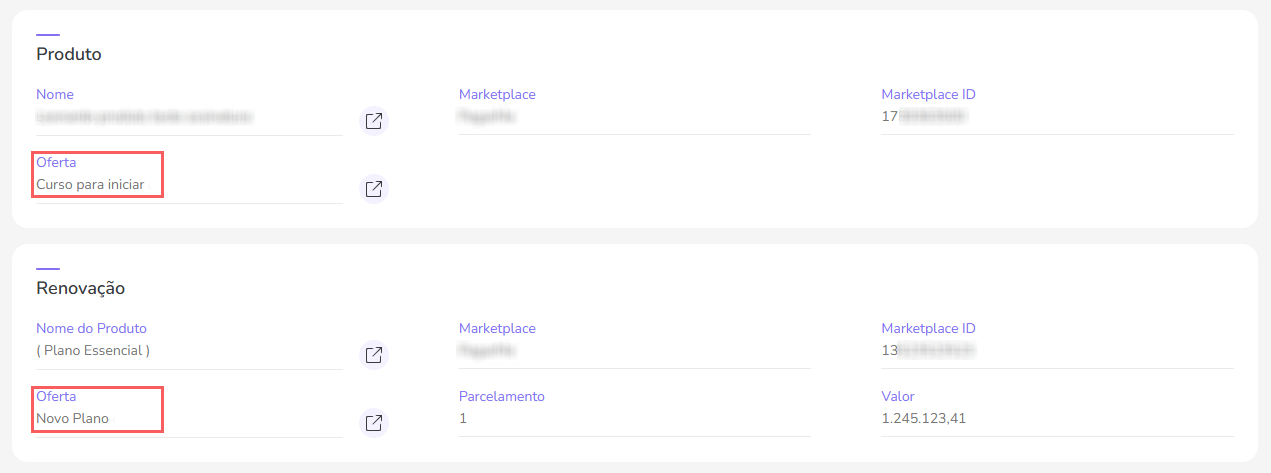
You can change a subscription's renewal offer. When performing this action, the remaining billing cycles of the subscription (renewals) will consider the rules defined in the renewal offer, and no longer in the original offer.
This feature is useful when it is necessary to change subscription rules such as interval, billing cycles, payment methods, installments, amount to charge, and addition or discount rules, since these components are not editable in the original offer once it has an associated subscription.
For example: let's say your customer is a subscriber to the Basic plan for $49.90, but this plan will undergo a price change and the new value will be $54.90 per month. In this case, simply change the renewal offer to the product/offer corresponding to the new value. Thus, in subsequent renewals, the system will start charging $54.90 per month instead of the usual $49.90.
This operation only takes effect from the next renewal. No proportional charge will be made to your customer at the time you perform this action.
If the change occurs within the subscription's “renewal process”, it will not be valid for this next renewal.
The only exception is changing from card to card, which will be valid for renewal that will happen in the next few days.
In case of installment plan, a validation will occur that does not allow overlapping charges on the customer's card. That is, the customer will only be able to pay in installments within that cycle, for example, if they made an upgrade of the plan where there are 4 months left until the next cycle, the installment payment will be allowed for a maximum of 4 months.
If you want the subscription change to take immediate effect and proportional billing (when necessary), perform the Plan Change (upgrade/downgrade).
Steps:
1 - Access the desired subscription - a screen with the data will be displayed.
2 - In the Detail, click on Change - a new window will be displayed.
3 - In Change, select:
-
Choose the Change: the option Renewal Offer;
-
Product: the product you want to associate with the subscription renewal;
-
Offer: the product offer you want to associate with the subscription renewal.
The renewal offer must be different from the original subscription offer. If the selected product only has the offer associated with the subscription, you must create a new offer before performing this action.
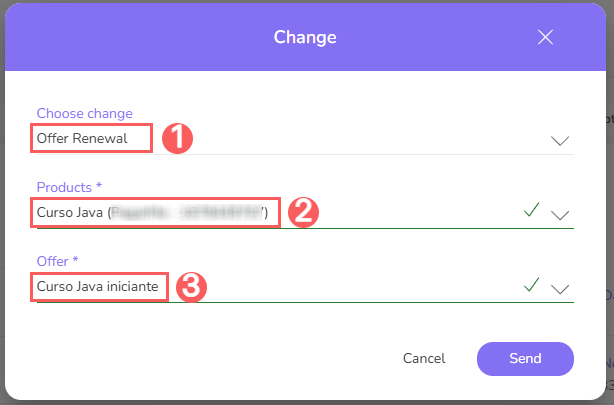
4 - Click on Send to save the changes.
Done! The next subscription renewals will be based on the rules of the renewal offer and no longer on the original offer.
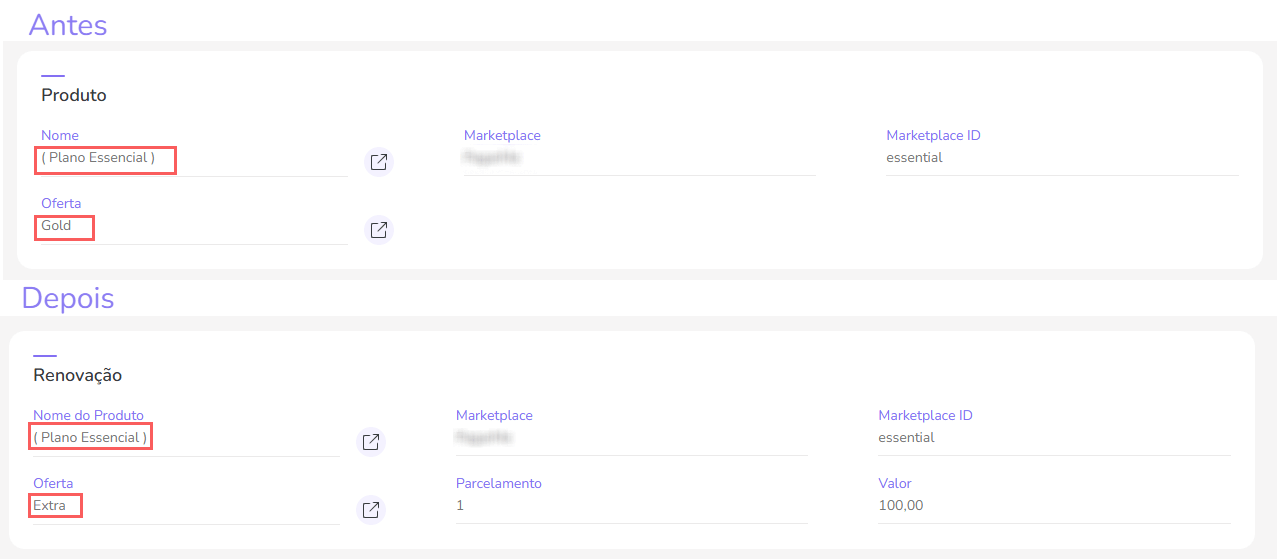
Change current offer
You can change the current offer of a subscription. When performing this action, the current conditions of the subscription are changed. This feature is useful when you want to make a plan change, with immediate effect, without proportional billing (upgrade/downgrade).
For example: let's say your customer subscribed to the Basic plan and you want to reward them with access to the Premium Plan. In this case, just change the current subscription offer to the corresponding product/offer. After this action, your customer will immediately be able to enjoy1 the benefits of Premium, without paying extra for it.
By changing only the current offer, the next charges continue to be made based on the renewal offer (original offer). If desired, you can also change the renewal offer.
1 It may be necessary resend subscription data to update customer benefits in the target system.
Steps:
1 - Access the desired subscription - a screen with the data will be displayed.
2 - In the section Detail, click on Change - a new window will be displayed.
3 - In Change, select:
-
Choose the Change: the option Current Offer;
-
Product: the product you want to associate with the subscription renewal;
-
Offer: the product offer you want to associate with the subscription renewal;
-
Force renewal offer1 (optional): if you want to apply this offer to the subscription renewal, switch the button to the “on” position.
1 When enabled, the other billing cycles of the subscription (renewals) will consider the rules defined in the selected offer and no longer in the original offer.
The new offer must be different from the current subscription offer. If the selected product only has the offer associated with the subscription, you must create a new offer before performing this action.
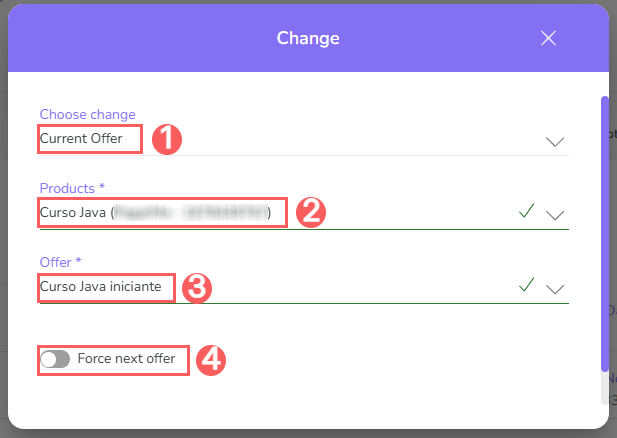
4 - Click on Send to save the changes.
Done! Your customer can now enjoy the benefits of the current offer.
Change the end date of the current cycle
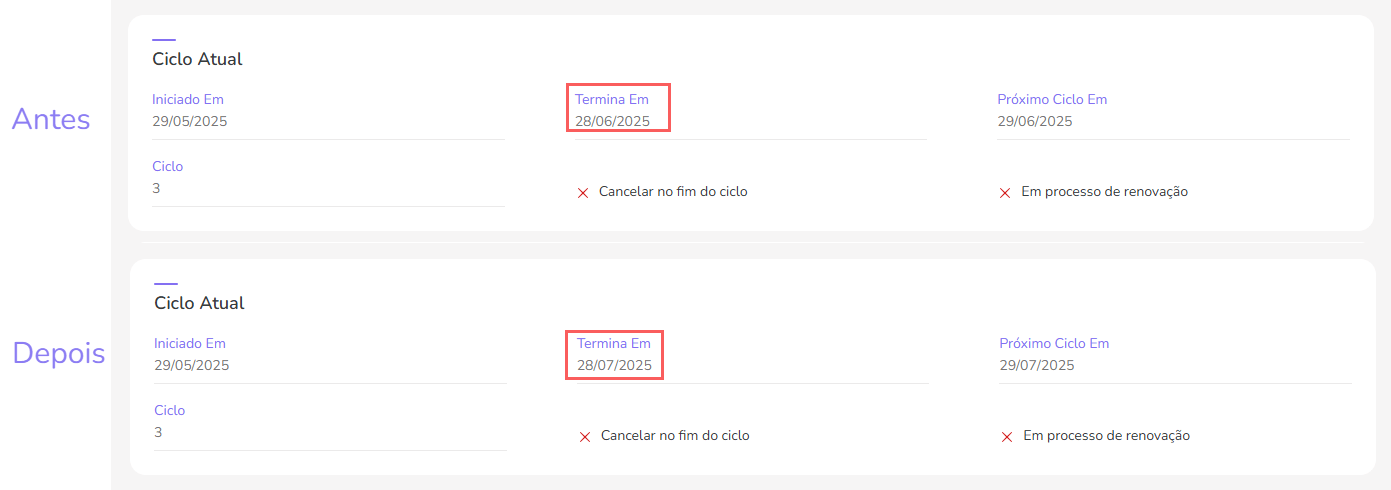
You can change the end date of the current cycle of a subscription. By performing this action, the current cycle will end on the new date instead of ending on the date originally defined as the end of the cycle.
This feature is useful when it is necessary to intentionally shorten or extend the current subscription cycle. For example: let's say your customer has a subscription with 30-day cycles, but you decided to extend the duration of the current cycle to 40 days as a way to reward the customer for a service failure.
By changing the current cycle's end date, the next cycle's (renewal) start date is also changed.
Steps:
1 - Access the desired subscription - a screen with the data will be displayed.
2 - In the Detailsection, click on Change - a new window will be displayed.
3 - In Change, select:
-
Choose the Change: the option Cycle End Date;
-
Date: the new end date of the current cycle.
To ensure sufficient time for scheduling the next charge, the cycle end date must be at least 5 days after the current date.
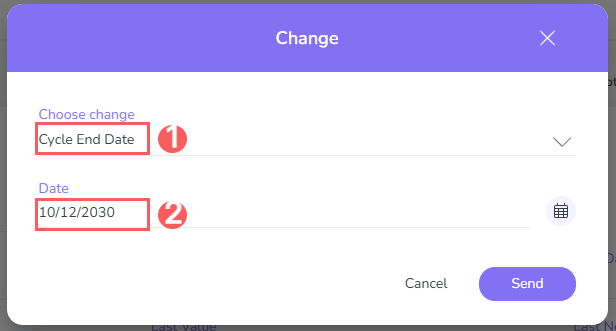
4 - Click Send to save the changes.
Done! The current cycle will end on the informed date.
Change trial end date
You can change the trial end date of a subscription. By performing this action, the current trial cycle will end on the new trial end date instead of ending on the date originally defined as the current date.
This feature is useful when it is necessary to intentionally extend the subscription's trial cycle. For example: let's say your customer wants to use the trial for 3 days, but you decided to extend the duration of the current final cycle to 6 days as a way to reward the customer for a service failure.
By changing the trial end date, the next cycle's (renewal) start date is also changed.
Attention! The settings for changing the trial end date obey some criteria, such as:
-
if the Status is trial;
-
if it is a subscription;
-
if the option Cancel at the end of the cycle;is not active;
-
if you have permissions for such action.
Steps:
1 - Access the desired subscription - a screen with the data will be displayed.
2 - In the Detail section, click on Change - a new window will be displayed.
3 - In Change, select:
-
Choose the Change: the option Trial End Date;
-
Date: new trial end date
To ensure sufficient time for scheduling the next charge, the trial end date must be at least 3 days after the current date.
Attention: if the subscription is overdue, it will not be possible to change the trial end date.
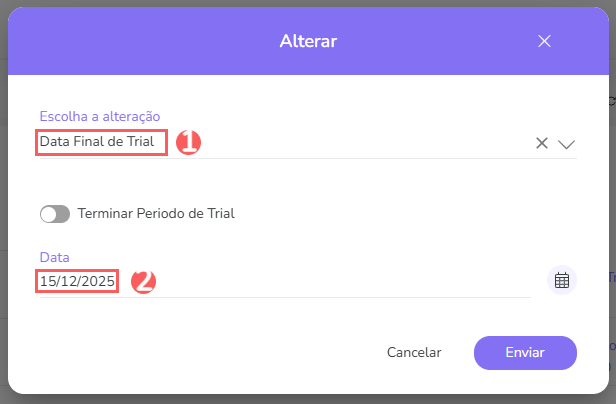
4 - Click Send to save the changes.
Done! The current cycle will end on the informed date.
End the trial period early
You can prematurely end a subscription's trial period. By performing this action, the customer can subscribe to the plan at any time, making it possible to convert them earlier than expected.
After the trial period ends, the charge will be made immediately, so that the subscription is activated.
Steps:
1 - Access the desired subscription - a screen with the data will be displayed.
2 - In the Detailsection, click on Change - a new window will be displayed.
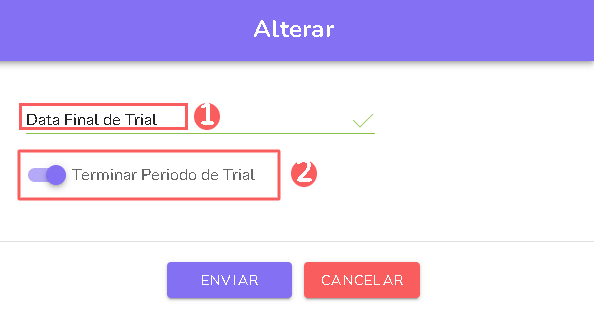
3 - In Change, select:
-
Choose the Change: the option Trial End Date;
-
End Trial Period: if you want to end the trial period early, switch the button to the “on” position.
.jpg?cb=8837a4ea6a4e7db37d2e094edac9e7bf)
4 - Click Send to save the changes.
Done! The trial (test period) will end early.
Cancel Subscription
it is possible to cancel an active subscription at any time to stop future charges. This option is useful when the customer no longer wishes to continue with the subscription or you need to discontinue a recurring charge.
You can configure subscriptions with an exact number of charges so that, after the last cycle, charges are automatically stopped.
Steps:
1 - Access the desired subscription - a screen with the data will be displayed.
2 - In the Detail section, click on More, and then Cancel Subscription - a new window will be displayed.

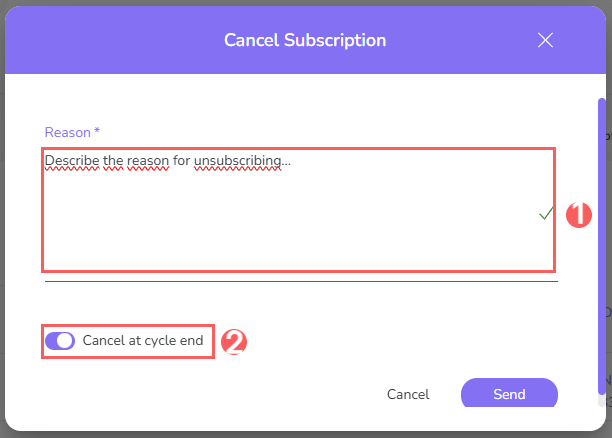
3 - In Cancel Subscription, inform:
-
Reason: describe the reason for canceling the subscription;
-
Cancel at cycle end: when enabled, cancels the subscription only at the end of the current cycle.
4 - Click Send to cancel the subscription.
Revert cancellation at the end of the cycle
it is possible to revert the cancellation at the end of the cycle of an active subscription. This feature is useful when you no longer want the selected subscription to be canceled at the end of the cycle, and you want to revert the cancellation. The revert cancellation change will be available if you selected this option when canceling the subscription.
Attention! The settings to revert cancellation at the end of the cycle obey some criteria, such as:
-
if the Status is active;
-
if it is a subscription;
-
if the option Cancel at the end of the cycle;is active;
-
if the subscription is not in the renewal cycle;
-
if you have permissions for such action.
Steps:
1 - Access the desired subscription - a screen with the data will be displayed.
2 - In the Detail section, click on Change - a new window will be displayed.
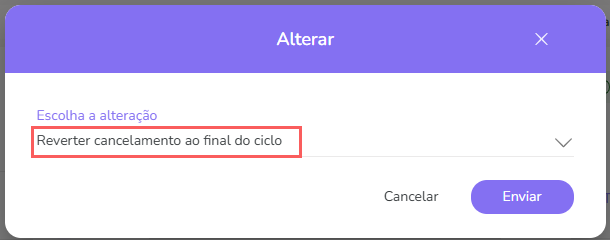
3 - In Change, select:
-
Choose the change: the option to revert the cancellation at the end of the cycle.
4 - Click Send.
After a few minutes, you will receive a notification in the Guru admin confirming the action.
By activating this option, the customer can undo the request via the My Orders.portal.
Apply a discount coupon to an active subscription
You can apply a discount coupon to an active subscription. This option is useful so that you can offer discount coupons for subscriptions that are already in progress.
For the coupon to be applied, it will be necessary to configure the discount coupon and then apply it manually and individually to each of the subscriptions.
How does the coupon work on an active subscription?
The coupon will be applied to the number of cycles configured in the discount coupon, after the current subscription cycle.
Example: If you apply a coupon, which is configured with a maximum of 3 cycles to a subscription that is in its second cycle, the coupon discount will be applied in the next cycles 3, 4 and 5 of the subscription.
The application of a discount coupon is available for active subscriptions that are not in the renewal cycle on the coupon application date.
You can configure the number of application cycles of a discount coupon for a subscription.
Steps:
1 - Access the desired subscription - a screen with the data will be displayed.
2 - In the Detail section, click on Add Coupon - a new window will be displayed.

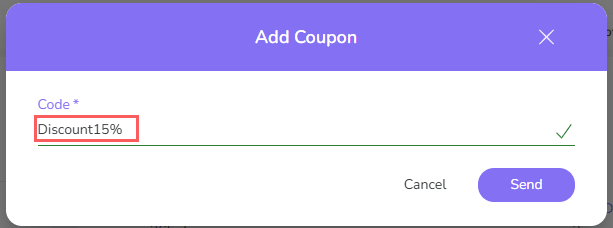
3 - In Add Coupon, inform:
-
Code: in the field the discount coupon that will be applied at checkout.
4 - Click Send to save the changes.
Done! Coupon added successfully.
Remove a discount coupon from an active subscription
You can remove a discount coupon from an active subscription. This option is useful if you want to remove the discount coupon from the selected subscription, or change the discount coupon applied to the subscription.
Whenever you want to change the discount coupon applied to the subscription, you will need to remove the coupon, and then inform the new discount coupon for the subscription.
Steps:
1 - Access the desired subscription - a screen with the data will be displayed.
2 - In the Detail section, click on Remove Coupon - a new window will be displayed.

3 - A confirmation window is displayed. If you wish to proceed with the removal, click I'm Sure.
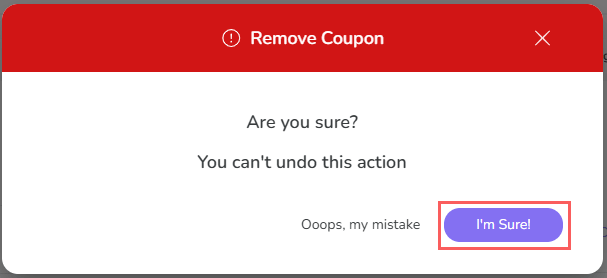
Done! Coupon removed successfully.
Other operations
In addition to modifying the subscription, you can perform financial operations (refund and reissuance of payment slips), add comments or even resend subscription data to other tools.
Get payment URL for open invoices
In the Invoices section, you can get a URL for the customer to regularize the payment of a subscription.
This option is useful when payment is overdue or has not yet been completed (e.g., issued a payment slip and did not pay). It is also useful for those in the trial period who wish to anticipate the activation of the subscription.
The URL is only valid as long as the retry limit configured for the subscription is not exceeded.
Steps:
1 - Access the desired subscription - a screen with the data will be displayed.
2 - Click on the Invoices tab.

3 - Then, click on the desired invoice.

4 - In Detail, copy the Payment URL.
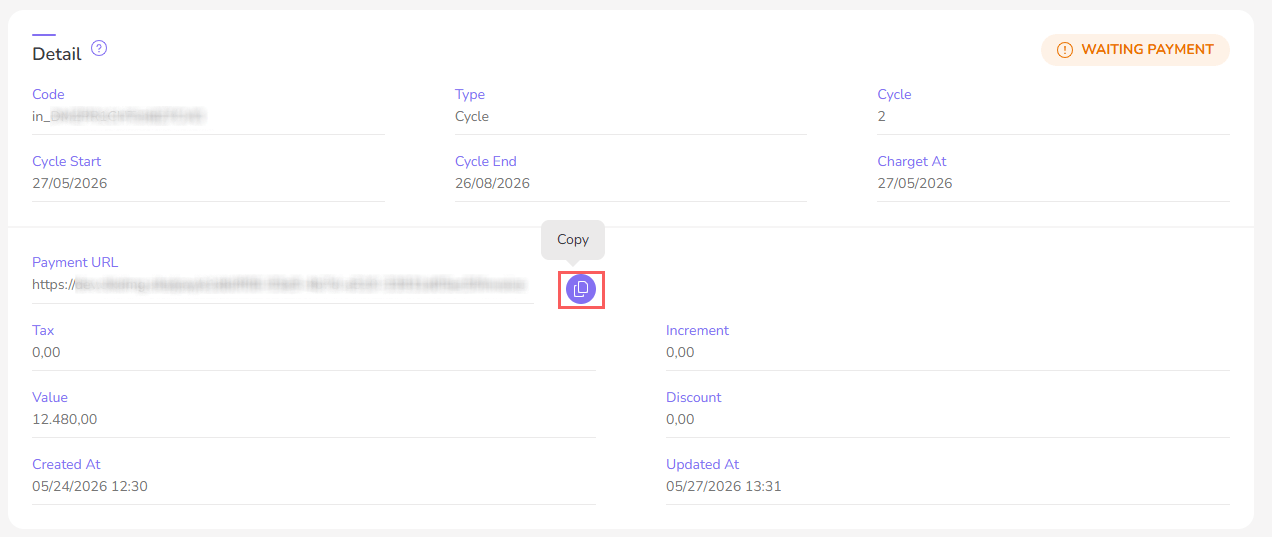
5 - Send the URL to your customer, so they can make the payment through Checkout Guru.
The link displays a screen similar to the checkout with the customer's data already filled in and the payment methods configured in the offer. Your customer must fill in the payment details and click “Pay Now”.
The payment method used in the link only takes effect for the payment in question. Other renewals continue to be based on the payment method registered in the subscription. To permanently change the subscription's payment method, consult this link.
Refund the subscription payment
You can refund1 the payment of a subscription configured for credit card payment. This option is useful when a charge occurs before the customer requests the cancellation of a subscription they do not intend to keep.
To refund payments made with payment methods other than credit card, contact your payment processor.
Pagar.me
If a refund is requested and there is no available balance in Pagar.me, the refund will not happen. Since the refund request not is queued, it must be requested again when there is an available balance in the account.
To avoid new charges to the customer, we recommend immediately canceling the subscription. This operation can be performed during the payment refund or directly in the option cancel subscription.
Steps:
1 - Access the desired subscription - a screen with the data will be displayed.
2 - Click on the tab Sales - the list of subscription sales will be displayed.

3 - Then, click on the sale you wish to refund - you will be directed to the sale detail.

4 - In the section Detail, click on Refund - a new window will be displayed.

5 - In Refund, fill in:
-
Reason: the reason for the refund;
-
Cancel Subscription: when enabled, immediately cancels the associated subscription.
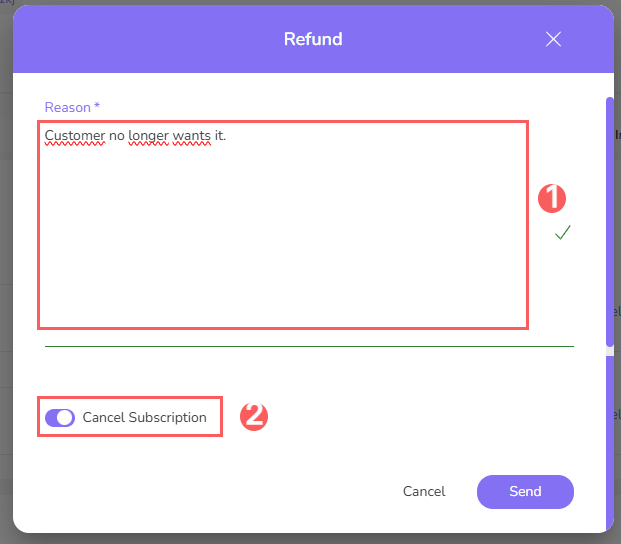
6 - Click on Send.
Wait a few minutes and refresh the page (CTRL+F5) to check if the sale status has changed to refunded.
Add Comment
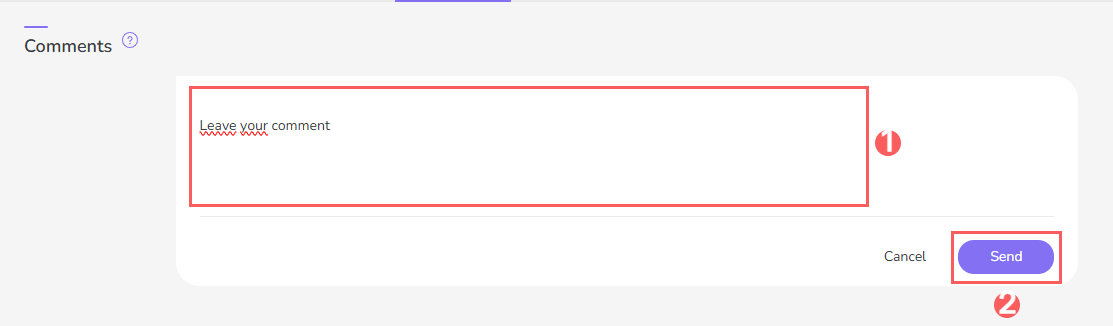
If desired, you can add comments to a subscription. This option is useful for recording important notes and making them available to other team members.
How to add a comment to the subscription
More Resources