
Use the deal mapping (deals) for the subscription cycle to determine in which Bigin stages and pipelines your customers' recurring charges and renewals should be registered and updated automatically.
You need to set the rule for each of your products in Guru with Bigin. This configuration is done through Status Mapping, ensuring that events like awaiting payment, paid charge, overdue, or canceled move the deals in your funnel in real time.
Learn how to create and manage pipeline records in Bigin by Zoho CRM.
On this page:
-
Add the Subscription Cycle deal mapping to Bigin by Zoho CRM
-
View the list of Mappings
-
Update Status Mapping
-
Delete Status Mapping
Before you begin, you need to:
-
Have an account in Bigin by Zoho CRM.
-
Be an administrator user or have permission to perform the following actions.
Add the Subscription Cycle deal mapping to Bigin by Zoho CRM
Add a subscription deal mapping to Bigin by Zoho CRM.
Steps:
1 - Access the Guru admin with your username and password.
2 - In the side menu, access Settings > Integrations > Autoresponders > Bigin by Zoho CRM.

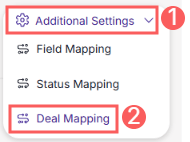
3 - Click on Additional Settings and then on Deal Mapping.
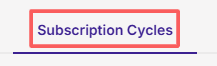
4 - Click on the Subscription Cycle tab.
5 - Next, click on Add Mapping.
.png?cb=1f9abcafa9bdc9167b64fd7fc1b376ec)
6 - Enter:
-
Invoice Status: select the invoice status that will trigger data sending and create/move deals in Bigin by Zoho CRM;
-
Pipeline: select the Bigin pipeline where the business (deal) will be directed when the transaction reaches the selected status;
-
Stage: select the specific stage within the chosen pipeline where the business (deal) should be automatically inserted or moved;
-
Pipeline Tags: select the pipeline tags that will be assigned to the business (deal) in Bigin to facilitate filtering, segmentation, and internal automations.
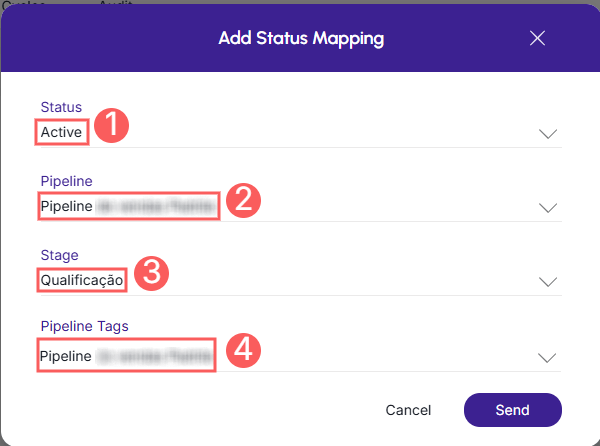
7 - Click on Send.
To confirm that the mapping was created successfully, you should see a notice in the top right corner.
8 - Repeat steps 4 to 7 for each mapping you wish to perform.
View the list of Mappings
By default, the list of mappings is organized by creation date (from newest to oldest). For faster page loading speed, only the first 30 records are displayed. If you want to view the remaining items in the list, you can scroll to the bottom of the page and click See more in the bottom center of the screen.
Steps:
1 - Access the Guru admin with your username and password.
2 - In the side menu, access Settings > Integrations > Autoresponders > Bigin by Zoho CRM.
3 - Click on Additional Settings and then on Deal Mapping.
4 - Click on the Subscription Cycles tab.
5 - The list displays the following information:
-
Invoice Status: the invoice status that will trigger data sending and create/move deals in Bigin by Zoho CRM;
-
Pipeline: the Bigin pipeline where the business (deal) will be directed when the transaction reaches the selected status;
-
Stage: the specific stage within the chosen pipeline where the business (deal) should be automatically inserted or moved;
-
Pipeline Tags: the pipeline tags that will be assigned to the business (deal) in Bigin to facilitate filtering, segmentation, and internal automations.

Update Status Mapping
Once created, it is possible to update a status mapping. This feature is useful when you need to change the trigger rule for a status in Bigin by Zoho CRM.
Steps:
1 - In the list, locate the desired product and click on it.

2 – Enter:
-
Invoice Status: select the invoice status that will trigger data sending and create/move deals in Bigin by Zoho CRM;
-
Pipeline: select the Bigin pipeline where the business (deal) will be directed when the transaction reaches the selected status;
-
Stage: select the specific stage within the chosen pipeline where the business (deal) should be automatically inserted or moved;
-
Pipeline Tags: select the pipeline tags that will be assigned to the business (deal) in Bigin to facilitate filtering, segmentation, and internal automations.
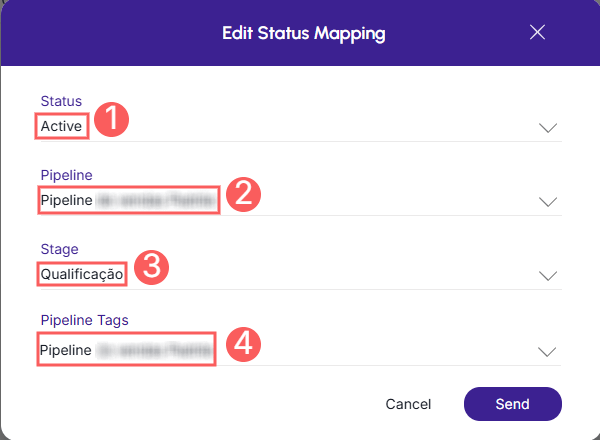
3 - Click on Send.
A message will be displayed indicating that the mapping was updated successfully.
Delete Status Mapping
Once created, it is possible to remove a status mapping. This feature is useful when you no longer want to map the status in Bigin by Zoho CRM when a product or subscription sale occurs in Guru.
Steps:
1 – In the list, locate the desired mapping and click the corresponding Remove button.

2 - Confirm that you want to delete it. To confirm that the mapping was deleted, a message will be displayed for a few seconds at the top right of the page.
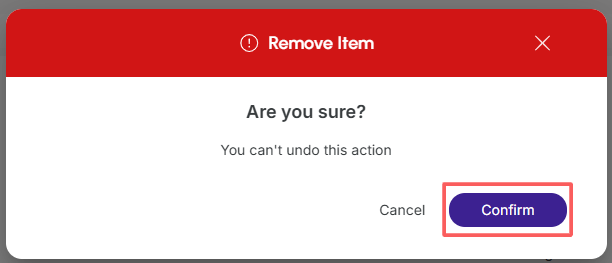
From this moment on, Guru will stop sending status mapping information or segmentation to Bigin by Zoho CRM.