
By integrating your E-goi account, you can pass leads captured by Guru, buyer data, and sale data in order to segment your contacts in E-goi, to build personalized relationships while monitoring conversions and revenue.
To activate the integration, you need to obtain your API credentials in your E-goi account and configure the recommended permissions for operation. Next, you will define the rules for contact segmentation and map additional sale or subscription fields.
On this page:
-
Step 1: Obtain API Key
-
Step 2: Configure permissions in E-goi
-
Step 3: Activate the integration
-
What to do next
Before starting, you need to:
-
Have an E-goi account.
-
Be an administrator user or have permission to perform the following actions.
Step 1: Obtain API Key
In this step, you will obtain the API credentials in your E-goi account.
Steps:
1 - Access your E-goi account with username and password.
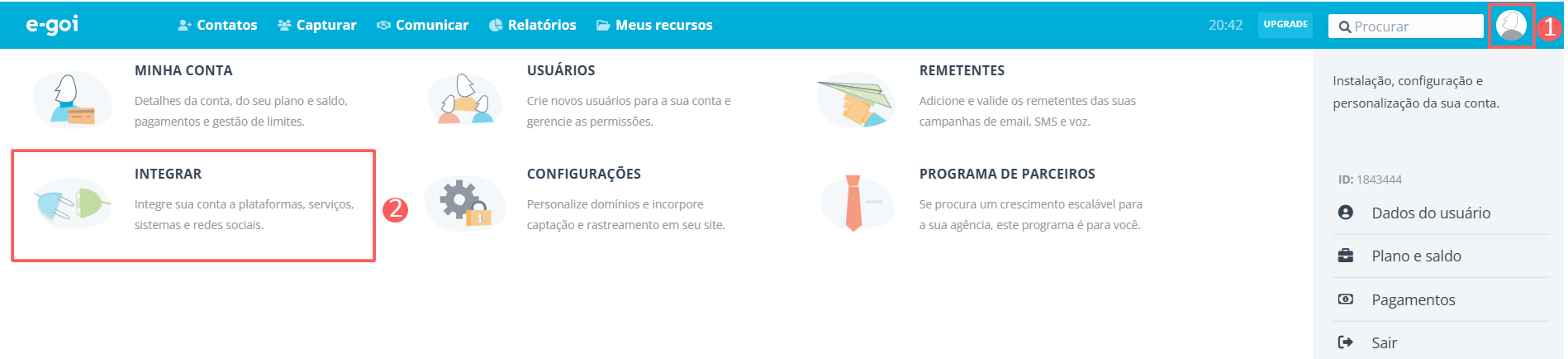
2 - In the top right menu, click on My Profile, and then on Integrations.
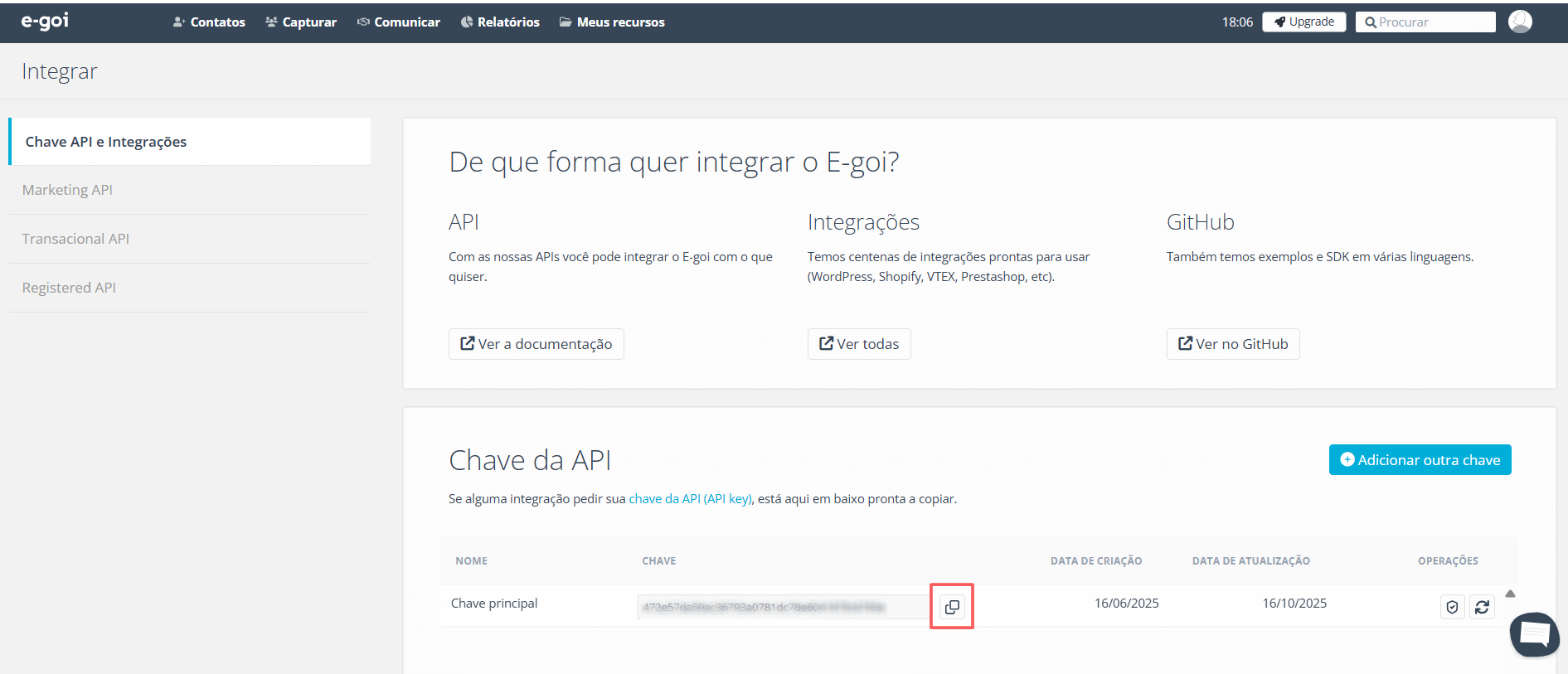
3 - Copy and store the API Key.
Step 2: Configure permissions in E-goi
In this step, you must access your E-goi account and, when adding or editing an API key, configure the necessary permissions.
If you have already created an API key in E-goi and wish to edit the settings, click the icon for permissions of the created API key.
Steps:
1 - Access your E-goi account with username and password.
2 - In the top right menu, click on My Profile, and then on Integrations.
3 - Under API Key, click on Add another key.

4 - Under Add another key, configure the recommended permissions for the API to function:
Contacts
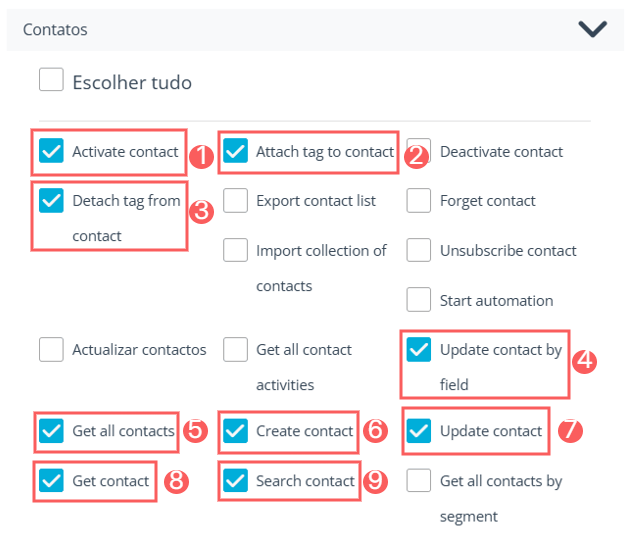
Under the Contacts command, it is recommended to select the following permissions:
-
Activate contact
-
Attach tag to contact
-
Detach tag from contact
-
Update contact by field
-
Get all contacts
-
Create contact
-
Update contact
-
Get contact
-
Search contact
Fields
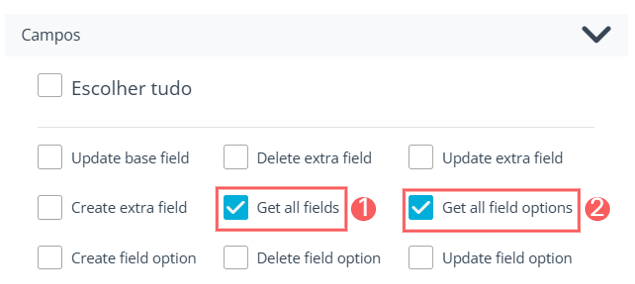
Under the Fields command, it is recommended to select the following permissions:
-
Get all fields
-
Get all field options
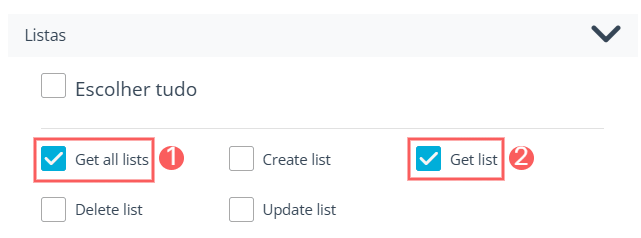
Lists
Under the Lists command, it is recommended to select the following permissions:
-
Get all lists
-
Get list
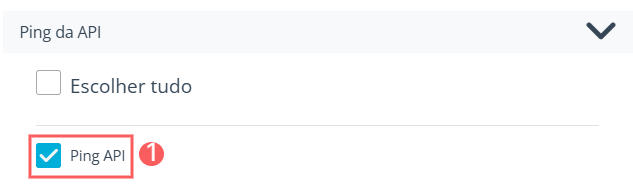
API Ping
Under the API Ping command, it is recommended to select the following permission:
-
Ping API
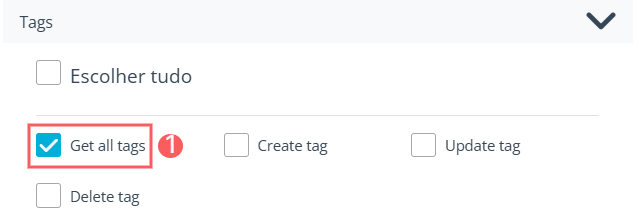
Tags
Under the Tags command, it is recommended to select the following permission:
-
Get all tags
5 - Click Add.
It is recommended to configure permissions in E-goi before activating the E-goi integration in Guru.
Step 3: Activate the integration with E-goi
In this step, you will activate the E-goi integration in Guru.
The API key/Token will not be available after saving the integration. If you change the API key, it will no longer be valid, and you will need to return to the E-goi environment to obtain the key.
This change will provide greater security for your account, as it will no longer be possible to view the integration data.
Steps:
1 - Access the Guru admin with your username and password.
2 - In the side menu, access Settings > Integrations > Autoresponders > E-goi.

3 - On the Detail tab, enter:
-
API Key: your API key obtained in step 1 - item 3;
-
Active: toggle the button to the on position.
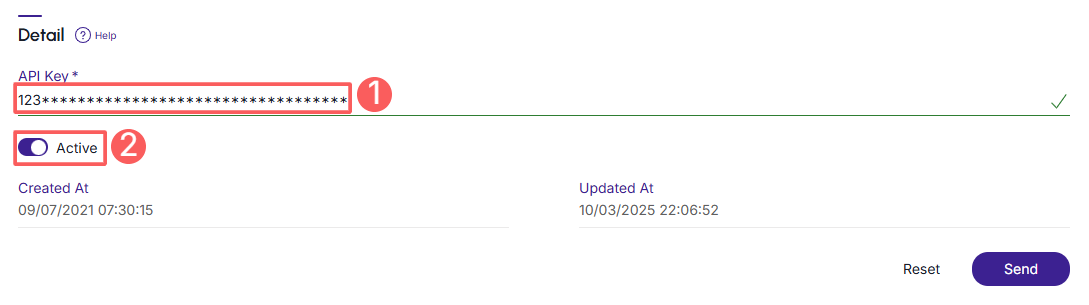
4 - Click Send.
To confirm that the integration is active, you should see a notice in the top right corner.
What to do next
Once the integration with E-goi is active, you must set up the rules for contact segmentation in E-goi and map any additional fields you desire (optional step).
This configuration is done through:
1 - Mapping Sales Status to E-goi;
2 - Sending Custom Data to E-goi.
More Resources