
Use sales status mapping to determine in which situations Marktel should send automatic messages to your customers.
It is necessary to set the rule for each product in Guru with Marktel. This configuration is done through Status Mapping.
On this page:
-
Add sales/subscription status mapping for Marktel
-
Consult the list of Mappings
-
Update Status Mapping
-
Delete Status Mapping
-
Consult Audit
-
Consult Audit filters
-
Before configuring, you need to:
-
Have a registered product in Guru.
Add sales/subscription status mapping for Marktel
Add sales/subscription status mapping for Marktel.
Steps:
1 - Access the guru admin with your username and password.
2 - In the side menu, go to Settings > Integrations > SMS > Marktel.

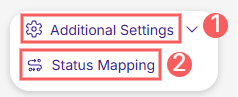
3 - Click on Additional Settings and then on Status Mapping.
4 - According to the mapping you wish to perform, select subscriptions or sales. Example: if you sell a subscription product, select the subscriptions option.

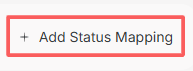
5 - Next, click on Add Status Mapping.
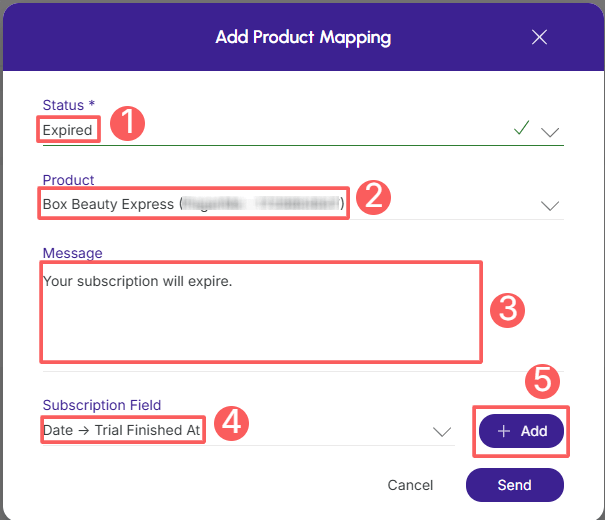
6 - Enter:
-
Status: select the transaction status for which you want to send messages;
-
Product: select the product in Guru for which you want to configure mapping rules;
-
Message: enter the text that will be sent in the message;
-
Subscription/transaction field (sales): select the subscription/sale field you wish to associate with the number in the message;
-
Add: insert the dynamic field chosen from the subscription/transaction (sales) into the message (item 4).
7 - Click on Send.
To confirm that the mapping was created successfully, you should see a notice in the upper right corner.
8 - Repeat steps 4 to 7 for each mapping you wish to create.
Consult the list of Mappings
By default, the list of mappings is organized by creation date (newest to oldest). For faster page loading, only the first records are displayed. If you wish to view the remaining items in the list, you can scroll to the bottom of the page and click See more at the bottom center of the screen.
Steps:
1 - Access the guru admin with your username and password.
2 - In the side menu, go to Settings > Integrations > SMS > Marktel.
3 - Click on Additional Settings and then on Status Mapping.
4 - According to the mapping you wish to consult, select subscriptions or sales. Example: if you sell a subscription product, select the subscriptions option.
5 - The list displays the following information:
-
Status: the transaction status for which you want to trigger messages;
-
Product: the product in Guru for which you want to configure mapping rules;
-
Message: the text that will be sent in the message.

Update Status Mapping
Once created, you can update a status mapping. This feature is useful when you need to change the trigger rule for a status in Marktel.
Steps:
1 – In the list, locate the desired product and click on it.

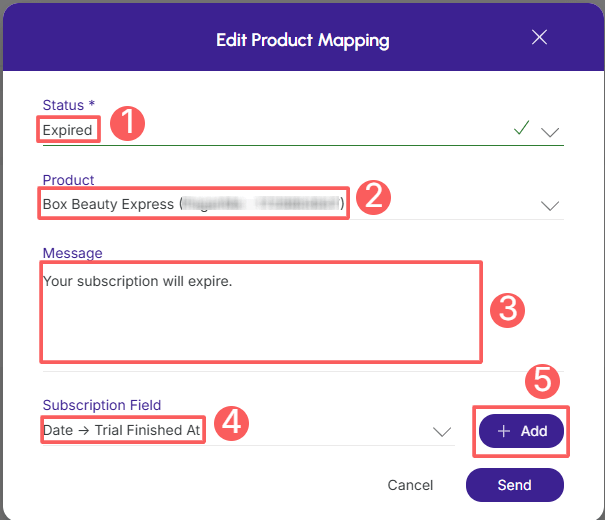
2 - Enter:
-
Status: select the transaction status for which you want to send messages;
-
Product: select the product in Guru for which you want to configure mapping rules;
-
Message: enter the text that will be sent in the message;
-
Subscription/transaction field (sales): select the subscription/sale field you wish to associate with the number in the message;
-
Add: insert the dynamic field chosen from the subscription/transaction (sales) into the message (item 4).
3 – Click on Send.
A message will be displayed indicating that the mapping was successfully updated.
Delete Status Mapping
Once created, you can remove a status mapping. This feature is useful when you no longer want to map the status in Marktel when a product or subscription sale occurs in Guru.
Steps:
1 – In the list, locate the desired mapping and click the corresponding Remove button.

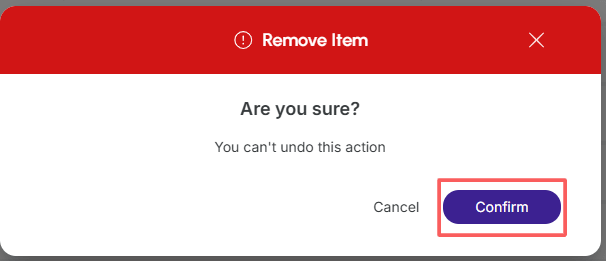
2 - Confirm if you want to proceed with the deletion. To confirm that the mapping was deleted, a message will be displayed for a few seconds in the upper right corner of the page.
From this moment on, Guru will stop triggering messages from the sale status mapping to Marktel.
Consult Audit
As a security measure, Guru stores a history of all operations performed in product mapping, identifying user, date/time of the operation, and other details.
Steps:
1 - In the side menu, go to Settings > Integrations > SMS > Marktel.
2 - Click on Additional Settings and then on Status Mapping.
3 - Click on the Audit tab.
4 - Activities are displayed in a timeline (from most recent to oldest).

5 - If you wish, you can view the activity details by clicking on its title.

6 - Click on one of the available sections to view the data:
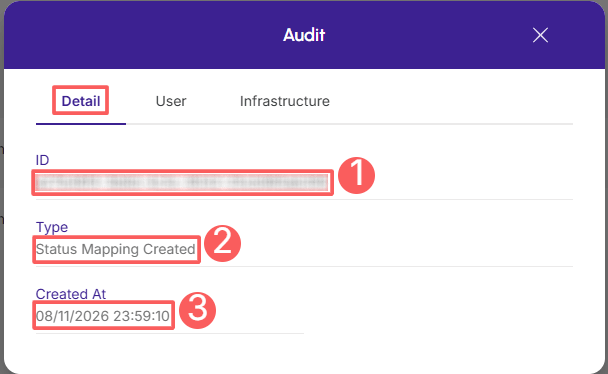
Detail
Displays detailed information of the activity in question.
-
ID: identification number (ID) of the update;
-
Type of change made;
-
Created at: date of activity record.
User
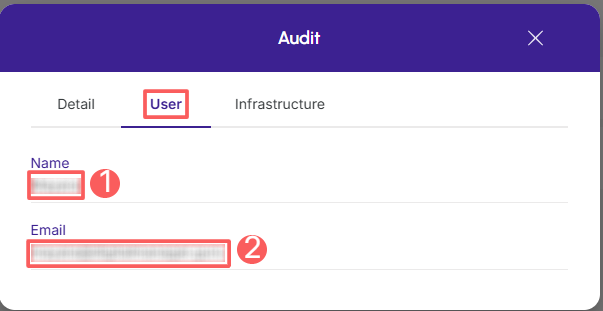
Displays information about the user who performed the action.
-
Name: name of the user who performed the operation;
-
Email: email of the user who performed the operation.
Infrastructure
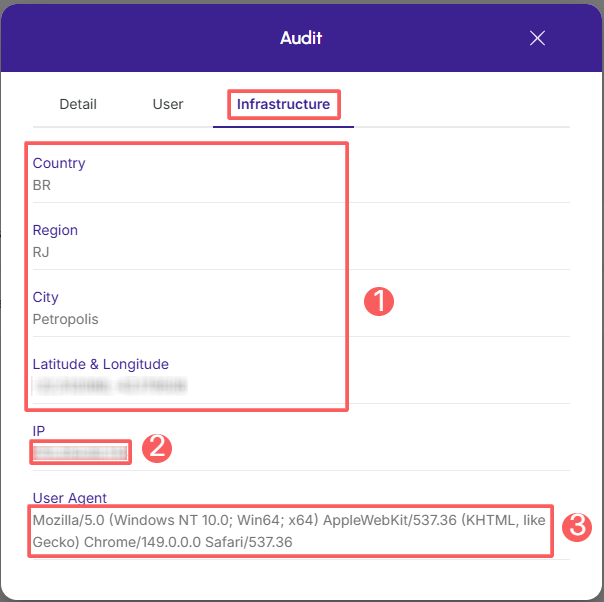
Displays infrastructure information (country, IP, user agent...) of the related activity.
-
Country, Region, City, Latitude & Longitude: location of the device that performed the activity;
-
IP: ip address of the device;
-
User Agent: identification of the user agent that performed the operation.
Consult Audit filters
You can use filters to view a smaller subset of existing audits. This feature is useful for finding specific audits you want to view.
By default, only records from the last 28 days will be shown, but the period can be changed in the filters, in the Period field.
Steps:
1 - In the side menu, go to Settings > Integrations > SMS > Marktel.
2 - Click on Additional Settings and then on Status Mapping.
3 - Click on the Audit tab.
4 - In Audit, click on Filters.
5 - Fill in one or more filter options:
-
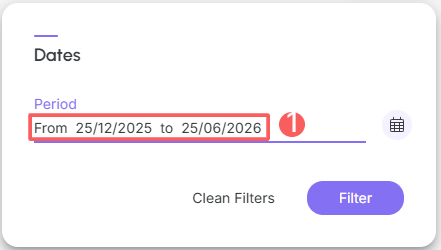
Period: searches for audits registered in the selected period - you can use the predefined time range buttons or select the date you want to view;
6 - Click on Filter.
You can view the number of applied filters, and when using them, you can clear them without accessing the Filters icon again, making selection removal easier.
Protect your data. Increase your business security.
Create and manage users determining what each employee can see and do within the organization.
More Resources