With Guru, you can create, change, and remove users, whether they are administrators or collaborators, such as traffic managers, for example. Grant each one independent access to the platform, ensuring team autonomy and, most importantly, the security of your business.
On this Page:
-
Create user
-
Change user
-
Remove user
Create user
In this section, you can create a user to grant access to your account.
Steps:
1 - Access the guru admin with your username and password.
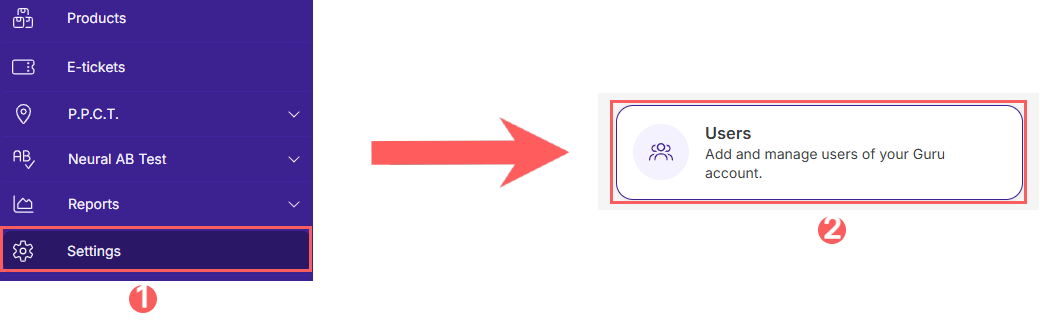
2 - In the side menu, click on Settings, then click on Users.
3 - In Users, click on Add User.
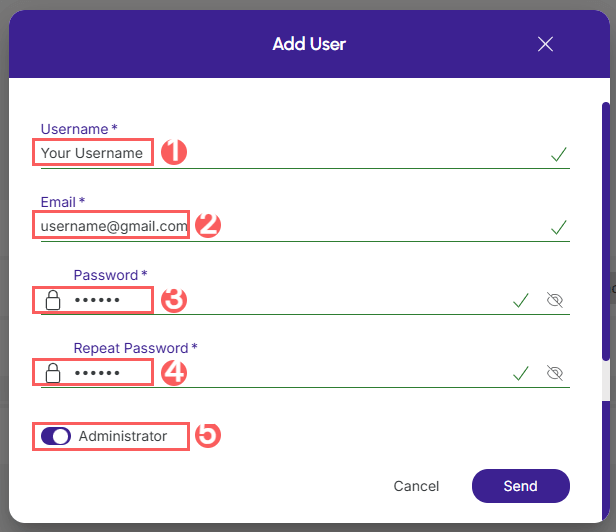
4 - In Add User, inform:
Add User as Administrator
-
Username: the username;
-
User's Email do usuário: the email of the user you want to add;
-
Password: the password for your user;
-
Confirm password: confirm the password for your user;
-
Change the button to the on position, if the user is an Administrator of the account.
Add User
-
Username: the username;
-
User's Email do usuário: the email of the user you want to add;
-
Password: the password for your user;
-
Confirm password: confirm the password for your user;
-
Administrator: change the button to the off position, if the user is not an Administrator of the account;
-
Roles: select the user's role - if desired, you can select more than one user.
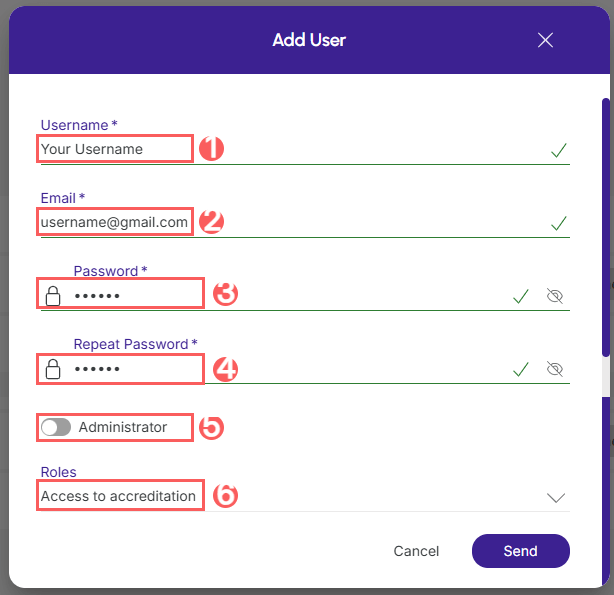
5 - Click on Send.
Change user
In this section, you can change the user who will access your account.
Steps:
1 - Access the guru admin with your username and password.
2- In the side menu, click on Settings, then click on Users.
3 - In the list, locate the desired user and click on it.
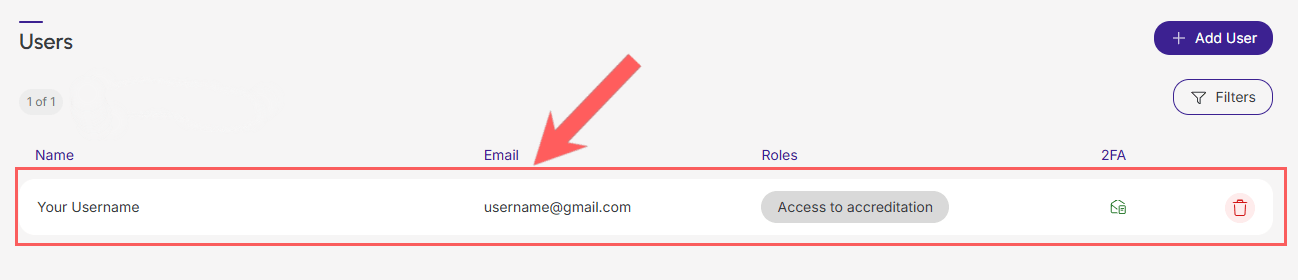
4 - Consult the information to change the user.
Remove user
Once created, if you are an account administrator, you will be able to remove the user in Guru. This feature is useful when you no longer wish to grant access to the user.
Steps:
1 - Access the guru admin with your username and password.
2- In the side menu, click on Settings, then click on Users.
3 - In the list, locate the desired account and click the Remove button corresponding to it.

4 - In Remove User, Transfer Ownership to select the user you want to transfer.
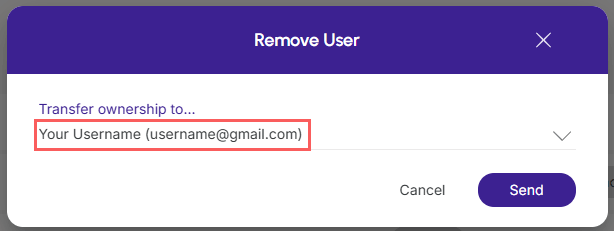
We always recommend transferring ownership to another admin user.
5 - Click on Send.
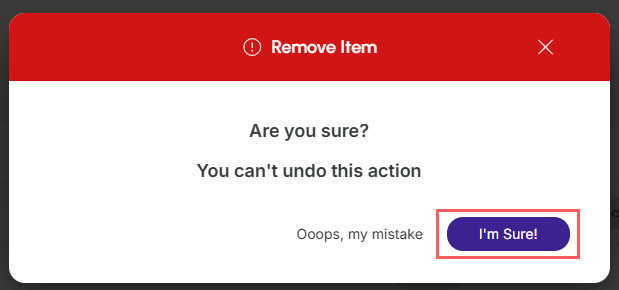
6 - Confirm if you want to perform the deletion. To confirm that the user has been deleted, a message will be displayed for a few seconds in the top right corner of the page.