
Ads registered in Guru are automatically listed in the ad accounts section in the Meta Ads section.
To find Meta Ads ad accounts in a list with many records, you can search and filter the list.
On this page:
-
View the list of ads
-
View an ad's data
-
How to filter the list of ads
Before you start, you need…
-
Be an administrator or have permission to perform the following actions.
View the list of ads
By default, the list of ad accounts is organized by creation date (newest to oldest). For faster page loading, only the first 30 records are displayed. If you want to view the remaining items in the list, you can scroll to the bottom of the page and click on View more at the bottom center of the screen.
Steps:
1 - Access the Guru admin with your username and password.
2 - In the side menu, go to Settings > Integrations > Publishers > Meta Ads.

3 - Click on the Ads tab.
4 - The list displays the following information:
-
Ad: meta Ads ad name;
-
Campaign: name of the campaign where the ad is inserted;
-
Adset: ad set;
-
Created at: date and time the ad was created.

View an ad's data
You can view1 all ad information.
(1) You must have permission to perform these actions.
Steps
1 - Access the list of ads - if desired, you can apply a filter.
2 - Locate the desired ad in the list.
3 - Click on the desired ad.
4 - Consult the ad information.

How to filter the list of ads
You can use filters to view a smaller subset of existing ads. This feature is useful for finding specific ads you want to view.
Attention: list searches have a maximum selection limit of up to 100 items per filter.
Steps:
1 - Click on the Ads tab. Then, when the page loads, a list of all ads will be displayed.
2 - In Ads, click on Filters.
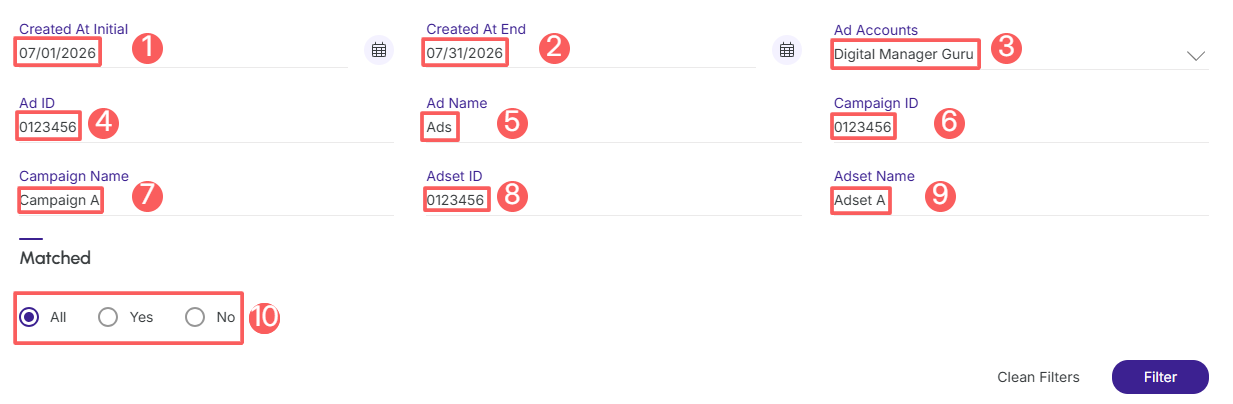
3 - Fill in one or more filter options:
-
Created at (initial): searches for ads created with date equal to or greater than - if you want to filter all ads regardless of date, just leave this field empty;
-
Created at (end): searches for ads created with date equal to or less than - if you want to filter all ads up to the current date, just leave this field empty;
-
Ad Accounts: searches for ad accounts - if you want to display all accounts, select all;
-
Ad ID: searches by the ad's identification number;
-
Ad Name: searches by the ad's name;
-
Campaign ID: searches for the identification number corresponding to the campaign;
-
Campaign Name: searches by the campaign's name;
-
Adset ID: searches by the ad set's identification number;
-
Adset Name: searches by the ad set's name;
-
Matched: searches for ads that are or are not linked to tracking.
4 - Click on Filter.