
The LinkedIn Campaign Manager is Linked. In's ad management platform. In it, you can create campaigns, track their performance, and set up conversion rules, which determine which actions taken on the platform will be recorded as conversions.
For these conversions to be recorded correctly, you need to obtain the Linked. In Partner ID and configure the conversion rule. Then, in Guru, you must enter the ID and add a conversion rule to receive the information. After that, you must activate event tagging so that the configured events are sent to LinkedIn Campaign Manager.
On this page, you will find the step-by-step guide to perform each of these configurations to integrate Guru with LinkedIn and send conversion events to LinkedIn Campaign Manager.
On this page:
-
Step 1: Obtain Linked: In Partner ID
-
Step 2: Configure the conversion rule on Linked: In
-
Step 3: Configure the Linked: In ID in Guru
-
Step 4: Add conversion in Guru
-
Step 5: Activate conversion in Guru
Before you start, you need:
-
Have an active user account.
-
Have an active ad account.
-
Be an administrator user in Guru or have permissions to perform the following steps.
Step 1: Obtain Linked: In Partner ID
In this step, you will obtain the Linked. In Partner ID to configure the Linked. In conversion rule in Guru. The Linked. In Partner ID is a unique identifier for your Linked. In ad account and allows Guru to send conversion events correctly to Linked. In Campaign Manager.
After configuring the LinkedIn Partner ID, you can add and manage as many conversions as you wish in Guru.
Steps:
1 - Access your LinkedIn Campaign Manager environment with your email and password.
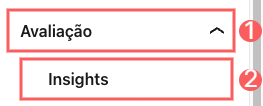
2 - In the side menu, click on Evaluation and then Insights.
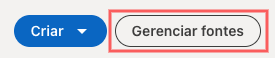
3 - In Insights, click on Manage sources.
4 - Click on Insight Tag.

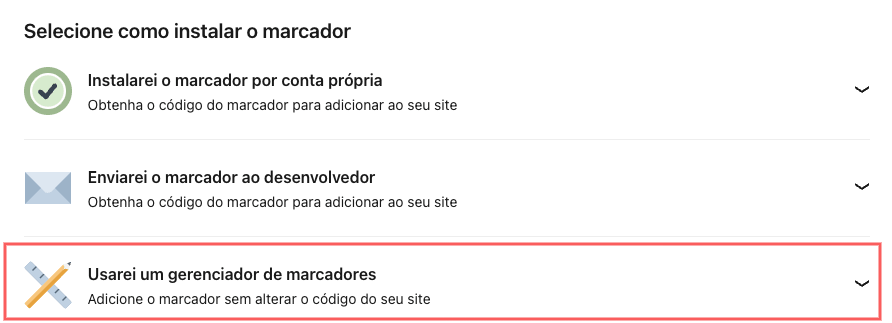
5 - Click on I will use a tag manager.
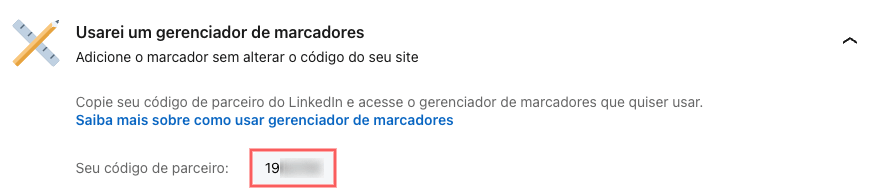
6 - Copy and store the LinkedIn Partner ID.
Step 2: Configure the Conversion Rule on Linked: In
In this step, you will create a conversion rule on Linked. In. The conversion rule defines which actions will be recorded as conversions and used to monitor the performance of your ad campaigns.
Steps:
1 - Access your LinkedIn Campaign Manager environment with your email and password.
2 - In the side menu, click on Evaluation and then Conversion Tracking.
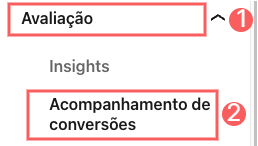
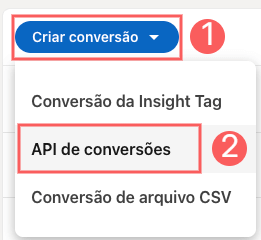
3 - In Conversion Tracking, click on Create conversion and then Conversion API.
4 - Fill in the fields for defining conversion rules:
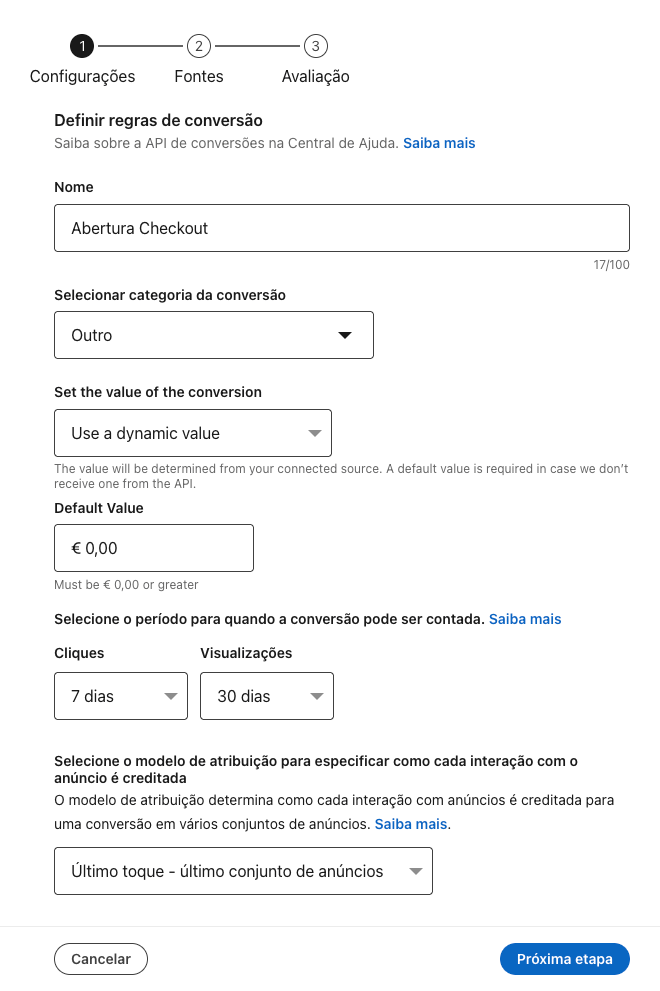
Conversion rules must be configured according to your needs. Learn more about the LinkedIn Conversion API.
5 - Click on Next step.
6 - Then, in Connected, click on Direct API.
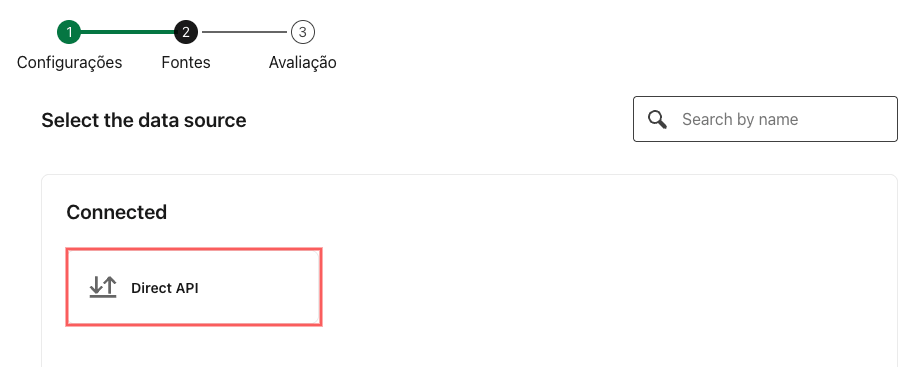
7 - In Direct API, click on Next step.
8 - Then, click on Create.
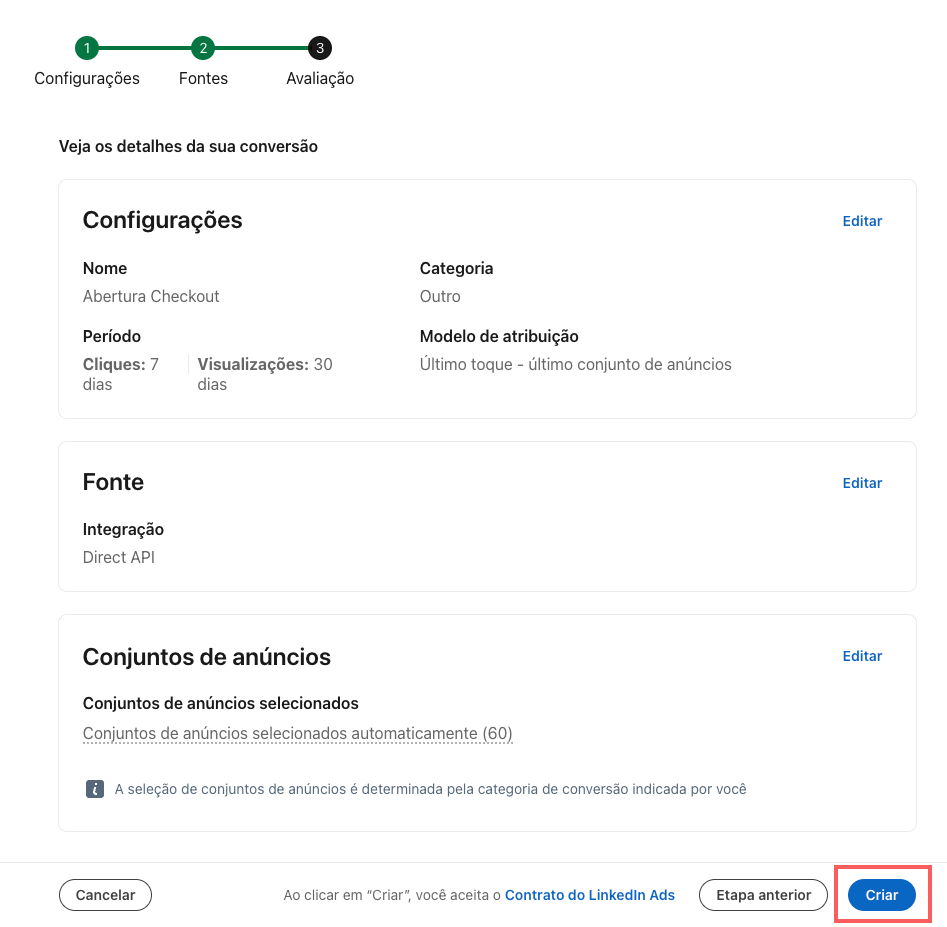
Done! Your conversion rule has been created and can be associated with Guru.
Step 3: Configure the Linked: In ID in Guru
In this step, you will register the Linked. In Partner ID. The Linked. In Partner ID establishes communication between Guru and your Linked. In ad account, allowing conversion events to be sent to the platform.
Steps:
1 - Access the Guru admin with your username and password.
2 - In the side menu, go to Settings > Integrations > Publishers > LinkedIn.

3 - Click on the Conversions tab.
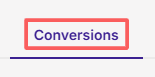
4 - In Conversions, enter the LinkedIn Partner ID - obtained from step 1, item 8.

5 - Click on Send.
Step 4: Add Conversion in Guru
In this step, you will add a conversion in Guru to associate a conversion rule created on LinkedIn with a Guru event, allowing conversions to be automatically sent to LinkedIn Campaign Manager when the configured event occurs.
Steps:
1 - Access the Guru admin with your username and password.
2 - In the side menu, go to Settings > Integrations > Publishers > LinkedIn.
3 - Click on the Conversions tab.
4 - In Conversions, click on Add Conversion.
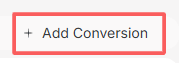
5 - In Add Conversion, enter:
-
Event: the name of the event for which you want to add conversion;
-
Ad account: the ad account on Linked: In - the ad associated with the account;
-
Conversion rule: the conversion rule to be added - obtained from step 2.
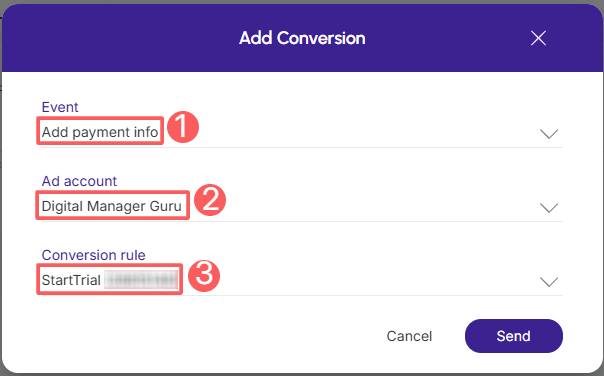
6 - Click on Send.
Step 5 - Activate conversion in Guru
In this step, you will activate event tagging so that the configured events are sent to LinkedIn Campaign Manager.
To do this, after configuring the LinkedIn Partner ID and adding a conversion in Guru, you must access the checkout settings and select the LinkedIn conversion you want to use for event tagging.
In Guru, checkout settings can be applied at three levels: global, product, or offer.
Steps:
1 - According to the configuration level you wish to apply:
1.1 - Global Level: access Settings » Checkout.
1.2 - Product Level: access Products » (desired product) » Checkout.
1.3 - Offer Level: access Products » (desired product) » Offers » (desired offer) » Checkout.
2 - Click on Pixels.
3 - In Pixels, select the LinkedIn Conversion(s) you want to configure.

4 - Click on Send.