
The configuration of dynamic offers is an excellent way to automate the generation of checkout links with personalized values.
In Guru, you can create dynamic offers that facilitate and accelerate the sales process as a way to personalize the shopping experience and increase conversions, displaying special offers directly on the payment link.
This strategy allows you to create unique URLs with specific parameters in your checkout.
On this page:
-
Add a Dynamic Offer
-
Remove a Dynamic Offer
Before you start, you need to…
-
Be an administrator user or have permission to perform the following actions.
Add a Dynamic Offer
You can add a dynamic offer by filling in the fields with information such as products, offer, contact name, contact email, contact document, contact number. In addition to limiting changes to contacts already registered in the dynamic offer.
Steps:
1 - Access the Guru admin with your username and password.
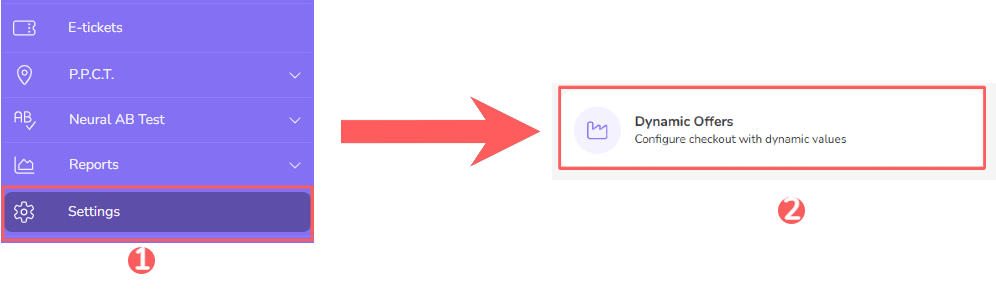
2 - In the side menu, click on Settings, and then, Dynamic Offers.
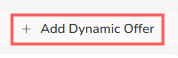
3 - Click on Add Dynamic Offer.
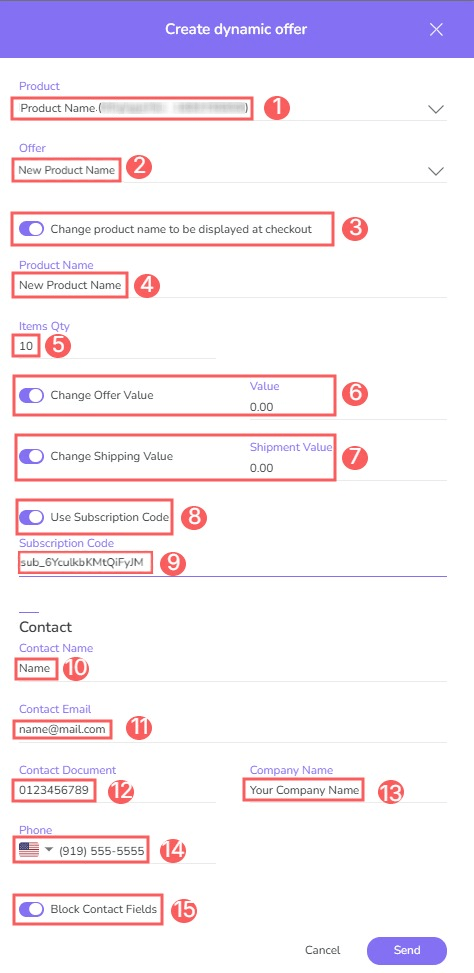
4 - Enter:
-
Product: select the product you will insert into the dynamic offer;
-
Offer: select the offer you will insert into the dynamic offer;
-
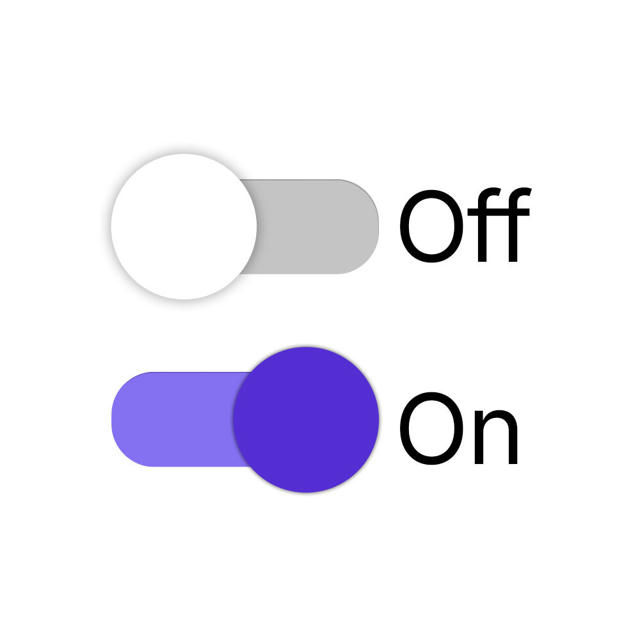
Switch the button to the on position if you want to Change the product name to be displayed at checkout;
-
Product Name: the name of the product you want to associate with the dynamic offer;
-
Quantity of items: the quantity of product items you will send to the customer;
-
Switch the button to the on position if you want to change the offer value;
-
Switch the button to the on position if you want to change shipping value;
-
Switch the button to the on position if you want to use the subscription code;
-
Subscription Code1: the subscription code you want to use - this option will be available if you have activated the previous option;
-
Contact name: the name of the contact you want to associate with the dynamic offer;
-
Contact email: the email of the contact you want to associate with the dynamic offer;
-
Contact document: the identification document of the contact you want to associate with the dynamic offer;
-
Company name: the name of the company you want to associate with the dynamic offer;
-
Mobile phone: the phone number of the contact you want to associate with the dynamic offer;
-
Switch the button to the on position if you want to block contact fields.
(1) When entering the subscription code, contact data such as name, email, phone contact, and document will be entered/loaded.
5 - Click on Send.
6 - In Create Dynamic Offers, copy the Checkout URL.
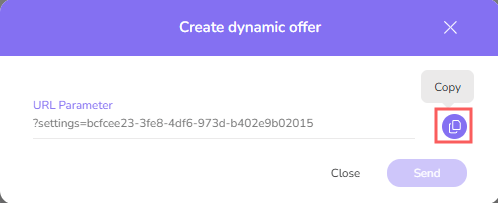
With this URL in hand, you have complete freedom to share it wherever you want, as the link directs to the purchase completion page, making the process much faster and more convenient.
Remove a Dynamic Offer
it is possible to remove a dynamic offer. When a dynamic offer is removed, the record is permanently deleted and cannot be restored.
Steps:
1 - Access the Guru admin with your username and password.
2 - In the side menu, click on Settings, and then, Dynamic Offers.
3 - Locate the desired Dynamic Offer and click on Remove - trash can icon.

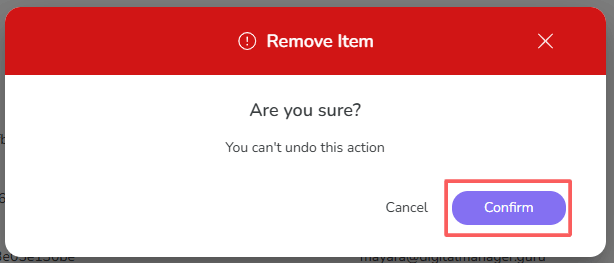
4 - A confirmation window is displayed. If you wish to proceed with the removal, click on Confirm.
More Resources